



 Solução
 Centro de Apoio
 Sobre nós
 Contato
How to Bypass MDM from an iPhone/iPad Without Data Loss
 Samuel Spenser publicado em maio 11, 2026Desbloquear iOSLeitura de 3 minutos
Today, to enhance security, most organizations manage mobile devices with mobile device management solutions, also called MDM. Once your iPhone or iPad is enrolled, you will lose full control of your device, such as the ability to factory reset, app installation, gameplay, and more. Bypassing MDM from an iPhone or iPad can be one of the most difficult things to do. This tutorial shares proven methods to get rid of MDM from your iOS device.

Neste artigo:
Part 1: What Does MDM Bypass Mean
MDM is short for Mobile Device Management. It is designed to lock mobile devices in an organization. Currently, MDM locks are becoming increasingly common on iPhones, iPad devices, and other mobile devices, especially those previously used or distributed by businesses or schools. With an admin password, you can remove MDM from your device quickly.
How to Remove MDM from iPhone with an Admin Password
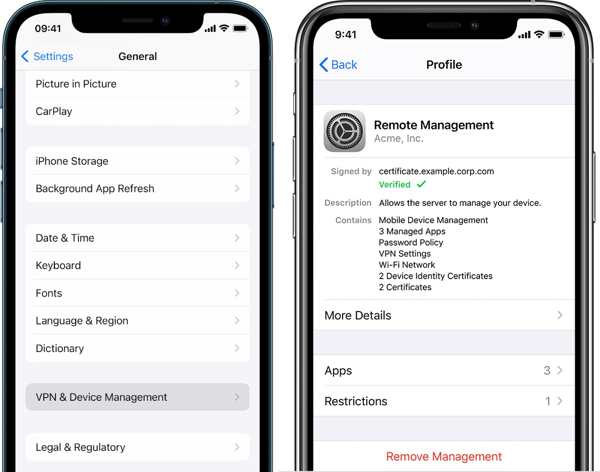
Vou ao Definições aplicativo.
Escolha o Em geral aba.
Toque VPN e gerenciamento de dispositivos.
Choose the MDM profile.
Em seguida, toque no Remover gerenciamento botão.
If prompted, enter the bypass code in the identificação da Apple field and keep the Senha field empty.
Conclua o processo de configuração.
How to Remove MDM from iPhone with a Bypass Code
When you are enrolled in an MDM, you can get an MDM Activation Lock bypass code free. With the code, you can bypass MDM when setting up your device again.
Abra o Definições aplicativo.
Vamos para Em geral, e então Transferir ou redefinir o iPhone.
Toque Apague todo o conteúdo e configurações.
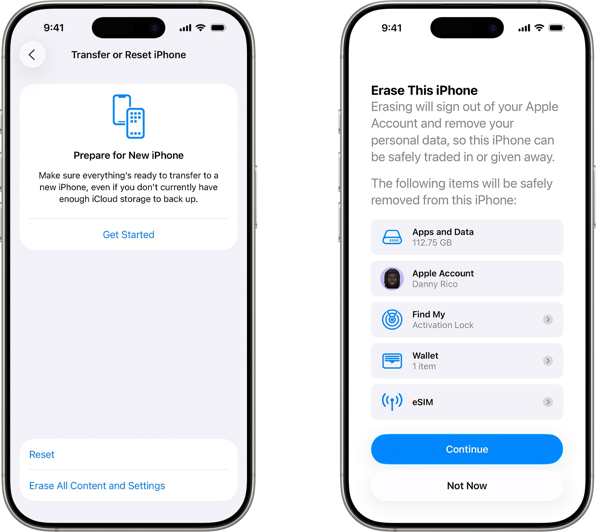
Follow the prompts to redefinir seu iPhone de fábrica.
When your iPhone restarts, set it up as a new device.
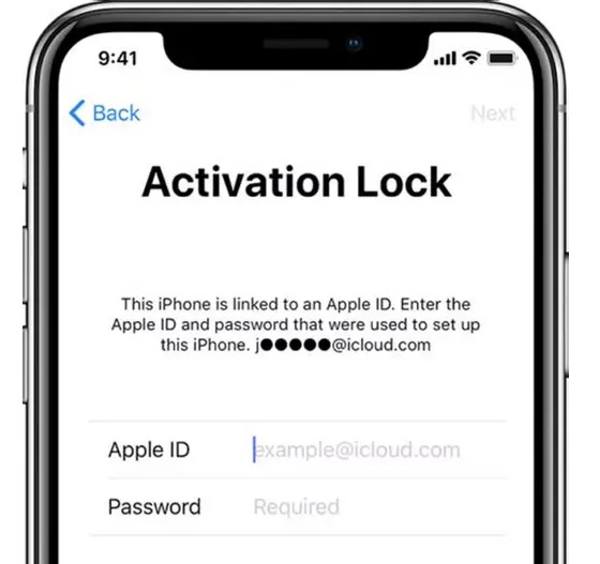
On the Activation Lock screen, enter your Apple ID and.
What does MDM bypass mean? If you don’t have an admin password or bypass code, you have to bypass MDM from your iPhone or iPad. It means that you need to get rid of the MDM control with a powerful tool.
Part 2: Bypass MDM on iPhone Without Data Loss
As mentioned previously, you need a powerful MDM bypass tool to unlock an enrolled iPhone or iPad. imyPass iPassGo, for instance, enables you to get rid of mobile device management locks without a password. Moreover, it won’t interrupt your data on your iOS device.

Mais de 4.000.000 de downloads
Bypass MDM from an iOS device without a password.
Proteja seus dados durante o processo.
Ofereça recursos de bônus, como remoção de senha do iPhone.
Support the latest editions of iOS and iPadOS.
How to Bypass MDM on Your iPhone Without Data Loss
Install the MDM bypass tool
Launch the MDM bypass software as long as you install it on your PC. It is compatible with Windows 11/10/8/7. There is another version for macOS 10.12 and above. Choose the Remover MDM modo para prosseguir.
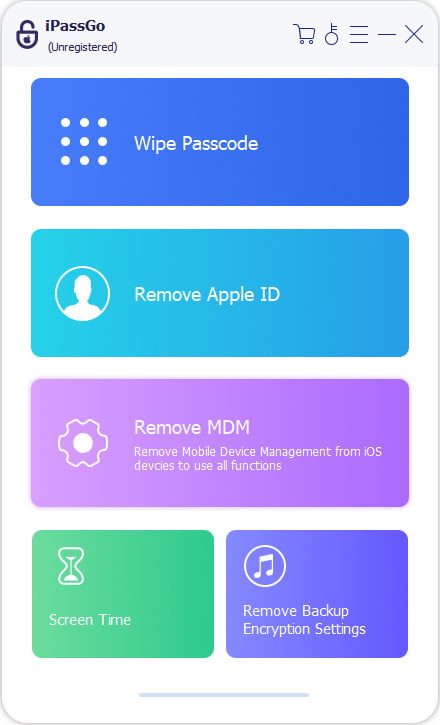
Conecte-se ao seu dispositivo
Connect your iPhone to your PC with a Lightning cable. The software will detect your device immediately. If prompted, tap Confiar na tela para confiar neste PC.
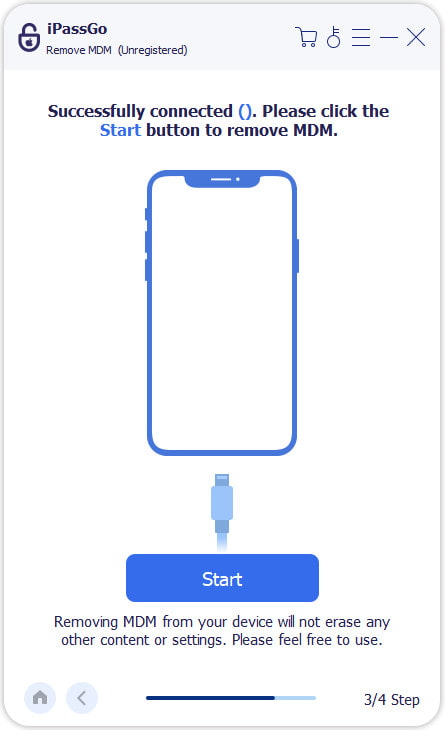
Ignorar MDM
If Find My is disabled on your iPhone, click the Começar button to begin bypassing MDM. If Find My is enabled, follow the onscreen instructions to turn it off. Then, bypass MDM from your device.
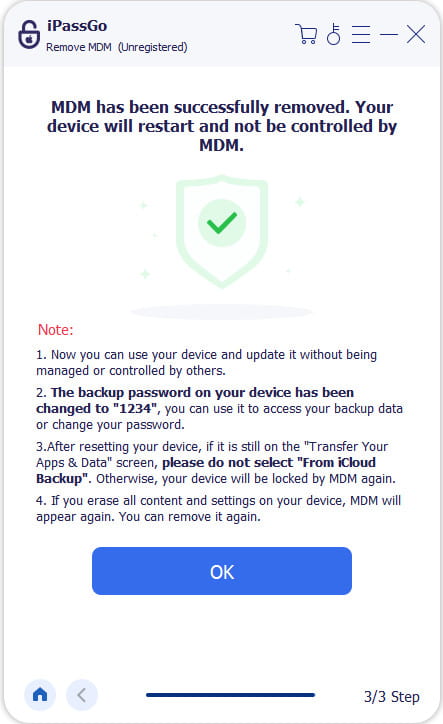
Part 3: More Free MDM Bypass Tools
Simply factory resetting your device won’t remove MDM. Furthermore, you cannot start a factory reset once your iPhone or iPad is enrolled in an MDM. We identify more free MDM bypassing tools below.
How to Bypass MDM with 3uTools
3uTools is a free toolkit for iOS devices. It enables you to bypass MDM on iPhone or iPad for free. It works on both macOS and Windows. If you don’t mind the low success rate, try the steps below:
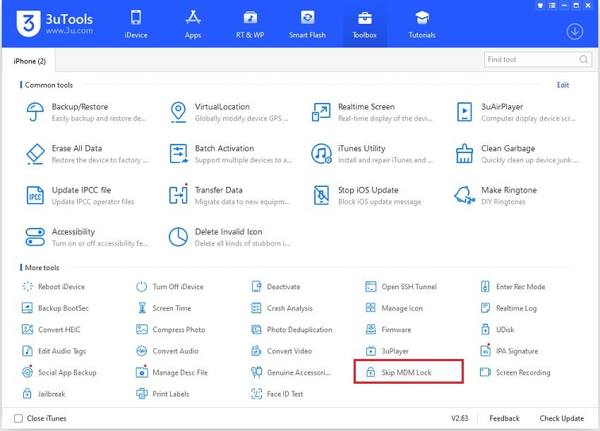
Install the free MDM bypass tool on your computer.
Plug your iPhone into the computer with a USB cable.
Vou ao Caixa de ferramentas tab at the top of the software.
Escolha o Pular bloqueio MDM opção.
A seguir, clique no Pular agora button on the warning dialog, and hit Desativar.
How to Bypass MDM Using MDMPatcher Enhanced
MDMPatcher Enhanced is the GitHub MDM bypass tool. It was designed for second-hand iOS devices where MDM was not removed correctly. It won’t jailbreak, exploit, or modify firmware on your iPad or iPhone. It works for iOS 15 to 18.5.
Download the IPSW file from the official website on a Mac.
Connect your iPhone to your Mac and put your device in Recovery Mode:
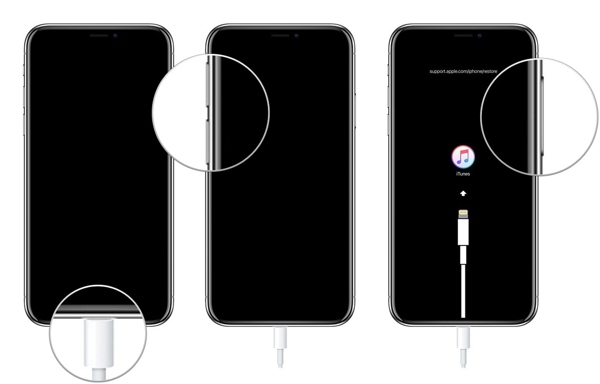
iPhone or iPad without a Home button
Press and quickly press the Aumentar o volume botão.
Faça a mesma coisa com o Volume baixo botão.
Segure o Lado até que a tela do Modo de Recuperação apareça.
iPhone 7/7 Plus
Pressione e segure o Diminuir volume + Lateral botões juntos.
When your iPhone enters Recovery Mode, release the buttons.
iPhone or iPad with a Home button
Segure o Lar + Poder botões simultaneamente.
Let the buttons go once you see the Recovery Mode screen.
Open iTunes on macOS Mojave and earlier or Finder on macOS Catalina and later.
Segure o Opção key on your keyboard and click either Atualizar ou Restaurar.
Choose the IPSW file you downloaded.
After restoration, follow the initial setup until you reach the Wi-Fi section screen. Don’t connect to any network.
Open the MDMPatcher app on your Mac.
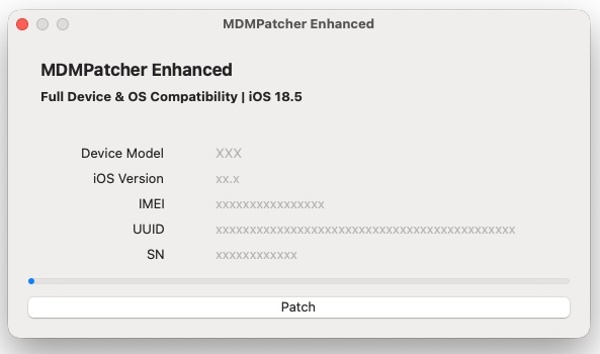
Once your device information shows, click the Correção botão para concluir o processo.
Finally, follow the instructions to complete the setup.
You May Also Like:
Conclusão
This guide shared how to bypass MDM on your iPhone or iPad. 3uTools, for example, is a free way to skip MDM from your iOS device. If it fails, try the MDM removal tool on GitHub. It is open-source and free. imyPass iPassGo is the ultimate solution to get rid of MDM without any restrictions.
Samuel specializes in password security and digital privacy. He used to work as a cybersecurity consultant for small businesses to protect digital assets. With certifications in Cybersecurity and Ethical Hacking, he turns complex security topics into easy-to-follow advice. He also enjoys sharing password tips to help users protect their accounts more confidently.
Soluções quentes
-
Desbloquear iOS
-
Dicas para iOS
-
Desbloquear Android
-
dicas de senha


