



 Solução
 Centro de Apoio
 Sobre nós
 Contato
How to Remove Old Apple ID from iPhone Without Previous Owner
 Samuel Spenser publicado em agosto 20, 2026Desbloquear iOSLeitura de 3 minutos
Como eu faço remover o ID Apple do proprietário anterior sem uma senha? If you bought a second-hand iPhone or received a used device from a family member, you may find that it is still linked to another Apple ID. The safest way is to ask the previous owner to remove their account from the device, but what if you cannot contact them? This guide covers all workable methods to remove the previous owner's Apple ID from your iPhone.

Neste artigo:
Parte 1. Como remover o ID Apple do proprietário anterior sem senha
When buying a used iPhone, iPad, or iPod, you may find that the device is still linked to the previous owner's Apple ID. This can limit access to certain features or trigger Activation Lock. To remove old Apple ID without password, imyPass iPassGo provides you an effective way to delete the Apple Account and regain access to your device.

Mais de 4.000.000 de downloads
Remove a previous owner's Apple ID without password.
Delete locked, disabled, inactivated Apple ID easily.
Disable Screen Time and remove MDM restrictions.
Support the latest iOS versions and new iPhone models.
Connect iOS device to computer
Launch the software on your computer, then select the Remover ID Apple mode from the interface. Use a USB cable to connect your device to the computer. Once connected, click the Comece agora botão.
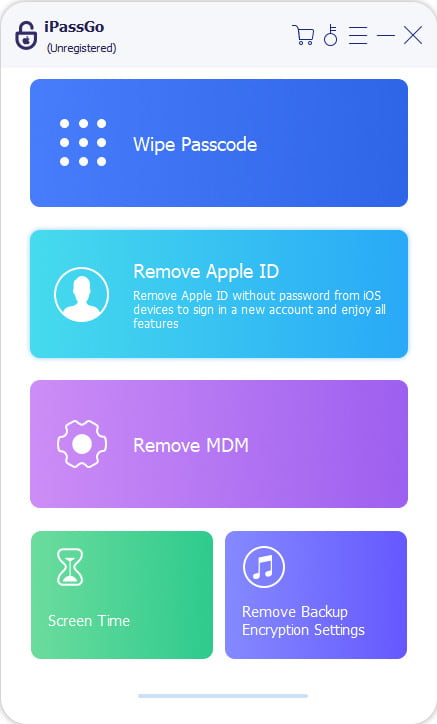
Remove Apple ID from your device
If Find My iPhone is turned off:
imyPass iPassGo can remove your Apple ID password immediately.
If Find My iPhone is enabled:
You'll need to reset all settings on your device. Go to Definições > Em geral > Redefinir todas as configurações. Then, imyPass iPassGo will start removing the Apple ID instantly.
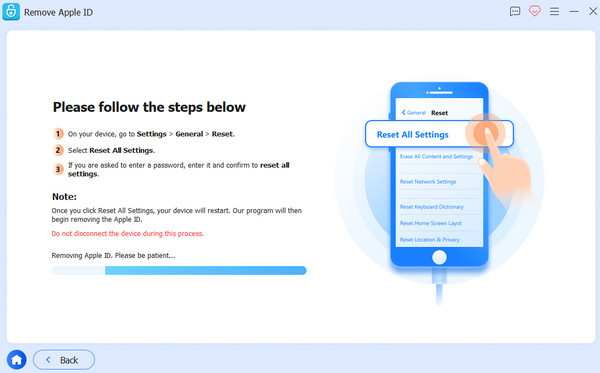
Confirm the unlocking process
When all has settled, click Confirm Again, then the previous owner's Apple ID will be removed soon.
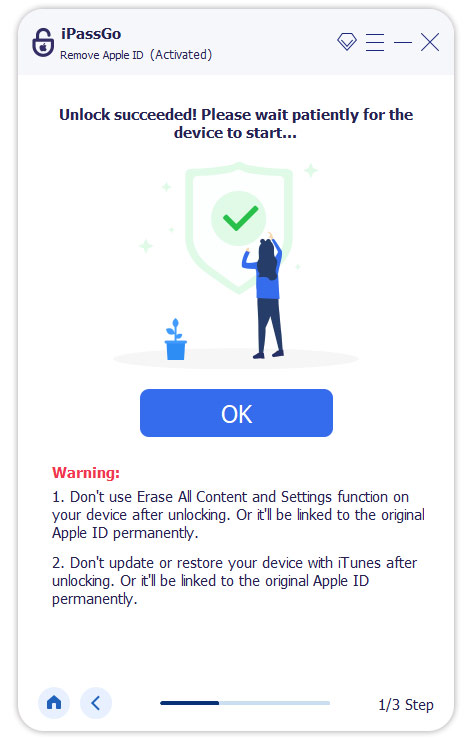
Parte 2. Como apagar o ID Apple do proprietário anterior com senha
If you can contact the previous owner for help, removing the Apple Account is much easier. Here are 3 official ways to remove the previous owner's Apple ID from your iPhone, either directly from the device or remotely.
Method 1: Sign Out of Apple ID via Settings
If the previous owner of the device is willing to share their Apple ID details, signing out of Apple ID directly on the iPhone is the easiest and safest solution. After signing out, the device will no longer be linked to their account and can be set up with a new Apple ID.
Veja como fazer:
Abra o aplicativo Ajustes do iPhone e pressione identificação da Apple na parte superior da tela.
Depois disso, clique em Sair opção, que aparecerá após rolar para baixo.
Prossiga digitando a senha do ID Apple quando solicitado e clique em Ok.
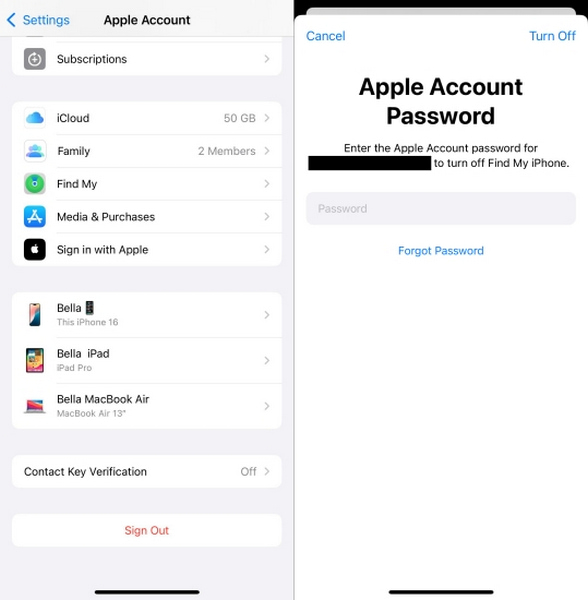
Por fim, conclua a etapa clicando em Desligar após desmarcar a opção para manter o dispositivo vinculado ao ID Apple.
Método 2: Remover o ID Apple via iCloud.com
If the previous owner is not near the device, they can remove the iPhone from their Apple account remotely through iCloud.com. This method is useful when the owner has already transferred the device but forgot to sign out.
O primeiro passo é solicitar que o proprietário anterior faça login em seu ID Apple em iCloud.com.
Para começar, clique em Encontrar iPhone e aguarde o carregamento terminar antes de selecionar o dispositivo específico que precisa ser removido.
Depois disso, clique Remover este dispositivo e inserir a senha do ID Apple confirma a ação e então você clica Remover de novo.
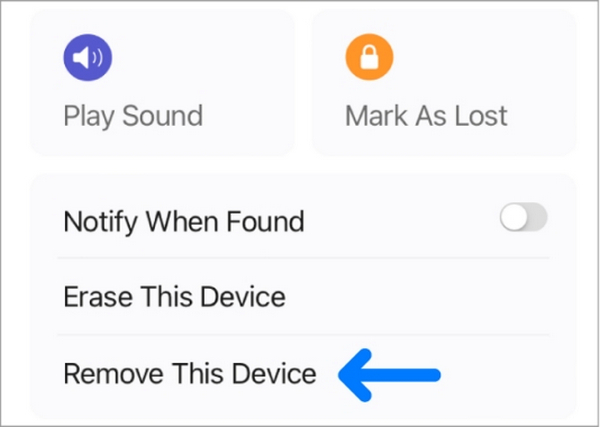
Como resultado, o iPhone terá seu Apple ID desassociado e será redefinido para os padrões de fábrica, configurando-o para uma nova ativação.
Método 3: Apagar o ID Apple usando o aplicativo Buscar
If the previous owner has another Apple device, they can also use the Find My app to unlink the iPhone remotely.
Como mencionado, o proprietário deve iniciar o Buscar no seu dispositivo Apple e tocar na aba Dispositivos.
Agora, eles devem navegar até o iPhone que corresponde à transferência.
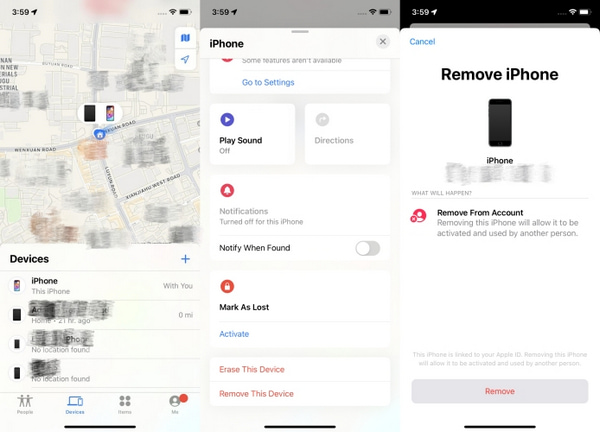
Em última análise, eles devem tocar Remover este dispositivo e siga isso tocando Remover porque o iPhone estará livre do iCloud.
Part 3. Things to Check Before Buying a Second-Hand iPhone
Before purchasing a second-hand iPhone, it is important to check the device status carefully to avoid buying a phone that is linked to another Apple ID, reported as lost or stolen, carrier-locked, or affected by hidden restrictions. Taking a few minutes to verify these details can help ensure the iPhone is ready for a new owner.
1. Cheque de garantia / Cheque perdido
Solicite o número IMEI do telefone ao vendedor. Em seguida, consulte um verificador de IMEI de lista de bloqueio para verificar se o telefone foi perdido ou roubado. Se um dispositivo for bloqueado, ele não poderá se conectar aos serviços móveis e poderá permanecer bloqueado permanentemente.
2. Check the Carrier Lock Status
Some iPhones are locked to a specific carrier and may only work with SIM cards from that network. Before buying a used iPhone, confirm whether it is unlocked and compatible with your carrier.
| Status do bloqueio | O que isso significa | Ação necessária |
| Desbloqueado | Funciona com qualquer SIM de operadora | Nenhuma ação necessária |
| Trancado | Ligado a uma transportadora, muitas vezes devido a contrato | Peça ao vendedor para desbloqueá-lo primeiro |
| Na lista negra | Relatado como perdido/roubado, bloqueado por todas as operadoras | Evite comprar este dispositivo completamente |
3. Certifique-se de que o bloqueio de ativação esteja DESATIVADO
Activation Lock is an Apple security feature connected to the owner's Apple ID. It helps protect a lost or stolen iPhone by preventing others from activating the device without the original account credentials.
Before completing the purchase, make sure the previous owner has removed the Activation Lock. You can check this by:
- Asking the seller to sign out of their Apple ID and erase the iPhone in front of you.
- Restarting the device and going through the setup process to confirm that it does not request the previous owner's Apple ID password.
If the iPhone asks for the previous owner's Apple ID during setup, the device is still protected by Activation Lock.
Perguntas frequentes.
-
Does a factory reset remove the previous owner's Apple ID?
No. Factory resetting an iPhone does not remove the previous owner's Apple ID if Activation Lock is enabled. After the reset, the device may still ask for the previous owner's Apple ID and password.
-
How do I get rid of an old Apple ID without a password?
If you know the previous owner, ask them to sign out of their Apple ID or remove the device from their account remotely. Or you can use a professional unlock tool like imyPass iPassGo to remove the previous owner's Apple ID.
-
Can Apple remove Activation Lock from an iPhone?
Apple may help remove Activation Lock if you can provide valid proof of purchase and ownership. Without ownership verification, Apple won't unlock a device linked to someone else's Apple ID.
Conclusão
Para apagar o ID Apple de um proprietário anterior de um iPhone, você pode usar métodos oficiais da Apple ou ferramentas confiáveis de terceiros, como imyPass iPassGo. Quer você tenha a senha ou não, este guia oferece soluções eficazes. Sempre verifique o status do dispositivo antes de comprar para garantir uma experiência tranquila e segura com o iPhone.
Samuel specializes in password security and digital privacy. He used to work as a cybersecurity consultant for small businesses to protect digital assets. With certifications in Cybersecurity and Ethical Hacking, he turns complex security topics into easy-to-follow advice. He also enjoys sharing password tips to help users protect their accounts more confidently.
Soluções quentes
-
Desbloquear iOS
-
Dicas para iOS
-
Desbloquear Android
-
dicas de senha


