Solução
 Centro de Apoio
 Sobre nós
 Contato
How to Remove Supervision on iPhone: 4 Methods to Try
 Samuel Spenser publicado em outubro 21, 2026Desbloquear iOSLeitura de 3 minutos
If your iPhone displays a message saying "This iPhone is supervised and managed by [organization]" in Settings, certain settings and features may be controlled by a school, company, or other administrator. You may want to remove supervision to regain control over your device, especially if you purchased a second-hand iPhone or no longer need a work management profile.
This post will show you how to remove supervision on iPhone. You can start with identifying how the device is managed. Some management profiles can be removed directly from Settings, while organization-owned devices may require an administrator to release them from management. This guide explains what iPhone supervised mode includes, when supervision can be removed, the available methods, and what to do afterward.
Neste artigo:
Part 1. What Does iPhone Supervision Include?
iPhone supervised mode is a device management state that gives an organization additional control over an iPhone. Schools and businesses commonly use supervision to enforce security policies, configure settings, distribute apps, and manage devices remotely.
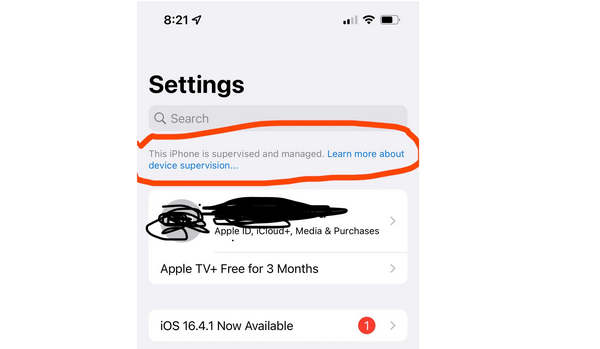
When an iPhone is supervised and enrolled in Mobile Device Management (MDM), an administrator may be able to:
- Restrict device features: Control access to certain apps, functions, and system settings.
- Configure network settings: Install Wi-Fi, VPN, email, and other configuration profiles.
- Manage applications: Install, configure, or restrict specific apps.
- Enforce security policies: Require passcodes, configure restrictions, and apply compliance rules.
- Manage devices remotely: Send supported commands, update settings, or erase a managed device.
MDM and Supervision:
Supervision and MDM are related but different. Supervision provides additional management capabilities, while MDM is the system used to configure and manage enrolled devices.
For example, the message "This iPhone is supervised by another computer" may indicate that the device was configured or managed through an organization or computer-based setup process. Check Definições > Em geral > VPN e gerenciamento de dispositivos to review any installed management profiles.
Part 2. When Can You Remove iPhone Supervision?
Before learning how to remove device supervision from iPhone, determine who owns the device and how it was enrolled.
You may be able to remove supervision when:
- You own the iPhone, and its management profile is removable.
- Your employer or school has approved unenrollment.
- The previous owner or organization has released the device from its management system.
- The iPhone was enrolled in an MDM service that allows users to remove the profile.
You may not be able to remove supervision yourself when:
- The administrator has prevented users from removing the MDM profile.
- The iPhone remains assigned to an organization through automated enrollment.
- The device belongs to a school or company that still requires management.
- You lack the administrator's authorization to change its management status.
Erasing an iPhone does not necessarily remove organizational enrollment. If the device remains assigned to an organization, Remote Management may appear again during setup.
If you purchased a used iPhone that is still managed, contact the seller and ask them to arrange an official release. Avoid attempting to bypass an organization's controls without permission.
Part 3. Methods to Remove Supervision on iPhone
The appropriate method depends on whether the device has a removable profile, requires administrator approval, or remains assigned to an organization.
Method 1. Remove the MDM Profile in Settings
If your iPhone allows profile removal, this is the simplest way to remove MDM from iPhone.
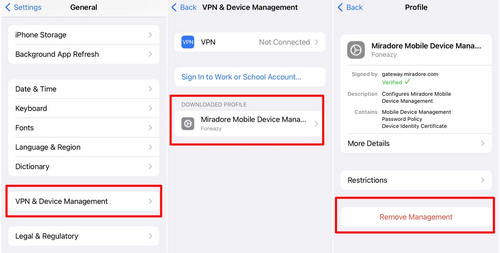
This iPhone supervision removal method works only when profile removal is permitted. If the removal option is unavailable or disabled, the profile may be locked by the administrator.
Removing a profile can also delete associated settings, managed accounts, and organizational data. Check the consequences before proceeding.
Method 2. imyPass iPassGo
If you cannot remove mobile device management from iPhone through Settings, and contacting the school, company, or organization still cannot work, imyPass iPassGo is your ultimate solution. Whatever the MDM and restriction on your iPhone or iPad, this program can quickly detect and delete them within seconds. You only need to connect and recognize your iPhone with it on your computer and then start the iPhone supervision removal process.
Pegue imyPass iPassGo on your omputer and connect your iPhone to your computer. Then, you'll need to choose Ignorar MDM.
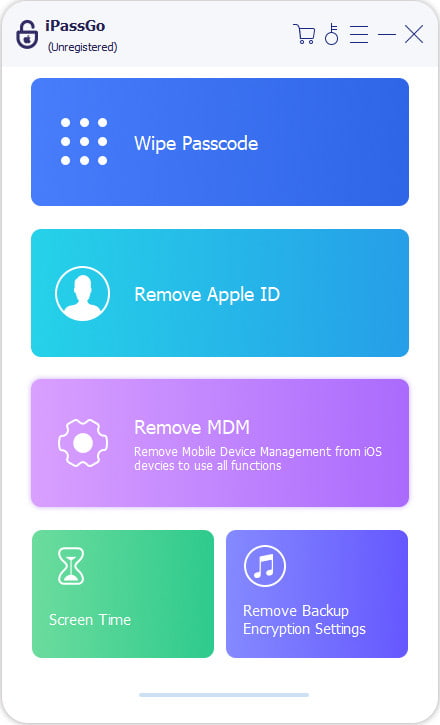
Ensure that your iPhone is well connected. This iPhone supervision removal tool can also test the connection. Click the Connected and Continue button if the connection is good.
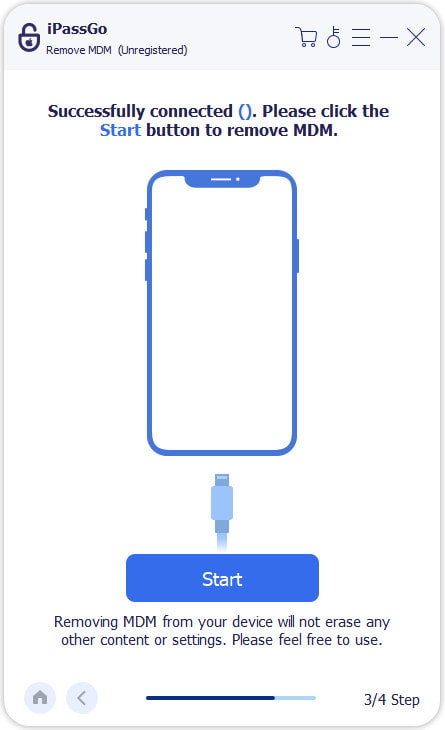
Finalmente, você só precisa clicar no botão Começar button to remove the supervision on your iPhone. The process may take only a few seconds in general.
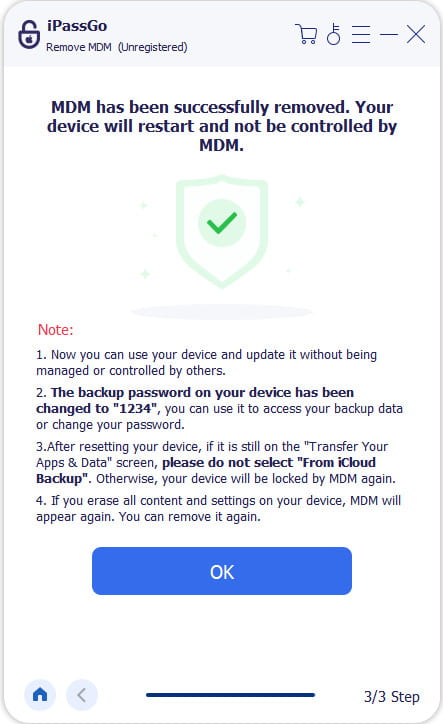
Method 3. Restore the iPhone After Management Has Been Released
If you need a clean setup, restoring the iPhone may be appropriate after the MDM supervision has officially released it. Before proceeding, back up important personal data and confirm that you know the Apple Account credentials required for activation.
- Ask the organization to confirm that the iPhone has been released from management.
- Back up your data to iCloud or a computer.
- Open Settings > General > Transfer or Reset iPhone.
- Selecionar Apague todo o conteúdo e configurações.
- Follow the instructions to erase and set up the device.
- Connect to Wi-Fi during activation and check whether Remote Management appears again.
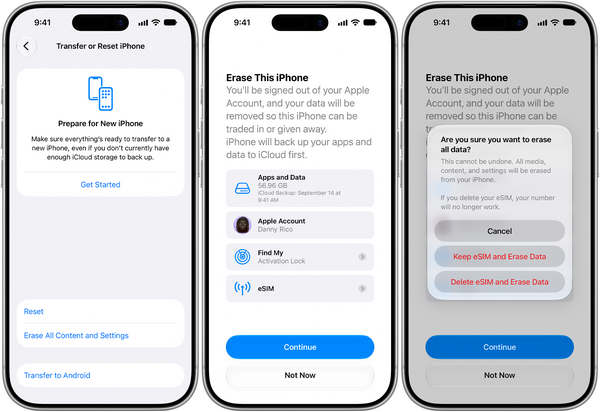
Important: Erasing the iPhone alone does not guarantee supervision removal. If the device is still assigned to an organization, remote management may return during setup.
Method 4. Contact Apple Support or the Original Seller
If you cannot identify the management source, contact Apple Support for guidance on the device's status and available options. For a second-hand iPhone, contact the seller or original organization and request that they remove the device from their management system. Provide proof of purchase if needed.
Apple Support may help you explain the situation of your iPhone supervision, but it cannot necessarily remove a supervision management restrictions on your behalf. The organization responsible for enrollment may need to take action.
Leitura Estendida:
Part 4. What to Do After Removing iPhone Supervision
Once supervision or MDM has been removed successfully, complete a few checks to make sure the iPhone works as expected.
Verify the Management Profile Is Gone
Go to Settings > General > VPN & Device Management. Check whether the previous management profile is still listed. If no profiles appear, there are no device management profiles installed in that section.
Check Restricted Settings and Features
Review Wi-Fi, VPN, app permissions, passcode requirements, and other settings previously controlled by the organization. Some settings may remain unchanged even after the profile is removed, so adjust them individually when necessary.
Restore Your Personal Data and Apps
If you erased the iPhone, restore your personal data from a suitable backup. Reinstall apps, sign in to your accounts, and verify that your photos, contacts, messages, and other important files are available.
Update iOS and Review Security Settings
Install available iOS updates and review Find My, Apple Account security, and privacy permissions. Keep your device protected with a strong passcode and two-factor authentication.
Confirm Remote Management Does Not Return
Restart the iPhone and check its supervision status again. If the Remote Management screen appears during setup, the device may still be assigned to an organization's automated enrollment system. Contact the responsible administrator rather than repeatedly erasing the device.
Conclusão
Sabendo how to remove remote management from iPhone begins with understanding the difference between supervision and MDM enrollment. You may be able to delete a removable profile in Settings, but organization-managed devices often require administrator approval and an official release from automated enrollment. Luckily, imyPass iPassGo provide a faster solution to remove supervision on an iPhone or iPad.
After iPhone supervision removal, verify the management status, restore personal data if necessary, and review your security settings. These steps help ensure that your iPhone is properly configured and ready for personal use.
Samuel specializes in password security and digital privacy. He used to work as a cybersecurity consultant for small businesses to protect digital assets. With certifications in Cybersecurity and Ethical Hacking, he turns complex security topics into easy-to-follow advice. He also enjoys sharing password tips to help users protect their accounts more confidently.
Soluções quentes
-
Desbloquear iOS
-
Dicas para iOS
-
Desbloquear Android
-
dicas de senha