



 Solução
 Centro de Apoio
 Sobre nós
 Contato
3 Quick & Easy Methods to Unlock iPhone with a Mask
 Samuel Spenser publicado em abril 15, 2026Desbloquear iOSLeitura de 3 minutos
You put on a face mask, and suddenly your iPhone can't recognize your face. It can be quite annoying when Face ID fails, forcing you to remove your mask or type your passcode repeatedly. If you're wondering how to open iPhone with Face ID with a mask, this guide will show you several simple and effective ways to unlock your iPhone smoothly.

Neste artigo:
Part 1. How to Unlock iPhone Using Face ID with a Mask
Face ID with a Mask is an official feature released by Apple for iPhone 12 and newer models, allowing you to unlock your phone quickly even with a face mask. First, you need to turn on this feature on your iPhone.
How to enable it:
Abrir Definições, em seguida, toque em ID facial e senha.
Scroll down and turn on Face ID com uma máscara.
Follow the on-screen instructions to scan your face and set up Face ID.
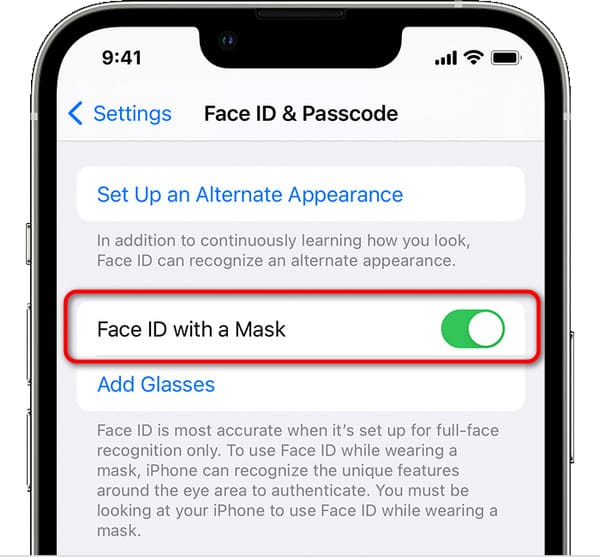
Observação:
• Your eyes must be clearly visible, as Face ID needs to detect your eyes and the surrounding area.
• If your face mask sits too high or too close to your eyes, your iPhone may not unlock with Face ID.
• This feature does not work when your iPhone is in landscape mode.
Part 2. How to Use Apple Watch to Unlock iPhone with a Mask On
If your iPhone model does not support Face ID with a Mask, or the feature fails to work, using Apple Watch to unlock iPhone is another reliable solution. Here's how to set it up step by step.
Requirements& Perquisites
Before setting it up, make sure the following conditions are met:
• Your iPhone supports Face ID and is running iOS 14.5 or later, and your Apple Watch (Series 3 or later) is running watchOS 7.4 or later.
• Your Apple Watch is paired with your iPhone, worn on your wrist, and unlocked.
• Your Apple Watch has a passcode and has enabled Wrist Detection.
• Wi-Fi and Bluetooth are enabled on your iPhone and Apple Watch.
Enable Unlock with Apple Watch
Abrir Definições, em seguida, toque em ID facial e senha.
Enter your passcode when prompted, then scroll down and turn on Face ID with Apple Watch.
Habilitar Wrist Detection if you haven't turned it on.
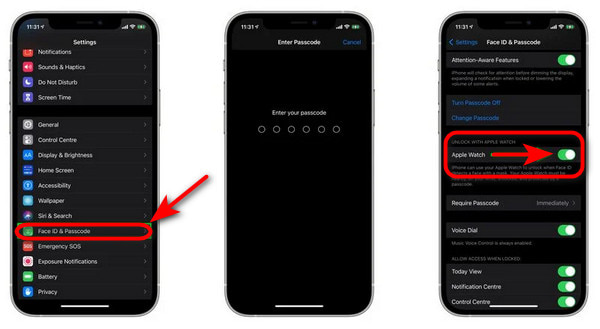
Steps to Unlocking iPhone with Apple Watch
Before unlocking your iPhone with a mask, make sure your Apple Watch is on your wrist and unlocked.
Wake your iPhone by raising it or tapping the screen.
Glance at your iPhone to unlock it, then swipe up from the bottom of the screen to begin using it.
Part 3. How to Unlock iPhone If Face ID is Not Working
Looking for a faster and more straightforward way to unlock your iPhone without a passcode? imyPass iPassGo, is your best one-click solution. If your iPhone has been disabled after multiple passcode attempts, or Face ID is completely unavailable and you've forgotten your passcode, this tool can help! Based on our testing on an iPhone 15, the unlock process takes about 10 minutes. Note that this method will erase all data on the device, but you can restore it later from an iCloud backup.

Mais de 4.000.000 de downloads
Erase Face ID, Touch ID, and screen password in easy 3 steps.
Get into your locked/disabled/cracked-screen iOS devices quickly.
Remove Apple ID, MDM, and iTunes backup encryption without a password.
A simple and intuitive interface makes it easy to navigate.
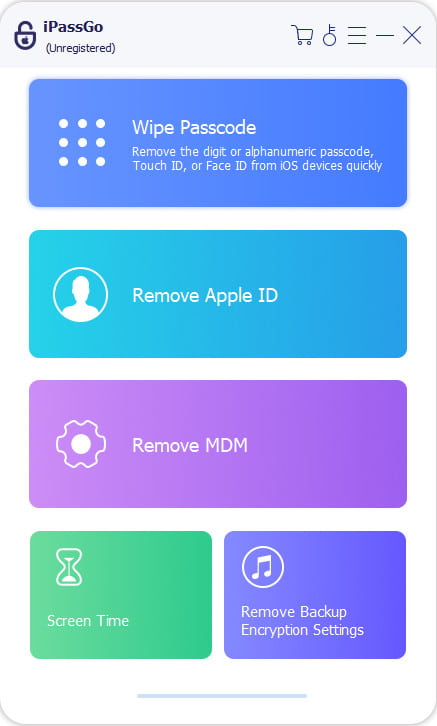
Launch this software on your computer, and choose the Limpar senha modo da interface.
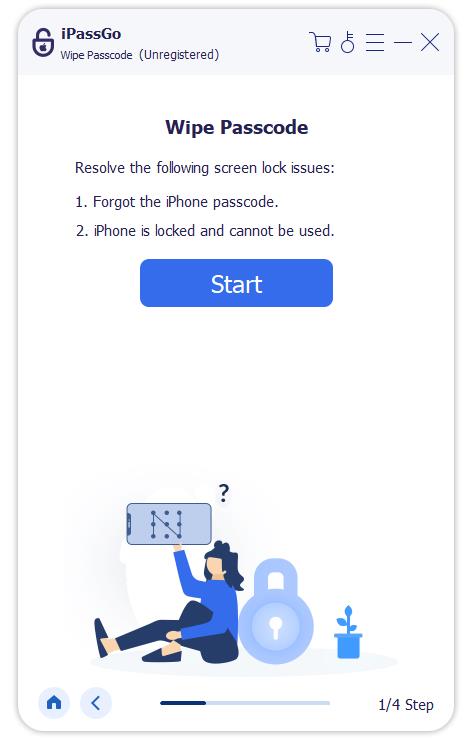
Connect your iOS device to a computer via USB, then click Comece agora continuar.
Confirme as informações do seu dispositivo e clique em Comece agora to download a firmware package.
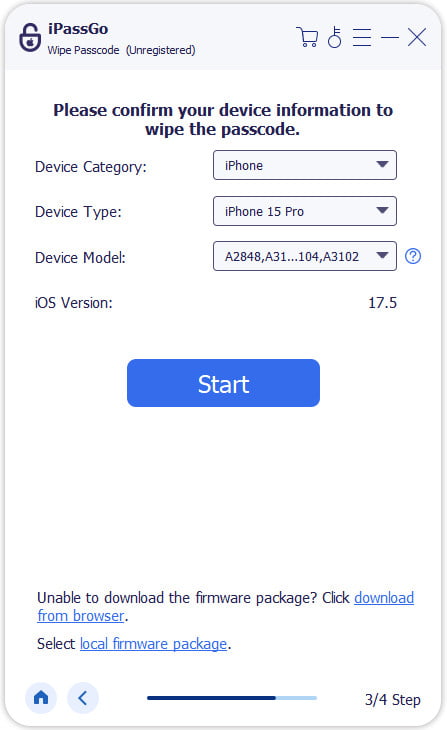
Clique no Desbloquear button to proceed. Read the notification and confirm again. Then your passcode will be automatically removed from your device.

Perguntas frequentes.
-
Why is Face ID not working with a mask?
If your Face ID is unavailable, try checking the following: (1) The feature is only available on iPhone 12 and later with iOS 15.4 and later. (2) Check that you have turned on Face ID with a Mask in Settings. (3) Make sure your eyes are clearly visible. If the mask covers your eyes or sits too high, face recognition with mask will fail.
-
My iPhone doesn't support Face ID with a mask. What can I do?
This feature is only available on iPhone models with iOS 15.4 or later. If your device isn't supported, you'll need to unlock your iPhone using your passcode or remove your mask when using Face ID. Updating to the latest iOS version may help if your device is compatible.
-
How to open iPhone with a mask on without Apple Watch?
You can use the built-in Face ID with a Mask feature. If your iPhone doesn't support it, you can also use a professional unlock tool like imyPass iPassGo.
Conclusão
Now you know all the best ways to unlock iPhone with a face mask. You no longer need to take off your mask, enter your passcode manually, or face repeated failed Face ID attempts. By enabling Face ID with a Mask or using an Apple Watch, you can access your iPhone quickly and smoothly.
Samuel specializes in password security and digital privacy. He used to work as a cybersecurity consultant for small businesses to protect digital assets. With certifications in Cybersecurity and Ethical Hacking, he turns complex security topics into easy-to-follow advice. He also enjoys sharing password tips to help users protect their accounts more confidently.
Soluções quentes
-
Desbloquear iOS
-
Dicas para iOS
-
Desbloquear Android
-
dicas de senha


