



 Solução
 Centro de Apoio
 Sobre nós
 Contato
Use the Emergency Calls Only Unlock Code to Access Any Phone
 Samuel Spenser publicado em abril 28, 2026Desbloquear iOSLeitura de 3 minutos
Mobile phones, like your iPhone, support screen lock to secure your stored data and information. However, it can be the reason why people are locked out of the iPhone or other devices. But have you seen the Emergency Call button on your screen lock?
This feature can be used for unlocking your phone, including an iPhone. This article discusses how to use the Emergency Call screen to unlock an iPhone. You will encounter its key acts and alternatives. Kindly scroll through this article to see all the details about the topic.

Neste artigo:
Part 1. Key Facts Regarding Emergency Call Bypass
Apple is known as the manufacturer that offers countless security features on its iPhones and other devices it produces. The Emergency Call code to unlock iPhone is one of the features that can bypass the forgotten lock screen. However, the method of dialing 112/911, canceling, and triggering a power-off screen was fixed by Apple in iOS 6.1.3, which was released in March 2013.
There is no known method to bypass the lock screen using the Emergency feature on updated iPhones. Repeatedly attempting to bypass the passcode can lead to iPhone Unavailable or Security Lockout screens, requiring a device wipe.
Part 2. Reset via iPhone Unavailable or Security Lockout Screen
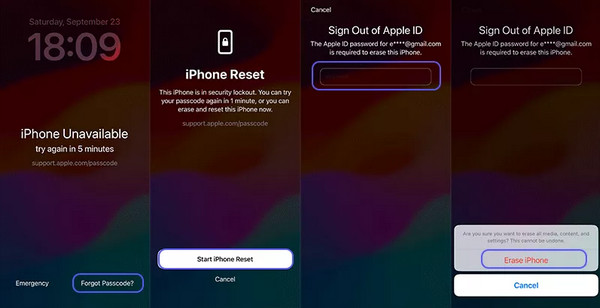
iPhone allows you to enter the passcode for a few attempts. After 10 failed attempts, you will be locked out of your iPhone, which will show you the iPhone Unavailable or Security Lockout error message. Resetting the iPhone is not needed if you enable the Erase Data feature. The reason is that the feature will automatically delete all of the iPhone content and settings. But if the feature is not turned on, you will see the Erase iPhone button. You can use it to reset your iPhone to its factory settings using your Apple ID.
However, the iPhone Unavailable has no Erase option. For sure, you did not meet the requirement of the feature. Your iPhone must be iOS 15.2 or later versions. Please use the steps below.
Suppose that your iPhone is locked out. Tap the Esqueci a senha button at the bottom right. A new screen will be prompted. Please select the Iniciar reinicialização do iPhone button from the new options. The Apple ID account will appear. Please enter the password of the account to proceed.
A small window will appear. Please select an option between the Manter eSIM e apagar dados e Excluir eSIM e apagar dados buttons. The erasing process will start. Wait for the process to be completed and set up the iPhone again.
Part 3. Use a Computer (Recovery Mode)
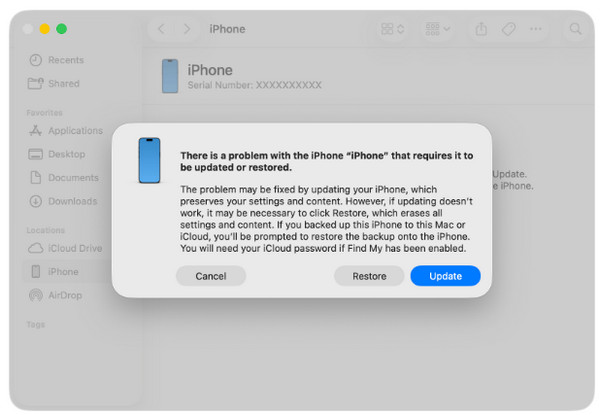
o Modo de recuperação do iPhone is a useful technique to restore it to its factory settings. It requires you to reset your iPhone to regain access to it. iTunes and Finder are helpful in this process. However, the computer used for the recovery mode must be trusted beforehand. If not, the iPhone Unavailable or Security Lockout error message cannot be fixed.
This procedure will automatically scan the problem on your iPhone. It allows you to restore or update your iPhone. Please use the steps below to know how recovery mode works with your computer to reset your iPhone.
Enter the iPhone recovery mode. To do this on an iPhone that has a Lar button, press and hold the Lado botão e Volume baixo button. Alternatively, you can press the Lado e Lar botões.
If the iPhone has no Lar botão, pressione e solte rapidamente o Aumentar o volume button. Do the same with the Volume baixo button. Then, press and hold the Lado button of your iPhone. Later, get your USB cable. Plug your iPhone into the computer using the cable.
Abra seu iTunes ou localizador on the computer. Then, a small window will appear on the screen, revealing the needed process for your iPhone. Please click the Restaurar button at the bottom right. Wait for the procedure to be completed and unplug the iPhone from the computer.
Part 4. Use Find My to Erase Remotely
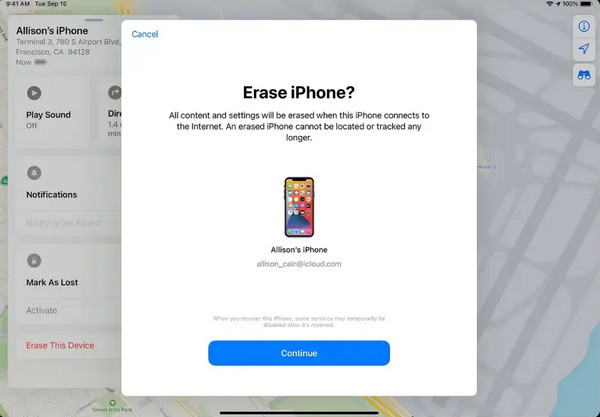
Find My is a feature on your Apple devices, including iPhone, that allows you to track the real-time location of the user. Besides that function, the feature can be used to erase the iPhone remotely when the screen lock passcode is forgotten. You can use the steps below as your detailed guide.
Open the device you prefer to use. Then, search for the website of iCloud Encontre meu. After that, please enter your Apple ID from the first screen after selecting the Entrar button. The Mapa screen will appear. Select the Todos os dispositivos botão no canto superior esquerdo.
Choose the name of your iPhone from the list. After that, please select the Apagar este dispositivo button on the screen. Authenticate the procedure to complete it.
Part 5. Try imyPass iPassGo
Besides the Apple ways, imyPass iPassGo can also be used to reset your iPhone to its factory settings without the passcode. It is a third-party program that is used for bypassing different security features on your iPhone, including an iPad. Bypassing the iPhone screen lock supports different scenarios. It includes a broken iPhone screen, Face ID or Touch ID not working, being bought second-hand, and more. Apple ID, Screen Time, MDM, and iTunes backup encryption settings can also be removed by the tool. Use the steps below for your reference.
Visite o site de imyPass iPassGo. Then, install and open it on your computer as the start of the procedure.
The supported features of the tool will appear on the first screen. Please select the Comece a desbloquear button from the screen. The iPhone information will appear, including its model and iOS version. Later, click the Comece agora botão no centro.
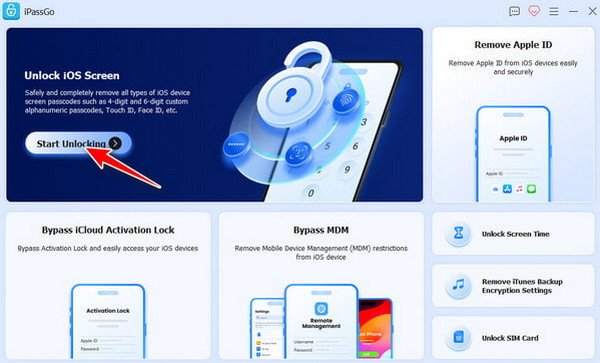
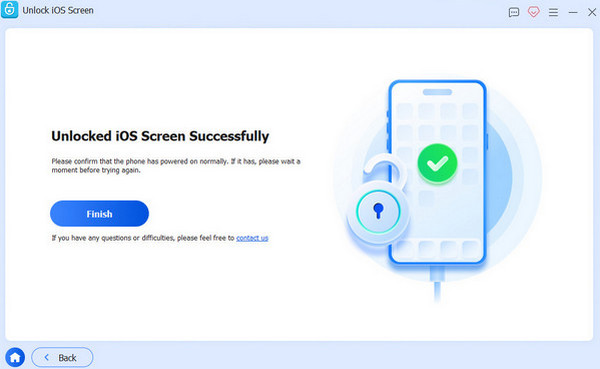
A new screen will appear. Please click Começar a remover at the bottom center. You need to confirm the procedure by clicking the Confirm Again button on the screen. The bypass process will start. When the procedure is completed, click the Terminar button, and please unplug your iPhone from your computer.
Conclusão
All in all, the Emergency Calls Only unlock code can be used to unlock your iPhone or other phones when the passcode is forgotten. The important information about it is posted in this article. imyPass iPassGo is also here as an alternative to the feature. It can remove the screen lock of the iPhone without the passcode. You can download it on your computer to test its helpful features!
Samuel specializes in password security and digital privacy. He used to work as a cybersecurity consultant for small businesses to protect digital assets. With certifications in Cybersecurity and Ethical Hacking, he turns complex security topics into easy-to-follow advice. He also enjoys sharing password tips to help users protect their accounts more confidently.
Soluções quentes
-
Desbloquear iOS
-
Dicas para iOS
-
Desbloquear Android
-
dicas de senha


