



 Soluţie
 Centru de asistență
 Despre noi
 a lua legatura
What Location Expired Mean on iPhone and How to Fix It
 Penny Warren publicat pe 23 iunie 2026Localizare GPSLectură de 4 minute
"When my friends and I are trying to share our location, my iPhone says Expired Location before the location can even load in. Why does it say Location Expired?" According to our research, this common error occurs when your iPhone cannot update or share its current location information. Some iPhone users face this frustrating issue. This article shares the effective solutions to fix this error without losing data.

În acest articol:
Part 1. What Does Location Expired Mean and Why Does It Occur
What does Location Expired mean? The error message is alarming on iOS devices. It interrupts the ability to track or share your whereabouts. Typically, this error occurs when sharing location on the Messages or other apps. It means that the location information is no longer available or up-to-date. When the error appears, you cannot see the shared location or share your location on your iPhone.
Before walking through the solutions, let’s explore the underlying causes why it keeps saying Location Expired on your iPhone.
- 1.Location Services is disabled accidentally.
- 2.Find My is restricted or stuck.
- 3.There is a problem with your iPhone’s network connection.
- 4.The location was shared a long time ago and has naturally expired.
- 5.Outdated iOS.
- 6.Probleme de software (erori minore).
Part 2. How to Fix Location Expired on iPhone
While seeing an iPhone error message saying Location Expired can be frustrating, you can try the solutions below one by one to fix this error on your iPhone. Then, you can share your location normally.
Solution 1: Double Check Location Services
Deschide Setări pe iPhone-ul tău.
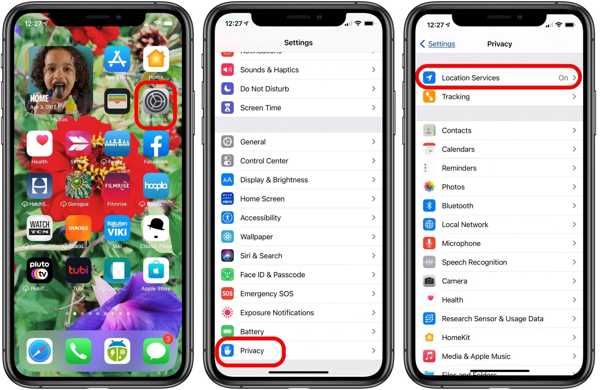
Du-te la Confidențialitate fila.
Apasă pe Servicii de localizare buton.
Comutați pe Servicii de localizare opțiune.
Apoi, atingeți Partajați locația mea buton.
Comutați pe Partajați locația mea opțiune.
Make sure to allow the desired contact to fix the Location Expired on iPhone.
Soluția 2: Reporniți iPhone-ul
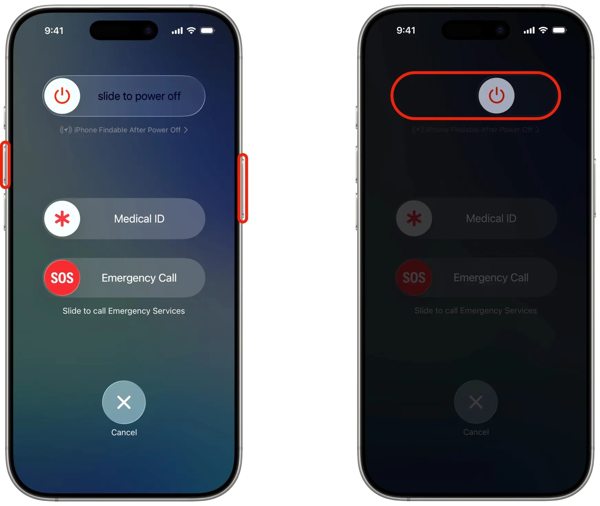
Pe un iPhone cu Face ID, ține apăsat unul dintre butoanele de Volum buton + Latură button together. For an iPhone without Face ID, press and hold the Latură sau Putere buton.
When the power-off screen pops up, release the buttons or button.
Mută cursorul în partea dreaptă pentru a opri dispozitivul.
After your touchscreen turns black, wait for a few minutes.
Then, hold down the Side sau Putere butonul până când vedeți sigla Apple.
Now, try to share your location again to check if Location Expired is fixed.
Soluția 3: Corectați data și ora
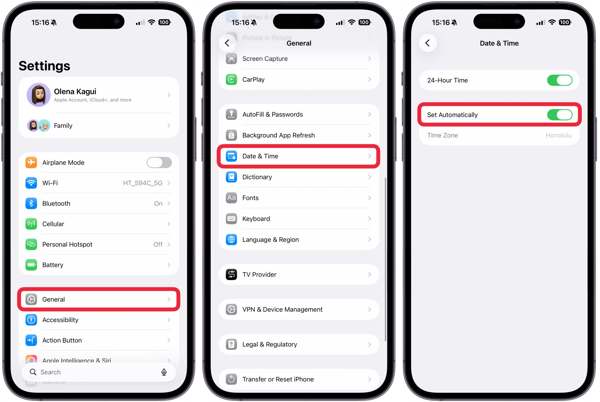
Du-te la ta Setări aplicația de pe ecranul de pornire.
Navigheaza catre General și Data și ora.
Activați Setați automat.
Connect to a stable network and fix Location Expired on iPhone.
Solution 4: Check Your Network
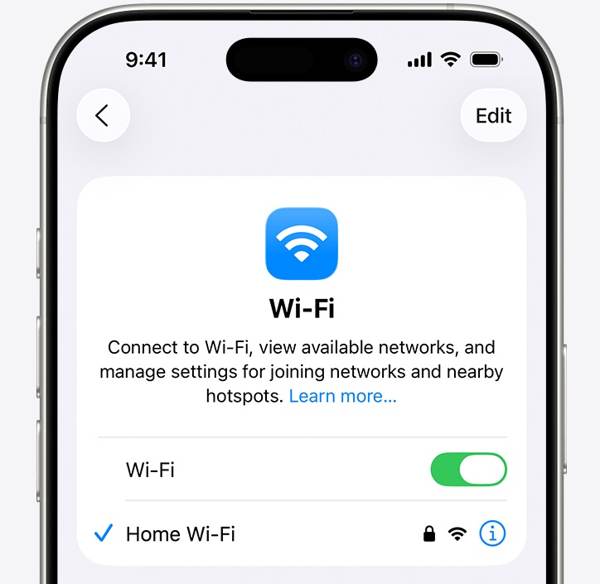
Sharing location on iPhone works through an internet connection. If you are using Wi-Fi and Location Expired occurs on your iPhone, connect to a cellular data network or vice versa. Then, share your location again.
Solution 5: Re-enable Find My
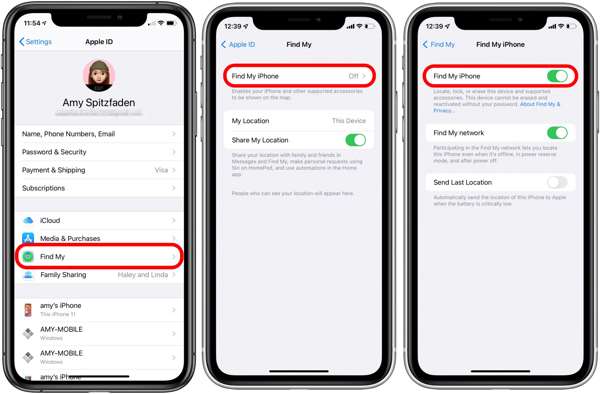
Începeți Setări aplicația de pe ecranul de pornire.
Atingeți profilul dvs.
Alege Găsește-l pe al meu opțiunea și atingeți Găsește-mi iphone-ul.
Activați Găsește-mi iphone-ul și Find My network to fix Location Expired on iPhone.
If Find My iPhone is enabled, toggle it off and turn it back on.
Soluția 6: Actualizați iOS
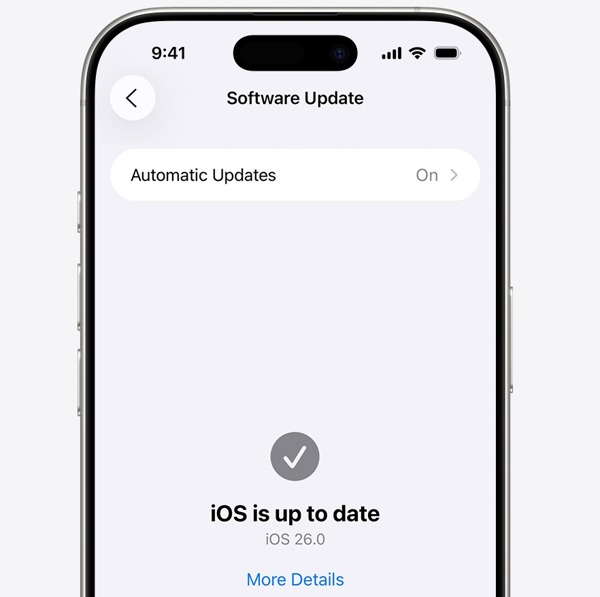
Rulați-vă Setări aplicația.
Navigheaza catre General și Actualizare de software.
Dacă este disponibilă o actualizare, atingeți Descarca si instaleaza buton.
Follow the onscreen instructions to update the iOS.
Când este gata, iPhone-ul dvs. va reporni.
Try to share your location to see if the Location Expired error disappears.
Soluția 7: Resetați locația și confidențialitatea
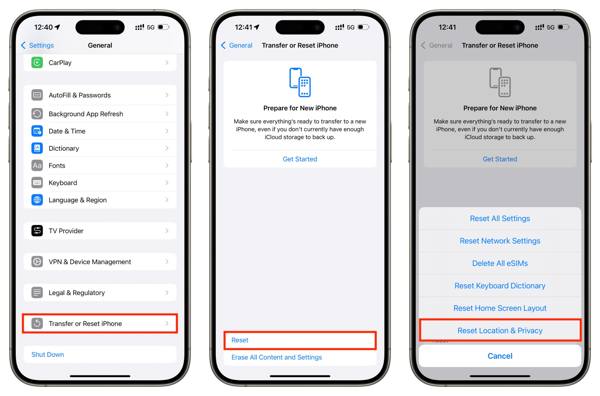
Deschide Setări aplicația pe dispozitivul dvs.
Mergi la General și Transferați sau resetați iPhone-ul.
Apasă pe Resetați buton.
Alege Resetați locația și confidențialitatea opțiune.
Next, turn on Location Services and Find My iPhone to fix Locație expirată.
Lecturi înrudite:
Part 3. One-stop Solution to Fix iPhone Location Expired
If you have performed the common solutions but the iPhone Location Expired error persists, you can try imyPass iLocaGo. It allows you to share any location without turning off Location Services on iOS devices. Plus, the user-friendly design makes it easy to use.

Peste 4.000.000 de descărcări
Falsifică locația iPhone-ului cu un singur clic.
Simulează mișcări cu mai multe moduri.
Work with accurate addresses and any locations.
Oferiți opțiuni personalizate, cum ar fi viteza.
Suportă o gamă largă de dispozitive iPhone și Android.
How to Fix Location Expired on Your iPhone
Detectează-ți iPhone-ul
Launch the iPhone location spoofing software once you install it on your PC. There is another version for Mac. Next, connect your iPhone to your PC with a Lightning cable. Then, the software will detect your device immediately.

Alegeți un mod
Alege Modificați locația mode if you want to change the static location. The other three modes, Modul unic, Modul cu mai multe opriri, și Modul Joystick, sunt folosite pentru a crea rute virtuale.

Falsifică-ți locația
Next, type in an accurate address into the field. If you don’t have an address, click the right position on the interactive map. Finally, click on the Modifica button to confirm it. Now, turn on your iPhone and check if the Location Expired error is resolved.y.

Concluzie
This article explained why it says Location Expired on your iPhone. More importantly, we shared the effective solutions to help you fix this error and enable you to share your location as usual. The good news is that software glitches or conflict settings cause this error. If the common solutions are unavailable, try imyPass iLocaGo. It allows you to share any address around the world on your iPhone without disabling Location Services.
Penny se concentrează pe depanarea GPS și optimizarea Windows. Anterior a lucrat ca inginer de asistență tehnică, ajutând clienții să rezolve eficient probleme legate de localizare și de sistem. Sprijinită de experiența în suport IT, oferă soluții practice care chiar funcționează. În timpul liber îi place să facă drumeții și geocaching, testând tehnologia GPS în lumea reală.
Soluții fierbinți
-
Localizare GPS
- Cum să știți dacă cineva și-a întrerupt locația pe Life360
- Cum să faci apeluri false gratuit
- Cele mai bune locații Pokémon GO cu coordonate
- 10 cele mai bune trucuri pentru Pokémon GO
- 9 instrumente de spoofing pentru Pokémon GO
- Cum să urmărești locația unui iPhone
- Ce este locația simulată
- 5 joystick-uri GPS pentru Pokémon GO
-
Deblocați iOS
-
Sfaturi iOS
-
Deblocați Android


