



 解决方案
解决方案 支持中心
支持中心 关于我们
关于我们 联系
联系How to Restore an iPhone or iPad When It is Disabled
 克拉拉·普雷斯科特 发表于 2026年4月3日恢复数据3 分钟阅读
With the passcode, you can unlock an iPhone quickly. However, if you forgot your passcode, you will have 10 attempts to try your passcode. Then, your device will become disabled and locked permanently. You should see the iPhone Unavailable message on iOS 15.2 and above or iPhone Disabled on old iOS versions. To regain access to your device, you have to restore the disabled iPad or iPhone. This guide demonstrates the available methods.

在本文中:
Part 1: How to Restore Disabled iPhone with iTunes
The traditional way to restore an iPhone when it is disabled is to use iTunes or Finder. This method requires a computer, a compatible USB cable, and the latest version of iTunes or Finder.
Connect the disabled iPhone to a computer with a USB cable.
在 Windows 和 macOS Mojave 或更早版本上打开 iTunes。在 macOS Catalina 或更高版本上运行 Finder。
将你的 iPhone 置于恢复模式:
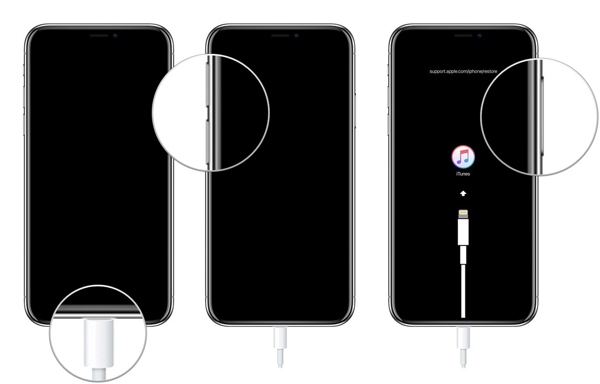
On iPhone 8 or later
快速按下并释放 提高音量 按钮。
对 音量减小 按钮。
持有 边 按钮,直到出现恢复模式屏幕。
在 iPhone 7/7 Plus 上
按住 音量降低 + 侧面 按钮一起。
Once it enters Recovery Mode, release the buttons.
On iPhone 6s or earlier
长按 Home + Power 按钮。
When you see the Recovery Mode screen, let the buttons go.
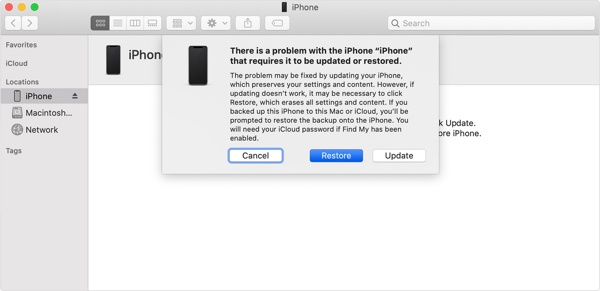
Once iTunes or Finder detects your iPhone in Recovery Mode, click the Restore button.
Part 2: How to Restore Disabled iPhone via Security Lockout
Since iOS 15.2, Apple has introduced the Security Lockout feature into all iOS devices. It comes with two options on the iPhone Unavailable screen that allow you to restore a disabled iPhone or iPad to factory settings with your Apple ID password.
在 iOS 17 及更高版本上
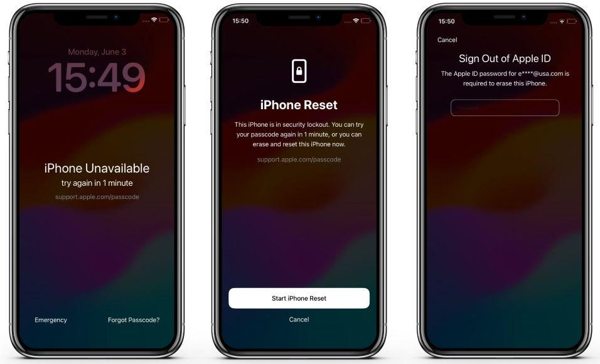
点击 忘记密码 底部选项。
选择 开始重置 iPhone.
Input your Apple ID password and begin restoring the disabled iPhone to factory settings.
适用于 iOS 15.2 及以上版本
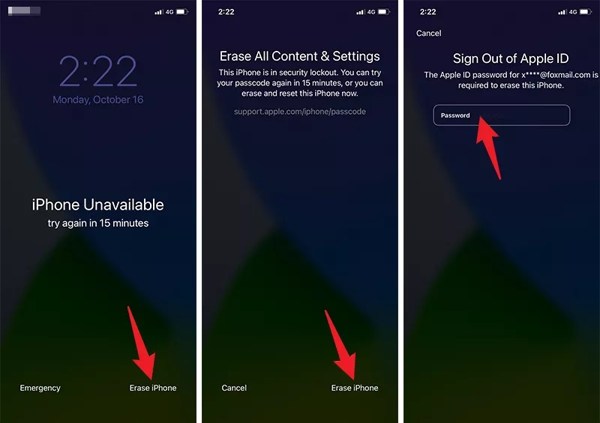
点击 抹掉iPhone 上的选项 iPhone 不可用 屏幕。
阅读信息并点击 抹掉iPhone 再次。
Type in your Apple ID password to confirm restoring a disabled iPad or iPhone.
Part 3: How to Restore Disabled iPhone by Find My
If you intend to restore a disabled iPhone without iTunes, the Find My app is available. The prerequisite is that you have enabled Find My iPhone or Find My iPad on your device before it is disabled.
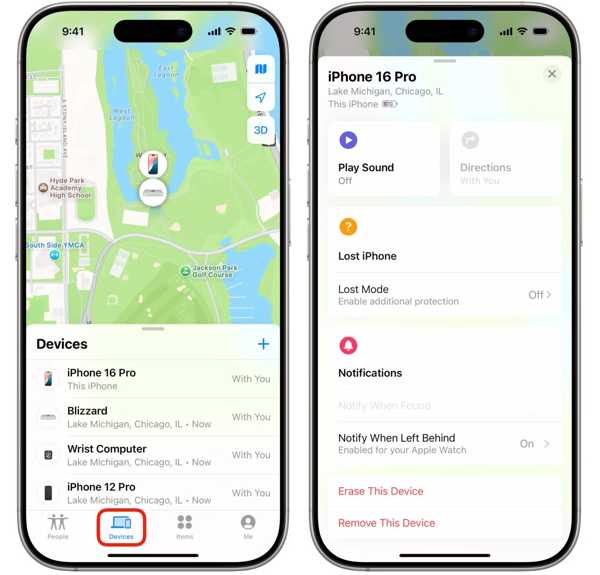
Open the Find My app on an accessible Apple device, like another iPhone, iPad, or a MacBook.
前往 设备 tab and pick your iPhone from the list. If you cannot find it on the list, tap 添加 旁边 设备, 选择 添加 AirTag, and add your iPhone by entering your Apple credentials.
If you don’t have another Apple device, log in to www.icloud.com/find/.
Tap the toolbar at the bottom.
选择 清除此设备.
轻敲 继续, enter your phone number, and hit 擦除 至 将你的 iPhone 恢复出厂设置.
Part 4: Bonus Tip: How to Recover Data after Restoring a Disabled iPhone
Restoring a disabled iPhone or iPad will erase all data on your device. If you forgot to make a backup, imyPass iPhone数据恢复 can help you get back your data. It can scan your iPhone's memory and look for any data.
4,000,000+ 次下载
How to Recover Data after Restoring a Disabled iPhone
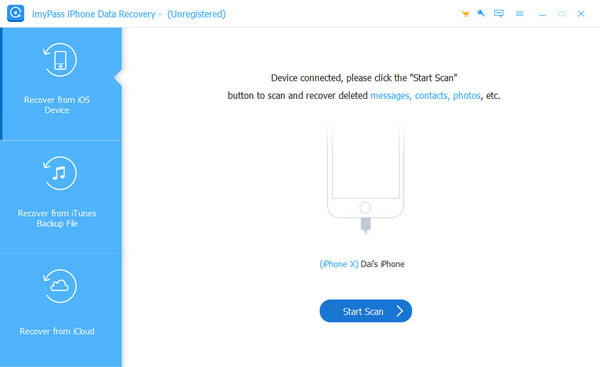
连接到您的设备
Start the iPhone recovery software after you install it on your PC. There is another version for Mac. Plug your disabled iPhone into your PC with a Lightning cable. Choose the 从 iOS 设备恢复 选项卡,然后单击 开始扫描 按钮。
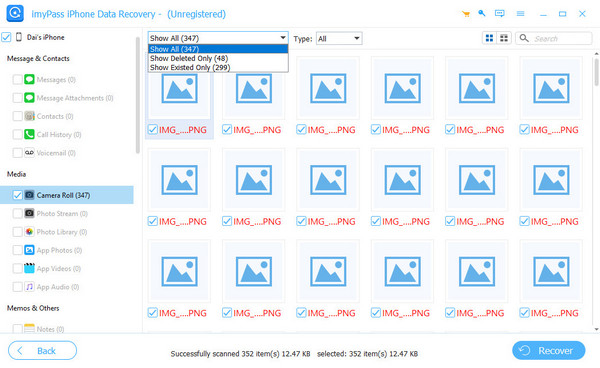
预览你的数据
Once the data scan is complete, you will be presented with the main interface. You can view iPhone data by type, like Camera Roll, Contacts, Messages, 和更多。
Retrieve iPhone data
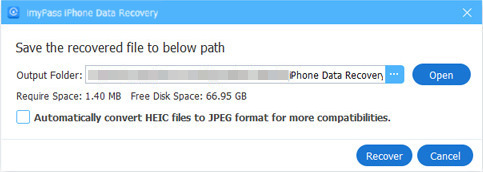
Select all files and items you want to restore, and click the 恢复 button. Click the Open button, set an output folder, and hit 恢复.
结论
This tutorial discussed how to restore a disabled iPad or iPhone in various situations. iTunes is an option if you forgot your Apple ID password. The Security Lockout screen enables you to restore your device directly. The Find My app is another option if you have enabled Find My iPhone or Find My iPad. imyPass iPhone数据恢复 is the ultimate solution to recover data after restoring your disabled device.
Clara拥有超过8年的经验,专门帮助用户找回丢失的文件并进行数据迁移。她曾在一家大型IT服务公司担任数据恢复技术员。持有数据恢复和数字取证相关认证,她的文章侧重于用简单的方法解决复杂的数据恢复任务,从而让普通用户也能轻松上手。
热门解决方案
-
恢复数据
-
解锁iOS
-
传输数据
-
iOS 技巧

