



 Lösung
 Support-Center
 Über uns
 Kontakt
How to Fix Your iPhone Location Sharing Not Working
 Penny Warren Veröffentlicht auf 19. März 2026GPS-Standort3-minütige Lektüre
“I can send my girlfriend my location indefinitely, and we always have shared it with each other, but now her phone won’t come through to me anymore. How to fix location sharing not working on my iPhone?” Location Sharing is an essential feature on iOS devices. It enables users to track friends and family’s location as well as share their own location. If this feature suddenly doesn’t work, you can fix it on your own by following our solutions.

In diesem Artikel:
Part 1: Why iPhone Location Sharing Is Not Working
Auf einem iPhone kannst du deinen Standort in der „Wo ist?“-App, in einer Instant-Messaging-App oder in einer Karten-App teilen, sobald die Ortungsdienste korrekt eingerichtet sind. Diese Funktion ist auch hilfreich, wenn du deinen Standort mitteilen musst, den Standort deines iPhones zu verfolgen und dein Gerät finden oder seine aktuelle Position prüfen möchtest. Bevor wir die Lösungen durchgehen, sehen wir uns zunächst die Ursachen an. Wenn du die Gründe kennst und deine Situation richtig einordnest, kannst du das Problem mit dem iPhone, das den Standort nicht freigibt, schneller beheben. Die Hauptursachen sind:
• Location Services are disabled.
• Connectivity issues or unstable internet connection.
• Low battery.
• Software glitches.
• Privacy restrictions.
Part 2: How to Fix Location Sharing Not Working on iPhone
Excluding hardware malfunction, you can fix the share my location issue on iPhone on your own. You can perform the solutions below one by one to make location sharing normal. Let’s start the journey.
Lösung 1: Ortungsdienste aktivieren
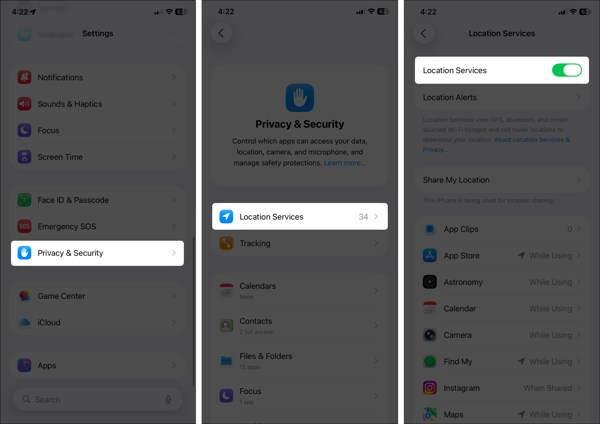
Öffne das Einstellungen App auf Ihrem iPhone.
Gehen Sie zum Privatsphäre & Sicherheit Registerkarte und wählen Sie Standortdienste.
Make sure to toggle on Location Services.
If Location Services is enabled, turn it off and toggle it back on.
Klopfen Finde mein on the list, and choose Stets oder Während der Verwendung.
Solution 2: Configure Find My
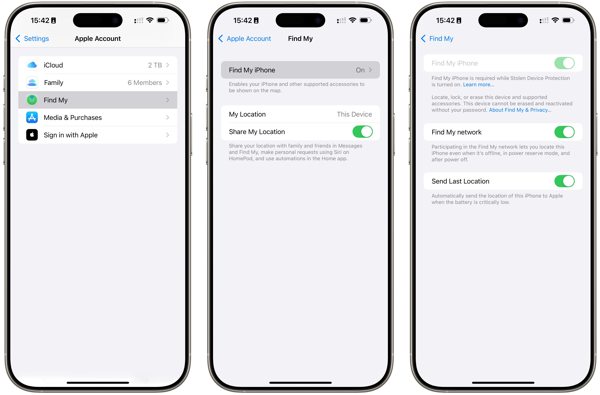
Gehen Sie zu Ihrem Einstellungen App.
Tippen Sie auf Ihr Profil und wählen Sie Finde mein.
Klopfen Finde mein iPhone und schalten Sie ein Finde mein iPhone.
Back to the Find My screen and toggle on Teilen Sie meinen Standort.
Wenn Sie dazu aufgefordert werden, tippen Sie auf Erlauben to confirm turning on GPS tracking.
Next, check if the iPhone location sharing not updating issue disappeared.
Solution 3: Check Your Connection
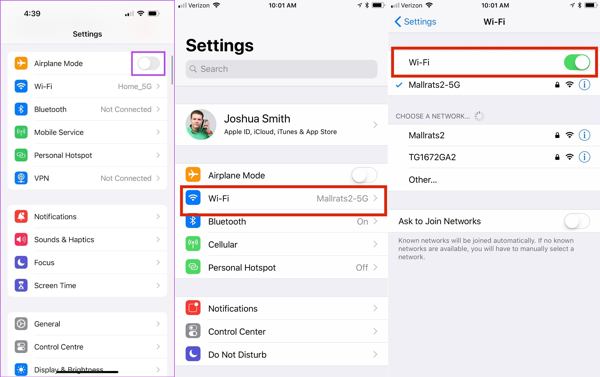
Führen Sie die aus Einstellungen App auf Ihrem iPhone.
Aktivieren Flugzeug-Modus.
Dann schalten Sie aus Flugzeug-Modus.
If you still find iPhone not sharing location, check your internet signal.
Klopfen W-lan in Einstellungen and switch to a stable network.
Notiz:
If you don’t have a Wi-Fi network, connect to a cellular data network instead.
Solution 4: Disable Location Restrictions
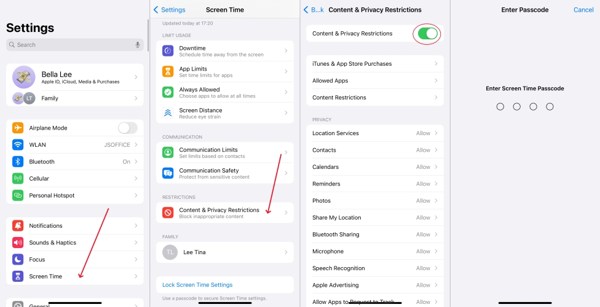
When iPhone location sharing is not updating due to restrictions, go to Bildschirmzeit in deinem Einstellungen App.
Geben Sie bei entsprechender Aufforderung Ihren Bildschirmzeit-Passcode ein.
Wählen Inhalts- und Datenschutzbeschränkungen.
Ausschalten Inhalts- und Datenschutzbeschränkungen to completely disable restrictions.
Notiz:
If you want to keep restrictions, turn on Inhalts- und Datenschutzbeschränkungen, wählen Teilen Sie meinen Standort unter Privatsphäre, und wähle Erlauben.
Lösung 5: Software aktualisieren
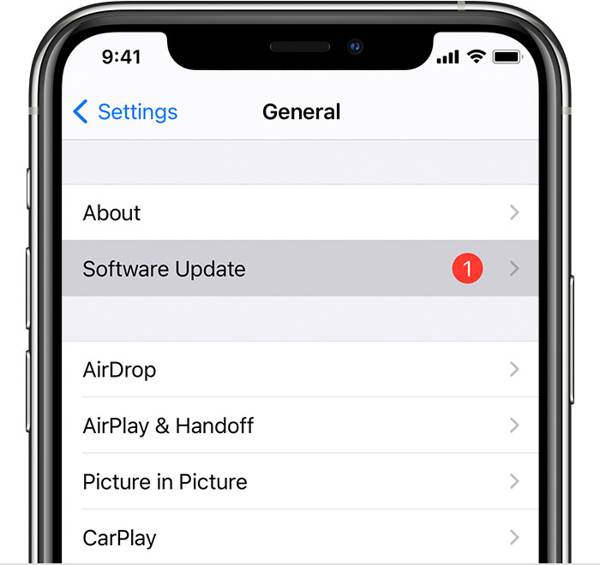
If you are still running an old version of iOS and no location is found when your iPhone shares location, go to the Einstellungen App.
Gehe zu Allgemein und wähle Software-Aktualisierung um nach Updates zu suchen.
Wenn ein Update verfügbar ist, tippen Sie auf das Herunterladen und installieren Taste.
Follow the onscreen instructions to install the update.
Notiz:
You’d better not install a beta version of iOS. If iPhone location stops sharing after you update to a beta, go back to a standard version of iOS.
Solution 6: Reset Location & Privacy
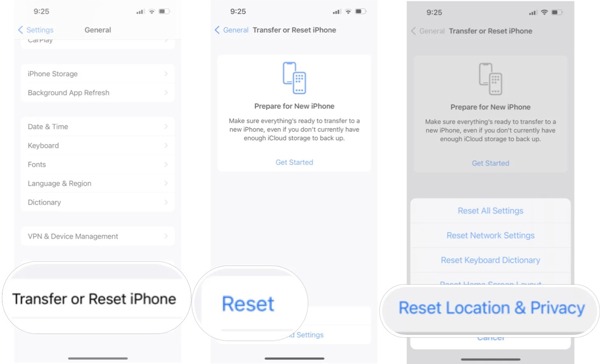
Gehen Sie zum Allgemein tab in your Settings app when your iPhone is not sharing location.
Scrollen Sie nach unten und tippen Sie auf iPhone übertragen oder zurücksetzen.
Klopfen Zurücksetzen and pick Reset Location & Privacy.
Geben Sie bei Aufforderung Ihren iPhone-Passcode oder Ihr Apple-ID-Passwort ein.
When your iPhone restarts, set up Find My and share your location.
Weiterführende Literatur:
Part 3: Bonus Tip: How to Fake iPhone Location
Location Sharing on iPhone is a useful feature, but it is not perfect. It may expose your geolocation and privacy to someone else. Moreover, many apps capture your location information for marketing and advertising. If you turn on Location Services, these services will get your last location available. Can you stop sharing your location without others knowing? iLocaGo can help you resolve this problem.

Über 4.000.000 Downloads
Fake iPhone location without disabling Location Sharing.
Change to any address and location around the world.
Create virtual routes for AR games and more.
Bietet mehrere Modi für unterschiedliche Zwecke.
Work on the latest versions of iOS and iPadOS.
How to Fake iPhone Location Without Notifying Others
Schritt 1 Verbindung zu Ihrem Gerät herstellen
Run the iPhone location spoofing software once you install it on your PC. There is another version for Mac. Plug your iPhone into your PC with a Lightning cable. Then, the software will detect your device automatically.

Schritt 2 Wählen Sie einen Modus
On the mode window, you will see four options. If you just need to change your iPhone location, choose Standort ändernDie anderen drei Modi, One-Stop-Modus, Multi-Stop-Modus, und Joystick-Modus, are used to make virtual locations.

Schritt 3 iPhone-Standort ändern
Geben Sie eine genaue Adresse in das Feld auf der Standort ändern dialog. If you don’t have an address, click a proper position on the map, and you will see the address. Finally, click on the Ändern button to confirm changing your location. Now, turn to your iPhone and share your location.

Fazit
Jetzt sollten Sie verstehen, was Sie tun können, wenn die Standortfreigabe auf einem iPhone nicht verfügbar ist. Zunächst können Sie erfahren, warum dieses Problem auftritt. Noch wichtiger ist, dass Sie den bewährten Lösungen folgen können, um das Problem schnell zu beheben. Wenn Sie Ihren Standort und Ihre Privatsphäre schützen möchten, empfehlen wir iLocaGo. Damit können Sie den Standort Ihres iPhones ändern, ohne auch nur einen Schritt zu machen. Das intuitive Design macht die Bedienung einfach, besonders für Einsteiger und normale Nutzer.
Penny konzentriert sich auf die Fehlerbehebung bei GPS sowie auf die Optimierung von Windows. Zuvor arbeitete sie als Technical Support Engineer und half Kunden dabei, standortbezogene und Systemprobleme effizient zu lösen. Gestützt auf ihre Erfahrung im IT-Support bietet sie praxisnahe Lösungen, die wirklich funktionieren. In ihrer Freizeit wandert sie gern und geht Geocaching nach, um GPS‑Technik in der realen Welt zu testen.
Heiße Lösungen
-
GPS-Standort
- So erkennen Sie, ob jemand seinen Standort auf Life360 pausiert hat
- So tätigen Sie kostenlose Spoof-Anrufe
- Die besten Pokémon-GO-Standorte mit Koordinaten
- Die 10 besten Pokémon-GO-Cheats
- 9 Pokémon-Go-Spoofing-Tools
- So verfolgen Sie den Standort eines iPhones
- Was ist ein Scheinstandort?
- 5 Pokémon-GO-GPS-Joysticks
-
iOS entsperren
-
iOS-Tipps
-
Android entsperren


