



 解決
解決 サポートセンター
 私たちに関しては
 コンタクト
コンタクトWhat Location Expired Mean on iPhone and How to Fix It
 ペニーウォーレン に公開 2026年6月23日GPS位置情報4 分間の読書
"When my friends and I are trying to share our location, my iPhone says Expired Location before the location can even load in. Why does it say Location Expired?" According to our research, this common error occurs when your iPhone cannot update or share its current location information. Some iPhone users face this frustrating issue. This article shares the effective solutions to fix this error without losing data.

記事上で:
Part 1. What Does Location Expired Mean and Why Does It Occur
What does Location Expired mean? The error message is alarming on iOS devices. It interrupts the ability to track or share your whereabouts. Typically, this error occurs when sharing location on the Messages or other apps. It means that the location information is no longer available or up-to-date. When the error appears, you cannot see the shared location or share your location on your iPhone.
Before walking through the solutions, let’s explore the underlying causes why it keeps saying Location Expired on your iPhone.
- 1.Location Services is disabled accidentally.
- 2.Find My is restricted or stuck.
- 3.There is a problem with your iPhone’s network connection.
- 4.The location was shared a long time ago and has naturally expired.
- 5.Outdated iOS.
- 6.ソフトウェアの不具合。
Part 2. How to Fix Location Expired on iPhone
While seeing an iPhone error message saying Location Expired can be frustrating, you can try the solutions below one by one to fix this error on your iPhone. Then, you can share your location normally.
Solution 1: Double Check Location Services
開く 設定 iPhoneで。
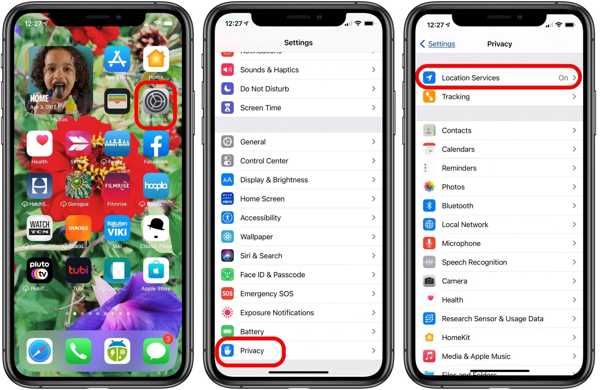
に移動します プライバシー タブ。
をタップします。 位置情報サービス ボタン。
をオンに切り替えます 位置情報サービス オプション。
次に、 私の現在地を共有する ボタン。
をオンに切り替えます 私の現在地を共有する オプション。
Make sure to allow the desired contact to fix the Location Expired on iPhone.
解決策2: iPhoneを再起動する
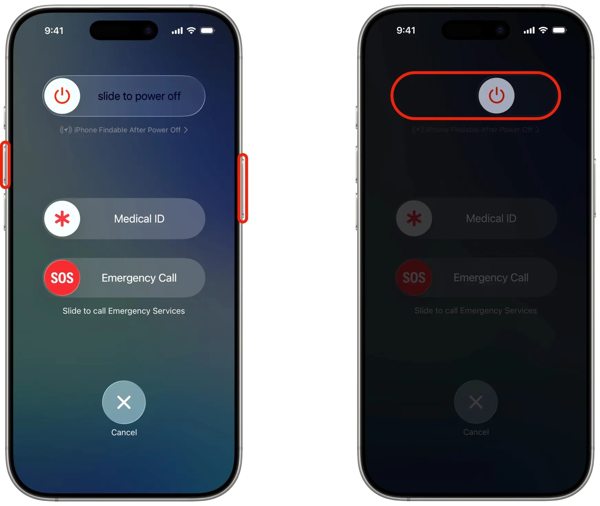
Face ID搭載のiPhoneでは、いずれか一方の 音量 ボタン + 側 button together. For an iPhone without Face ID, press and hold the 側 また 力 ボタン。
When the power-off screen pops up, release the buttons or button.
スライダーを右側に移動してデバイスをシャットダウンします。
After your touchscreen turns black, wait for a few minutes.
Then, hold down the Side また 力 Apple ロゴが表示されるまでボタンを押します。
Now, try to share your location again to check if Location Expired is fixed.
解決策3: 日付と時刻を修正する
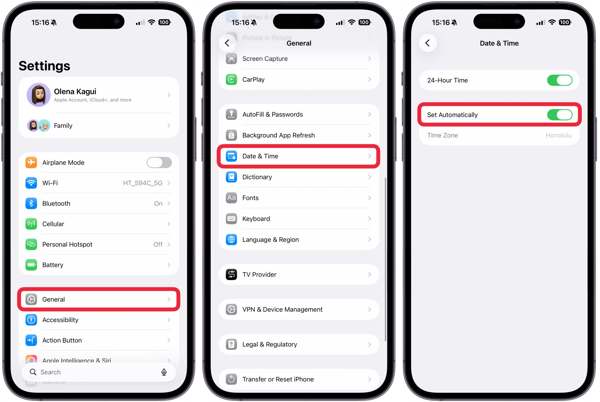
あなたの 設定 ホーム画面からアプリを起動します。
案内する 全般的 と 日付時刻.
オンにする 自動的に設定.
Connect to a stable network and fix Location Expired on iPhone.
Solution 4: Check Your Network
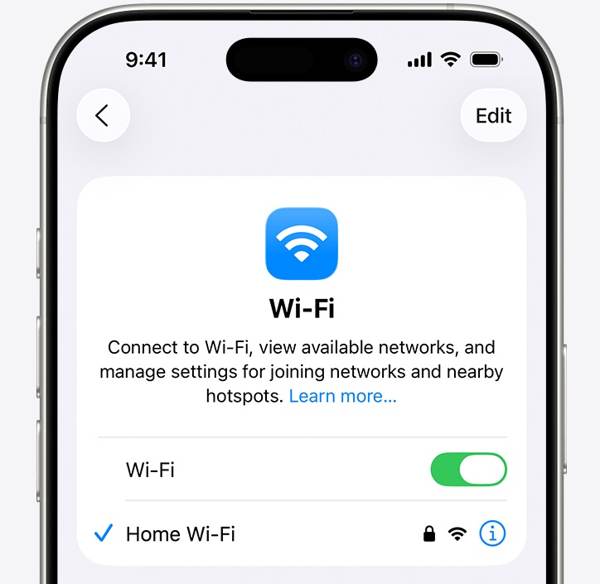
Sharing location on iPhone works through an internet connection. If you are using Wi-Fi and Location Expired occurs on your iPhone, connect to a cellular data network or vice versa. Then, share your location again.
Solution 5: Re-enable Find My
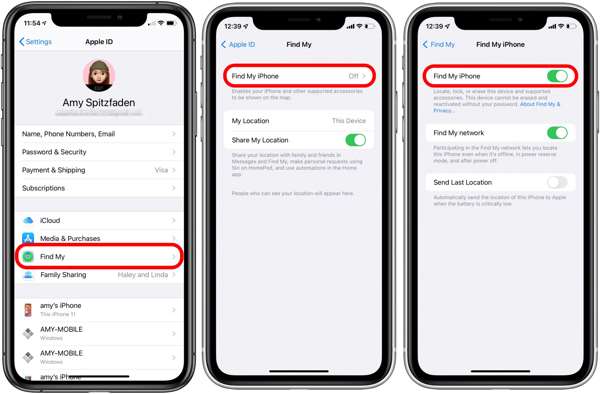
を開始します。 設定 ホーム画面からアプリを起動します。
プロフィールをタップします。
を選択してください 私のものを探す オプションをタップして iPhoneを探す.
オンにする iPhoneを探す と Find My network to fix Location Expired on iPhone.
If Find My iPhone is enabled, toggle it off and turn it back on.
解決策6: iOSをアップデートする
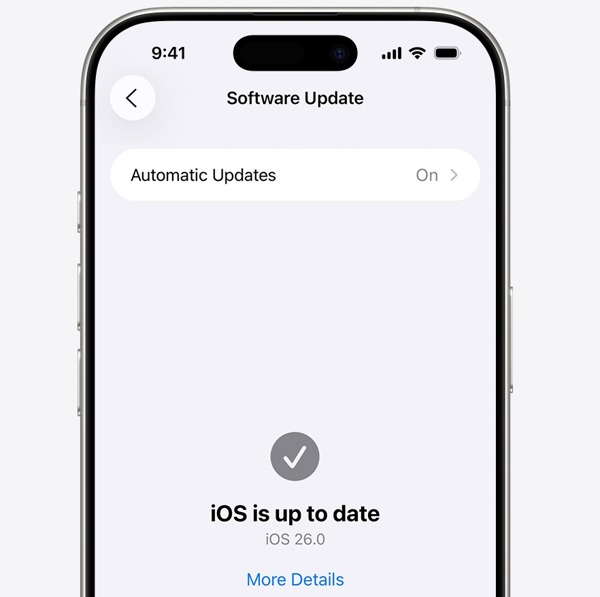
実行する 設定 アプリ。
案内する 全般的 と ソフトウェアの更新.
アップデートが利用可能な場合は、 ダウンロードとインストール ボタン。
Follow the onscreen instructions to update the iOS.
完了すると、iPhone が再起動します。
Try to share your location to see if the Location Expired error disappears.
解決策7: 位置情報とプライバシーをリセットする
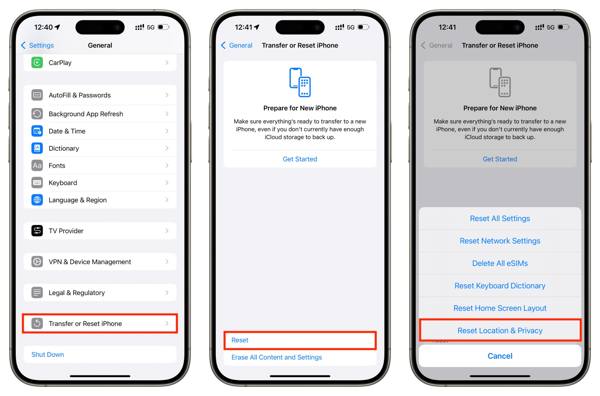
開く 設定 デバイス上のアプリ。
に行く 全般的 と iPhoneを転送またはリセットする.
をタップします。 リセット ボタン。
を選択してください 位置情報とプライバシーをリセット オプション。
Next, turn on Location Services and Find My iPhone to fix 場所の有効期限が切れました.
Part 3. One-stop Solution to Fix iPhone Location Expired
If you have performed the common solutions but the iPhone Location Expired error persists, you can try iLocaGo について. It allows you to share any location without turning off Location Services on iOS devices. Plus, the user-friendly design makes it easy to use.

4,000,000以上のダウンロード
iPhoneの位置情報を偽装する ワンクリックで。
複数のモードで移動をシミュレートできます。
Work with accurate addresses and any locations.
速度などのカスタム オプションを提供します。
幅広いiPhoneおよびAndroid端末をサポートしています。
How to Fix Location Expired on Your iPhone
iPhoneを検出する
Launch the iPhone location spoofing software once you install it on your PC. There is another version for Mac. Next, connect your iPhone to your PC with a Lightning cable. Then, the software will detect your device immediately.

モードを選択してください
を選択してください 場所の変更 mode if you want to change the static location. The other three modes, ワンストップモード, マルチストップモード、 と ジョイスティック モードは、仮想ルートを作成するために使用されます。

位置情報を偽装する
Next, type in an accurate address into the field. If you don’t have an address, click the right position on the interactive map. Finally, click on the 修正する button to confirm it. Now, turn on your iPhone and check if the Location Expired error is resolved.y.

結論
This article explained why it says Location Expired on your iPhone. More importantly, we shared the effective solutions to help you fix this error and enable you to share your location as usual. The good news is that software glitches or conflict settings cause this error. If the common solutions are unavailable, try imyPass iLocaGo. It allows you to share any address around the world on your iPhone without disabling Location Services.
Penny は、GPS のトラブルシューティングと Windows の最適化を専門としています。以前はテクニカルサポートエンジニアとして勤務し、クライアントの位置情報関連の問題やシステム上の不具合を効率的に解決してきました。IT サポートの経験に裏打ちされた確かな知識を基に、実際に役立つ実用的なソリューションを提供しています。休日にはハイキングやジオキャッシングを楽しみ、実世界で GPS 技術を試しています。
ホットなソリューション
-
GPS位置情報
-
iOSのロックを解除する
-
iOSのヒント
-
Androidのロックを解除


