



 Løsning
 Støttesenter
 Om oss
 Kontakt
How to Turn off Restrictions on Your iPhone Quickly
 Samuel Spenser Publisert på 22. oktober 2026Lås opp iOS3-min lesing
As its name suggests, Restrictions on an iPhone let you manage app usage and content access. As an essential part of parental controls in the Apple ecosystem, many parents set up Restrictions on their kids' iOS devices. When your kid grows up, you have to turn off Restrictions on iPhone. This guide will walk you through the steps to regain full access to your device, even if you forgot the Screen Time passcode.

I denne artikkelen:
Part 1: What Are the Restrictions on iPhone
Restrictions, also known as Content & Privacy Restrictions, are not an independent functionality on iPhone. They are Screen Time settings that let you limit access to specific apps, services, and content types on iOS devices. It controls which apps you can use and when you can use them.
Restrictions are useful for parents managing kids' devices or for anyone who hopes to enhance privacy and security. What Restrictions can do include:
- Control app installation and deletion.
- Restrict explicit music, movies, and websites.
- Manage privacy settings, such as location services and contacts.
- Prevent changes to device settings, such as the lock screen passcode.
Part 2: How to Turn off Restrictions on iPhone
When it released iOS 12, Apple completely changed the Restrictions feature. Therefore, the processes for switching off Restrictions on iPhone differ depending on your iOS version.
How to Stop Restrictions on iOS 12 and Later
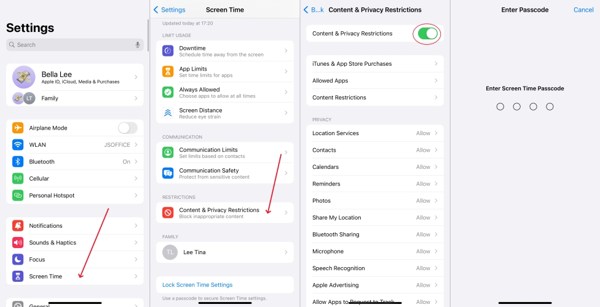
Kjør Innstillinger app fra startskjermen.
Velg Skjermtid inngang.
Trykk på Innhold og personvernbegrensninger alternativ.
Slå av Innhold og personvernbegrensninger.
Next, enter the Screen Time passcode to stop restrictions on your iPhone.
How to Turn off Web Content Restrictions on Your Child's iPhone
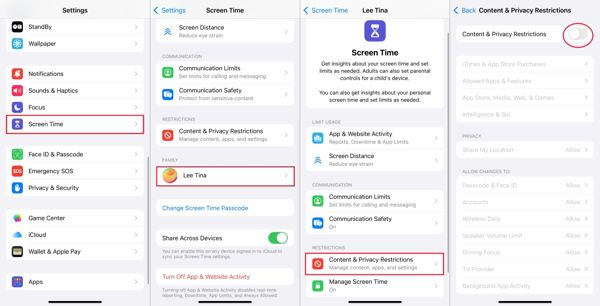
Turn on the organizer's iPhone and open the Innstillinger app.
Velg Skjermtid inngang.
Press your child's name under the Familie seksjon.
Trykk på Innhold og personvernbegrensninger alternativ.
Switch off Innhold og personvernbegrensninger.
Input your passcode to turn off web content restrictions on your child's iPhone.
How to Disable Restrictions on iOS 11 and Earlier
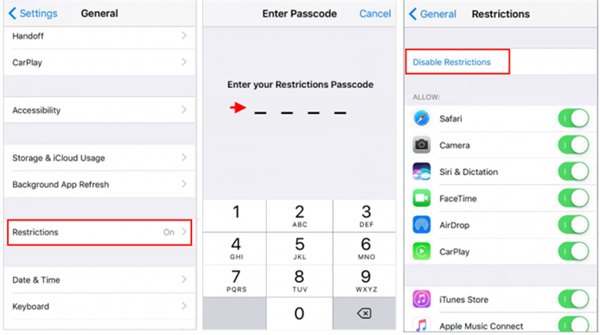
Gå til Innstillinger app.
Navigere til Generell og Begrensninger.
Offer the Restrictions passcode.
Trykk på Deaktiver begrensninger.
If prompted, enter the passcode again to confirm disabling Restrictions on your iPhone.
Part 3: How to Turn off Specific Restrictions on iPhone
Restrictions almost cover all apps and services on iPhone. In other words, you can turn off web content restrictions on iPhone while keeping other apps, services, privacy, and content restrictions.
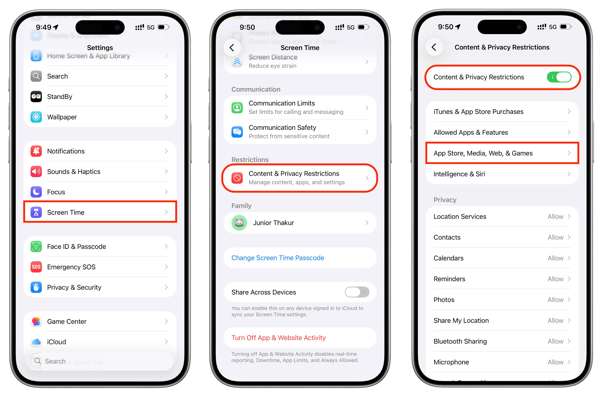
Gå til din Innstillinger app.
Drar mot Skjermtid og Innhold og personvernbegrensninger.
Sørg for å slå på Innhold og personvernbegrensninger.
Now, you can turn off specific restrictions. To turn off app restrictions on iPhone, for example, choose Allowed Apps & Features, select the desired app, and turn it off.
When prompted, enter your Screen Time passcode to confirm your action.
Merk:
Consider which restrictions you really want to disable. Some might be useful to keep for personal management. Be aware that removing restrictions will turn off content filtering, so be cautious about what content you keep accessible.
Part 4: How to Remove Restrictions on iPhone When You Forgot the Passcode
Hvis du glemte passordet ditt for skjermtid, you cannot remove Restrictions on iPhone. Fortunately, Apple allows you to reset the Screen Time passcode with your Apple Account and password.
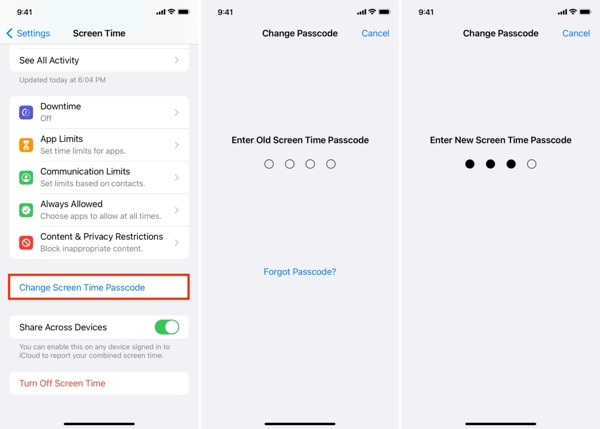
Gå til Innstillinger og Skjermtid.
Trykk på Endre passord for skjermtid knapp.
Å velge Endre passord for skjermtid en gang til.
Trykk på Glemt passord alternativ.
Enter your Apple Account and tap OK.
Input your Apple Account password and hit OK.
Set a new passcode for Screen Time.
Now you can turn off content restrictions on your iPhone using the new passcode.
Part 5: How to Turn off Restrictions on iPhone Without a Passcode
If your iPhone is managed by work or school MDM, you cannot turn off Restrictions. Moreover, you need your Apple Account password or Screen Time passcode to turn on or off Restrictions on an iOS device. Fortunately, imyPass iPassGo allows you to bypass the Screen Time passcode and completely stop Restrictions on your iPhone. It won't ask for a password during the process. Moreover, the streamlined design simplifies the workflow.

4 000 000+ nedlastinger
Completely turn off Restrictions on an iPhone or iPad.
Omgå skjermtid-passordet during the process.
Protect your data on your iPhone without erasing it.
Offer on-screen instructions to remove restrictions in one click.
Støtt de nyeste versjonene av iOS og iPadOS.
How to Turn off Restrictions on iPhone Without a Password
Installer iPassGo
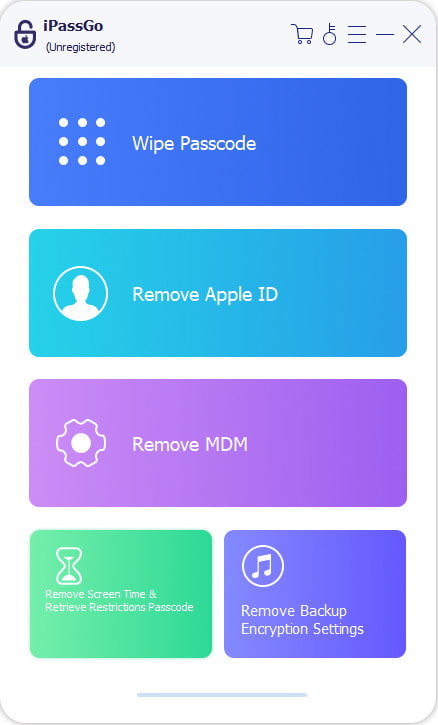
Launch the Restrictions removal tool once you install it on your computer. It is available on Windows 11/10/8/8.1/7 and macOS 10.12 or above. Choose the Lås opp skjermtid modus for å fortsette.
Koble til iPhone
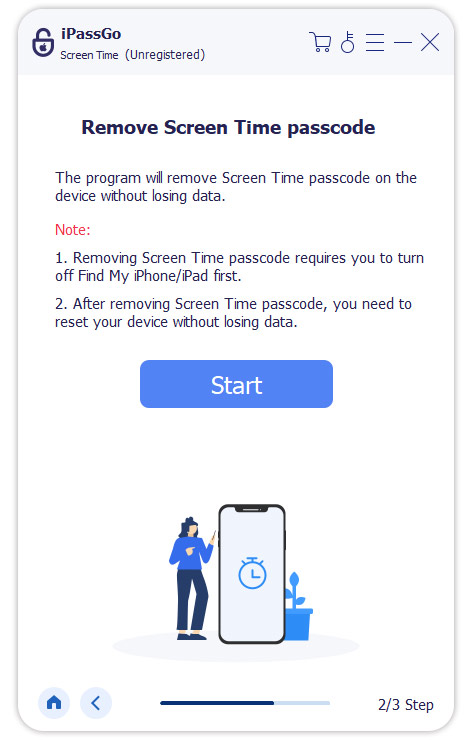
Link your iPhone to your computer using a Lightning cable. When prompted, tap Tillit on your screen to trust this PC. Once the software detects your device, your device information will be loaded. Click the Start nå knappen for å gå videre.
Turn off Restrictions on your iPhone
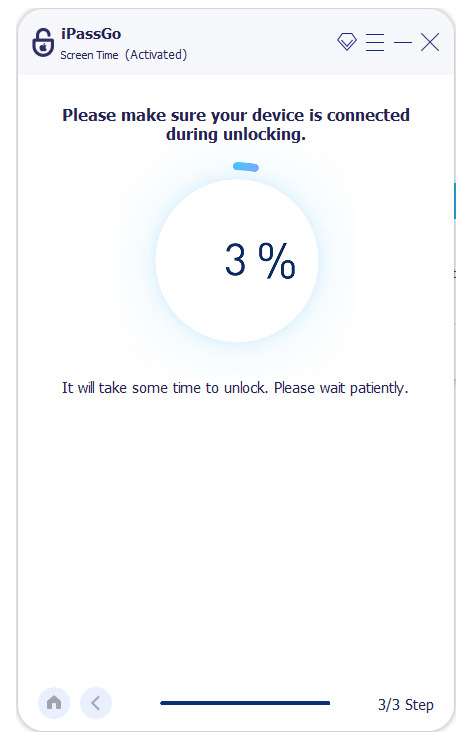
Follow the onscreen instructions to set your Screen Time passcode. Moreover, make sure that Find My iPhone is disabled on your device while Two-factor authentication is enabled. Finally, click the Låse opp knappen for å starte prosessen. Under prosessen må du holde iPhone-en tilkoblet.
Konklusjon
Denne guiden diskutert hvordan slå av begrensninger på iPhone-en din i ulike situasjoner. For det første kan du slå av alle begrensninger på iOS-enheten for å få full tilgang til funksjoner, apper, tjenester og nettinnhold. I tillegg kan du slå av begrensninger for bestemt innhold og bestemte apper etter eget ønske. Hvis du har glemt skjermtid-koden og Apple-kontopassordet ditt, imyPass iPassGo kan hjelpe deg med raskt å bli kvitt begrensninger.
Samuel er spesialist på passordsikkerhet og digitalt personvern. Tidligere jobbet han som rådgiver innen cybersikkerhet for små bedrifter for å beskytte digitale verdier. Med sertifiseringer i cybersikkerhet og etisk hacking gjør han komplekse sikkerhetstemaer om til lettfattelige råd. Han liker også å dele passordtips for å hjelpe brukere med å beskytte kontoene sine med større trygghet.
Hot løsninger
-
Lås opp iOS
-
iOS-tips
-
Lås opp Android
-
Passordtips


