



 Rozwiązanie
 Centrum Wsparcia
 O nas
O nas Kontakt
Why iPhone Says SIM Failure and How to Fix This Problem
 Samuel Spenser Opublikowano dnia 09 października 2026Odblokuj iOS3-minutowe czytanie
“I got a new iPhone this year. All of a sudden, today I began getting a message that says SIM card failure. I haven't dropped or damaged my phone at all. Any ideas?”
While the iPhone comes with a wide variety of features, most of them require a SIM card and wireless signals. If it cannot detect the SIM card, these features are unavailable, such as phone calls, SMS, and more. This guide walks you through solutions to fix SIM failure on an iPhone.

W tym artykule:
Part 1: What Does SIM Failure Mean on iPhone
What does SIM Failure mean on an iPhone? It means that your iPhone can see that a SIM card is inserted, but something blocks it from being recognized by your mobile network. In addition to SIM Failure, you may also see the error message, such as Invalid SIM, SIM Not Supported, or SIM Not Valid.
Why does my iPhone keep saying SIM Failure? First of all, you need to rule out any hardware damage, like water damage. If the error occurs suddenly, the common causes may include:
- 1.Something is wrong with the SIM card.
- 2.Network issues.
- 3.Your iPhone doesn't load the SIM card properly.
- 4.Outdated software or carrier settings.
- 5.Błędy oprogramowania.
- 6.Your iPhone is locked to a specific carrier.
Part 2: How to Fix iPhone Says No SIM
Solution 1: Disable Airplane Mode
Network issues may be responsible for your iPhone not recognizing the SIM card. If you accidentally turn on Airplane Mode on your device, you will encounter network errors. The solution is simple: turning off Airplane Mode on your iPhone.
Opcja 1:
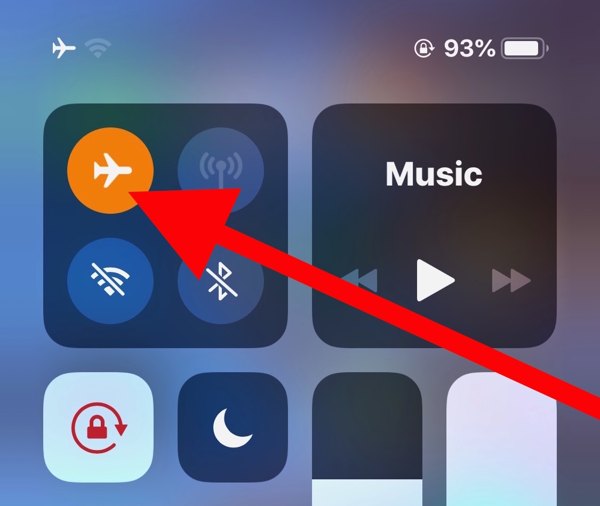
Wprowadź Centrum Kontroli na swoim iPhonie.
Stuknij w Tryb samolotowy button to turn it off. If it is disabled, turn it on and then disable it.
Opcja 2:
Uruchom Ustawienia app from the home screen.
Znaleźć Tryb samolotowy option, and toggle it off.
Rozwiązanie 2: Wyjmij i włóż ponownie kartę SIM
When an iPhone keeps saying No SIM, it means that your device cannot see the SIM card. That may be due to a loose card, improper placement, or a damaged SIM card. To fix this problem, you need to take out the card from your device.
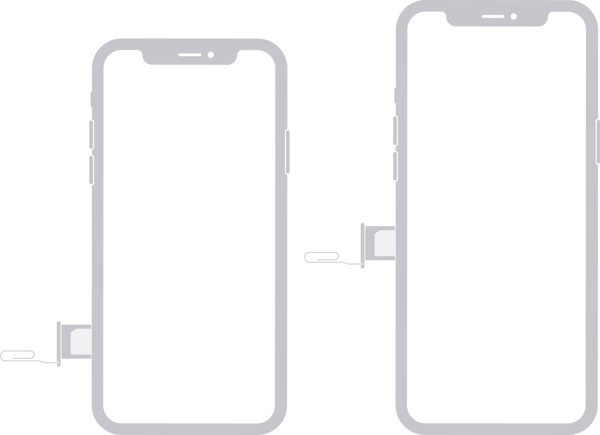
Find the SIM tray on the right side.
Insert a paper clip or SIM-eject tool into the hole beside the tray.
Pull in gently to eject the tray.
Remove the SIM card.
Next, place the SIM card back in the tray.
Insert the SIM tray into your iPhone to see if the error disappears.
If not, take out the card and use another one to check whether your SIM is broken.
Rozwiązanie 3: Uruchom ponownie iPhone'a
Another simple solution to fix iPhone not detecting the SIM card is to restart your device. That can refresh the operating system and let it detect the SIM card again. For an iPhone, you can complete the process with physical buttons.
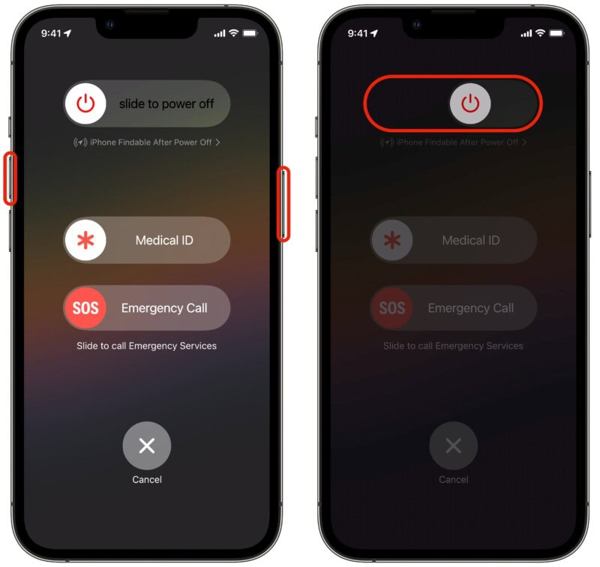
For an iPhone with Face ID, press and hold the Zwiększ głośność + Strona guziki razem.
For older models, hold down the Strona przycisk.
As long as the boot menu screen appears, release the buttons or button.
Move the power-off slider to shut down your iPhone.
Kilka minut później naciśnij i przytrzymaj Strona button until the Apple logo pops up.
Solution 4: Update Carrier Settings
Your iPhone does not read the SIM card partly because the carrier settings are outdated. By default, iOS is able to detect and install the update automatically. If not, you will need to update the carrier settings manually.
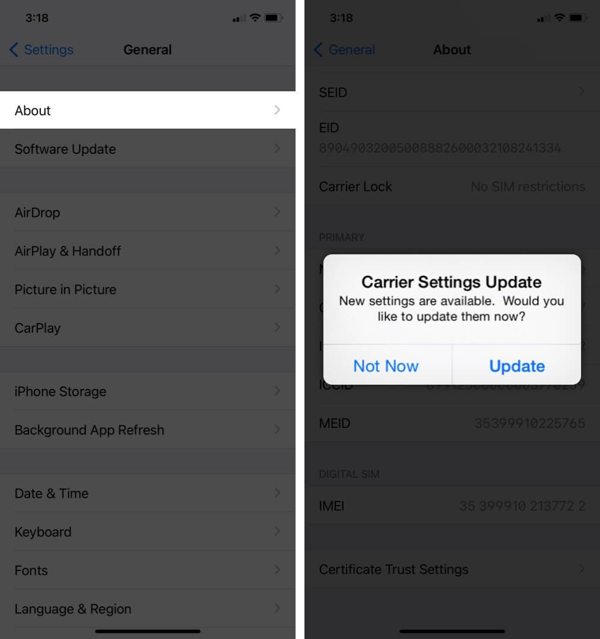
Uruchom Ustawienia aplikacja.
Iść do Ogólny oraz O.
If a carrier settings update is available, tap the Aktualizacja button on the prompt.
When the update finishes, check your SIM card again.
Solution 5: Update iPhone Software
Outdated software is another cause that your iPhone keeps saying SIM Failure. In fact, outdated software can lead to a lot of issues. Therefore, Apple suggests users keep software up to date on their iPhones.
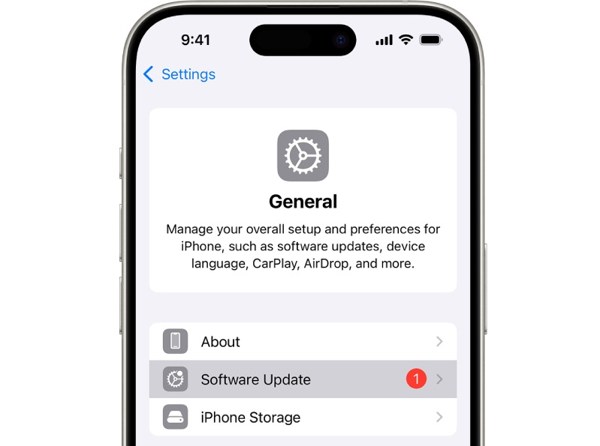
Rozpocznij swój Ustawienia aplikacja.
Nawigować do Ogólny oraz Aktualizacja oprogramowania.
If an update is ready, tap the Ściągnij i zainstaluj button to get it.
Rozwiązanie 6: Zresetuj ustawienia sieciowe
Conflict settings can lead to the SIM Failure error on iPhone, too. It is difficult to identify which changes cause the problem, but you can reset all network settings with a single option on your iPhone.
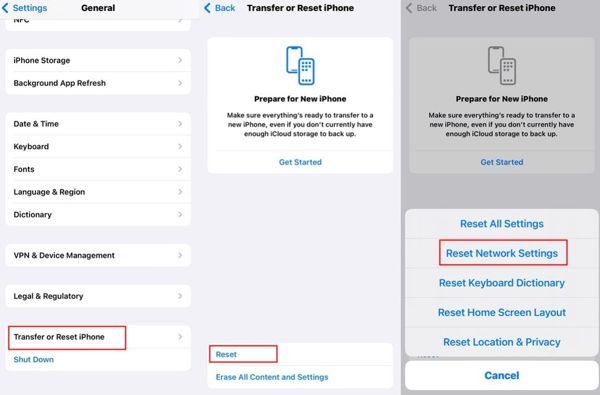
Uruchom swój Ustawienia aplikacja.
Zmierzać do Ogólny, Przenieś lub zresetuj iPhone'a, oraz Resetowanie.
Wybierz Zrestartować ustawienia sieci opcja.
Authenticate with your iPhone passcode.
Uzyskiwać Zrestartować ustawienia sieci ponownie, aby to potwierdzić.
Solution 7: Check if Your iPhone Is Locked to a Carrier
One main reason why my iPhone says SIM Failure is that your device is carrier-locked. Once you insert a SIM card from another carrier, your iPhone cannot read the signal. Check if your iPhone is locked to a carrier following the steps below:
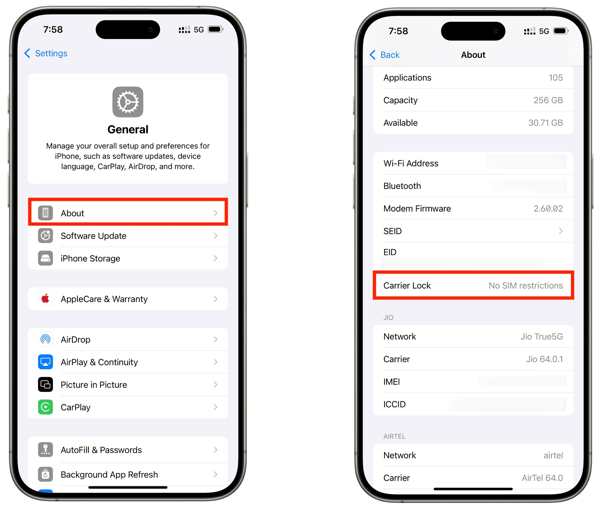
Iść do Ogólny w Twoim Ustawienia aplikacja.
Wybierz O opcja.
Znajdź Blokada przewoźnika wejście.
If you see No SIM restrictions, it means your iPhone isn't locked to a carrier. If not, you have to unlock the SIM on your device.
Może Ci się spodobać:
Part 3: How to Unlock SIM Lock on an iPhone
If your iPhone doesn't recognize SIM card because your device is locked to the previous carrier, imyPass iPassGo can help you fix this problem quickly. It can remove the SIM lock from your iPhone without any restrictions. Furthermore, the clear design helps you simplify the workflow.

Ponad 4 000 000 pobrań
Odblokuj blokadę karty SIM na iPhonie zaledwie w trzech krokach.
Nie proś o hasło ani nie włączaj żadnych ograniczeń w trakcie procesu.
Zachowaj bezpieczeństwo swoich danych podczas odblokowywania karty SIM.
Działa na prawie wszystkich modelach iPhone’a.
Uwzględnij funkcje bonusowe, takie jak omijanie MDM.
Jak odblokować kartę SIM w iPhonie
Zainstaluj narzędzie do odblokowania karty SIM
Uruchom oprogramowanie do odblokowywania SIM po jego zainstalowaniu na komputerze. Jest dostępne w systemach Windows 11–7 oraz Mac OS X 10.12 lub nowszym. Wybierz Odblokuj kartę SIM tryb, aby kontynuować.
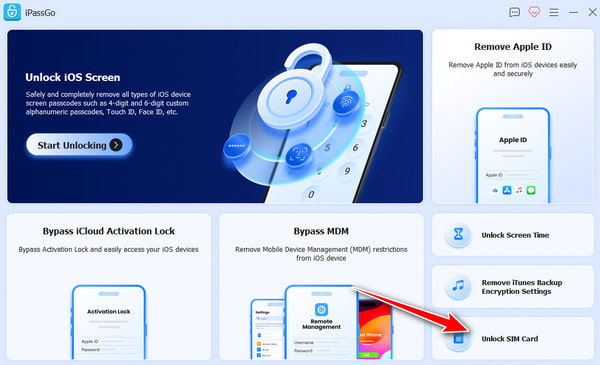
Rozpoznaj swój iPhone
Podłącz iPhone’a do komputera za pomocą kabla Lightning i upewnij się, że ufasz temu komputerowi. Gdy oprogramowanie wykryje Twojego iPhone’a, kliknij Zacząć teraz przycisk, aby kontynuować.
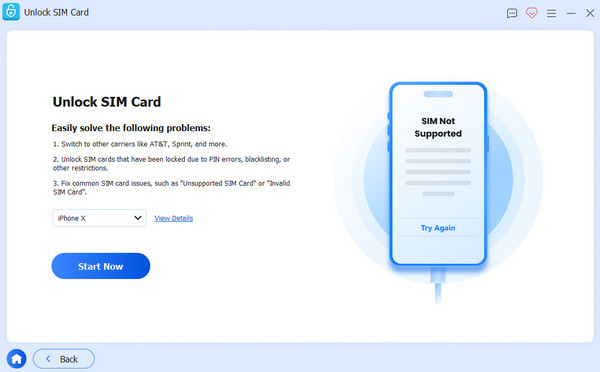
Odblokuj kartę SIM na iPhonie
Sprawdź i potwierdź informacje o urządzeniu. Następnie kliknij przycisk Rozpocznij omijanie . Po wykonaniu jailbreaku urządzenia postępuj zgodnie z instrukcjami wyświetlanymi na ekranie, aby je skonfigurować. Po zakończeniu kliknij OK aby rozpocząć odblokowywanie karty SIM na iPhonie.
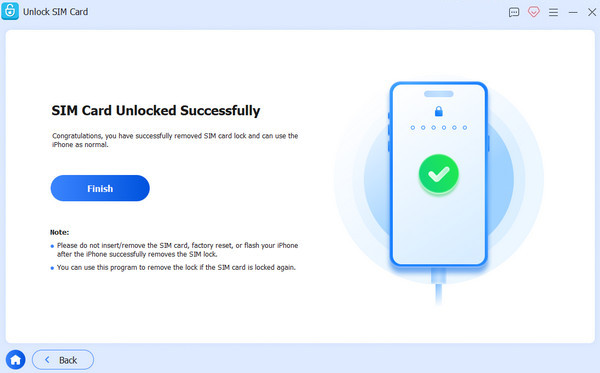
Bonus: SIM Failure vs. No SIM vs. Invalid SIM vs. No Service
Jeśli występują inne problemy z kartą SIM lub eSIM w telefonie, możesz sprawdzić poniższą tabelę, aby je wszystkie zrozumieć.
| Błędy | Znaczenie |
| Awaria karty SIM | iPhone wykrywa problem z kartą SIM lub połączeniem komórkowym. |
| Brak SIM / Brak karty SIM | iPhone nie może wykryć karty SIM. |
| Nieprawidłowa karta SIM | Karta SIM nie jest obsługiwana lub nie może być używana z tym iPhonem. |
| Brak usługi | iPhone nie może połączyć się z siecią komórkową operatora. |
| SOS / Tylko SOS | iPhone nie może połączyć się ze zwykłą siecią komórkową, ale może nadal obsługiwać połączenia alarmowe. |
Wniosek
Teraz powinieneś zrozumieć dlaczego Awaria karty SIM występuje na iPhonie 13 i innych modelach. Co ważniejsze, możesz poznać sprawdzone rozwiązania, aby pozbyć się tego błędu i korzystać z iPhone’a jak zwykle. Jeśli napotkasz ten błąd, ponieważ urządzenie jest zablokowane do poprzedniego operatora, spróbuj imyPass iPassGo aby szybko usunąć blokadę SIM z iPhone’a bez żadnych ograniczeń.
Samuel specjalizuje się w bezpieczeństwie haseł i prywatności cyfrowej. Kiedyś pracował jako konsultant ds. cyberbezpieczeństwa dla małych firm, pomagając im chronić zasoby cyfrowe. Dzięki certyfikatom z zakresu cyberbezpieczeństwa i etycznego hackingu potrafi przekładać złożone zagadnienia bezpieczeństwa na łatwe do zrozumienia porady. Lubi też dzielić się wskazówkami dotyczącymi haseł, aby pomagać użytkownikom pewniej chronić własne konta.
Gorące rozwiązania
-
Odblokuj iOS
-
Wskazówki dotyczące iOS
-
Odblokuj Androida
-
Wskazówki dotyczące hasła


