



 Solução
 Centro de Apoio
 Sobre nós
 Contato
How to Change Location on Google and Google Maps Properly
 Penny Warren publicado em junho 02, 2026Localização GPSLeitura de 3 minutos
According to Google, your current location is used to give you helpful results when you use Google services, from Google Maps to Search or Gemini. In fact, these services may track your location even if you close them on your computer or mobile device. If Google stops updating your geolocation or doesn't find local search results, you can change your location on Google by following our proven methods and detailed guide.

Neste artigo:
Part 1. How to Change Google Location on Google Maps
You can add your home and work locations to Google Maps. If you move to a new city, you have to change locations immediately. We demonstrate the workflows on your iPhone, Android, or desktop.
How to Change Location on Google Maps for iOS/Android
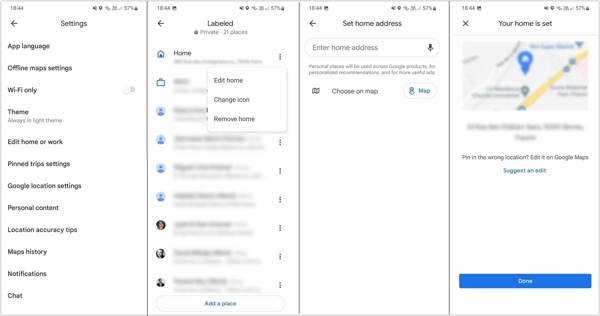
Abra o Google Mapas aplicativo.
Tap on the profile picture in the upper-right corner.
Escolher Definições e toque Edit home or work.
Toque em Cardápio button with a three-dot icon next to your current home address.
Escolha o Editar página inicial opção.
Toque em X next to the current address in the search bar.
Input a new address in the search bar and tap the suggestion by Google to change your home location.
Check the information on the screen and tap Feito.
How to Change Location on Google Maps on Desktop
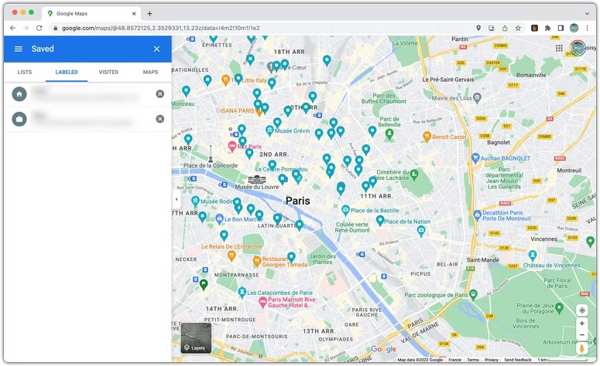
Open a web browser and go to www.google.com/maps.
Clique no Hamburger botão no canto superior esquerdo.
Escolher Salvou e vá para o Rotulado aba.
Find the address you want to change and click the X button to remove it.
A seguir, clique Set a home address.
Input a new address in the search bar and select the suggestion to change location on Google Maps.
How to Change Google Maps Location in the Google App
If you are using the Google app on your iPhone or Android phone, you can change your location on Google Maps within the app directly. The precondition is that you have signed in to Google with your account.
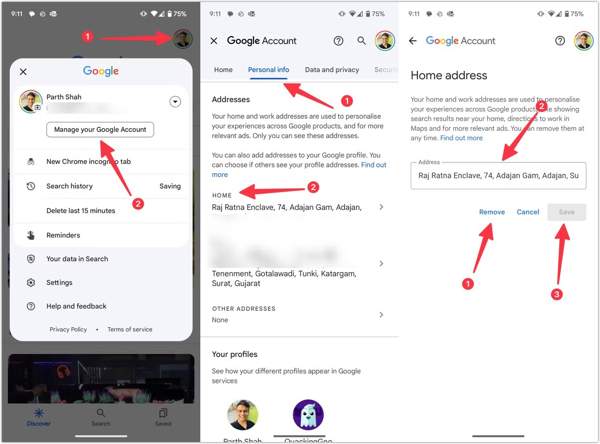
Execute o Google aplicativo no seu dispositivo.
Tap on your profile picture in the upper-right corner.
Escolher Gerencie sua conta do Google.
Vou ao Personal info tab and locate the Endereços seção.
Toque Lar or the other location you want to change.
Toque em Remover button to remove the current address.
Input your new home address, select the suggestion, and tap Salvar.
Por fim, toque em Feito to change location in Google Maps.
Part 2. How to Change Location on Google
If you want to generate search results in a specific region rather than your country, you can change your location in Google. The settings are built into Google and don't require you to sign in to your account.
Go to www.google.com in your browser.
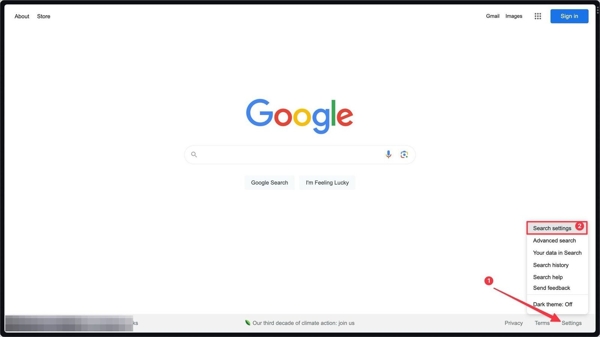
Clique no Definições menu at the bottom right corner.
Escolher Search settings e mudar para Other settings.
Clique no Language & region opção.
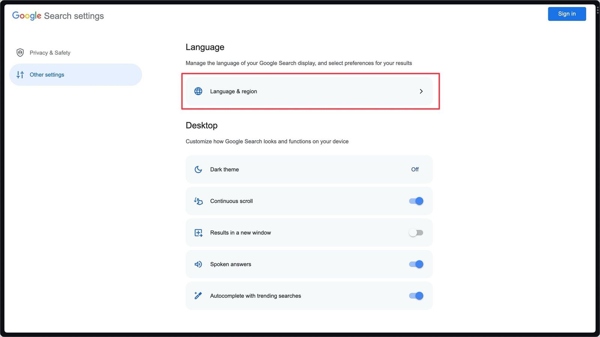
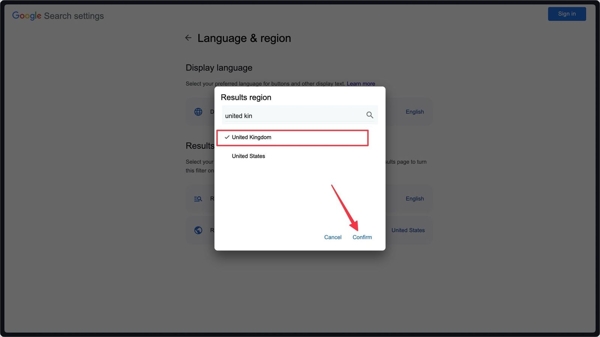
Clique no Results region, search for the desired region, and select it.
Clique no confirme botão.
You May Also Like:
Part 3. How to Change Location in Google Chrome
Changing location on Google Chrome on your desktop is simple. The most common way is through the Developer Tools. This way requires technical skills, and we share the detailed steps below:
Open the Google Chrome program.
Imprensa Ctrl + Mudança + EU on Windows or Comando + Opção + EU on Mac to access Developer Tools.
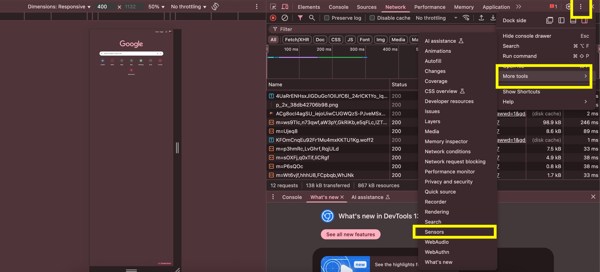
Clique no Cardápio button with a three-dot icon at the top right corner.
Escolher Mais ferramentas e depois Sensores.
Vou ao Geolocation dropdown.
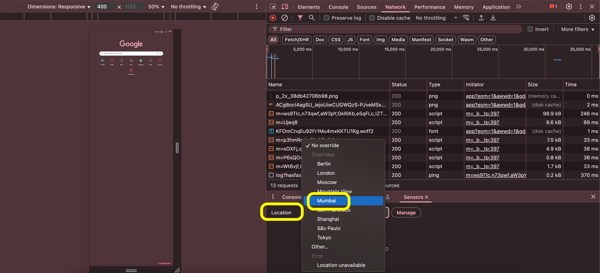
Select a preset location from the list. If you cannot find the desired location, choose Custom location and enter the latitude and longitude.
Now, open a tab and access a website to detect the changed location in Google Chrome.
Part 4. A Safe Way to Change Google Location on iPhone/Android
In addition to change Google location in each app, imyPass iLocaGo allows you to change your mobile device location with a single click. It works on all Google services, including Google Search, Google Maps, and Google Chrome.

Mais de 4.000.000 de downloads
Change the Google location on your mobile device quickly.
Safe to use and won't install anything on your handset.
Ofereça vários modos para diferentes propósitos.
Provide custom options, like speed, travel methods, and more.
Support a wide range of iPhones and Android devices.
How to Change Google Location on Your iPhone
Detecte seu dispositivo
Launch the Google location changer after you install it on your computer. It is available on Windows 11 to 7 and macOS 10.12 or above. Connect your iPhone to your computer with a Lightning cable.

You can link an Android phone and computer with a cable or wireless network.
Escolha Modificar local
Escolha o Modificar localização mode if you need to change the Google location. The other three modes, One-stop Mode, Multi-stop Mode, and Joystick Mode, are used to simulate movements.

Change Google location
Input an accurate address into the field or click the right position on the map. Finally, click the Modificar button to confirm it. Now, turn on your iPhone, open Google, Chrome, or Google Maps to use the fake location.

Conclusão
This guide shared how to change work location on Google Maps, Google Search, and Google Chrome on your desktop and mobile device. You can pick the right method according to your needs and follow our detailed steps to modify the desired location. If you want to hide your real location on your mobile device, imyPass iLocaGo is a good option. It is able to change the Google location without technical skills or installing anything on your mobile device.
Penny focuses on GPS troubleshooting and Windows optimization. She formerly worked as a technical support engineer, helping clients solve location-based and system issues efficiently. Backed by IT support experience, she provides practical solutions that really work. In her free time, she likes hiking and geocaching, testing GPS tech in the real world.
Soluções quentes
-
Localização GPS
-
Desbloquear iOS
-
Dicas para iOS
-
Desbloquear Android


