



 Solução
 Centro de Apoio
 Sobre nós
 Contato
Google Maps Location Sharing: A Smarter Way to Share Location
 Penny Warren publicado em maio 09, 2026Localização GPSLeitura de 3 minutos
Google Maps is one of the most widely used navigation tools, with more than 1 billion users worldwide. It makes it easy to share your location, navigate unfamiliar places, and stay connected in real time. However, not everyone knows how to make full use of its location sharing features. In this guide, we will tell everything about Google Maps location sharing, including how to share live and static locations, how to use maps offline, how to manage location privacy, and how to fix common issues.

Neste artigo:
Part 1. How to Share Location on Google Maps on Mobile
Whether you're meeting friends, letting family track your trip, or guiding someone to an exact spot, Google Maps location sharing on mobile is quick and flexible. You can either share your live real-time location or send a pinned static location, depending on what you need.
How to Share Live Location on Google Maps
Live location sharing lets others see where you are as you move. It's useful when family tracking your traveling for safety reasons, picking someone up, or coordinating meetups in crowded places.
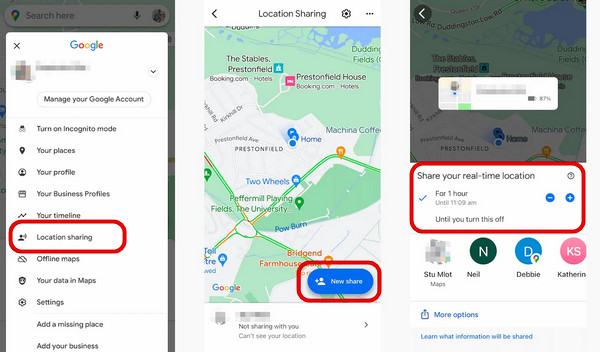
Tap on the Google Maps app on your phone, then tap your profile in the top right corner.
Escolher Compartilhamento de localização e toque Compartilhar localização ou Novo Compartilhar.
Choose how long you want to share your live location: You can set a duration, like 15 minutes or an hour, for up to 24 hours. Alternatively, you can choose Until you turn it off to share the Google Maps location permanently.
Select a contact to share with. If you haven't saved the contact, you can tap Copy to clipboard ou Share link. Then paste the link to any app, like WhatsApp. The receipt will open the link and see your real-time location.
To stop sharing your Google Maps location, go back to the Compartilhamento de localização e toque Pare de compartilhar next to the contact's name.
How to Share a Static Location on Google Maps
Sometimes Google Maps can't detect your location perfectly, or if you want to show someone a specific place as a meeting spot, you can drop a pin on the exact spot and send a static location. The static location doesn't update your movement and only requires a network when you sent it.
Open Google Maps on your phone, press and hold on the place where you want to drop a pin.
Tap the location card that appears at the bottom and select Compartilhar.
Choose how you want to send the location link, such as Messages, email, or social apps. The recipient will receive a link that opens the exact location instantly.
Part 2. How to Use Google Maps Location Sharing Offline
If your device has a weak internet connection, you can still use Google Maps offline by downloading maps in advance. While GPS positioning will continue to work, it won't display real-time traffic or allow you to search for new locations. This is especially helpful when traveling through mountains, highways, rural areas, or places with unreliable network coverage.
Open the Google Maps app on your phone, then tap your profile in the top right corner.
Toque Offline Maps e toque Select Your Map.
Adjust the area you want to download and tap Download.
After downloading, Google Maps will continue showing your location using GPS - even without mobile data.
Part 3. How to Spoof a Real-Time Location on Google Maps
Many users have the same concern: "What can I do if I don't want to share my real location?" Sometimes, you may not want to expose our location to others for privacy reasons. In this case, imyPass iLocaGo can help you change or simulate your real-time location on Google Maps. It allows you to set a virtual GPS location anywhere in the world with a few clicks!

Mais de 4.000.000 de downloads
Spoof your location in apps like Google Maps, WhatsApp, and Snapchat.
Simulate real-time movement along custom routes.
Customize speed and multiple destinations as you need.
Support the latest Android and iOS versions.
Steps to change your Google Maps location:
Connect your device to the computer via a USB cable. Tap Confiar on your iPhone when prompted. If you're using an Android phone, you can use a wireless connection.

Launch the software and click the Modificar localização opção na interface.

A map will appear on your screen. You can drag, zoom in, and zoom out to find the desired site, or simply enter the place name in the search bar to find it quickly.

Clique Sincronizar com o dispositivo to apply the new location to your device instantly.
Isenção de responsabilidade: For better use, only use location changes for legitimate purposes such as privacy protection or app testing. Please make sure you comply with all applicable laws and platform policies when using location simulation tools.
Part 4. Troubleshooting: Google Maps Location Sharing Not Working
If your Google Maps location sharing is not working, for example, the shared location is not updating in real time, this is a common issue usually caused by incorrect settings, network problems, or permission errors. Try the fixes below to get location sharing working again.
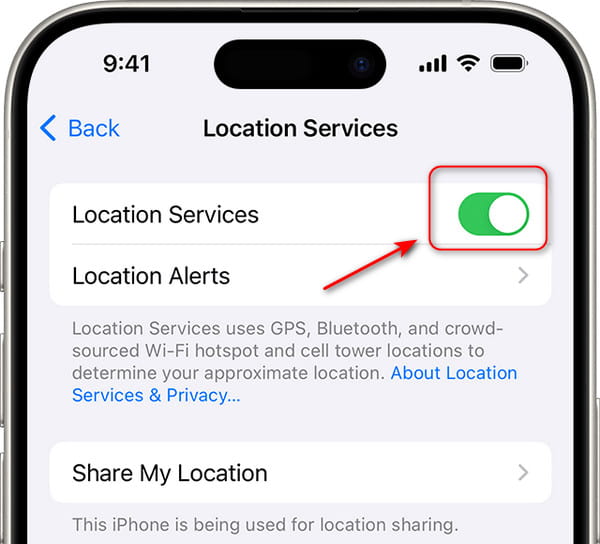
1. Habilitar serviços de localização
If you only allow location access while using the app, the location will not update in the background. In some cases, the issue may be related to Location Services not working.
- On iPhone, go to Definições > privacidade e segurança > Serviços de localização. Then select Google Maps and set it to Always Allow.
- On Android, go to Definições > Localização > Permissões do aplicativo. Set Google Maps to Allow All the Time e habilitar o Localização precisa opção.
2. Check Internet Connection
Make sure you have a stable internet connection. You can switch between Wi-Fi and mobile data or turn the Airplane Mode on and off to check if Google Maps location sharing works again.
3. Restart Google Maps or Your Device
Temporary system glitches can also cause the Google Maps location sharing to stop updating. Restarting your device or refreshing your account can fix these small errors effectively.
Conclusão
Now you've learned how to share a location from Google Maps, send a pinned location, and use offline maps when your internet connection is weak. We also introduced a trocador de localização, imyPass iLocaGo, for situations where you don't want to expose your real location.
Before you go, remember to only share your location with people you trust, use a limited sharing duration, and turn it off once it's no longer needed!
Penny focuses on GPS troubleshooting and Windows optimization. She formerly worked as a technical support engineer, helping clients solve location-based and system issues efficiently. Backed by IT support experience, she provides practical solutions that really work. In her free time, she likes hiking and geocaching, testing GPS tech in the real world.
Soluções quentes
-
Localização GPS
-
Desbloquear iOS
-
Dicas para iOS
-
Desbloquear Android


