



 Solução
 Centro de Apoio
 Sobre nós
 Contato
How to Fix Life360 Not Upgrading Location on iPhone & Android
 Penny Warren publicado em março 17, 2026Localização GPSLeitura de 3 minutos
Life360 is a popular family location-sharing app that helps users stay connected and ensure safety in real time. However, many users find that Life360 is not upgrading location or fails to update accurately. So, why is Life360 not updating location? Is it a network problem, a settings issue, or something else? In this guide, we'll explore the common reasons behind this problem, share 8 fixes and introduce how to change your Life360 location easily.

Neste artigo:
Part 1: Why Is Life360 Not Upgrading Location?
If you're noticing that Life360 isn't updating your location, there could be several reasons for this. Below are some common causes:
- Privacy Restrictions
Life360 needs permission to access your device's location. If location services are turned off or Location Sharing is enabled, the app cannot update your location. - Network Errors & Poor GPS Signal
A weak Wi-Fi network, unstable cellular data, or using a VPN can interfere with Life360's location tracking. Additionally, if you're in an area with a poor GPS signal, updates may be inaccurate or delayed. - Low Battery
When your phone's battery is running low, it may restrict background apps to save power. This can prevent Life360 from updating your location. - Multi-Device Logins
If the same Life360 account is logged in on multiple devices, it can cause syncing issues and prevent location updates from appearing across all devices. - App Settings & Bugs
An outdated version of Life360 can cause bugs or compatible issues that affect upgrading the real-time location. Furthermore, if app settings like location permissions or background refresh are turned off, the app won't be able to access your location.
Part 2: 8 Tips to Fix Life360 Not Upgrading Location
Check for Network and VPNs
You need to make sure your phone has a stable internet connection, whether you are using Wi‑Fi or mobile data, and confirm that Airplane mode is turned off. If you are using a VPN, turn it off immediately. VPNs can interfere with location tracking and prevent Life360 from updating your current location.
Restart Life360 & Your Phone
Close the Life360 app completely and then reopen it. If your location still isn't updating, try restarting your phone. A simple restart can clear temporary system bugs, shut down frozen background processes, and reset network and location services.
Refresh Your Account
Open Life360, go to Definições, sign out of your account, wait for about 30 seconds, then log in again. Refreshing your account can fix sync errors, server connection issues, and other small glitches that maybe prevent location from updating.
Habilitar serviços de localização
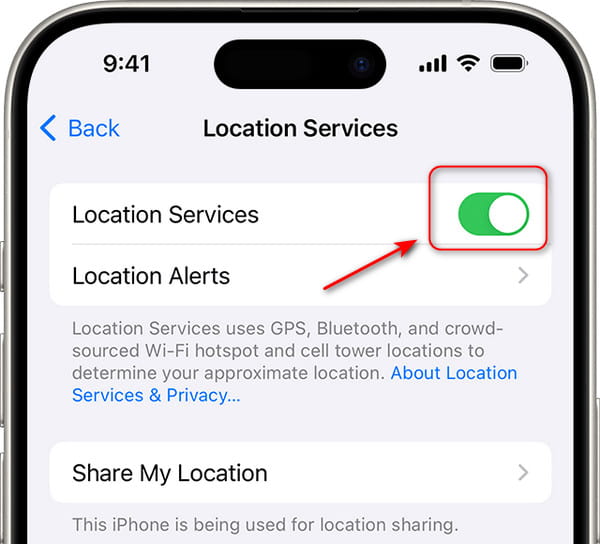
On iPhone, go to Definições > privacidade e segurança > Serviços de localização. Then select Life360 and set it to Always Allow. On Android, go to Definições > Localização > Permissões do aplicativo and set Life360 to Allow All the Time. Habilitar Localização precisa. If you only allow location access while using the app, it will not update in the background, and your location will show as outdated.
Enable Location Sharing
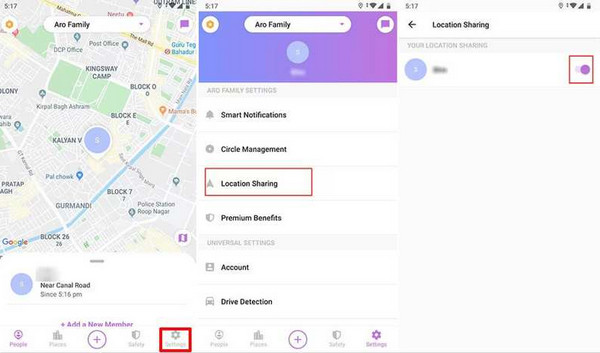
Sometimes this setting can be disabled automatically after an update, a restart, or refreshing your account. Open the Life360 app and enter your circle, then check whether Compartilhamento de localização is fully enabled. If location sharing is off, Life360 won't send your location to other members in your circle.
Enable Life360 Background App Refresh
Background App Refresh allows Life360 to keep updating your location even when you are not using the app. Make sure Life360 is allowed to run in the background. On iOS, go to Definições > Em geral > Atualização do aplicativo em segundo plano. On Android, go to Definições > Aplicativos > Vida360 to enable Background data. Without this setting, your location will only update when you open the app manually.
Update Life360 to the Latest Version
Outdated versions of Life360 often have bugs that affect location tracking and performance. Open the App Store or Google Play Store, search for Life360, and install any available updates. The latest version usually includes bug fixes and improvements.
Disable Battery-Saver Features
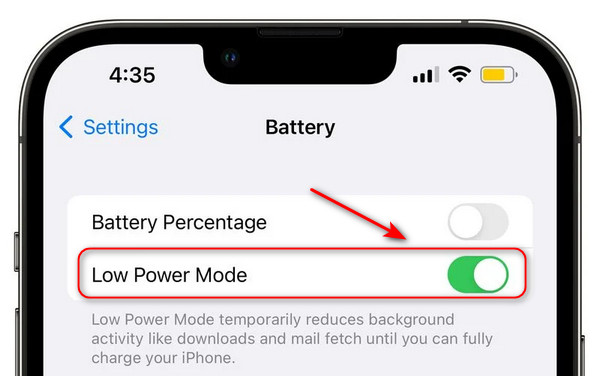
Battery-saver features may limit Life360 from running in the background. On Android, go to Definições > Bateria e desligue Modo de economia de energia. On iOS, go to Definições > Bateria > turn off Modo de baixo consumo. This allows Life360 to access data and update location normally.
Part 3: Change Your Life360 Location Without Being Noticed
In some cases, you don't want others to know your location for privacy reasons. But turning off location services or disabling location sharing will raise their suspicion. How to change the Life360 location without being noticed? You can try imyPass iLocaGo! It can change phone location on iPhone and Android within a few clicks!

Mais de 4.000.000 de downloads
Change your iPhone/Android location without jailbreak or root.
Modify your location freely on all apps, including Tinder, Life360, and Facebook.
Provide various modes to simulate your movements.
Change speed and select spots to customize your routes.
How to Change Location Using iLocaGo:
Connect your phone to a computer using a USB cable. If you have an Android device, you can also connect your Android and computer to the same Wi-Fi.
Clique Modificar localização na interface.

Then you will see a map on your screen. You can drag the map to the location you want to set or type the address in the search bar. Then click Sincronizar com o dispositivo.

Perguntas frequentes.
-
How to fix Life360 not updating location for one person?
First, ask them to check whether Location Sharing is enabled. Then make sure their phone has a stable internet connection. Next, check the battery level and ensure the battery-saver features are disabled. If everything looks fine, refresh the app and restart the device.
-
Can I update a fake iPhone GPS location on Life360?
Life360 doesn't have a built-in feature to update a fake iPhone GPS location. However, you can use a location changer tool like imyPass iLocaGo to modify your device's location for apps.
-
How often does Life360 update the location?
Life360 updates the location every few minutes when the user is moving. But the update frequency is also affected by network connection, GPS signal, battery level, and app activity.
-
Why does someone's location show 2 hours ago on an iPhone?
This means Life360 hasn't received a recent update from the person. This usually happens when the phone is offline, has a weak internet connection, or has location permissions disabled.
Conclusão
Life360 not upgrading location is usually caused by network issues, disabled location permissions, battery restrictions, or app glitches. In most cases, the problem can be removed by following the 8 tips outlined in this guide. If needed, you can also use a trocador de localização like imyPass iLocaGo to manage your Life360 location more flexibly and conveniently!
Penny focuses on GPS troubleshooting and Windows optimization. She formerly worked as a technical support engineer, helping clients solve location-based and system issues efficiently. Backed by IT support experience, she provides practical solutions that really work. In her free time, she likes hiking and geocaching, testing GPS tech in the real world.
Soluções quentes
-
Localização GPS
-
Desbloquear iOS
-
Dicas para iOS
-
Desbloquear Android


