



 Solução
 Centro de Apoio
 Sobre nós
 Contato
What Location Expired Mean on iPhone and How to Fix It
 Penny Warren publicado em junho 23, 2026Localização GPSLeitura de 4 minutos
"When my friends and I are trying to share our location, my iPhone says Expired Location before the location can even load in. Why does it say Location Expired?" According to our research, this common error occurs when your iPhone cannot update or share its current location information. Some iPhone users face this frustrating issue. This article shares the effective solutions to fix this error without losing data.

Neste artigo:
Part 1. What Does Location Expired Mean and Why Does It Occur
What does Location Expired mean? The error message is alarming on iOS devices. It interrupts the ability to track or share your whereabouts. Typically, this error occurs when sharing location on the Messages or other apps. It means that the location information is no longer available or up-to-date. When the error appears, you cannot see the shared location or share your location on your iPhone.
Before walking through the solutions, let’s explore the underlying causes why it keeps saying Location Expired on your iPhone.
- 1.Location Services is disabled accidentally.
- 2.Find My is restricted or stuck.
- 3.There is a problem with your iPhone’s network connection.
- 4.The location was shared a long time ago and has naturally expired.
- 5.Outdated iOS.
- 6.Software glitches.
Part 2. How to Fix Location Expired on iPhone
While seeing an iPhone error message saying Location Expired can be frustrating, you can try the solutions below one by one to fix this error on your iPhone. Then, you can share your location normally.
Solution 1: Double Check Location Services
Abra o Definições no seu iPhone.
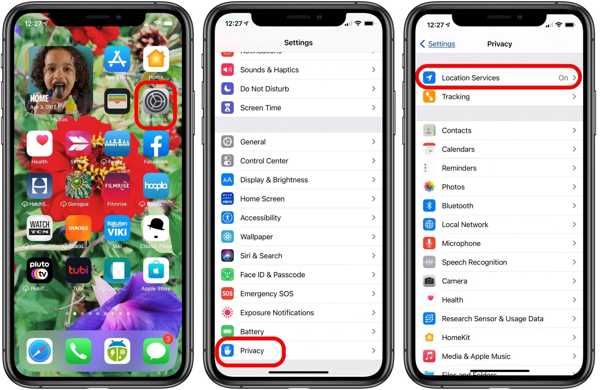
Vou ao Privacidade aba.
Toque em Serviços de localização botão.
Ative o Serviços de localização opção.
Em seguida, toque no Compartilhar minha localização botão.
Ative o Compartilhar minha localização opção.
Make sure to allow the desired contact to fix the Location Expired on iPhone.
Solução 2: Reinicie o seu iPhone
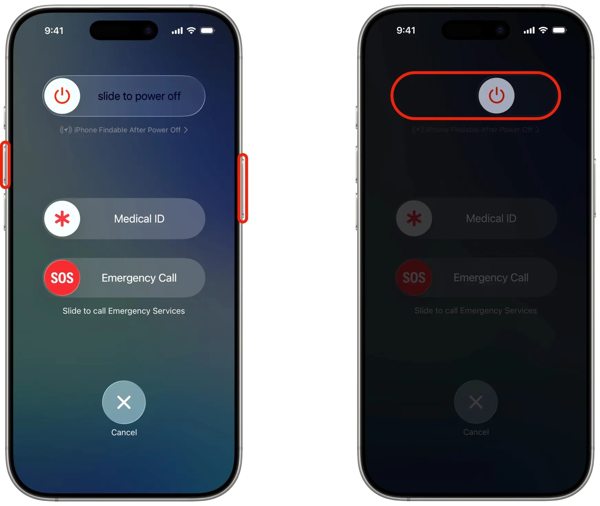
For an iPhone with Face ID, hold down either Volume botão + Lado button together. For an iPhone without Face ID, press and hold the Lado ou Poder botão.
When the power-off screen pops up, release the buttons or button.
Deslize o botão para a direita para desligar o dispositivo.
After your touchscreen turns black, wait for a few minutes.
Then, hold down the Side ou Poder botão até ver o logotipo da Apple.
Now, try to share your location again to check if Location Expired is fixed.
Solução 3: Data e hora corretas
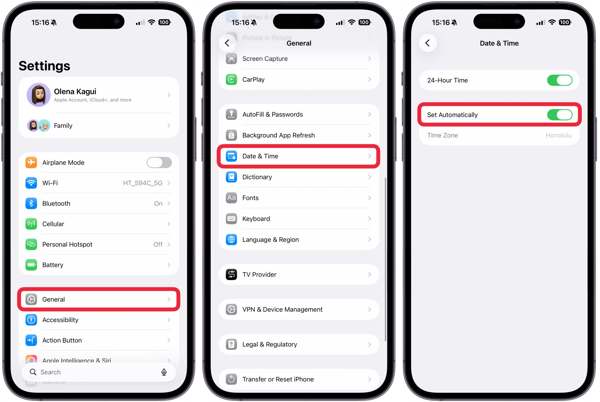
Vá para sua Definições aplicativo na tela inicial.
Navegar para Em geral e Data hora.
Ativar/desativar Definir automaticamente.
Connect to a stable network and fix Location Expired on iPhone.
Solution 4: Check Your Network
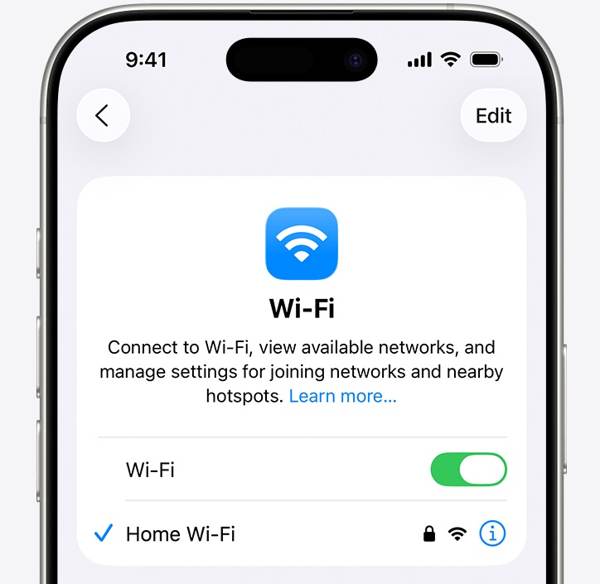
Sharing location on iPhone works through an internet connection. If you are using Wi-Fi and Location Expired occurs on your iPhone, connect to a cellular data network or vice versa. Then, share your location again.
Solution 5: Re-enable Find My
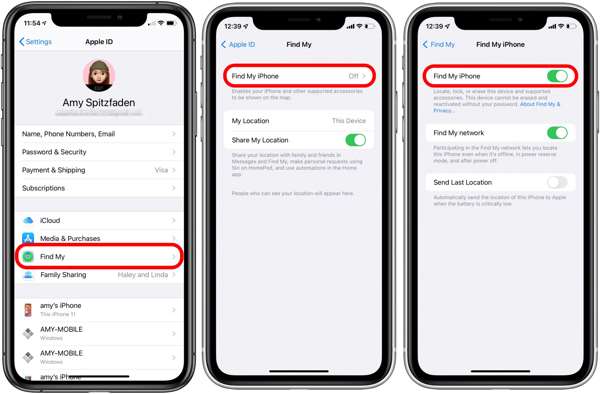
Comece o Definições aplicativo na tela inicial.
Toque no seu perfil.
Escolha o Encontre o meu opção e toque Encontre meu iphone.
Ativar/desativar Encontre meu iphone e Find My network to fix Location Expired on iPhone.
If Find My iPhone is enabled, toggle it off and turn it back on.
Solução 6: Atualizar o iOS
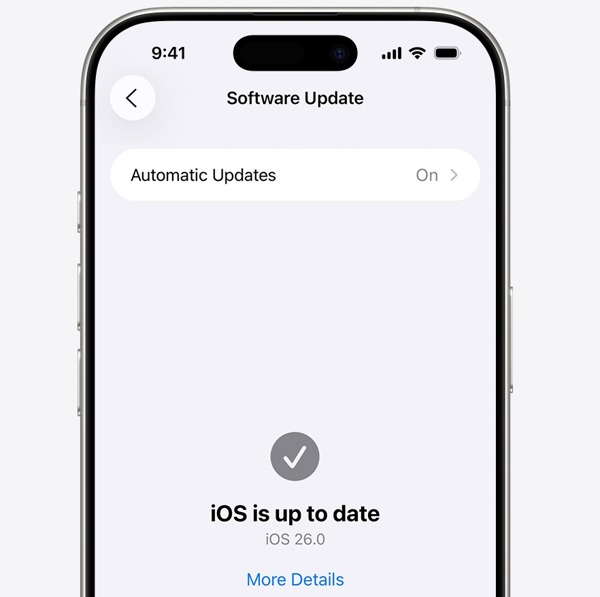
Execute seu Definições aplicativo.
Navegar para Em geral e Atualização de software.
Se uma atualização estiver disponível, toque em Baixar e instalar botão.
Follow the onscreen instructions to update the iOS.
Quando terminar, seu iPhone será reiniciado.
Try to share your location to see if the Location Expired error disappears.
Solução 7: Redefinir localização e privacidade
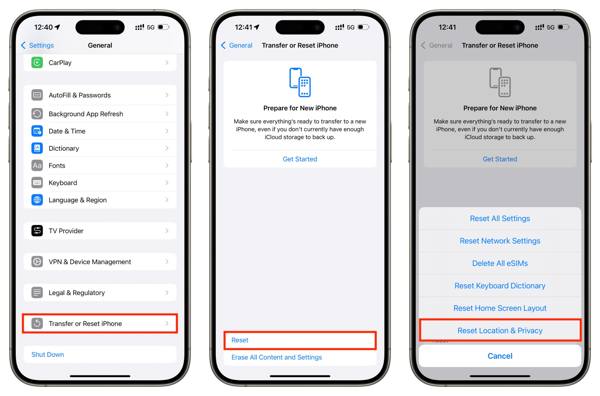
Abra o Definições aplicativo no seu dispositivo.
Vamos para Em geral e Transferir ou redefinir o iPhone.
Toque em Redefinir botão.
Escolha o Redefinir localização e privacidade opção.
Next, turn on Location Services and Find My iPhone to fix Localização expirada.
Leituras relacionadas:
Part 3. One-stop Solution to Fix iPhone Location Expired
If you have performed the common solutions but the iPhone Location Expired error persists, you can try imyPass iLocaGo. It allows you to share any location without turning off Location Services on iOS devices. Plus, the user-friendly design makes it easy to use.

Mais de 4.000.000 de downloads
Fake iPhone location com um clique.
Simulate movements with multiple modes.
Work with accurate addresses and any locations.
Ofereça opções personalizadas, como velocidade.
Support a wide range of iPhones and Android devices.
How to Fix Location Expired on Your iPhone
Detecte seu iPhone
Launch the iPhone location spoofing software once you install it on your PC. There is another version for Mac. Next, connect your iPhone to your PC with a Lightning cable. Then, the software will detect your device immediately.

Escolha um modo
Escolha o Modificar localização mode if you want to change the static location. The other three modes, Modo de parada única, Modo de parada múltipla, e Modo joystick, são usados para criar rotas virtuais.

Fake your location
Next, type in an accurate address into the field. If you don’t have an address, click the right position on the interactive map. Finally, click on the Modificar button to confirm it. Now, turn on your iPhone and check if the Location Expired error is resolved.y.

Conclusão
This article explained why it says Location Expired on your iPhone. More importantly, we shared the effective solutions to help you fix this error and enable you to share your location as usual. The good news is that software glitches or conflict settings cause this error. If the common solutions are unavailable, try imyPass iLocaGo. It allows you to share any address around the world on your iPhone without disabling Location Services.
Penny focuses on GPS troubleshooting and Windows optimization. She formerly worked as a technical support engineer, helping clients solve location-based and system issues efficiently. Backed by IT support experience, she provides practical solutions that really work. In her free time, she likes hiking and geocaching, testing GPS tech in the real world.
Soluções quentes
-
Localização GPS
-
Desbloquear iOS
-
Dicas para iOS
-
Desbloquear Android


