



 Solução
 Centro de Apoio
 Sobre nós
 Contato
No Location Found vs Location Not Available: Fix It to Share Location
 Penny Warren publicado em março 03, 2026Localização GPSLeitura de 3 minutos
If you are using an iPhone every day, you will know how convenient it is for small to massive screen activities. Sharing your location is one of the features that can be used. This procedure uses a GPS to share your real-time location with your friends and family. However, some say they encounter the Location Not Available error message on their iPhone screens.
What does Location Not Available mean? This issue happens when there is no available location being shared on your iPhone. It happens due to various system issues on the mentioned device. In this post, we will help you better understand the error message. The easy methods to fix it are also available. Please continue browsing for more details.

Neste artigo:
Part 1. What Does Location Not Available Mean
What does Location Not Available mean? There are countless of misinformation about this error message on the iPhone. The user action commonly causes it. The iPhone user might have turned off the Share My Location settings. Also, there might be restrictions from the Screen Time feature. Additionally, they might have removed you from their location-sharing list. It means that the iPhone is online, but its location data is not being shared with you.
Also, the iPhone might not be connected to the internet. So you cannot view or compartilhe sua localização em um iPhone. It causes the Location Not Available error message to appear.
Part 2. Location Not Available vs. No Location Found
You might also be seeing the No Location Found error message on your iPhone. What is the difference between No Location Found and Location Not Available? No Location Found can be an indication that the iPhone is turned off. Also, there might be an enabled feature that hinders the location from being shared, including the Airplane Mode. Additionally, it is also possible that your Wi-Fi or cellular data connection is poor.
On the other hand, the error message can also be a result of a temporary glitch in your iPhone. It could be on the Location Services feature of the mentioned device. On the other hand, Location Not Available means that the user preferred not to share the location with you.
Part 3. How to Fix Location Not Available on Your iPhone
Now that you know the differences between the Nenhum local encontrado and Location Not Available, it is time to fix the Location Not Available on your iPhone. In this section, the methods are related to fixing the error message on your own iPhone. See the methods below.
1. Turn On Location Services
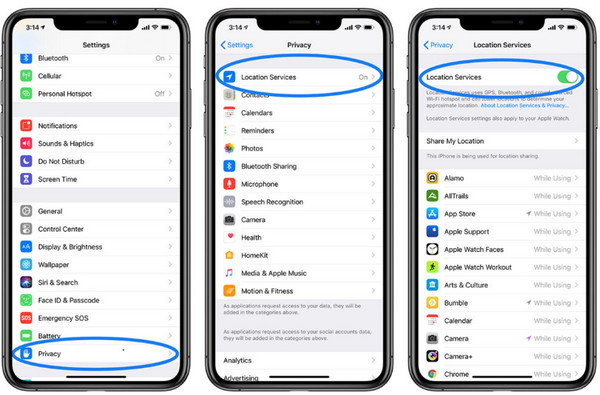
Sharing your location on an iPhone requires the Location Services feature to be turned on. If this feature is turned off, you might experience the Location Not Available issue on your iPhone. Please perform the steps below to turn on the iPhone Location Services feature.
Access the iPhone Definições application. After that, the list of settings will appear on the screen.
Por favor, toque no privacidade e segurança ou Privacidade button on the list. Later, tap the Serviços de localização button and toggle on the Serviços de localização slider at the top.
2. Set Time and Date Correctly
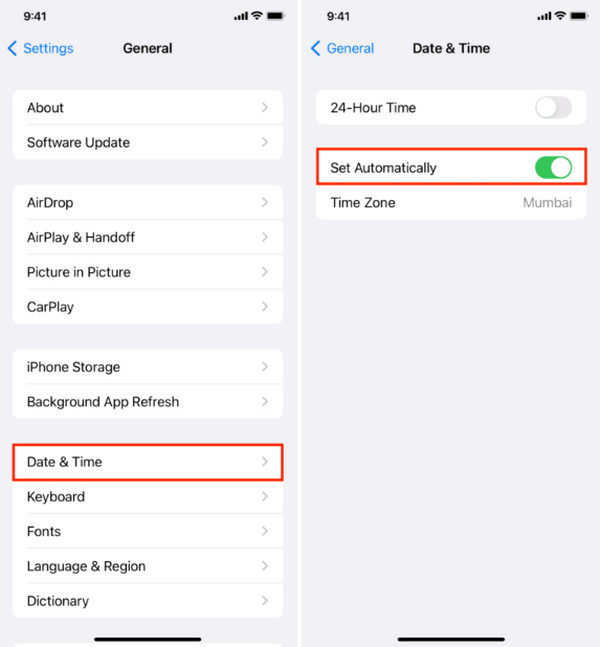
For the iPhone to share your real-time location, you should have your current time and date. Though the iPhone updates your time and date automatically, there are times when users prefer to set it up manually. Set the time and date on your iPhone correctly to fix the Location Not Available issue with the steps below.
Abra o Definições aplicativo e toque no Em geral button on the first interface of the application. After that, select the Data hora button from the options list.
The date and time settings will appear on the next interface. Please select the Definir automaticamente botão da lista.
3. Redefinir configurações de rede
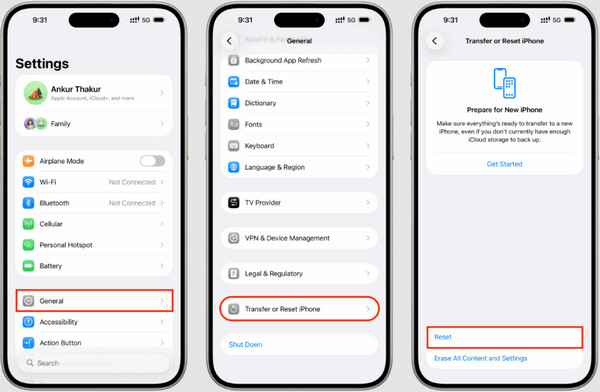
GPS also relies on the internet connection of your iPhone. However, some iPhone users report that their cellular data or Wi-Fi is not functioning as it should. There might be a faulty setting related to the feature. Reset networking settings on your iPhone to fix the issue. The steps are available below.
Abra o Definições app on an iPhone and select the Em geral botão. Em seguida, toque no Transferir ou redefinir o iPhone botão na parte inferior.
Escolha o Redefinir button at the bottom. Later, please select the Redefinir Ajustes de Rede button from the list. Confirm the button by tapping it again.
Part 4. How to Fix Someone Else's Location Not Available
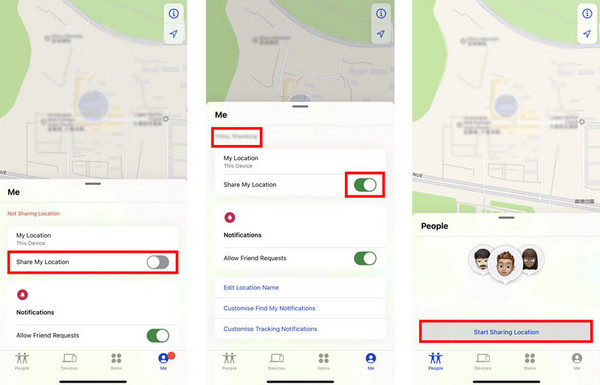
The good thing about Not Location Available is that you can fix it for someone else. Find My Friends of Find My can be used. The steps require the Apple ID credentials and a stable internet connection. Fix Location Not Available in Find My Friends with the steps below.
Abrir Encontre o meu and sign in with your Apple ID. Then, tap the Meu button at the bottom right. Later, toggle on the Compartilhar minha localização slider.
Later, tap the Pessoas button at the bottom left. Later, tap the Comece a compartilhar o local button under the names of the associated people from the account.
Part 5. What If You Need to Customize Your iPhone Location
Sometimes, we want to customize our iPhone location to enhance our privacy. imyPass iLocaGo is the most relevant third-party tool for this matter. It supports the latest iOS 26 version, including earlier versions. This program allows you to change location from different apps on your iPhone, including WhatsApp, Snapchat, Tinder, etc.
Additionally, it is 100% safe to use because it does not impact the speed of your network on your iPhone. The history and favorite features can be accessed for easy operations. Besides the iPhone, this tool can also be used to change your location on an Android phone without rooting or jailbreaking it. The steps on how to use the tool to change your iPhone location are posted below.
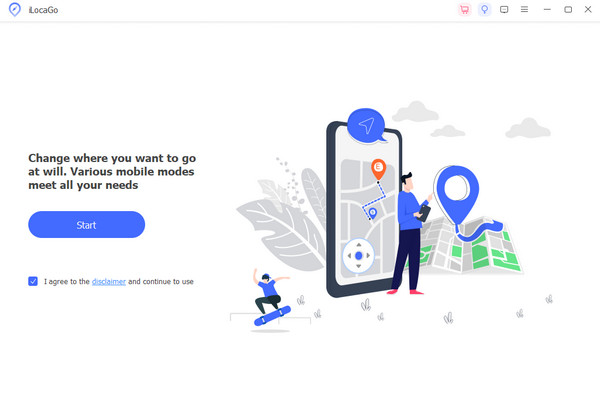
Access the official website of imyPass iLocaGo. After that, download and set up the file intended for the software. Later, install and open it on your Windows or Mac to start the location-changing process.
Por favor clique em Começar button on the first interface. Then, check the I Agree to the Disclaimer and Continue to Use box. This way, you can proceed with the next process.
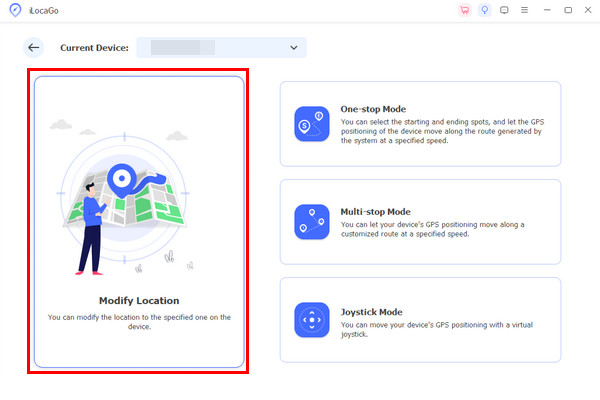
Plug your iPhone into the computer. Then, follow the on-screen instructions for the connecting process. Select the Modificar localização on the left afterward. Select your preferred location by typing it at the top left. Click the Modificar button at the bottom corner to apply the changes.
Conclusão
Why does it say Location Not Available? All in all, it usually means that the iPhone cannot share your real-time location due to system issues. In this post, we have posted the easy methods to fix the said issue. imyPass iLocaGo can be used to customize your iPhone location in a few clicks. Download the tool to know its full features!
Penny é editora sênior da imyPass. Ela se dedica a descobrir soluções de localização GPS perfeitas para todos os cenários e também tem experiência em consertar computadores.
Soluções quentes
-
Localização GPS
- Melhores locais de Pokémon Go com coordenadas
- Desligue sua localização no Life360
- Como alterar a localização no iPhone
- Análise do iSpoofer Pokémon Go
- Defina locais virtuais no iPhone e Android
- TikTok rastreie sua localização
- Monster Hunter Agora Joystick
- Revisão do localizador de localização de IP
- Alterar localização do Mobile Legends
- Alterar localização no Tiktok
-
Desbloquear iOS
-
Dicas para iOS
-
Desbloquear Android


