



 Solução
 Centro de Apoio
 Sobre nós
 Contato
Can You Fake Location on Google Maps - Guide for Android & iPhone
 Penny Warren publicado em fevereiro 10, 2026Localização GPSLeitura de 3 minutos
A map is constructed of data signals in every pin. Results change rapidly when those signals are modified. A fake Google Maps location usually appears after apps or system controls replace GPS input. It is very normal, predictable and can be explained easily, once you get the mechanics. The paragraphs below shed light on the concept, location tools, and discuss real-life approaches to both Android and iPhone users.

Neste artigo:
Part 1. Understanding the "Fake Location" Concept
You cannot change your position directly inside Google Maps. The app only displays the location data it receives from your device. When users ask whether you can fake location on Google Maps, the correct explanation is that the change happens at the system level, not inside the app. Location spoofing works by altering system-wide GPS, network, or sensor data. Once that data is modified, Google Maps and all other apps accept the false location as real without distinction.
Part 2. Best Location Changer for iPhone & Android
Picture a user who needs to appear in a different city for testing, privacy, or location-based access. Searching for how to set a fake location on Google Maps leads to one key limit. Google Maps cannot change location on its own. The solution must control system-level location data. imyPass iLocaGo does this by overriding GPS signals on both iPhone and Android. Once applied, Google Maps reflects the new location automatically and consistently.
Download the iLocaGo on your computer by clicking the appropriate download button that we have here. Follow the setup process and launch the app to use it.
Next, establish a connection from your iPhone to the computer with the help of the USB cable. In that same way, you can also connect your Android device with the respective USB cable, or if you want, you can connect it wirelessly.
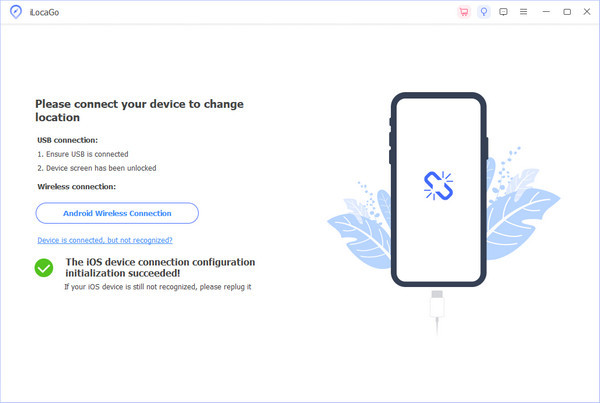
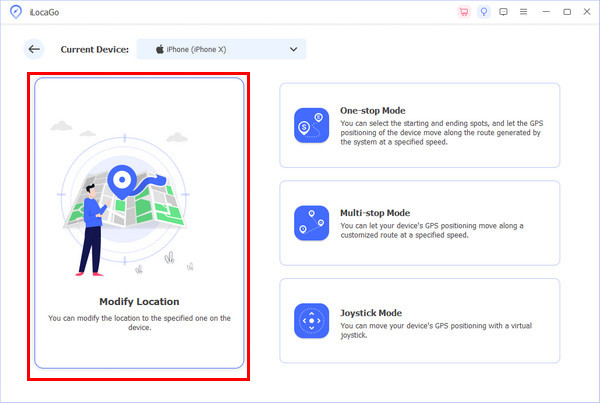
On the main interface, you will see the different variations of spoofing your location, but this time, click the Modificar localização for the standard change, which changes the location virtually.
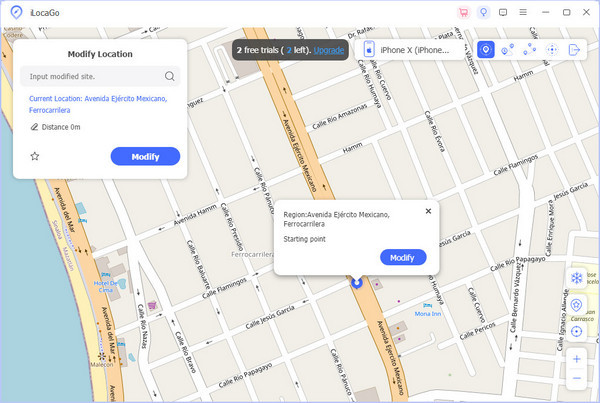
While you are on the map, select the area where you want to appear virtually. Also, you can use the Search bar to type in a specific location where you want to be and click Modificar para prosseguir.
Part 3. Using Developer Options (Android)
This method works by allowing a mock location app to replace real GPS data at the system level. It is commonly used by Android users who want control over what others see when asking how to share a fake location on Google Maps. Below is a simplified version of the full process, grouped into three clear steps.
Abrir Definições, Vá para Sobre telefone ou My Phone, em seguida, toque em Número da versão seven times until Developer mode is activated.
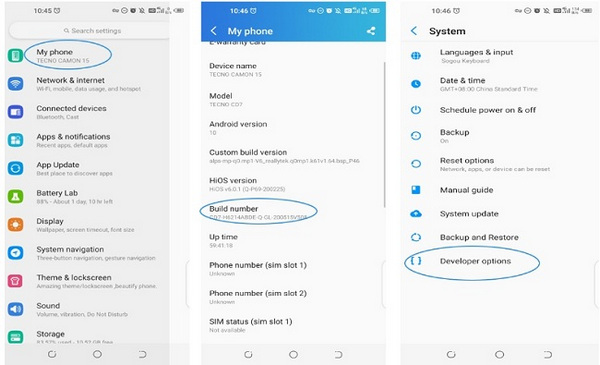
Voltou para Definições, abrir Opções de desenvolvedor, scroll to Selecione o aplicativo de localização simulada, and choose a trusted fake GPS app from the list.
Open the selected fake GPS app and choose your desired location. Then open Google Maps and share your location normally. The app will use the spoofed position as if it were real.
Part 4. Jailbreaking Your iPhone
With jailbreaking, one can control the iOS location a lot more; this is the reason why it comes up in searches such as how to show as a fake location on Google Maps. This technique alters GPS data at the system level, and not the Google Maps application itself. The following is a tutorial that is clear and article-ready.
Make a backup of your device, and apply the relevant jailbreak tool to your version of iOS to eliminate the restrictions of the Apple system.
Open Cydia or the jailbreak app store, search for a trusted location spoofing tweak, and install it.
Open the tweak, choose a custom location, and enable it. The system GPS updates immediately.
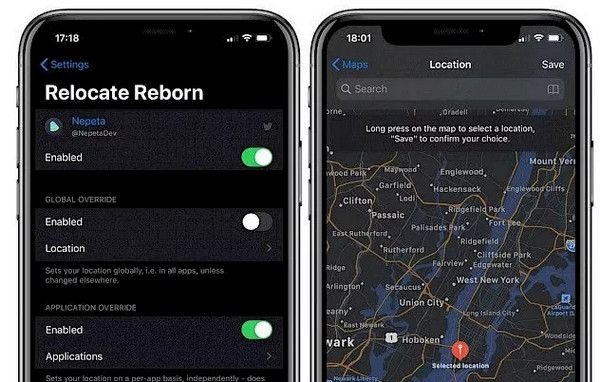
Launch Google Maps and confirm the new position appears. Any shared location now uses the fake coordinates.
Part 5. Using a Screenshot to Show a Fake Location
Jailbreaking gives greater control of the iOS location services, and that is why it is a search query in searches such as how to appear to be at a different location on Google Maps. When users look for a fake Google Map location screenshot, they usually want to show a location without altering device settings. The following is a tutorial that is clear and article-ready
Manually search for the place you want to appear in. Let the map load fully with the pin visible.
Zoom to a natural level, enable labels, and center the pin. Make sure no GPS accuracy circle is visible.
Capture the screen and share the image. The screenshot shows the chosen location, but does not reflect real-time movement or live data.
Part 6. What Are the Risks You Need to Consider
Possibly, utilizing counterfeit or modified location information can cause technical, account, and trust-related problems. It is necessary to have an insight into the risks of changing or sharing location information before doing it.
1. Account Restrictions or Bans
Many apps monitor location behavior, like the fake location on WhatsApp. Repeated or unrealistic changes can trigger automated systems. This may lead to temporary limits or permanent account suspension.
2. App Function Errors
Spoofed locations may subvert features based on actual movement. Its navigation, ride services, and local results can break down or display wrong data.
3. Privacy and Data Exposure
Some fake GPS tools collect user data. Installing unverified apps increases the risk of tracking, ads, or data misuse.
4. Security Vulnerabilities
Hacking or authorizing mock location undermines system security. This has the potential to expose the device to malware or intruders.
5. Legal or Policy Issues
In other areas or places of work, location misrepresentation is against service or use policies. This may result in fines or disregard.
6. Loss of Trust
False sharing can destroy personal or professional trust in case it is found out. The pictures and the given links can be doubted in the future.
This knowledge of these risks can assist you in making your choices of the safest means and prevent undesirable consequences.
Conclusão
Being the one who the map notices is less about the application itself than the device on the back of it. When users ask whether you can fake location on Google Maps, the real answer sits in system controls, tools, and intent. Both techniques have various constraints, risks, and consequences. Some change live GPS data. Some people merely produce visual evidence. This is because you are in the know of the operation of each technique, and you will remain precise, foreseeing, and within the scope of control when dealing with location-based information.
Penny é editora sênior da imyPass. Ela se dedica a descobrir soluções de localização GPS perfeitas para todos os cenários e também tem experiência em consertar computadores.
Soluções quentes
-
Localização GPS
- Melhores locais de Pokémon Go com coordenadas
- Desligue sua localização no Life360
- Como alterar a localização no iPhone
- Análise do iSpoofer Pokémon Go
- Defina locais virtuais no iPhone e Android
- TikTok rastreie sua localização
- Monster Hunter Agora Joystick
- Revisão do localizador de localização de IP
- Alterar localização do Mobile Legends
- Alterar localização no Tiktok
-
Desbloquear iOS
-
Dicas para iOS
-
Desbloquear Android


