Solução
 Centro de Apoio
 Sobre nós
 Contato
How to Turn off and Hide Your Location on Instagram
 Penny Warren publicado em setembro 02, 2026Localização GPSLeitura de 3 minutos
As one of the most popular social media platforms, Instagram has added a new feature: putting your location on the map. In other words, users can access their friends' locations and vice versa on the interactive map. According to Meta, users have the option to turn off location on Instagram at any time. This guide shares the proven methods and detailed steps to hide your location effectively.

Neste artigo:
Part 1: Does Instagram Show Your Location
Does Instagram show your location? Yes. The Instagram map is a new feature on the social platform that shows users' last active locations. Plus, the location is updated whenever a user opens the Instagram app or returns to the app if it is running in the background. However, you can decide whether to share your location and who can see your location on Instagram.
Part 2: How to Turn off Instagram Location
Depending on your needs, you can turn off Instagram location on your iPhone or Android phone quickly. We demonstrate the ways below to help you protect your privacy when accessing social media.
Way 1: How to Turn off Location Sharing on Instagram
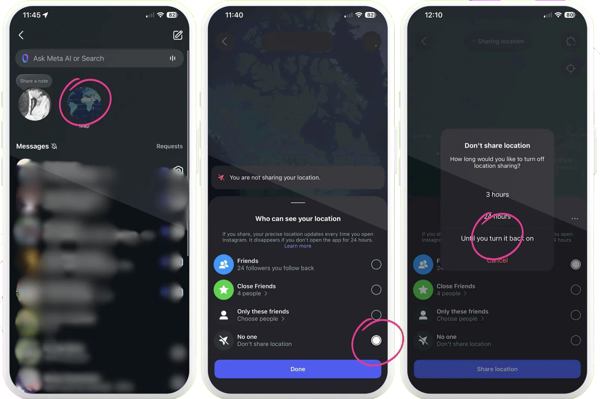
Abra o Instagram aplicativo e vá para Direct Messages.
Toque em Mapa button at the top of the inbox.
Toque em Definições button at the top right corner of the map.
Selecionar No one debaixo de Who can see your location seção.
If you want to turn off location on Instagram for specific people, select Only these friends, and unselect the desired contacts.0
Quando solicitado, escolha Until you turn it back on.
Por fim, toque em Feito ou Atualizar para confirmá-lo.
Way 2: How to Stop Sharing Location on Instagram
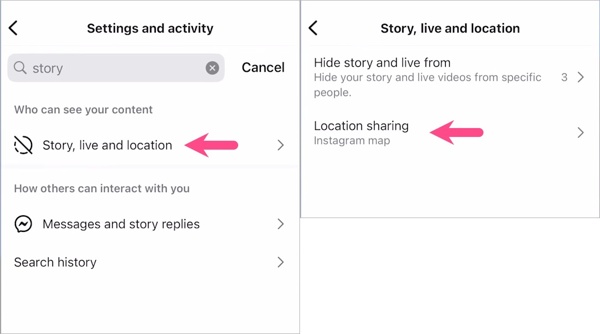
Toque no seu perfil no Instagram aplicativo.
Acerte o Cardápio botão no canto superior direito.
Toque História, live and location debaixo de Who can see your content cabeçalho.
Toque em Compartilhamento de localização opção e selecione No one.
At last, tap Done to confirm hiding the location on Instagram.
Way 3: How to Remove Location from Instagram
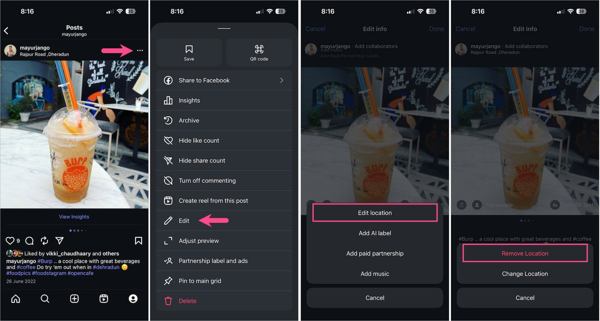
Abra seu Instagram aplicativo.
Toque no seu perfil.
Share a new post and open it.
Toque em Mais button with a three-dot icon and choose Editar.
Press the location tag.
Toque Edit location, e selecione Remove Location.
Toque Feito to remove the location from the Instagram post.
Way 4: How to Remove Location on Instagram Reel
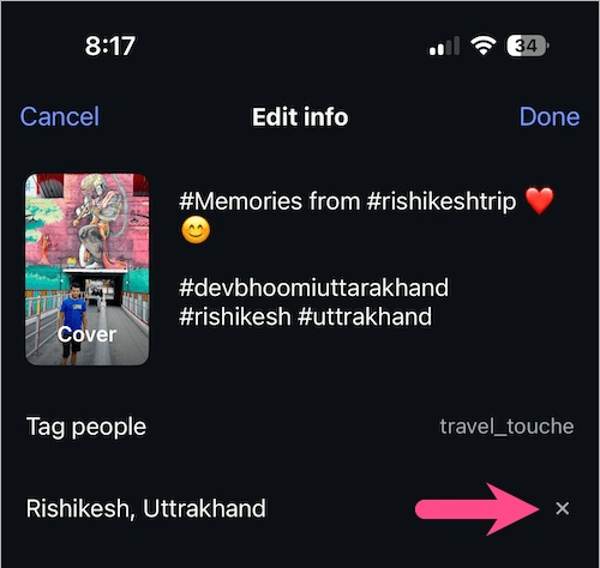
Toque no seu perfil no Instagram aplicativo.
Find the desired reel and tap it.
Toque em Mais button with a three-dot icon, and select Editar.
Move to the location area and tap the Excluir botão.
Em seguida, toque no Feito button to remove the location from the Instagram reel.
You May Also Like:
Part 3: How to Stop Sharing Location on Instagram for iOS/Android
The location sharing feature on Instagram is only available to specific regions. If you cannot turn off location within Instagram, try the location settings on your iPhone or Android phone instead.
How to Stop Sharing Location on Instagram for iOS
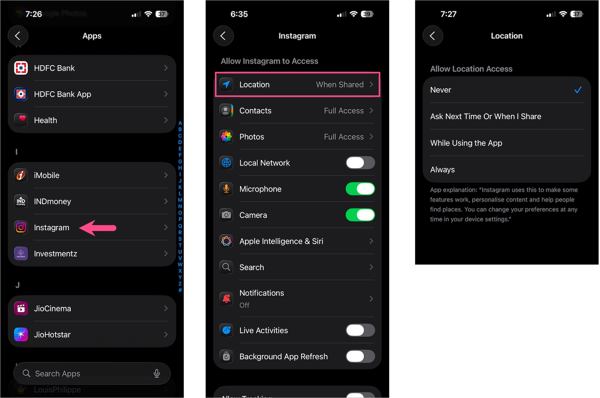
Execute o Definições aplicativo na tela inicial.
Vou ao Aplicativos aba.
Role para baixo e escolha o Instagram aplicativo.
Toque em Localização opção sob o Allow Instagram to Access seção.
Selecionar Nunca to stop sharing location on Instagram immediately.
Observação:
Or you can turn off Location Services to stop sharing location for all apps and services on your iPhone.
How to Turn off Location on Instagram for Android
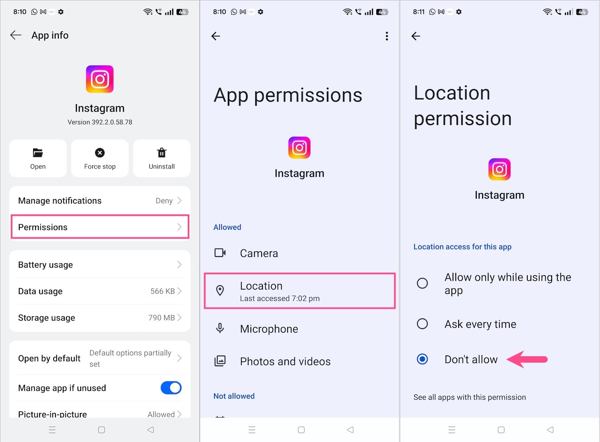
Escolha o App Management or similar option in your Definições aplicativo.
Toque em Permissões opção.
Escolha o Localização opção sob o Permitido area.
Certifique-se de selecionar Não permita to turn off location on Instagram.
Part 4: How to Hide Location on Instagram Without Others Knowing
Once you turn off location, others will get the last available location on Instagram. If you want to protect your privacy, you can hide your location on Instagram using imyPass iLocaGo. It is able to replace your real location with any address around the world without others detecting. Plus, the intuitive interface makes it a good option for ordinary people.
Mais de 4.000.000 de downloads
Hide location for Instagram and other apps.
Use accurate addresses and any position.
Simulate movements and make virtual routes.
Ofereça vários modos para diferentes propósitos.
Support a wide range of iPhone, iPad, and Android devices.
How to Hide Location on Instagram
Conecte-se ao seu telefone
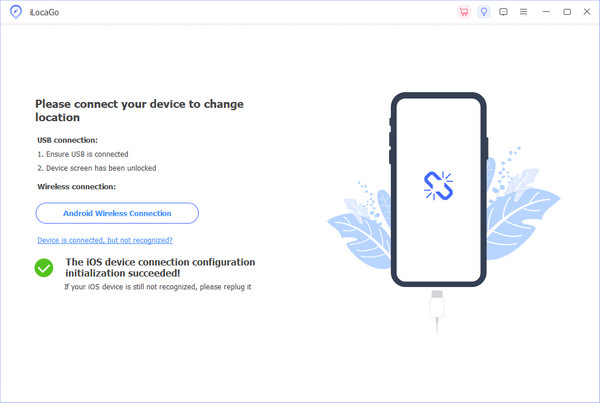
Download and install the location spoofing software on your PC. There is another version for Mac OS X 10.12 or above. Launch the software from your desktop. Connect your iPhone or Android phone to your PC with a compatible cable. Make sure to trust this PC, and the software will recognize your device immediately.
Escolha Modificar local
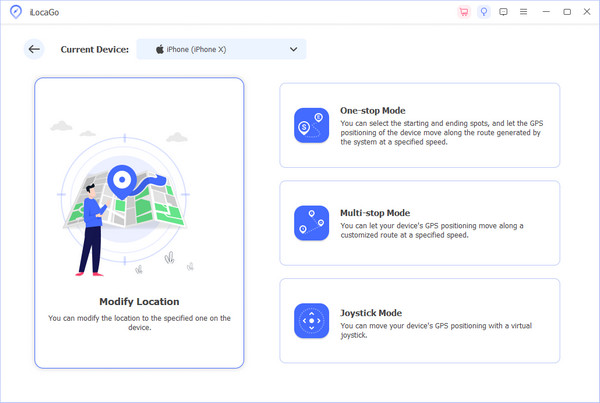
Then, you will get the mode window. Choose the Modificar localização mode to change static locations. The other three modes, Modo de parada única, Modo de parada múltipla, e Modo joystick, are used to simulate movements.
Hide Instagram location
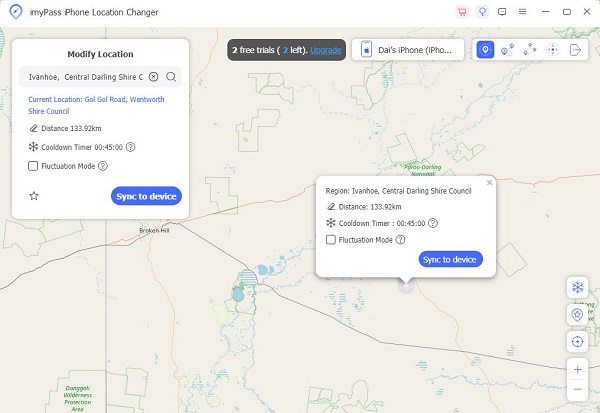
Once the map window pops up, type in an accurate address into the field. If you don't have an address, click the destination on the map. Finally, click on the Modificar button to confirm it. Now, you can access Instagram on your device without sharing your real location.
Conclusão
Este guia explicou how to turn off location on Instagram on your iPhone or Android device. Now, you should understand that you can disable location sharing on Instagram Direct Messages and Instagram Map. Plus, you can remove location from your posts and reels by following our steps. imyPass iLocaGo is the ultimate way to hide your real location with a fake address. Since the software is easy to use, you can complete the process without technical skills.
Penny focuses on GPS troubleshooting and Windows optimization. She formerly worked as a technical support engineer, helping clients solve location-based and system issues efficiently. Backed by IT support experience, she provides practical solutions that really work. In her free time, she likes hiking and geocaching, testing GPS tech in the real world.
Soluções quentes
-
Localização GPS
-
Desbloquear iOS
-
Dicas para iOS
-
Desbloquear Android