Solução
 Centro de Apoio
 Sobre nós
 Contato
How to Turn on Location Services on Your iPhone/iPad
 Penny Warren publicado em julho 17, 2026Localização GPSLeitura de 4 minutos
This guide shares how to turn on Location on an iPhone. It is well known that many apps rely on GPS or Global Positioning System to get the geolocation information on mobile devices, such as Apple Maps, Google Maps, and more. However, you cannot find a feature or option called GPS. Instead, you can set up Location Services, which use information from cellular, Wi-Fi, GPS network, and Bluetooth to determine your location. You can learn how to control the feature on your iOS device.

Neste artigo:
- Part 1. Where Is Location Settings on iPhone
- Part 2. How to Turn on Location on iPhone
- Part 3. How to Turn on Location on iPhone for Specific Apps
- Part 4. How to Set Location on iPhone
- Part 5. What to Do If You Cannot Turn on Location on iPhone
- Part 6. Bonus Tip: How to Fake iPhone Location Without Disabling Location Services
Part 1. Where Is Location Settings on iPhone
Where to find Location Services on your iPhone? This feature can be found in the built-in Settings app. Furthermore, you can turn on or turn off this feature for your entire iOS device or specific apps, following our concrete guide.
Part 2. How to Turn on Location on iPhone
As mentioned previously, the only way to turn on Location Services for iPhone is through your Settings app. When you want to share your iPhone location or access location-based apps, you have to turn on this feature first.
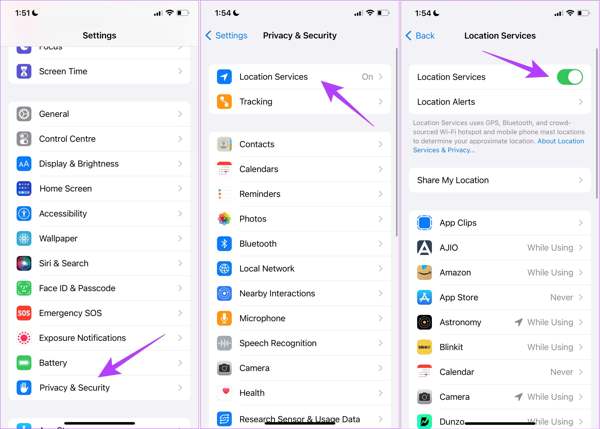
Abra o Definições aplicativo na tela inicial.
Role para baixo e escolha o privacidade e segurança aba.
Toque em Serviços de localização opção.
Ativar/desativar Serviços de localização.
Part 3. How to Turn on Location on iPhone for Specific Apps
Once you enable Location on your iPhone, all apps can access and use your location information. However, that might pose a risk to your privacy. Fortunately, Apple allows you to adjust iPhone location settings for each app on your handset.
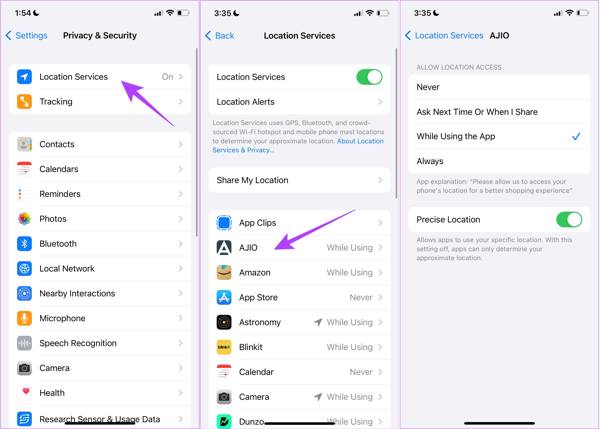
Vou ao privacidade e segurança aba em seu Definições aplicativo.
Escolher Serviços de localização.
Make sure to turn on Serviços de localização.
Scroll down and choose an app you want to set.
Escolher Ao usar o aplicativo if you want to enable the app to use your location data while accessing it.
If you allow the app to use your location information all the time, choose Sempre em vez de.
Observação:
To enable or disable Location Services for system services, tap System Services at the bottom of the Serviços de localização screen. Toggle on or off the desired options.
You May Also Like:
Part 4. How to Set Location on iPhone
Now, you should understand where the location settings are on the iPhone. The accuracy of Location Services typically ranges from a few meters to about 100 meters, depending on your settings. To enhance the accuracy, try the steps below:
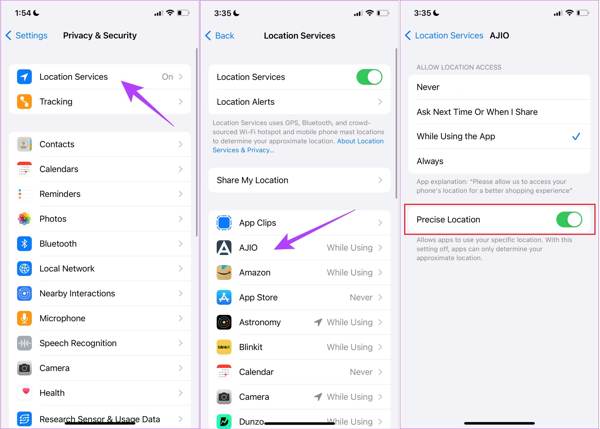
Execute seu Definições aplicativo.
Navegar para privacidade e segurança, então Serviços de localização.
Choose a desired app.
Ative o Localização precisa opção.
Part 5. What to Do If You Cannot Turn on Location on iPhone
Some users reported that they cannot turn on Location on their iPhones. Why this problem occurs is complicated, but you can fix it quickly with a few solutions, such as allowing Location Services, resetting location and privacy, and more.
Solução 1: Reinicie o seu iPhone
Sometimes, the Location Services option is missing from your Settings app due to software glitches, like your OS loads improperly. You can find this problem by restarting your device. Then, you can turn on Location on your iPhone.
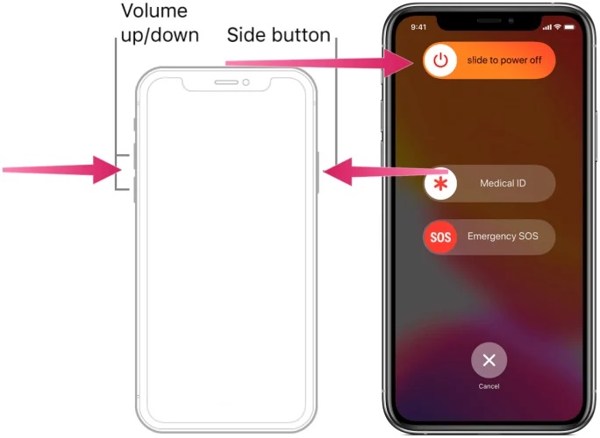
On an iPhone with Face ID, hold one of the Volume botões e o Lado botão juntos.
On an iPhone without Face ID, hold down the Lado ou Poder botão.
Quando a tela de desligamento aparecer, solte os botões ou o botão.
Mova o controle deslizante para desligar o dispositivo.
A few minutes later, hold down the Lado ou Poder botão até ver o logotipo da Apple.
Solution 2: Allow Location Services
If you have set up Content & Privacy Restrictions, you cannot turn on Location Services on your iPhone. To fix this problem, you need to allow this feature. This solution requires your Screen Time passcode.
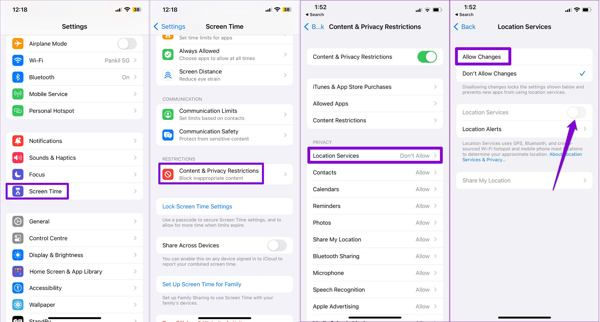
Abra o Definições aplicativo no seu iPhone.
Escolha o Tempo de tela tab and enter your Screen Time passcode.
Toque em Restrições de conteúdo e privacidade opção.
Localize o Privacidade heading and choose Serviços de localização.
Escolher All Changes e ligue Serviços de localização.
Now, you can turn on or off Location on your iPhone.
Solution 3: Reinstall Your App
If you cannot find the app in Location Services, uninstall the app and install it from your App Store. This way may remove app data and log you out of your account from the app. Therefore, you’d better back up the app data first.
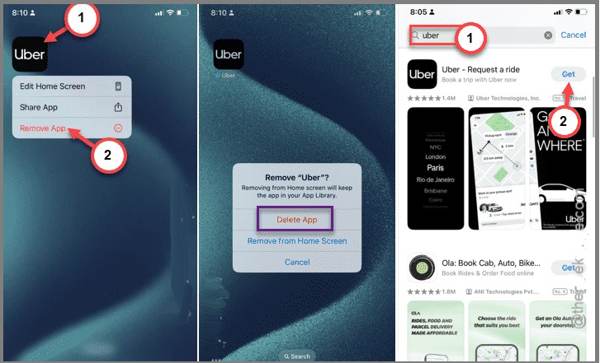
Long-press the app on your home screen.
Escolher Remover aplicativo ou Excluir aplicativo no menu de contexto.
Se solicitado, toque em Excluir aplicativo de novo.
Run your App Store.
Search for the app and install it again.
When prompted, turn on the location permission.
Solution 4: Reset Location and Privacy Settings
Another solution to fix the problem that you cannot turn on Location on your iPhone is the Reset Location and Privacy Settings feature. It reset the Location settings to the default values. Then, you can turn on Location Services for your iPhone.
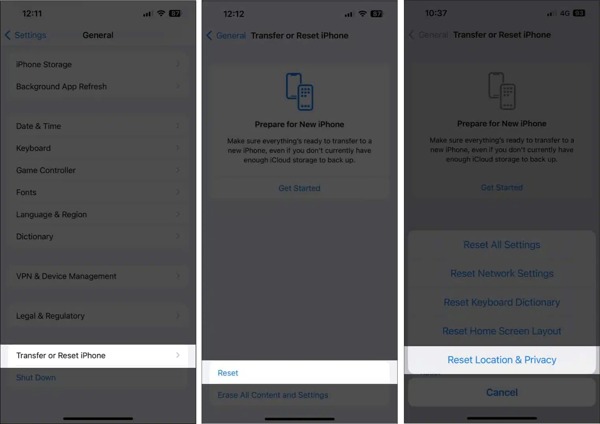
Vou ao Em geral aba em seu Definições aplicativo.
Toque Transferir ou redefinir o iPhone, então bata Redefinir.
Escolha o Reset Location and Privacy opção.
Enter your iPhone passcode and confirm the action.
When your device restarts, go back to the Definições app, and set Location on your iPhone again.
Part 6. Bonus Tip: How to Fake iPhone Location Without Disabling Location Services
Once you turn on Location on your iPhone, apps, websites, and services can access your location information. If you want to hide your geolocation temporarily, try imyPass iLocaGo instead of turning off Location Services. It allows you to fake your iPhone location without others knowing.
Mais de 4.000.000 de downloads
Modify the iPhone location without moving.
Criar locais virtuais and routes with your keyboard and mouse.
Ofereça vários modos para diferentes propósitos.
Forneça opções personalizadas, como velocidade.
Support a wide array of iPhones and Android devices.
How to Fake iPhone Location Without Disabling Location Services
Conecte-se ao seu iPhone
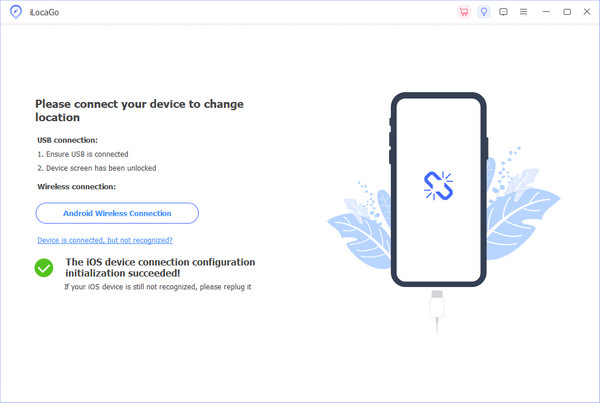
Launch the iPhone location spoofing software after installing it on your PC. There is another version for Mac. Connect your iPhone to your PC with a Lightning cable. Make sure to trust this PC and move on.
Escolha um modo
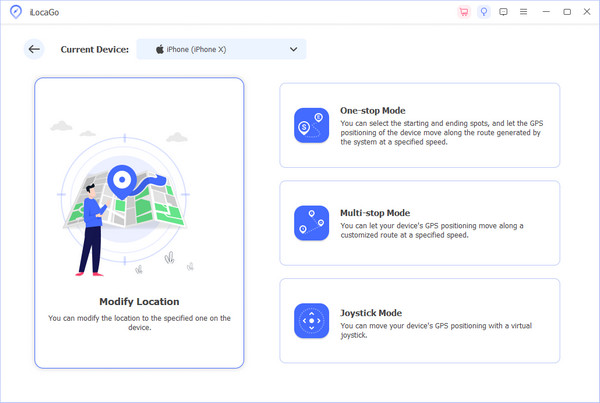
If you want to change the static location on your iPhone, choose the Modificar localização mode. To simulate movements, choose Modo de parada única, Modo de parada múltipla, ou Modo joystick.
Fake iPhone location
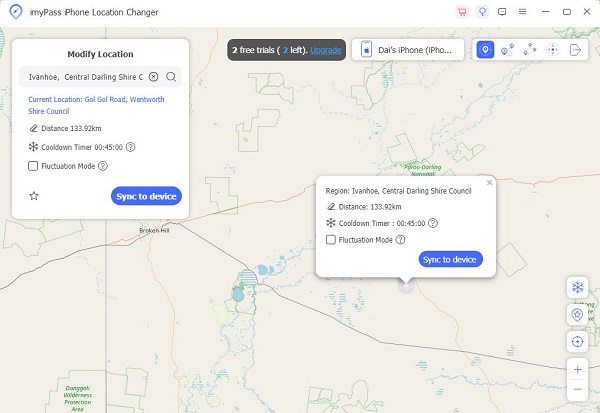
Type an address into the field or click a position on the interactive map. Finally, click on the Modificar botão para confirmar.
Conclusão
This guide shared how to turn on location on your iPhone for the entire device, specific apps, and services. You can follow our concrete steps to let apps, websites, and services use your location data. Plus, we shared what to do if you cannot turn on Location Services. imyPass iLocaGo is an easy option to hide your iPhone location without disabling Location Services.
Penny focuses on GPS troubleshooting and Windows optimization. She formerly worked as a technical support engineer, helping clients solve location-based and system issues efficiently. Backed by IT support experience, she provides practical solutions that really work. In her free time, she likes hiking and geocaching, testing GPS tech in the real world.
Soluções quentes
-
Localização GPS
-
Desbloquear iOS
-
Dicas para iOS
-
Desbloquear Android