



 Solução
 Centro de Apoio
 Sobre nós
 Contato
How to Reset Apple Password and iPhone or iPad Passcode
 Clara Prescott publicado em maio 11, 2026Dicas para iOSLeitura de 3 minutos
Apple account management is crucial for accessing Apple's ecosystem and ensuring your personal data is secure. However, forgetting a password is a common problem, especially after biometric security systems are introduced on Apple devices. Apple password is central to Apple users' experience. This guide provides proven methods and detailed steps on how to reset Apple password on your iPhone, iPad, MacBook, and more, as well as create a strong and secure password.

Neste artigo:
Part 1: How to Reset Apple Password Online
With your current password, you can change your Apple password quickly. As long as you forgot the password, you have to reset your Apple password after verifying your ownership, depending on your settings.
Reset Apple Password with Two-factor Authentication Enabled
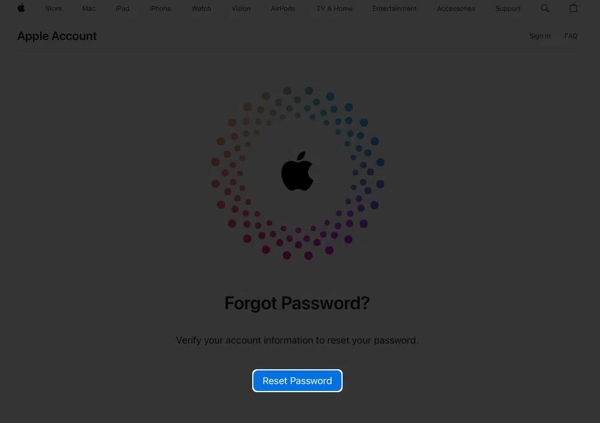
Go to https://iforgot.apple.com/ in your browser.
Clique no Redefinir senha botão.
Enter the email or phone number associated with your Apple account.
Digite os caracteres da imagem e clique Continuar.
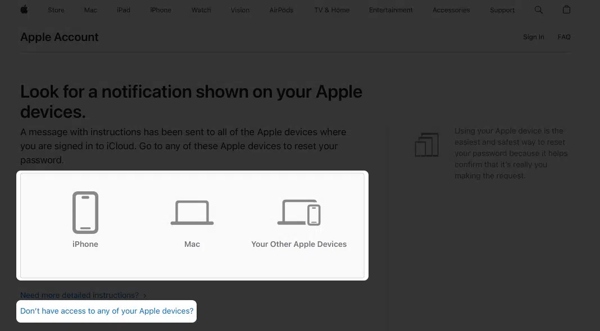
Choose a trusted device.
Turn to the trusted device and tap Permitir na notificação.
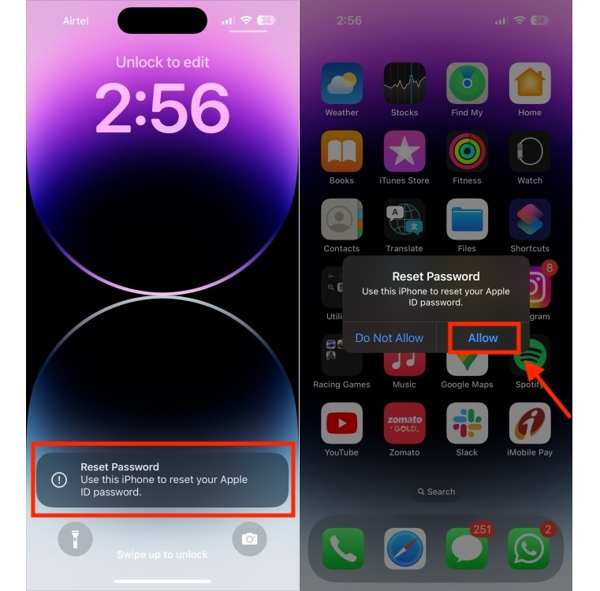
Enter the iPhone passcode or Mac login password.
Set a new password, verify it, and confirm the change.
Observação:
If the trusted device is inaccessible, click the link of Don't have access to any of your Apple devices on the trusted-device page. Then, click the Continuar button on a proper option, and follow the prompts to complete the process.
Reset Apple Password with Two-step Verification Enabled
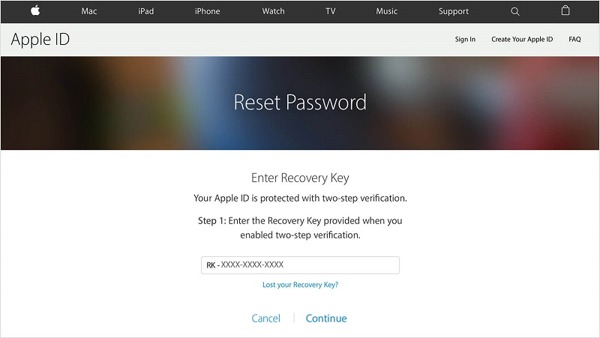
Access iForgot in a browser and hit Redefinir senha.
Provide your email or phone number and hit Continuar.
Next, type in the recovery key and click Continuar.
Reset Apple password.
Reset Apple Password with Two-factor Authentication Disabled
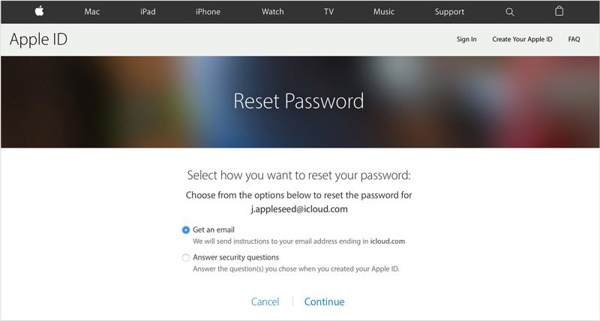
Visit iForgot and follow the instructions to proceed.
Offer the associated email or phone number.
If you haven't set up Two-factor Authentication, you will be presented with two options: Receba um e-mail e Responder perguntas de segurança.
Choose one option and click Continuar.
Then, enter your email address to receive the verification code and type the code. Or answer your security questions to verify your ownership.
Finally, create a new password for your Apple account.
Part 2: How to Reset Apple Password on iPhone/Mac
If you have set up Two-factor Authentication for your account, you can reset your Apple password on your iPhone, iPad, or Mac directly. The workflow is the same as changing the Apple ID password. You just need to provide your lock screen passcode or login password.
Execute o Definições ou Configurações de sistema aplicativo no seu dispositivo.
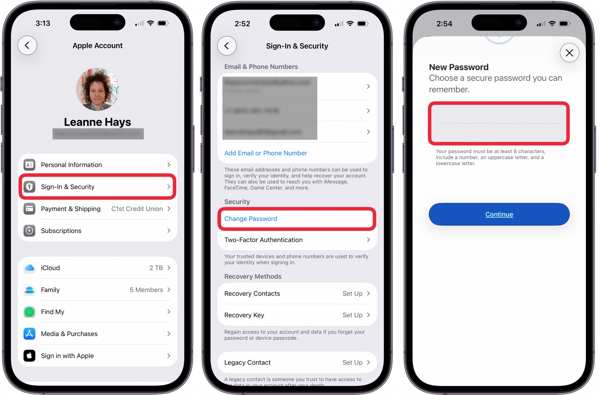
Toque ou clique no Conta Apple opção no topo.
Acerte o Mudar senha botão.
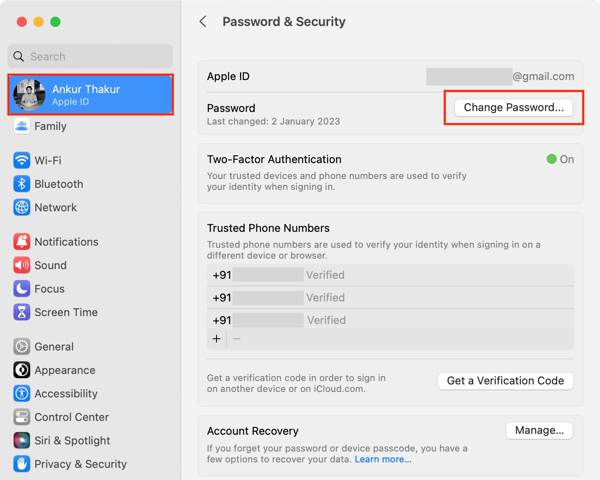
Enter your iPhone passcode or Mac login password.
Now, enter a new password, re-enter it, and confirm the change.
Finally, decide to Sign Out Other Devices ou Do Not Sign Out.
Observação:
Se você escolher Do Not Sign Out, you'd better manually update the new password on all your Apple devices and associated subscriptions.
Part 3: How to Reset iPhone/iPad Passcode Without Passcode
In addition to the Apple password, the lock screen passcode is crucial to accessing your iPhone or iPad. If you forgot it for an old device, you have to reset the iPhone or iPad passcode to regain access. The good news is that you have multiple ways to reset it, but most of them require you to redefinir seu iPhone de fábrica. It means that all your data will be removed.
How to Reset iPhone Passcode by Erasing It
Precondition: iOS 15.2 and above
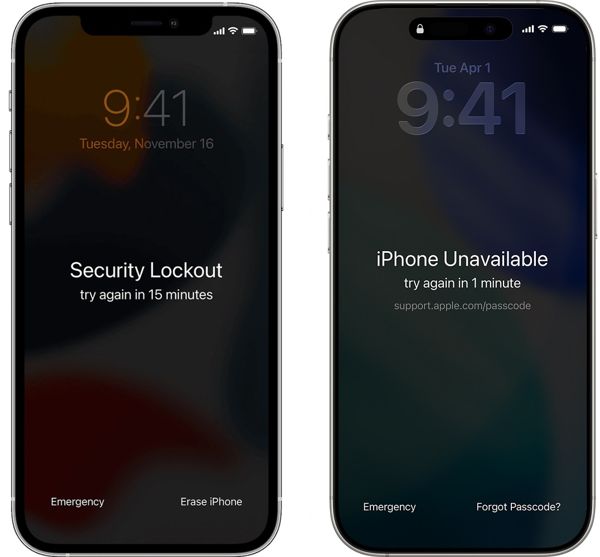
Repeatedly enter a wrong passcode until your device is unavailable.
Toque em Esqueci a senha ou Apagar iPhone.
Read the warning and tap Iniciar reinicialização do iPhone ou Apagar iPhone.
Enter your Apple ID password and confirm resetting the iPhone passcode.
Once your device restarts, set it up as a new device.
How to Reset iPhone/iPad Passcode in Recovery Mode
Precondition: The latest version of iTunes or Finder
Connect your iPhone or iPad to a computer.
Place your device in Modo de recuperação:
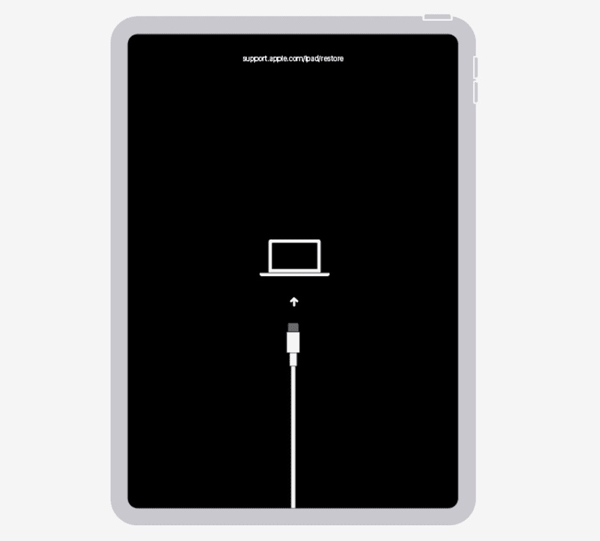
iPhone or iPad without a Home button
Pressione e solte rapidamente o Aumentar o volume botão.
Faça a mesma coisa com o Volume baixo botão.
Segure o Lado button to enter Recovery Mode.
iPhone 7/7 Plus
Segure o Diminuir volume + Lateral buttons together to enter Recovery Mode.
iPhone or iPad without a Home button
Hold down the Home + Power buttons simultaneously to enter Recovery Mode.
On Windows and macOS Mojave or earlier, open iTunes. On macOS Catalina or later, open Finder.
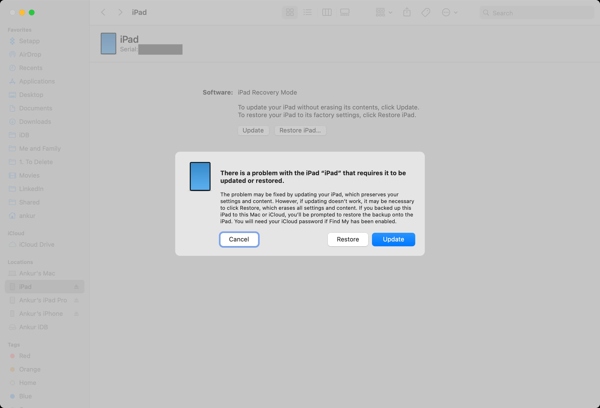
Clique no Restaurar button on the pop-up to begin resetting your iPhone passcode.
How to Reset iPhone/iPad Passcode via Find My
Precondition: Find My iPhone or Find My iPad is enabled
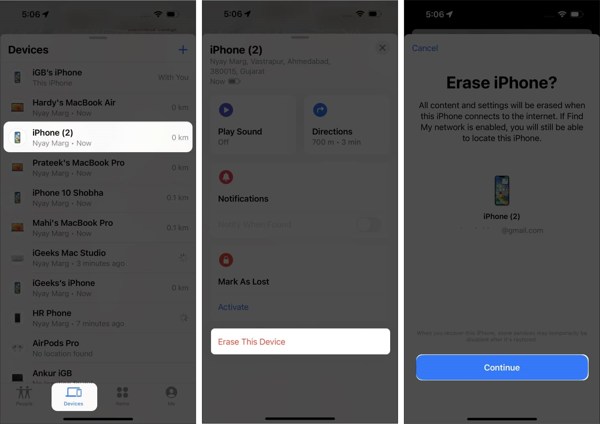
Abra o Encontre o meu app on a borrowed Apple device.
Entre com seu ID Apple e senha.
Vou ao Dispositivos tab and choose your iPhone or iPad.
Em seguida, clique no Apagar este dispositivo option in the toolbar.
aperte o Continuar botão e aperte Apagar.
Enter your Apple ID password and hit Apagar de novo.
How to Reset iPhone/iPad Passcode on iCloud
Precondition: Find My iPhone or Find My iPad is enabled
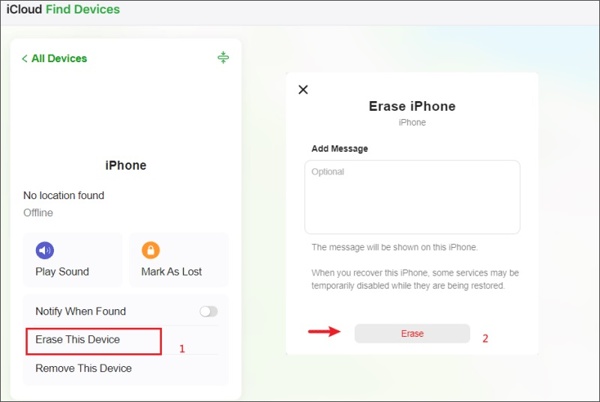
Go to www.icloud.com/find in your browser.
Sign in with your Apple ID credentials.
Choose your device from the Todos os dispositivos lista.
Clique Apagar este dispositivo and follow the prompts to reset your iPhone or iPad passcode.
Part 4: One-stop Solution to Reset Apple Password and iPhone Passcode
Is it possible to reset the Apple password and iPhone passcode without the password? Yes, all you need is imyPass iPassGo. It is able to remove all restrictions from an iOS device without a password.

Mais de 4.000.000 de downloads
Remove the old Apple password and iPhone passcode in 3 steps.
Não requer senha nem código de acesso.
Work for a wide range of situations, like a disabled iPhone.
Suporte aos modelos mais recentes de iPhone e iPad.
How to Reset Apple Password and iPhone Passcode Without a Password
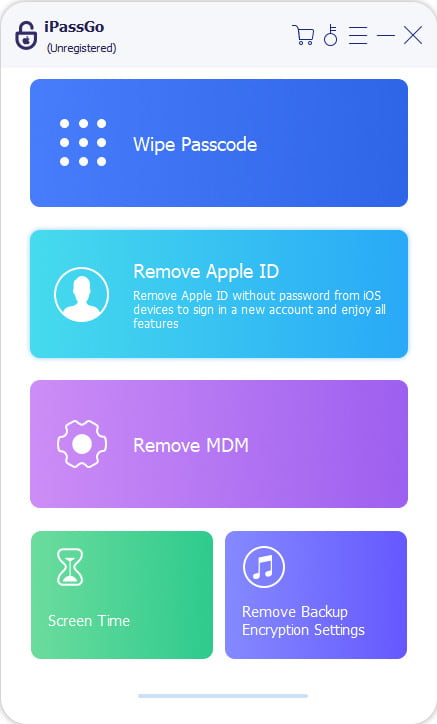
Install the password removal software
Start the password reset tool after installing it on your PC. There is a version for Mac. Choose the Remover ID Apple modo para continuar.
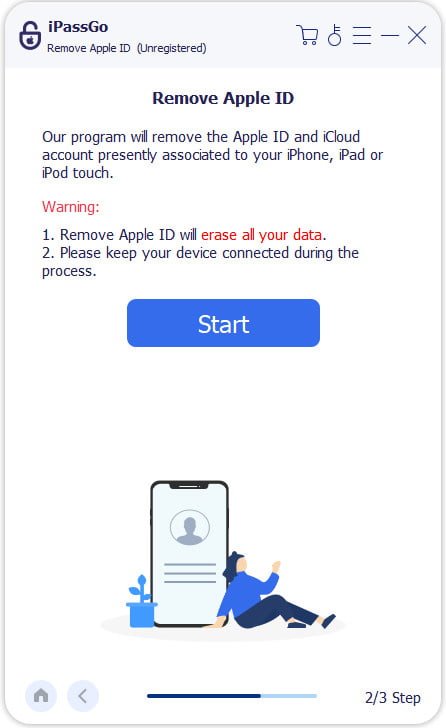
Connect your device
Plug your iPhone or iPad into your PC with a Lightning cable. After it is detected, click the Começar button to begin removing passwords if Find My is disabled. If Find My is enabled, reset all settings on your device. Then, the tool will do its job.
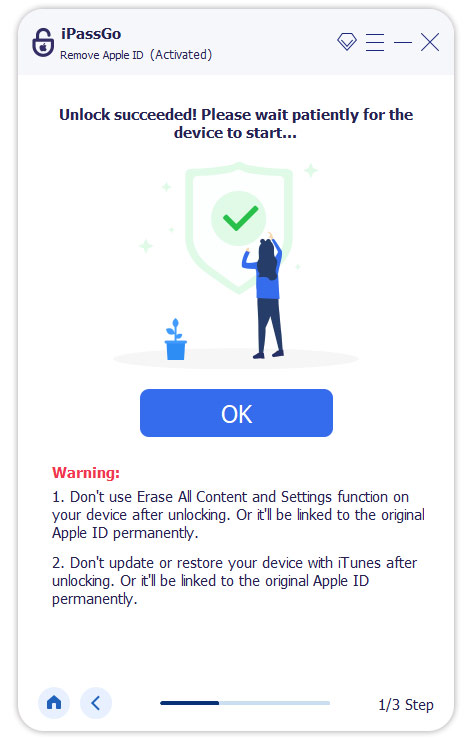
Reset Apple password
When it is done, your iPhone or iPad will restart. Disconnect it and set a new Apple password and lock screen passcode.
Conclusão
This guide shared how to reset the Apple password in various situations. Apple has released a website, iForgot, to help you create a new Apple password. If 2FA has been set up for your account, you can reset it on a trusted device. Moreover, we discussed how to reset your lock screen passcode. imyPass iPassGo is the one-stop solution to reset all passwords on your iOS device.
Clara has over 8 years of experience helping users recover lost files and transfer data. She previously worked as a data recovery technician for a major IT service company. Certified in Data Recovery and Digital Forensics, her articles focus on simple solutions that make complicated recovery tasks easier for everyday users.
Soluções quentes
-
Dicas para iOS
- Como baixar aplicativos sem ID Apple
- How to Factory Reset iPhone
- Como redefinir um iPad para as configurações de fábrica
- Fix Error Connecting to the Apple ID Server
- How to Fix iPhone Unavailable Issue
- How to Quickly Fix SIM Not Support Error
- How to Enter iPhone Recovery Mode
- Is Apple ID and iCloud ID the Same
-
Desbloquear iOS
-
Localização GPS
-
Dicas do Windows


