Solução
 Centro de Apoio
 Sobre nós
 Contato
What Is iMobie PhoneRescue and How to Use the Software
 Penny Warren publicado em 10 de junho de 2025Recuperar dadosLeitura de 3 minutos
Today, data loss is still a big challenge for digital device users. If you accidentally delete important files, factory reset your phone, or are facing a broken handset, the first thing you are looking for is a powerful data recovery program. Resgate de telefone iMobie, for example, is a data recovery software program for retrieving files deleted or lost from Apple iPhone, iPad, and now Android phones and tablets as well. This article shares an honest review.

Neste artigo:
Part 1: What Is iMobie PhoneRescue
As mentioned previously, PhoneRescue Data Recovery software is a comprehensive data recovery solution for iOS and Android devices. It covers two tools: PhoneRescue for iOS and PhoneRescue for Android.
Main Features of PhoneRescue for iOS
- 1. Recover data with a high success rate.
- 2. Get back everything without a backup.
- 3. Retrieve all data from iPhones and iPad devices in three clicks.
- 4. Find lost data in a flash, amazing, and unparalleled.
- 5. Work for photos, messages, contacts, and more.
- 6. Bring data back from iCloud or iTunes backup.
- 7. Fix iOS system issues, including frozen devices.
- 8. Remove lock screen passwords, Face IDs, or Touch IDs.
- 9. Bypass Screen Time passcode.
- 10. Available to iOS 27 and earlier.
Main Features of PhoneRescue for Android
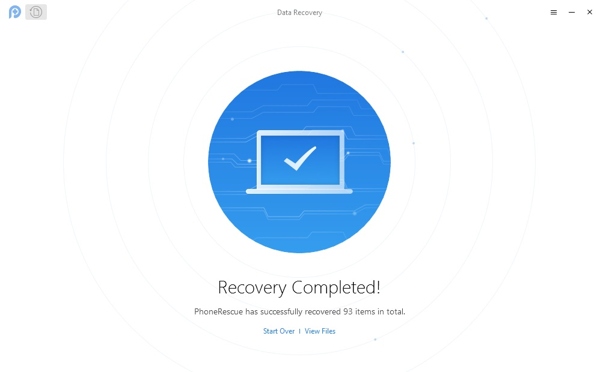
- 1.Extract data from Android devices directly.
- 2.Root Android devices and access the Android system.
- 3.Recover lost data from Android devices.
- 4.Retrieve messages, photos, contacts, and everything you need.
- 5.Find lost and hidden data on your phone.
- 6.Get back WhatsApp data and attachments.
- 7.Compatible with Samsung, Huawei, LG, Google, and more.
- 8.Come with a clear interface.
Análise do iMobie PhoneRescue
Pros
- It offers four recovery modes that maximize the chances of data recovery.
- It can work without connecting your device.
- You can recover data even if your device is faulty, damaged, or lost.
- iMobie PhoneRescue won’t interrupt existing data on your phone.
- The quality of recovered files is great.
- It is compatible with iOS 5 to iOS 27, Android 4.0 and above.
Contras
- It tends to find a lot more files than you actually deleted.
- Não possui uma versão gratuita.
- The deep Android recovery requires root access.
- It may take a while to scan older devices.
iMobie PhoneRescue Price
Users can download iMobie PhoneRescue for free from the official website, but you need a license to unlock the full features. The PhoneRescue for iOS costs $$49.99 per year and $59.99 lifetime. The PhoneRescue for Android costs $39.99 per year and $49.99 lifetime.
Part 2: How to Recover Data with iMobie PhoneRescue
How to Recover Data with PhoneRescue for iOS
Get PhoneRescue for iOS onto your computer and open it.
Connect your iOS device to the computer with a USB cable.
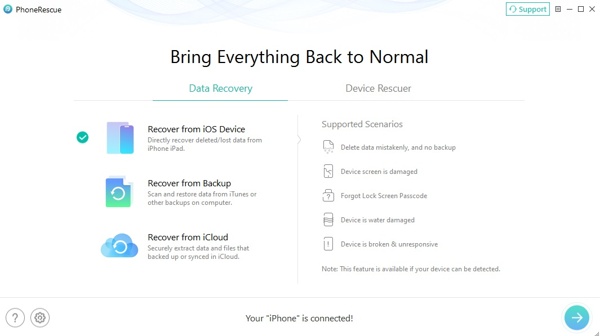
Escolha o Recuperar do dispositivo iOS mode if you don’t have a backup.
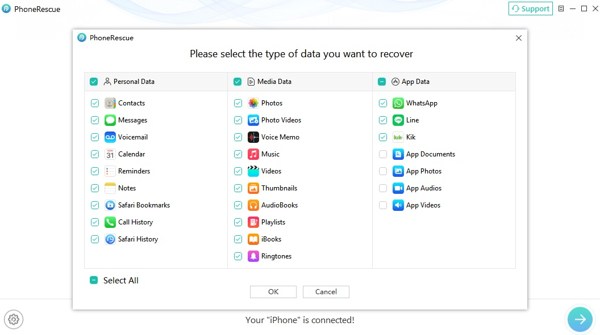
Once the software detects your iPhone, select the types of data you want to recover and click OK.
The scanning process may last a few minutes. When it is done, preview your data by type.
To view deleted files, choose Only list deleted.
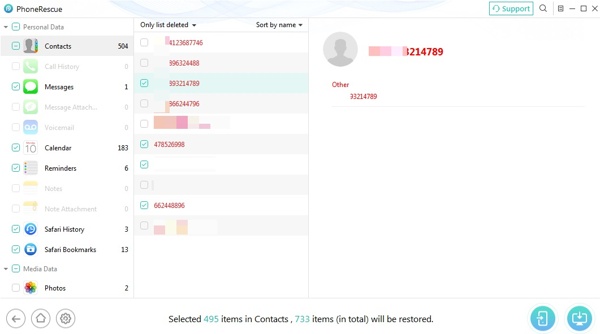
Select the desired data and click the Restore to device ou Restore to computer botão para concluir o processo.
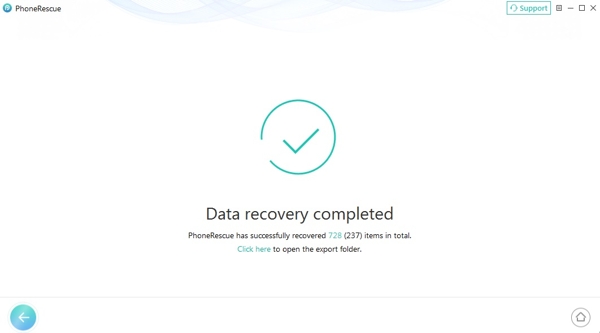
Then, disconnect your iPhone and close the software.
How to Recover Data with PhoneRescue for Android
Get PhoneRescue for Android on your computer and launch it.
Plug your phone into the computer with a USB cable.
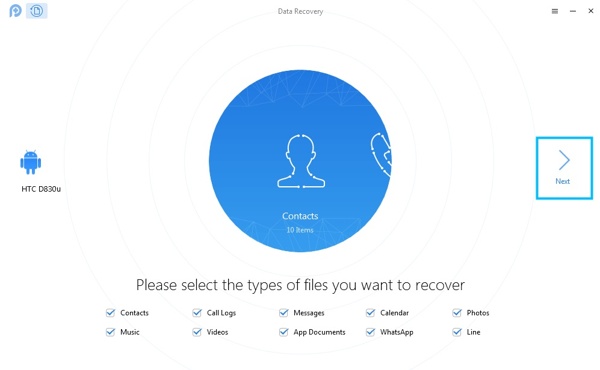
Once your device is recognized, select the file types you want to recover.
Clique no Próximo botão para prosseguir.
If you have rooted your phone, the Varredura profunda function will be available.
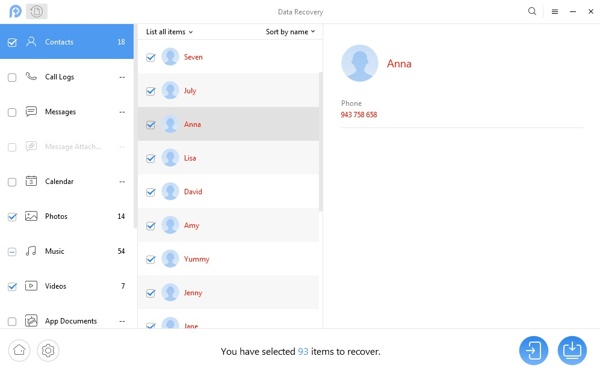
After completing the scanning process, preview the data on your phone.
Once you find the data you need, select it.
Clique no To Device ou To Computer button at the bottom to retrieve your data.
Part 3: An Excellent Alternative to iMobie PhoneRescue
If you are looking for an alternative to iMobie PhoneRescue, Recuperação de dados do iPhone imyPass is a good option. It is more affordable and compact. Therefore, it can recover data from your iOS device quickly and smoothly. Moreover, it comes with a user-friendly interface and is easy to use.
Mais de 4.000.000 de downloads
Recover data from iPhone or iPad memory quickly.
Extract data from iCloud or iTunes backup without resetting your device.
Retrieve as much data as possible during the process.
Preview lost files for selective recovery.
Support the latest editions of iOS and iPadOS.
How to Use iMobie PhoneRescue Alternative
Digitalize seu iPhone
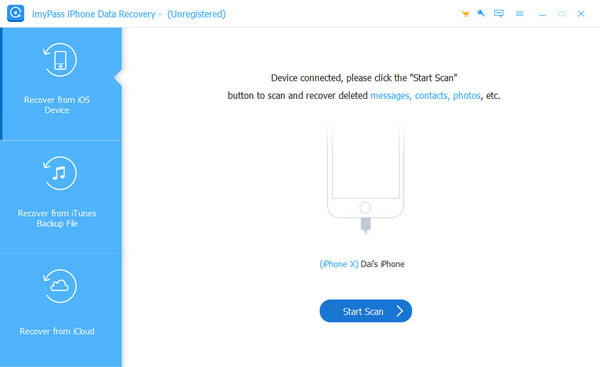
Launch the alternative to PhoneRescue for iOS after you install it on your PC. There is another version for Mac. Choose the Recuperar do dispositivo iOS tab on the sidebar. If you want to recover data from a backup, choose Recuperar do arquivo de backup do iTunes ou Recuperar do arquivo de backup do iCloud instead. Link your iPhone to your PC with a Lightning cable and make sure to trust this PC. Next, click the Iniciar digitalização botão para começar a escanear seu dispositivo.
Visualizar dados perdidos
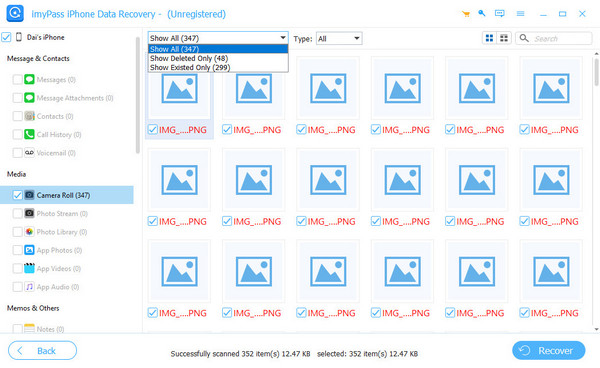
Once the data scan is complete, preview your data by type. To recover iPhone photos, for example, select Rolo da câmera. If you want to filter deleted files, select Mostrar apenas os excluídos from the drop-down option.
Recuperar dados do iPhone
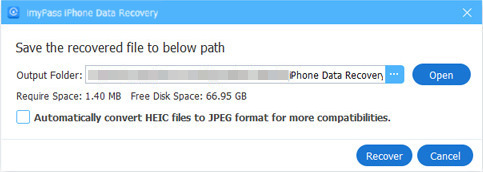
Select all files and items you want to get back and click the Recuperar button at the bottom. Set an output folder and confirm data recovery using the alternative to PhoneRescue for iOS.
You May Also Like:
Conclusão
Agora você deve entender o que PhoneRescue for iOS is, its benefits and downsides, and other information you need to know. Furthermore, we shared the workflows to recover data from an iPhone and an Android device. If you don’t like it, we also recommend an affordable alternative solution for iPhone and iPad users, imyPass iPhone Data Recovery.
Penny focuses on GPS troubleshooting and Windows optimization. She formerly worked as a technical support engineer, helping clients solve location-based and system issues efficiently. Backed by IT support experience, she provides practical solutions that really work. In her free time, she likes hiking and geocaching, testing GPS tech in the real world.
Soluções quentes
-
Recuperar dados
- Análise da recuperação de dados do AppGeeker iOS
- Disk Drill iPhone Data Recovery Review
- How to Get iPhone Out of Recovery Mode
- How to Fix support.apple.com/iphone/restore
- How to Recover Data from DFU Mode
- Análise do Gbyte iPhone Data Recovery
- How to Recover iPhone Deleted Photos After 30 Days
- How to Recover Deleted Photos on iPad
-
Desbloquear iOS
-
Transferir dados
-
Dicas para iOS

Recuperação de dados do iPhone
Recuperar dados do iPhone excluídos ou perdidos
Download grátis Download grátis