Solução
 Centro de Apoio
 Sobre nós
 Contato
iPhone to iPhone Data Transfer: Quick Start Guide & Fixes
 Clara Prescott publicado em julho 09, 2026Transferir dadosLeitura de 3 minutos
Getting a new iPhone is exciting, but moving all your photos, chats, and apps over can be a headache. iPhone Quick Start, a built-in Apple feature, lets you copy everything from your old iPhone to your new one with just a few taps. In this article, we'll show you how to perform a Quick Start iPhone transfer, and explore other simple ways to move data between iPhones.

Neste artigo:
Part 1. What is Quick Start on iPhone
Quick Start is Apple's built-in feature that allows you to set up a new iPhone fast and easy. You can transfer most of your data to the new device using your old device safely. What you need to do is to bring your old iPhone close to your new one, then Quick Start will automatically detect it and then begin a transfer. This feature is available on devices running on iOS 11 or later.
What kind of data can Quick Start iPhone transfer?
Photos, videos, iMessage and SMS messages, notes, reminders, contacts, Apple ID and iCloud Information, iCloud files, some apps and app-specific data, display settings, system settings, call history, and Safari bookmarks.
What kind of data can Quick Start iPhone not transfer?
Credit or debit cards, Face ID, Touch ID, app logins and passwords, mail passwords, some music, videos, and books not purchased via Apple ID, and Bluetooth pairings.
Part 2. How to Transfer Data to a New iPhone with Quick Start
Transferring your data with iPhone Quick Start is very convenient. The transfer time vary depending on various factors such as network conditions and the amount of data. Follow these steps to move your data from iPhone to iPhone.
How to use Quick Start iPhone:
Turn on your new device and place it near your old device. Make sure Bluetooth are enabled and connect your iPhones to a stable Wi-Fi network.
A Quick Start screen will appear on your old iPhone. Enter your Apple ID password and tap Continue. When asked, enter your current passcode on your new device.
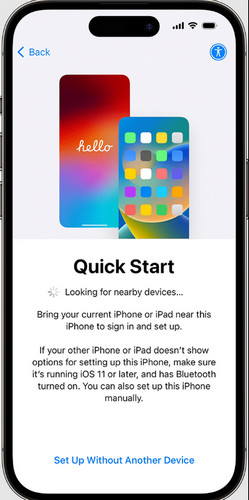
Set up Face ID or Touch ID on the new iPhone, then choose Transferir do iPhone to move your data directly from your previous device.
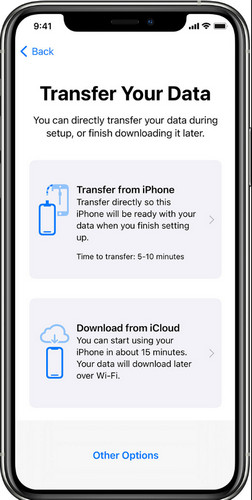
Wait patiently and don't use your iPhone until the data migration process is complete.
Observação:
Keep both devices nearby until the transfer is complete and ensure they have sufficient battery power. Plugging them in to power is recommended for large transfers.
Part 3. iPhone Quick Start Not Working: How to Fix it
iPhone Quick Start may sometimes fail to transfer your data. Below are common issues and easy fixes to get it back to normal.
Common Quick Start Not Working Issues
- 1.Two iPhones cannot detect each other.
- 2.Quick Start screen won't pop up.
- 3.Data transfer freezes or gets interrupted.
- 4.Quick Start stops working halfway.
How to Fix Quick Start Not Working
- 1.Make sure your Bluetooth enabled on both devices. Check the network connection.
- 2.Restart both iPhones to clear minor system glitches and try again.
- 3.Update your iPhone to the latest iOS. Go to Definições > Em geral > Atualização de software and install available updates.
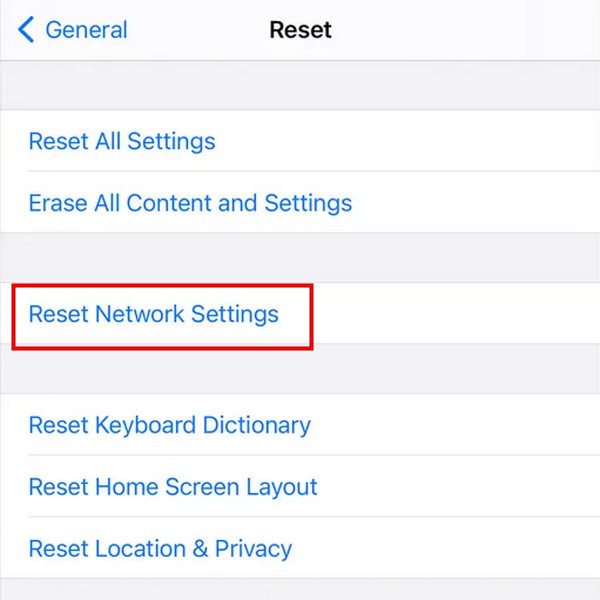
- 4.If connection issues remain, reset network settings on your old iPhone. Go to Definições > Em geral > Redefinir > Redefinir Ajustes de Rede.
Part 4. Alternative Ways to Transfer Data iPhone to iPhone
If Quick Start iPhone still doesn't work after troubleshooting, you can choose from these practical methods to move data to a new iPhone.
Method 1: Using imyPass iPhone Transfer
This professional tool is a great pick for fast and stable data migration. Transferência do iPhone imyPass lets you transfer music, photos, contacts, messages and more directly between iPhones with just a few clicks. It's friendly and comprehensive data manager for all users. You can also add lists, delete duplicates, export your data manually.
Mais de 4.000.000 de downloads
Transfer all kinds of data between iPad, iPhone, iPod, PC and Mac.
Mova data securely without overwriting the existing data.
Manage your photos, music, contacts effortlessly.
Support the latest iOS 27 and iPadOS 27.
Install and launch the software. Connect your iPhones to your computer using a USB cable.
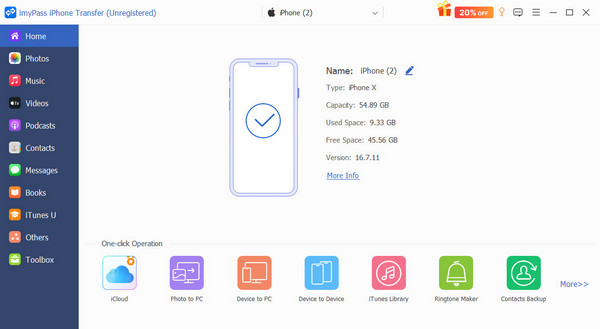
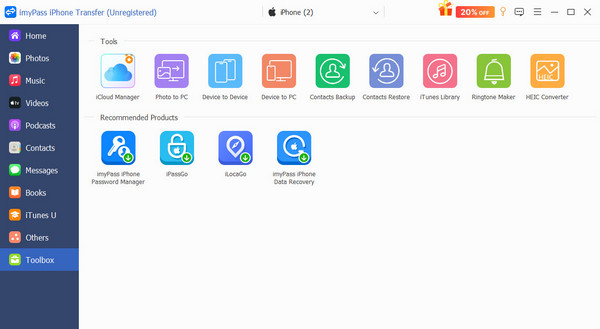
Clique Caixa de ferramentas on the left bar and choose Dispositivo para dispositivo.
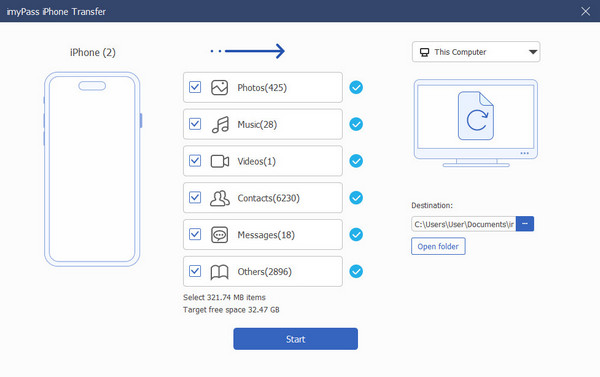
Select the type of data you want to transfer and click Começar. Wait for a moment until the transfer completes.
Method 2: Using iCloud Backup
You can also use iCloud, the Apple official cloud service, to transfer data iPhone to iPhone.
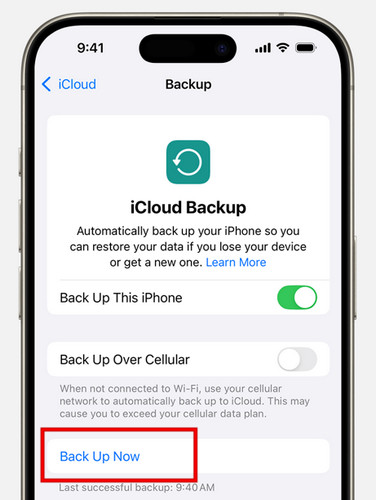
No seu iPhone antigo, acesse Definições > [seu nome] > iCloud > Backup do iCloud, em seguida, toque em Fazer backup agora.
No novo iPhone, toque em Set Up Without Another Device to skip the Quick Start iPhone setup screen. Continue to set up iPhone and select Restaurar do backup do iCloud quando solicitado.
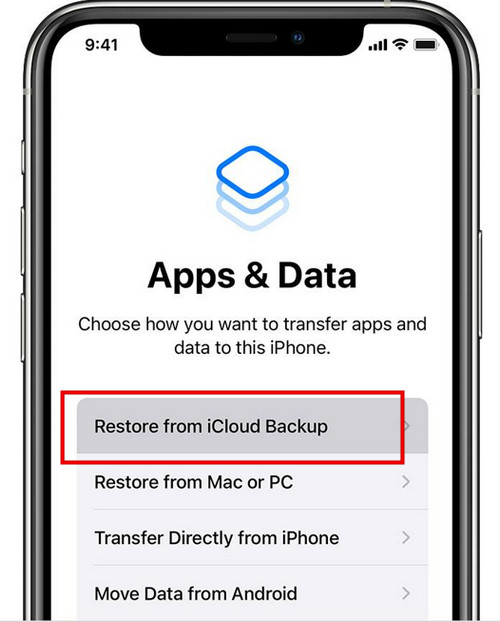
Sign in with the same Apple ID, select the backup you just created, then restore the backup.
Method 3: Using Finder/iTunes
You can transfer data to your new iPhone using a Finder or iTunes backup. This method is especially useful when you have a large amount of data.
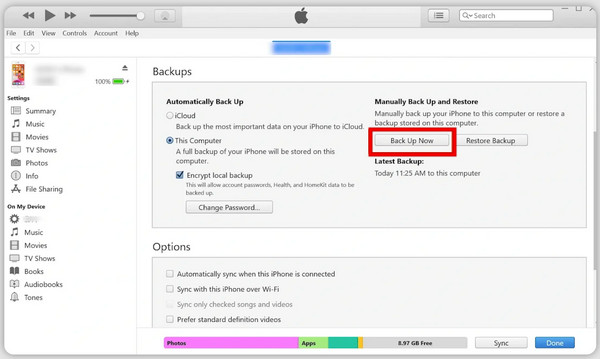
Connect your old iPhone to a computer. In Finder/iTunes, select your device and click Fazer backup agora.
Turn on your new iPhone and follow the setup instructions.
Quando você alcança o Aplicativos e dados tela, selecione Restaurar do Mac ou PC, then connect it to the computer. Pick the file to restore iPhone from iTunes backup.
Conclusão
To sum up, Quick Start iPhone is the easiest way to set up a new iPhone and migrate your data in minutes. But sometimes, it stops working due to system bugs or connection issues. Luckily, you have plenty of reliable alternatives. Whether you use imyPass iPhone Transfer, iCloud, or iTunes/Finder, you can finish iPhone-to-iPhone data transfer smoothly!
Clara has over 8 years of experience helping users recover lost files and transfer data. She previously worked as a data recovery technician for a major IT service company. Certified in Data Recovery and Digital Forensics, her articles focus on simple solutions that make complicated recovery tasks easier for everyday users.
Soluções quentes
-
Transferir dados
-
Recuperar dados
-
Desbloquear iOS
-
Dicas para iOS