Solução
 Centro de Apoio
 Sobre nós
 Contato
How to Retrieve Deleted Snapchat Photos Before They're Gone
 Clara Prescott publicado em julho 30, 2026Recuperar dadosLeitura de 3 minutos
Snapchat is designed to make photos and videos disappear, but losing important memories isn't always permanent. Whether you accidentally deleted a Snap, cleared your Memories, switched to a new phone, or experienced data loss after a system crash, there are several ways you may be able to recover your Snapchat photos. In this post, we'll teach you 7 proven methods on how to recover deleted Snapchat photos. You'll learn how to use built-in recovery features, restore from cloud providers, and try a professional data recovery tool when standard methods don't actually work. We'll also explain why some snaps can't be recovered and what you can do to improve the chances of getting them back.

Neste artigo:
Part 1. Snapchat's Built-In Recovery (The Easiest Methods)
Before trying advanced recovery, it is always best to start with the basics. If your snaps are still associated with your account, these methods offer the best chance of recovering them without risking data loss.
Method 1: Check the Recently Deleted Folder
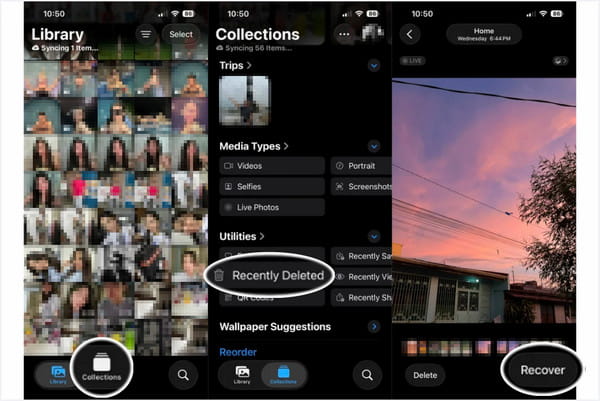
If you've set Snapchat to save snaps to the Camera Roll, there is a high chance you can recover them. The deleted photos in the Apple device are kept in the Recently Deleted folder for 30 days. Here's how to retrieve deleted Snapchat pictures:
Navegue até o Fotos aplicativo, toque em Collections, e selecione Excluído recentemente.
Enter your passcode or use Face ID to open the album. Select the snap you want to retrieve, then tap Recuperar.
Method 2: Download Your Snapchat Data (The My Data Method)
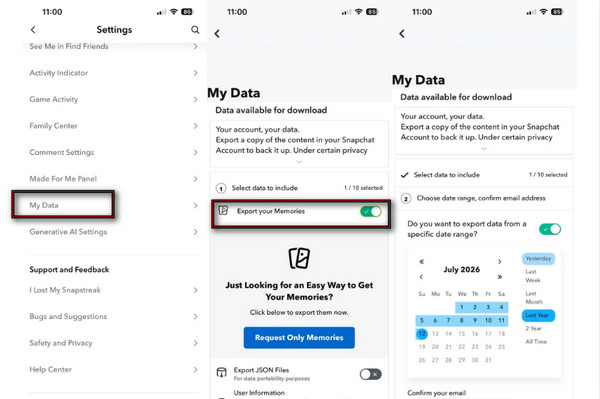
Snapchat provides an option under the My Data section for getting a copy of your data, including snaps. However, this feature cannot retrieve full-resolution pictures.
Vá para sua Perfil in Snapchat, tap the app's Definições, e role para baixo até Meus Dados.
Ativar/desativar Export your Memories, tocar Request Only Memories, and choose a time range.
Confirm your email, tap Enviar, and wait for the notification email containing the download link for your data.
Method 3: Check My Eyes Only and the App Cache
How to see old Snapchat pictures? If your snaps seem to have disappeared, you might have stored them accidentally in My Eyes Only or saved them temporarily in the app's cache.
Check My Eyes Only
My Eyes Only is a password-protected section within Snapchat. It keeps private photos and videos separate from your regular Memories.
Swipe up from the Camera display to bring up Memórias.
Vamos para Somente meus olhos, enter the passcode, and browse saved snaps.
In case you forgot your passcode, you can redefinir sua senha do Snapchat.
Tap and hold the missing snap and select Unhide Snap to transfer it back to Memories.
Check Snapchat App Cache
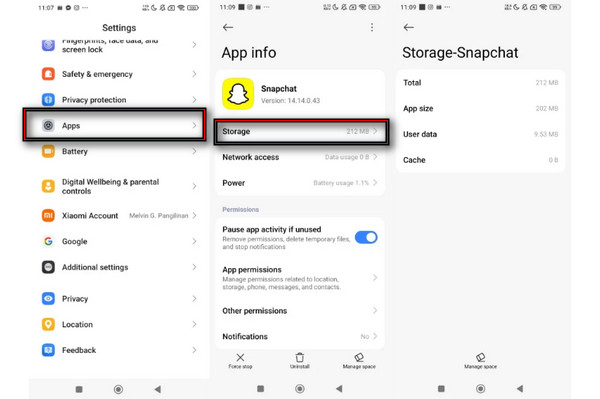
How to get deleted pictures back on Snapchat? On Android, Snapchat temporarily stores image files in its cache. However, cached files are not guaranteed to include your deleted photos.
No Definições, go to Apps, select Snapchat, and tap Armazenar.
View the cache size. Don't tap Limpar cache unless you've checked recoverable files.
Part 2. Recover from Phone Backups (iPhone & Android)
If the previous methods don't work, your best bet would be trying out phone backups or cloud services. This approach will allow you to restore a backup made before the deletion of the photo.
Method 4: Restore from iCloud/iTunes Backup
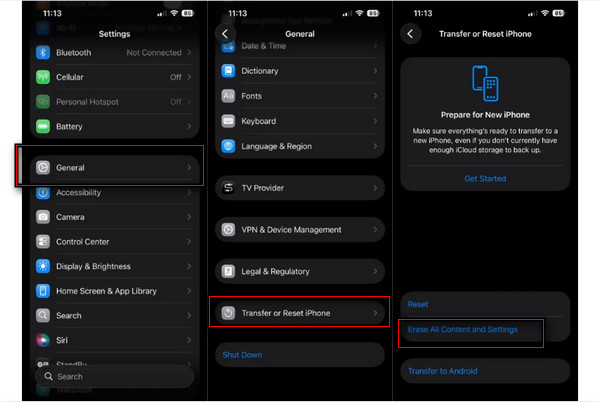
If you're an iOS user, you can restore snaps from iCloud or iTunes backup. Here is how to recover Snapchat pictures from iCloud:
Open Settings, tap Em geral, e role para baixo até Transferir ou redefinir o iPhone.
Toque Apague todo o conteúdo e configurações para redefinir o iPhone, restart it, and reach the App & Data screen.
Toque Restaurar do backup do iCloud, sign in with your Apple ID, and select a backup date prior to when the photos were lost.
Method 5: Check Third-Party Cloud Libraries
In case you have set your phone to automatically back up your snaps to a third-party cloud provider, your stored Snapchat images could be there. Here's how to get back deleted pictures on Snapchat.
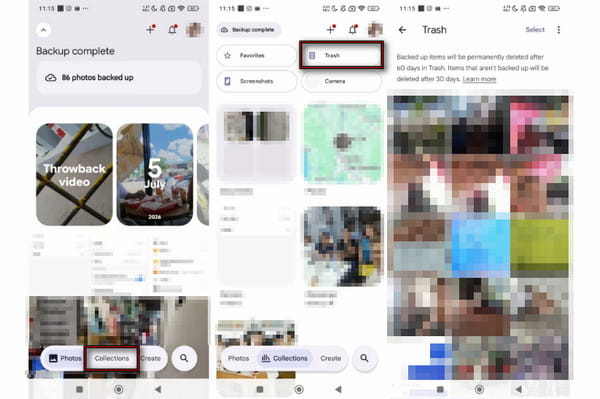
Open Google Photos and head to the Collections aba.
Toque em Lixo folder and check if the snaps were recently deleted from your device storage.
Part 3. Professional Data Recovery Software (Advanced Method)
If you can't recover your snaps using the built-in recovery or phone backups, these advanced methods can surely help. These approaches work best if new files haven't overwritten the deleted snaps or data.
Method 6: Use imyPass iPhone Data Recovery
Recuperação de dados do iPhone imyPass is a Snapchat image recovery tool that can retrieve lost or deleted data. It can help you get back your Snapchat photos even without a backup. It supports almost all iDevices and versions, including iOS 26 and iOS 27 Beta. Besides photos, it can also recover text messages, iMessages, voice memos, and 20+ other types of data. See how the tool operates with the detailed steps below.
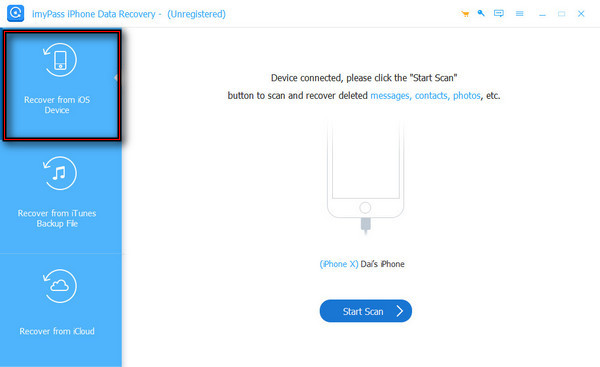
Download Recuperação de dados do iPhone imyPass, set it up, install it, and open it.
Selecionar Recuperar do dispositivo iOS, then plug the iPhone into the computer using a USB cable.
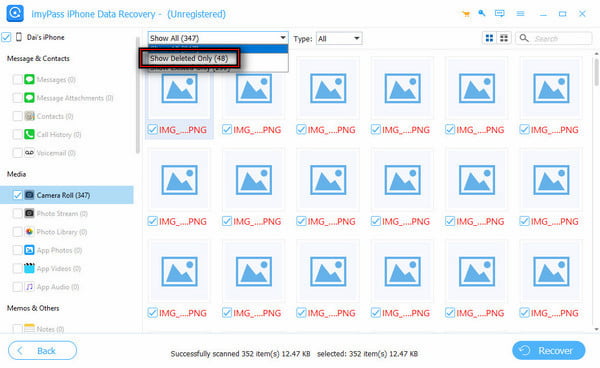
Clique Iniciar digitalização to scan all your data. Then, select Mostrar apenas os excluídos to find the snap you want to recover.
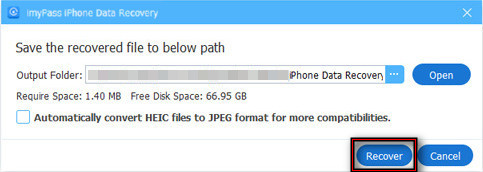
Select all the snaps, then click Recuperar to start retrieving them.
Method 7: Explore the Cache Folder and Third-Party Recovery Apps (Android)
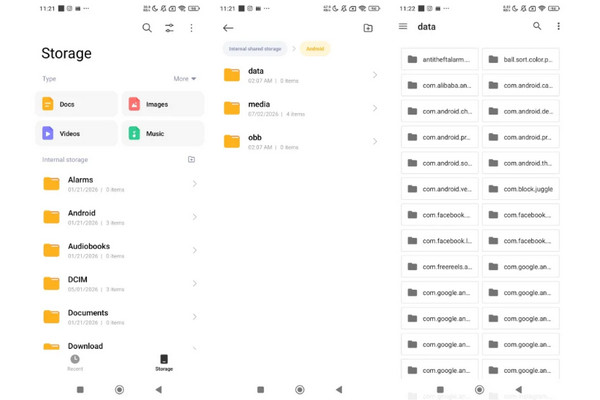
How to restore Snapchat pictures on Android? Some Android devices allow access to Snapchat's cached files through a file manager. Here's how you can access them:
Open your file manager, navigate to Armazenamento interno, e selecione Android.
Toque Dados, abrir com.snapchat.android, and enter the esconderijo pasta.
Observação:
If you can't find the photos in the cache, you can try Android recovery software. Such an app can recover deleted photos that aren't available in Snapchat or cloud backups. However, recovery success decreases as new data is written to the device.
Part 4. Why Can't I Recover My Snapchat Photos? (The Hard Truth)
Even after trying every recovery method, some Snapchat photos simply cannot be recovered. Here are the most common reasons why you can't recover Snapchat photos:
Data Overwriting
After deleting a picture, it does not get wiped out instantly from the storage device. The storage slot in which it was stored is simply flagged as reusable. Thus, there are chances of restoring the picture for a limited period after deletion.
Snapchat's Core Design
Snapchat was built around ephemeral messaging. In many cases, photos are intentionally designed to disappear. In other words, viewed snaps are often removed automatically. Snapchat deletes expired content from its servers according to its retention policies.
Account & App Issues
Sometimes the photos are not actually deleted at all; they're just not appearing. This problem arises if you log into the wrong Snapchat account or if there is a pending Memories sync process. Check whether you have logged into the right Snapchat account, or wait a few minutes for syncing to complete.
Conclusão
Esta postagem explica how to find deleted Snapchat photos. To be real with you, restoring Snapchat images isn't always a guarantee. But still, it doesn't hurt to give the various Snapchat recovery techniques a shot, even if you think your images are lost forever. Start with built-in recovery options, then check cloud providers. If all those methods didn't work, Recuperação de dados do iPhone imyPass is your last resort. This tool scans the iPhone, finds the deleted Snapchat pictures, and recovers them. Remember, the sooner you begin the recovery process, the better your chances of success.
Clara has over 8 years of experience helping users recover lost files and transfer data. She previously worked as a data recovery technician for a major IT service company. Certified in Data Recovery and Digital Forensics, her articles focus on simple solutions that make complicated recovery tasks easier for everyday users.
Soluções quentes
-
Recuperar dados
- Análise da recuperação de dados do AppGeeker iOS
- Disk Drill iPhone Data Recovery Review
- How to Get iPhone Out of Recovery Mode
- How to Fix support.apple.com/iphone/restore
- How to Recover Data from DFU Mode
- Análise do Gbyte iPhone Data Recovery
- How to Recover iPhone Deleted Photos After 30 Days
- How to Recover Deleted Photos on iPad
-
Desbloquear iOS
-
Transferir dados
-
Dicas para iOS

Recuperação de dados do iPhone
Recuperar dados do iPhone excluídos ou perdidos
Download grátis Download grátis