Solução
 Centro de Apoio
 Sobre nós
 Contato
Use Android Screen Lock Options to Add Screen Lock or Other Settings
 Gideon Byron publicado em junho 18, 2026Desbloquear AndroidLeitura de 3 minutos
When you turn on your Android phone, the lock screen is the primary interface you will see. You will notice your current wallpaper. Some users allow the notifications to be displayed in the mentioned screen. Also, some people added a screen lock. In this case, they need to enter the correct password to open the Android phone.
Due to this, there are other features that can be accessed, including the Camera and Call buttons. There is more information you need to know about the Tela de bloqueio do Android! Continue browsing this article to know the full details about the topic.

Neste artigo:
- Part 1. How to Access Android Lock Screen Settings
- Part 2. Android Screen Lock Options – Which One Should You Choose?
- Part 3. How to Change Your Lock Screen on Android
- Part 4. How to Turn Off or Remove the Lock Screen
- Part 5. How to Adjust Android Lock Screen Timeout & Delay
- Part 6. How to Customize Your Android Lock Screen
Part 1. How to Access Android Lock Screen Settings
The Android lock screen settings can be found easily. The Settings app is the one you need to operate. However, you cannot access the lock screen settings on Android using one settings. Multiple settings are available on your Android phone. See the steps below to know how.
Grab your Android phone. Then, select the Definições button from the main interface. Tap the Segurança ou segurança e privacidade button if you want to modify the screen lock type of your Android phone.
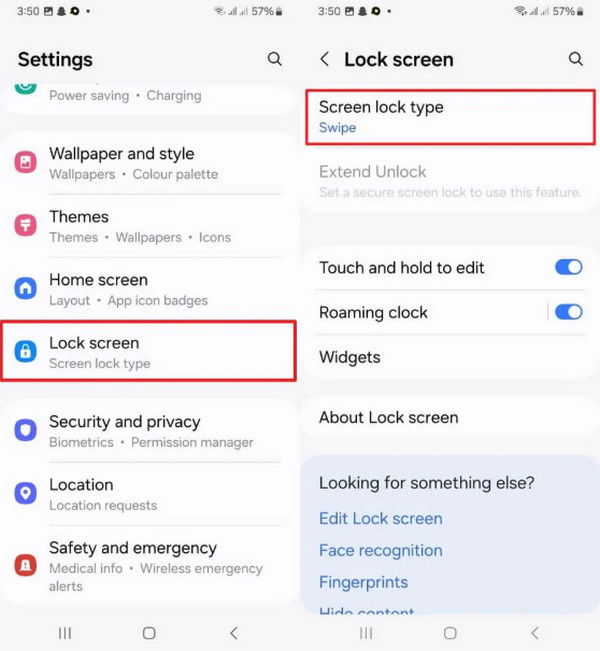
Alternatively, select the Tela inicial button. These settings will allow you to edit your lock screen interface.
Part 2. Android Screen Lock Options – Which One Should You Choose?
There are countless screen lock types on your Android phone. They are commonly used to unlock a phone. Their differences will be explained below to help you know which one you will be using.
1. Directly Swipe (No Security)
The Swipe lock is commonly used when users do not want to unlock their Android phone easily. However, this screen lock has no security.
2. Pattern
Patterns require 4 dots to be connected. This screen lock is less secure because of the fingerprint that will appear after entering it.
3. PIN
PINs require 4 or more combinations of numbers. It is the most secure screen lock for your Android phone. The longer it is, the more secure your Android phone.
4. Password
Your Android phone screen lock password can be numerical or alphanumeric. Some believe that it is the most secure screen lock.
5. Biometric Options (Fingerprint & Face)
Biometrics can also be used as your screen lock on an Android phone. It could be a fingerprint or face recognition.
Part 3. How to Change Your Lock Screen on Android
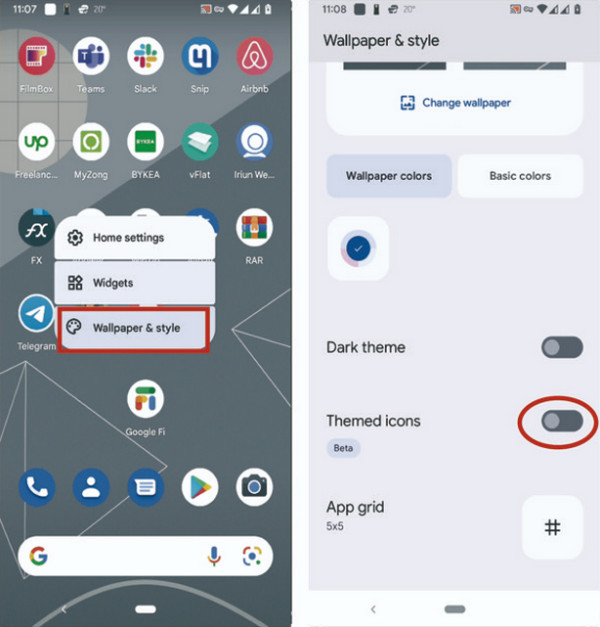
You can also change the lock screen on Android, which is the wallpaper. This method is simple. The best thing about it is that you can also choose your preferred photo to be added as your Android phone wallpaper. See how below.
Go to the lock screen of your Android phone. Then, choose the Papel de parede button on the list. Choose a wallpaper you prefer for your Android phone. Adjust the picture afterward.
Por favor, toque no Set Wallpaper ou Wallpaper & Style botão. Toque no Tela de bloqueio botão na tela.
Part 4. How to Turn Off or Remove the Lock Screen
You might ask: Is my phone unlocked? You only need to check the lock screen of the Android phone. If there is a passcode requirement, it means that it is locked. Do you want to know how to turn off the lock screen on Android? Two of the best methods are available below.
1. Use Settings App
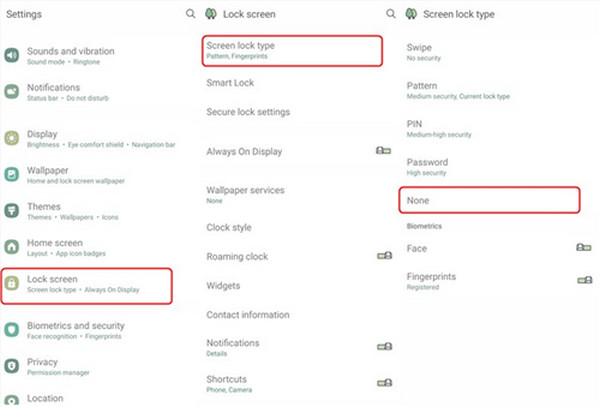
The process of turning off the Android phone screen lock is easy. However, the current passcode is needed. The best thing about it is that it does not need a third-party app. Use the steps below to know how.
Abra o Definições app. Then, choose the Tela de bloqueio button from the list. Then, tap the Screen Lock botão.
Enter your current passcode. Later, more options for the screen lock will appear. Tap the Nenhum botão para aplicar as alterações.
2. Use imyPass AnyPassGo
How to remove the lock screen on Android when forgotten? imyPass AnyPassGo is the most reliable tool that can help you! It is a program that can remove different screen lock types on your Android phone. It includes password, pattern, fingerprint, PIN, and more. Besides that, it can be used for multiple famous Android phone brands. Oppo, Samsung, Motorola, OnePlus, and more are included.
The Google FRP lock can also be bypassed by the tool. Please use the steps below to operate the tool accordingly.
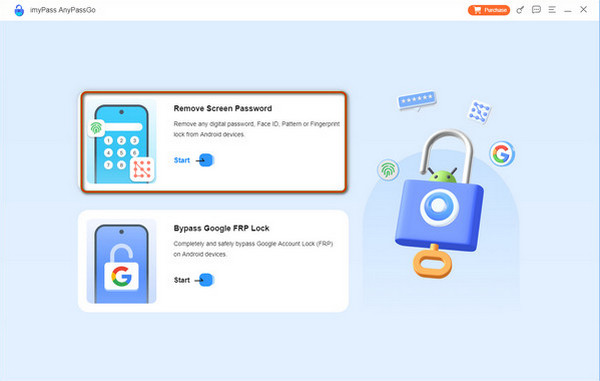
Download, install, and open imyPass AnyPassGo. Then, the first screen will be prompted on your screen.
Clique no Remover senha da tela button on the screen. Later, select the brand of your Android phone. Plug your Android phone into the computer afterward.
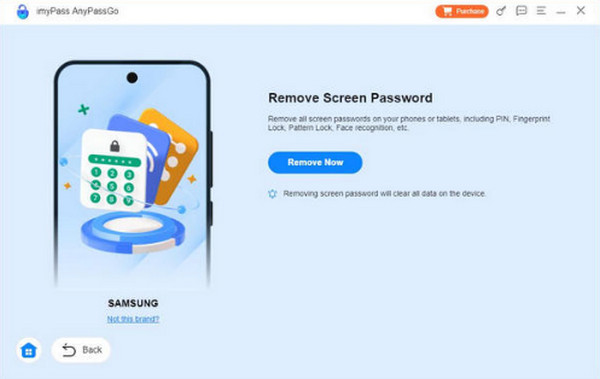
Clique no Remover agora button. Then, the tool will start to remove the screen lock on your Android phone. Wait for the process to be completed. Finally, click the OK opção na parte inferior.
Part 5. How to Adjust Android Lock Screen Timeout & Delay
The Android phone lock screen has a timeout and a delay that can be added. In this case, the screen will automatically turn on when there is no activity. Learn how to adjust the Android lock screen timeout easily.
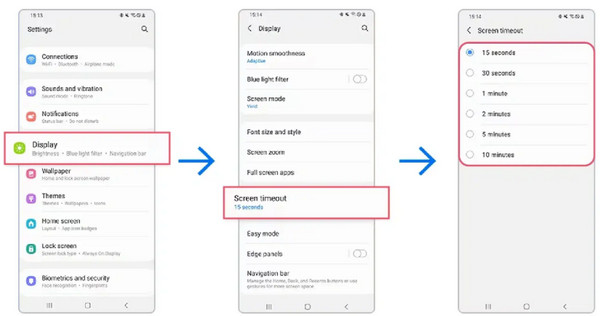
Toque em Definições app on an Android phone to open it. Then, the settings options will appear. Tap the Mostrar button from the options list. Please look for the Screen Timeout opções.
The options for the timeout will appear. You can choose the 15 Seconds, 30 Seconds, 1 minuto, 5 Minutes, 2 minutos, 10 Minutes, e 30 Minutes options. Then, the changes will be applied automatically.
Part 6. How to Customize Your Android Lock Screen
The best thing about mobile phones is that you can apply a custom lock screen on Android. This method can be done in the Lock Screen interface without using any application. The long-press technique is supported. Please rely on the detailed steps below to know how the process works.
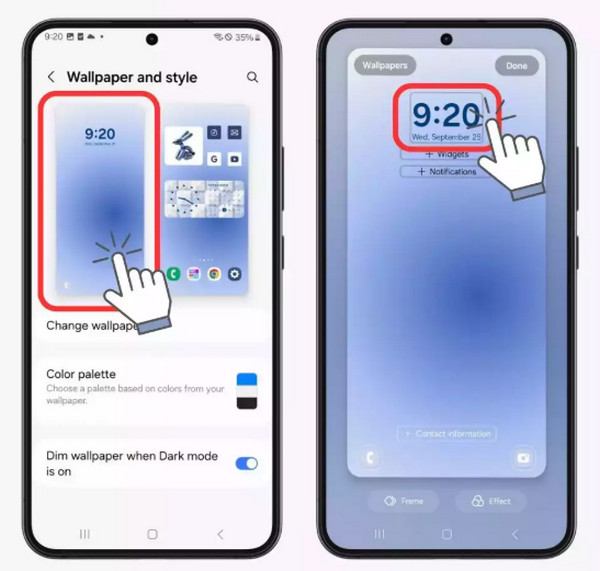
Turn on your Android phone. Then, long-press the empty section of the screen. Later, tap the Widgets botão na parte superior.
The supported widgets will appear at the bottom. Choose your preferred one. Later, tap the Feito button at the top right to apply the changes.
Conclusão
Em conclusão, o Android lock screen settings are important for your wallpaper, screen lock, and other features that appear on the said interface. This article helps you determine how the settings work or perform. imyPass AnyPassGo can be used to remove your screen locks, including PIN, pattern, passcode, and other types. Download the tool to know the features it supports!
Gideon writes about unlocking iOS, Android, and Windows devices. He previously worked as a mobile device specialist in a repair center, assisting customers with locked devices and password recovery. In his spare time, he tests new unlock tools, customizes smart devices and makes complex unlock processes simple and safe.
Soluções quentes
-
Desbloquear Android
-
Desbloquear iOS
-
dicas de senha
-
Dicas para iOS