Solução
 Centro de Apoio
 Sobre nós
 Contato
How to Bypass Face ID on Android: 3 Ways to Unlock Android Easily
 Gideon Byron publicado em junho 22, 2026Desbloquear AndroidLeitura de 3 minutos
Android phones use different screen locks to protect user data. The most common options include password, pattern, and PIN. Newer Android devices also support biometric authentication such as face recognition or Face Unlock. Some users refer to it as Face ID, similar to Apple devices.
When the camera fails to recognize your face, how to bypass Face ID or Face Unlock on Android? The process can be tricky, but this guide will give you three effective methods.

Neste artigo:
- Part 1. Why is Android Face Unlock Not Working?
- Part 2. Comparison of Face Unlock Bypass Methods
- Part 3. Bypass Face Recognition Using imyPass AnyPassGo
- Part 4. Bypass Face Recognition via Google Find My
- Part 5. Bypass Face Recognition with Spoofing Ways
- More Tips: Android Face Unlock vs. iPhone Face ID
Part 1. Why is Android Face Unlock Not Working?
Face Unlock may stop working for several reasons. Common causes include:
- Poor lighting conditions: If you are in a dark environment, the camera may not capture your facial features clearly.
- Changes in facial appearance: Wearing a mask, glasses, hat, heavy makeup or something block your face may affect the recognition.
- Dirty front camera: Dust, fingerprints, or scratches on the front camera lens can interfere with facial scanning.
- System updates: Android updates or temporary software bugs can cause Face Unlock to stop working properly.
Quick Fixes for Face Unlock Not Working
- 1.Wipe the front camera lens with a soft, clean cloth to remove dust and fingerprints.
- 2.Move to a bright area and make sure your face is clearly visible.
- 3.Take off any items that may cover your facial features, like sunglasses, masks, or accessories.
- 4.Restart the Android device to refresh the system.
- 5.Delete the existing facial recognition profile and set up Face Unlock again.
- 6.Install the latest Android updates to fix the temporary software bugs.
Part 2. Comparison of Face Unlock Bypass Methods
We tested the three methods on Samsung Galaxy (Android 16), Google Pixel (Android 9), and Xiaomi smartphone (Android 12) to evaluate their effectiveness under different Android versions.
Here is a comparison table of the three methods introduced in this article:
| Método | Samsung Galaxy (Android 16) | Google Pixel (Android 9) | Xiaomi (Android 12) | Perda de dados | Fácil de usar | Overall Result |
| imyPass AnyPassGo | Success | Success | Success | Sim | Fácil | Highly effective |
| Google Encontre Meu Dispositivo | Success | Success | Success | Sim | Fácil | Eficaz |
| Métodos de Spoofing | Failed | Failed | Partially works | Não | Difícil | Unreliable |
The results show that professional unlocking tools and official recovery methods offer higher success rates, while spoofing techniques are generally not reliable.
Part 3. Bypass Face Recognition Using imyPass AnyPassGo
When the Face Unlock is not working, you need to bypass it to unlock your Android phone. On the other hand, it has the hardest bypass process of other screen locks. imyPass AnyPassGo can help you with this procedure with no sweat! It is a third-party program that allows you to unlock different screen locks on your Android phone. It includes face recognition, fingerprint, pattern, password, and PIN.
The bypass procedure can be done on different Android phone brands. It includes Google phones, Samsung, Poco, LG, HTC, Lenovo, Alcatel, Oppo, Xiaomi, and more. The tool can also be used to bypass the Google FRP lock feature on your Android phone. The steps for bypassing the Face Unlock feature are posted below.
Open the web browser you want to use. Then, search for the website of imyPass AnyPassGo. Download it from the buttons near the descriptions. Later, set it up from the web browser. A small window will be prompted. Please install it afterward to open it completely.
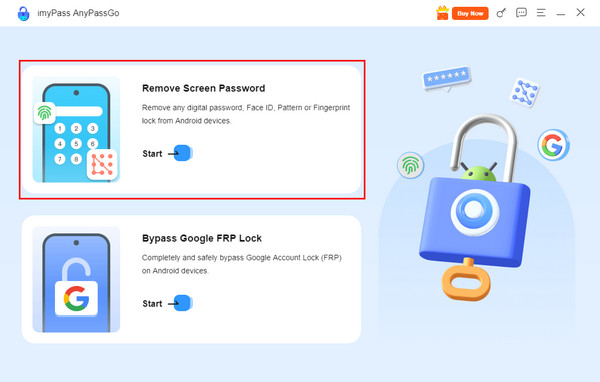
You will see the first interface of the tool. Please select the Remover senha da tela button at the top left. Alternatively, you can choose the Começar button under it.
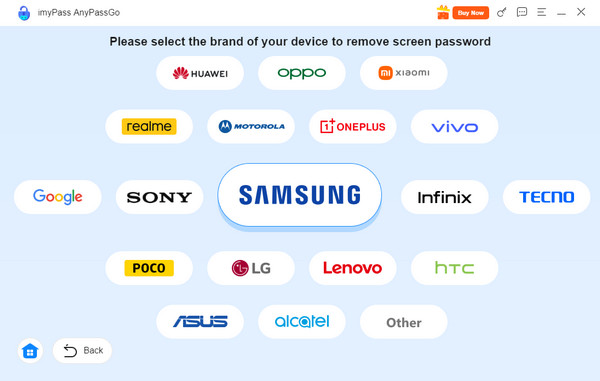
You will be prompted to the supported Android phone brands of the tool. Choose the Android phone brand you have. In this case, you will see the appropriate features for your phone.
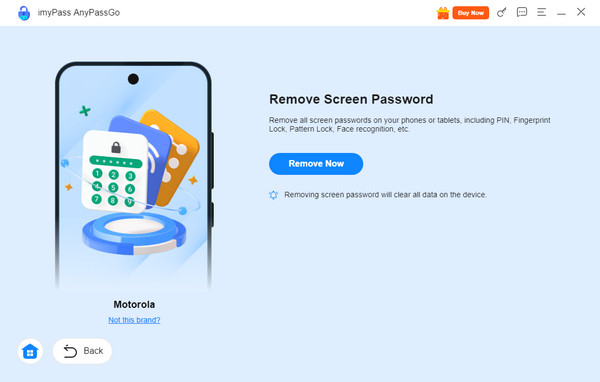
Please plug your Android phone into the computer. Use a USB cable for this procedure, and it must be successful to proceed. When the Android phone information is seen, please click the Remover agora button. The bypass process for the face recognition will start.
Part 4. Bypass Face Recognition via Google Find My
Google Encontre Meu Dispositivo or also known as Find Hub nowadays, is a service offered by Google to help you track your misplaced, stolen, or lost Android phone. This service can also erase your Android phone to bypass the face recognition. Since the Android phone is locked, you can use a spare device. Google Find My Device can be accessed on different devices that have a web browser.
However, the Google FRP lock feature will be enabled after the factory reset using the service. You are required to enter the correct credentials of the Google account associated with the Android phone. Please follow the instructions below to know how to use Google Find My Device or Find Hub.
Open your device, including its web browser. Then, search for the website of Google Encontre Meu Dispositivo ou Encontre o Hub. Log in to your Google account to the Android phone you want to unlock. Later, click the Dispositivos botão da lista.
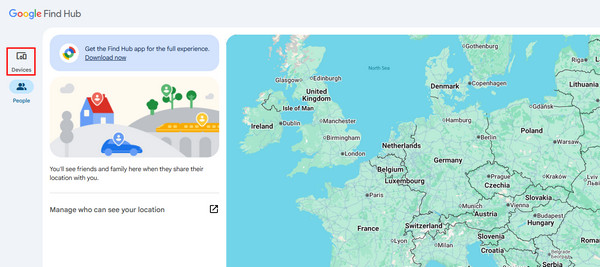
The associated devices to the Google account will be prompted. Please locate the Android phone you want to unlock. Then, more options will be shown on the screen.
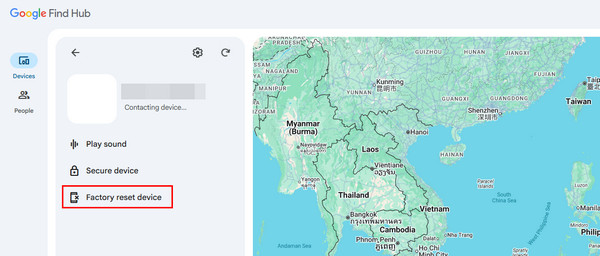
Clique no Dispositivo de redefinição de fábrica button under the Android phone. Later, you will be asked for a few authentication. Finally, click the Apagar button on the small window that will be prompted on the screen.
Part 5. Bypass Face Recognition with Spoofing Ways
Spoofing is an act in which someone pretends to be someone or something else. It could be a GPS spoofer, an identity spoofer, and more. You can unlock Face ID or face recognition by spoofing it! There are common spoofing techniques that can be used.
1. Use Videos
When taking videos, the subjects are moving, especially people. Using a video is convenient when the Android phone owner cannot personally use the face recognition. You can ask for their video and scan it to unlock the face recognition.
2. Use Pictures
Alternatively, you can use pictures instead of videos. However, there are Android phone models that require the person to blink. You might need an AI third-party editing tool that can move the picture like a video.
3. Use Masks
Masks are also upgraded because they are silicone masks that copy almost the exact facial features of people. However, silicon masks are not as practical as the previous spoofing ways. They are expensive nowadays.
More Tips: Android Face Unlock vs. iPhone Face ID
Many users use both the Face Unlock and Face ID, but they are not exactly the same. Face ID is Apple's facial authentication technology used on iPhones, while Android devices typically use Face Unlock or face recognition.
On many Android phones, Face Unlock relies mainly on the front-facing camera to identify facial features. Some premium Android models also use additional sensors for improved accuracy and security. In contrast, Apple's Face ID uses the TrueDepth camera system to create a detailed depth map of the user's face, making it more resistant to photos and simple spoofing attempts.
How to Unlock iPhone If Face ID Not Working?
If Face ID fails to recognize your face, it usually allows you to unlock your iPhone with the screen passcode. If you forgot your iPhone passcode, you may need to use Apple's official recovery options to regain access to your device. This typically involves erasing the iPhone, so back up your important data in advance.
Conclusão
The face recognition, Face Unlock, or Face ID unlock is tackled in this post. We have posted the three easy ways to bypass it. imyPass AnyPassGo is the easiest to use among them. Besides face recognition, it can also unlock a password, pattern, PIN, etc. Download the tool to know more about its details.
Gideon writes about unlocking iOS, Android, and Windows devices. He previously worked as a mobile device specialist in a repair center, assisting customers with locked devices and password recovery. In his spare time, he tests new unlock tools, customizes smart devices and makes complex unlock processes simple and safe.
Soluções quentes
-
Desbloquear Android
-
Desbloquear iOS
-
dicas de senha
-
Dicas para iOS