



 Solução
 Centro de Apoio
 Sobre nós
 Contato
Resolve iPhone Randomly Asking for Apple ID Password to Remove Pop-ups
 Samuel Spenser publicado em maio 20, 2026Desbloquear iOSLeitura de 3 minutos
The Apple ID on your iPhone is very helpful because it can be used for different additional services. It includes the iCloud service because an Apple ID can be associated with it. However, other users report that their iPhone keeps asking for the Apple ID password even though there are no requests for changes in the system or other features.
If that happens, there might be errors in the system. Eyes here! This article helps you to fix the mentioned issue using the eight easy methods it offers. Kindly scroll below to know the full details about the topic.

Neste artigo:
Part 1. Why Does My iPhone Keep Asking for My Apple ID Password?
By default, the Apple ID is required when changes need to be made to your iPhone. It includes resetting the Screen Time passcode, making a purchase online, and more. However, sometimes this authentication appears out of nowhere. Why does my iPhone keep asking for an Apple ID? It is due to software issues on your iPhone. Some of them are listed below.
- iCloud sync issues on your Apple ID. You might need to recover an Apple ID to adjust the account.
- There are problems in the App Store or iTunes download processes.
- An iOS update or software glitches have occurred.
- Your Apple ID sessions have expired.
- An existing backup and restore issue.
Part 2. Common Solutions to Fix
Regardless of the cause, it is indeed great to fix the iPhone that keeps asking for Apple ID verification. In this section, you will encounter the eight ways to fix the mentioned issue. Kindly scroll below to know their full details.
1. Sign Out and Back Into iCloud
Apple ID is associated with your iCloud account. You may try signing out and signing back in to fix the issue. This method requires an internet connection.
Por favor selecione o Definições app from your iPhone Tela inicial. Then, choose your name at the top. Swipe down on the screen and tap the Sair button. Enter your Apple ID password.
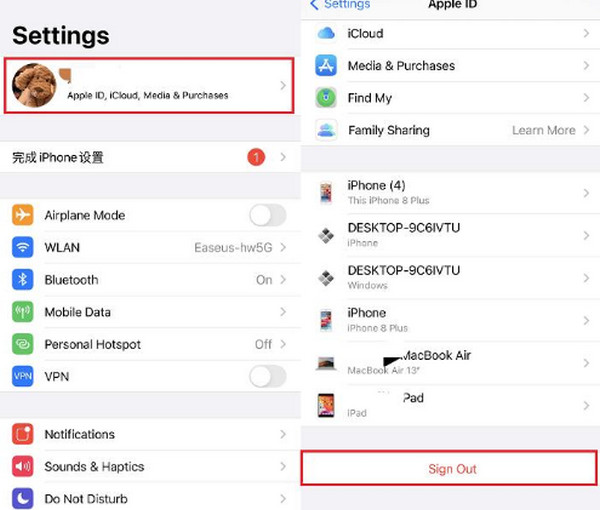
To sign in, tap the Definições app to open it. Tap the Sign In to Your iPhone option. Enter the Apple ID credentials.
2. Reinicie o seu iPhone
Bugs and glitches can be the reason for an Apple ID authentication to pop up out of nowhere. Restating your iPhone can help you get rid of the issue.
- For iPhones Without a Home Button: Pressione e segure o Lado e Volume baixo buttons. A slider will appear on the screen. Please toggle off the slider to restart your iPhone.
- For iPhones with a Home Button: Push and hold the Lado ou Principal button. Wait for the slider to be prompted on your screen. Later, toggle the slider to restart your iPhone.
3. Verificar o estado do sistema Apple
The Apple System Status page can help you determine if there are down services that the manufacturer offers. In this case, you will know if the problem is on their end or on your iPhone. If it appears that Apple has a system down for Apple ID, you only need to wait for the problem to be fixed on their end. You cannot do anything about it but wait.
4. Check App Store Downloads
There might be an unfinished or stuck update for your apps. So, the Apple ID will be required to be authenticated. You can check the App Store for this issue. Continue updating the apps to fix it.
Abra o Loja de aplicativos app. Tap the Perfil opção no canto superior direito.
Wait for the apps to load. Tap the Atualizar tudo button to fix the issue.
5. Toggle Media & Purchases
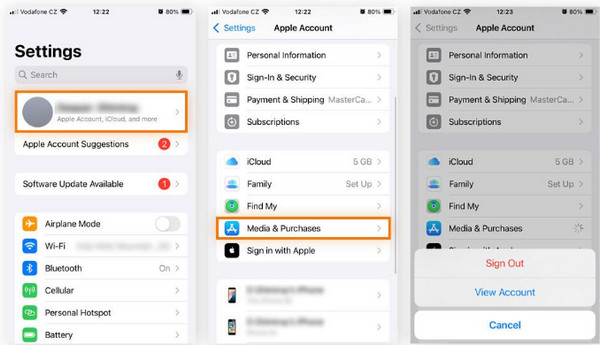
If you do not want to sign out of the Apple ID, you can also toggle Media & Purchases. It is the quickest way to fix pop-ups for the Apple ID password.
Abra o Definições app. Tap your name at the top.
Toque em Mídia e compras botão. Toque no Visualizar Conta botão na parte inferior.
6. Disable Password for Free Downloads
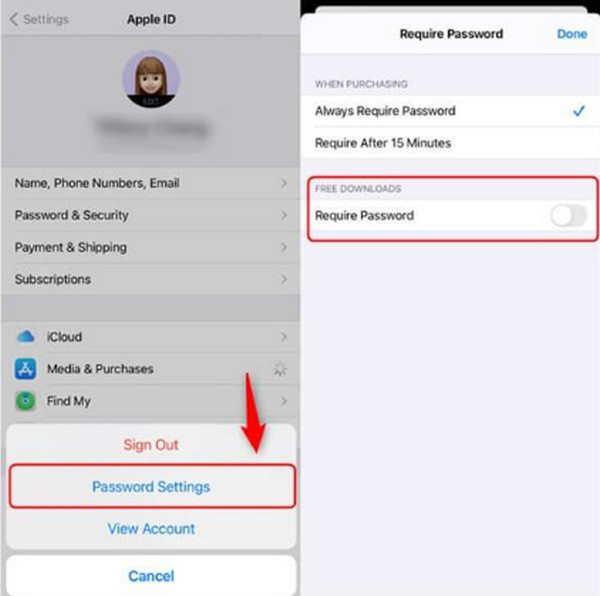
You can also turn off the password requirement for downloading free apps. This way, you can lessen the pop-ups for your Apple ID.
Abra o Definições app. Select the name at the top and tap the Mídia e compras botão.
Toque em Configurações de senha button. Turn off the Exigir senha seção.
7. Reset Network Settings
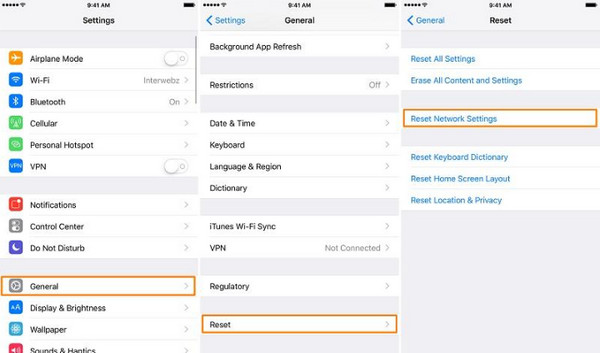
The network can also affect how you sign in to your Apple ID when there are changes needed to make on your iPhone. So, wrong network settings can lead to the pop-ups of your Apple ID when they are not needed. Resetting the network settings is the best solution to fix the issue.
Abra o Definições aplicativo e toque no Em geral botão. Selecione o Transferir ou redefinir o iPhone botão em seguida.
Toque em Redefinir button. Choose the Redefinir Ajustes de Rede button and enter the iPhone passcode. Tap the same button to confirm.
8. Update iOS System
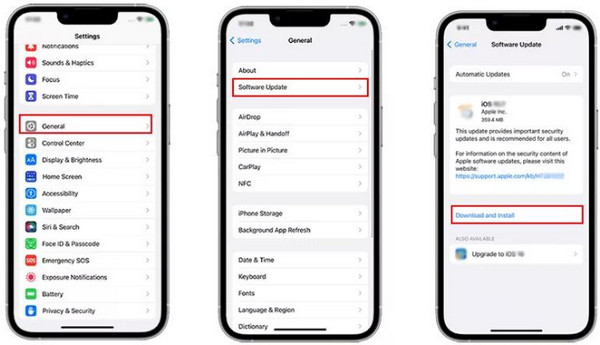
Your iPhone needs its updates to fix issues in its system. It includes the Apple ID that keeps asking for your password. It can also be the way to fix Apple ID greyed out and other Apple ID issues. Know how to update iOS with the steps below.
Abra o Definições app. Tap the Em geral botão.
Toque em Atualização de software button. Wait for the available updates. Tap the Baixar e instalar botão em seguida.
Bonus: How to Bypass If You Forgot Your Apple ID Password
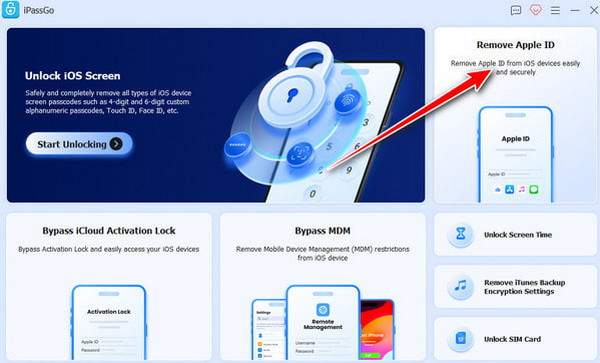
In addition to the issue, there are also iPhone users who have forgotten their Apple ID credentials. So, they cannot make any changes to the iPhone. imyPass iPassGo can help you get rid of the mentioned account on your iPhone without its credentials. It is an offline tool that only relies on a USB connection.
Also, novices will find this tool convenient because of the simple interface it contains. Besides that, the tool can also be used to remove SIM lock, Screen Time, MDM, and other security features on your iPhone. Please use the tool using the steps below.
Quickly visit the website of imyPass iPassGo. Then, download the tool on your computer. Set up, install, and open it to start the process.
Selecione os Remover ID Apple button at the top right. Plug your iPhone into the computer afterward.
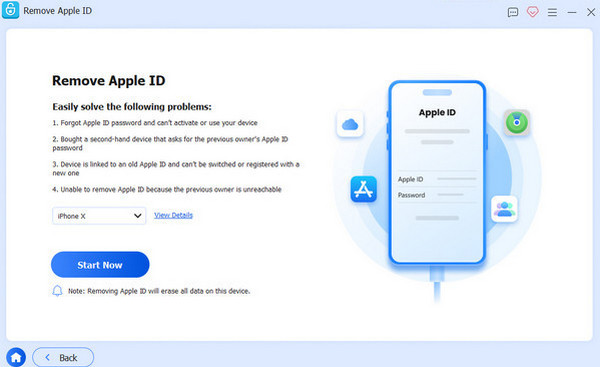
Clique no Comece agora button. Follow the on-screen additional steps. Later, click the Confirm Again button to start removing the Apple ID. Finally, please click the Terminar botão.
Conclusão
All in all, when the iPhone keeps asking for an Apple ID and password, it is due to software issues. This post lets you discover the eight easy methods to fix it. imyPass iPassGo is a bonus tool that can be used to bypass the Apple ID on your iPhone when its credentials are forgotten. Downloading the tool will help you know more facts and features about it!
Samuel specializes in password security and digital privacy. He used to work as a cybersecurity consultant for small businesses to protect digital assets. With certifications in Cybersecurity and Ethical Hacking, he turns complex security topics into easy-to-follow advice. He also enjoys sharing password tips to help users protect their accounts more confidently.
Soluções quentes
-
Desbloquear iOS
-
Dicas para iOS
-
Desbloquear Android
-
dicas de senha


