



 Solução
 Centro de Apoio
 Sobre nós
 Contato
How to Fix the Passcode Requirement for iPhone – 4 Solutions
 Samuel Spenser publicado em setembro 16, 2026Desbloquear iOSLeitura de 3 minutos
Many users have complained about the pop-up message "You must change your iPhone unlock passcode within 60 minutes." Why does this notification suddenly appear? In this guide, we'll explain why your iPhone keeps asking you to change your passcode and provide effective solutions to fix the Requisito de senha do iPhone issue. If you want to know how to stop the alert, you can find the answer here.

Neste artigo:
Part 1: Why a Passcode Requirement Message Pops Up
Have you ever seen a passcode requirement message suddenly appear on your iPhone? You already have a passcode set up and don't remember changing anything. Why does this problem occur on your iPhone? Here are 4 common reasons:
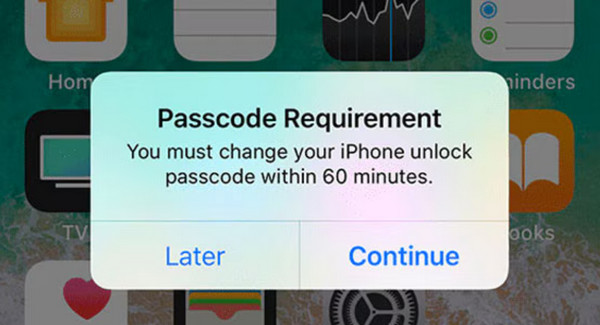
- 1.Simple Passcode: Using a simple passcode combination on your iPhone, such as an easy-to-guess sequence, may trigger an iPhone Passcode Requirement message asking you to set a stronger passcode.
- 2.MDM Enrollment: An iPhone enrolled in Mobile Device Management (MDM) may receive passcode requirements set by the organization.
- 3.Configuration Profile: A configuration profile installed on your iPhone can change certain security settings and enforce passcode requirements.
- 4.Exchange Email Account: A work or Exchange email account can also impose passcode policies on your iPhone.
Part 2: How to Fix iPhone Passcode Requirement Issue
You may ignore this iPhone Passcode Requirement message by tapping "Later." But the message keeps showing up. How to stop the Passcode Requirement message? Try these fixes.
Turn Passcode on and off
If the iPhone Passcode Requirement issue is caused by a temporary security setting or system glitch, turning your iPhone passcode off and then on again may help.
Vamos para Definições e toque no seu nome.
Role para baixo e selecione ID de toque e senha (ou ID facial e senha).
Enter your current passcode, tap Desativar senha, and follow the on-screen instructions.
Restart your iPhone, return to Definiçõese toque em Ativar senha to set up a new passcode.
Alterar senha do iPhone
If the reason is weak passcode, you simply need to follow the iPhone password requirements to create a new one. You can tap Continuar on the pop-up message and follow the instructions to set iPhone passcode directly, or through the Settings app.
How to change passcode on iPhone:
Vamos para Configurações> Touch ID e senha (ou ID facial e senha).
Enter your current passcode to authenticate.
Role para baixo para tocar Alterar senha and enter your old passcode again.
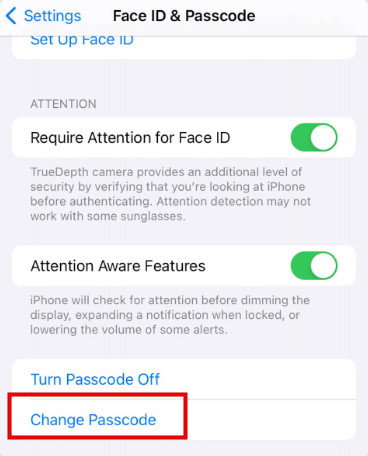
Toque Opções de senha to switch to a 4-digit/6-digit numeric code, a custom numeric code, or a custom alphanumeric code. Set a new iPhone password. Avoid using 0000, 123456, and 121212, these easy-to-guess combinations.
Delete Exchange Email Account
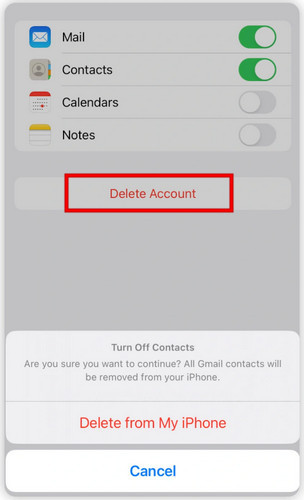
Deleting the work or Exchange account may fix the iPhone passcode requirement pop-up error. Follow the steps below to remove it easily.
Vamos para Definições > Correspondência > Contas.
Choose the Exchange email account you want to delete.
Toque em Deletar conta and confirm the removal.
Remove MDM or Configuration Profiles
An MDM or a configuration profile may enforce passcode requirements on your iPhone. Removing the management is necessary to resolve the iPhone asking to change the passcode issue.
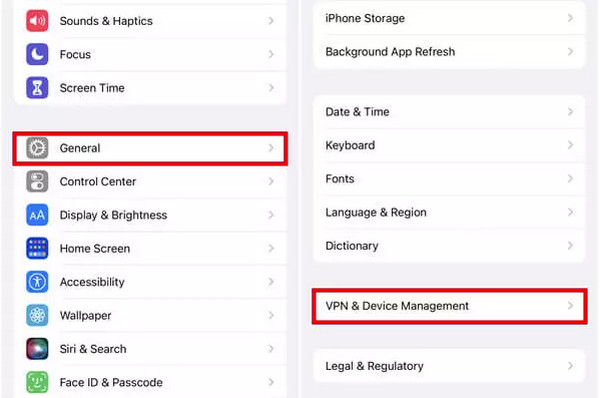
Abrir Definições > Em geral < VPN e gerenciamento de dispositivos. Check whether your iPhone has a configuration profile or a device management here.
If the profile can be removed, tap Remover gerenciamento and delete the configuration profiles installed on your iPhone.
Observação:
There may be nenhuma opção para remover MDM if the iPhone is supervised by your organization. In this situation, contact the administrator or refer to Part 3 for more ways.
Part 3: How to Fix Passcode Requirement Issue Caused by MDM
If you can't view the MDM details and remove the MDM profile from your iPhone, you may need a professional MDM removal tool. imyPass iPassGo can remove MDM profiles from your iPhone without administrator's permission. In addition, it's capable of bypassing screen lock, Screen Time limits and Activation Lock. And what makes it more convenient is that you can do all that in just a few easy steps.

Mais de 4.000.000 de downloads
Fix iPhone passcode requirement issue without hassle.
Remove MDM profiles and bypass Screen Time limits.
Remove iPhone passcode, Face ID, and Touch ID easily.
Support the latest iOS models and versions.
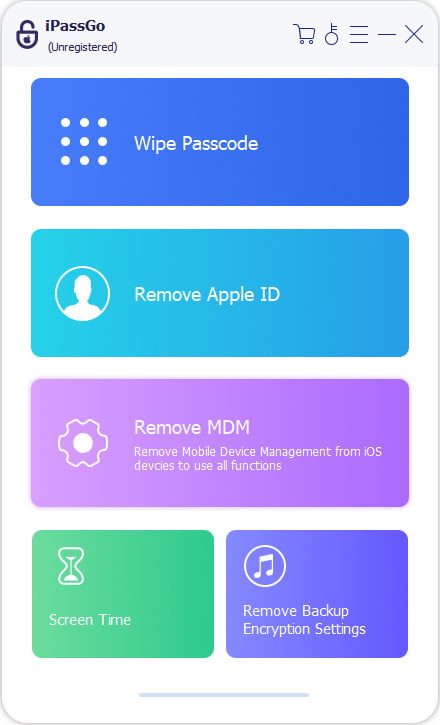
Launch the program on your computer. Select the Ignorar MDM modo da interface.
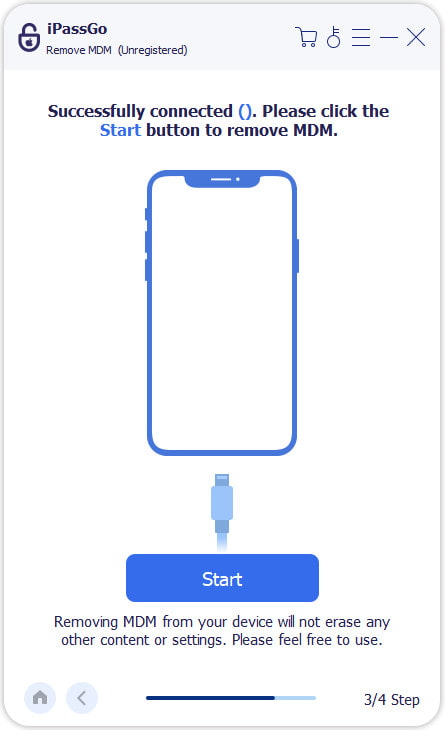
Connect your device to a computer using a USB cable, then click Começar continuar.
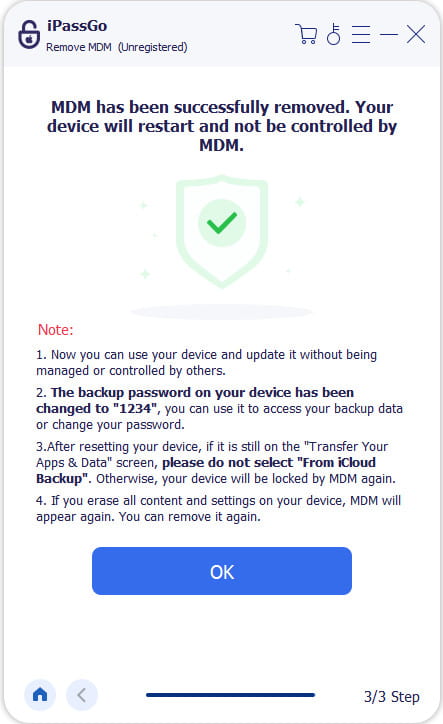
Depois de pressionar Começar, this software will automatically remove MDM from your device.
Perguntas frequentes.
-
What are the passcode requirements for iPhone?
By default, iPhone uses a six-digit passcode. You can also change it to a 4-digit passcode, a custom numeric code, or a custom alphanumeric code under Passcode Options.
-
Can I turn off iPhone passcode?
Yes. Go to Settings > Face/Touch ID & Passcode, enter your current passcode, and tap Turn Passcode Off. However, it is not recommended to turn it off because it can make your iPhone and personal data less secure.
-
How to set a passcode on iPhone?
Abrir Settings > Face/Touch ID & Passcode, em seguida, toque em Ativar senha. Enter a 6-digit passcode and enter it again to confirm.
Conclusão
o Passcode Requirement for iPhone issue can happen for different reasons. You can solve it by changing your iPhone passcode, removing unnecessary profiles and deleting Exchange email accounts. If you still cannot fix this problem, imyPass iPassGo can help you remove MDM effortlessly and create a new passcode.
Samuel specializes in password security and digital privacy. He used to work as a cybersecurity consultant for small businesses to protect digital assets. With certifications in Cybersecurity and Ethical Hacking, he turns complex security topics into easy-to-follow advice. He also enjoys sharing password tips to help users protect their accounts more confidently.
Soluções quentes
-
Desbloquear iOS
-
Dicas para iOS
-
Desbloquear Android
-
dicas de senha


