



 Solução
 Centro de Apoio
 Sobre nós
 Contato
How to Turn Off Auto-Lock on iPhone: A Simple Guide
 Samuel Spenser publicado em setembro 21, 2026Desbloquear iOSLeitura de 3 minutos
Have you ever had such an experience that your iPhone locks itself automatically when you are watching a video or reading an article? It is really an annoying thing. In this guide, we will show you how to turn off Auto-Lock on iPhone step by step. Also, we will help you find out why you cannot turn it off, and what will happen after you disable the iPhone Auto-Lock.

Neste artigo:
Part 1: What Is Auto-Lock on iPhone
What is Auto-Lock on iPhone? Just as its name suggests, it is a feature that controls how long your iPhone screen stays on before it automatically turns off and locks. If you don't use your iPhone for a set period of time, your iPhone screen will automatically turn off and lock to reduce unnecessary power consumption and protect your privacy when you are away from your iPhone.
By default, Auto-Lock is set to 30 seconds, which means your iPhone will automatically turn off and lock the screen after 30 seconds of inactivity.
However, some users may not want the screen to turn off automatically, especially when they are reading long content or following a recipe. Therefore, this post is going to introduce how to turn off Auto-Lock on iPhone.
Part 2: How to Turn Off Auto Lock on iPhone (Step-by-Step)
You can just follow the simple steps below to disable iPhone Auto-Lock correctly.
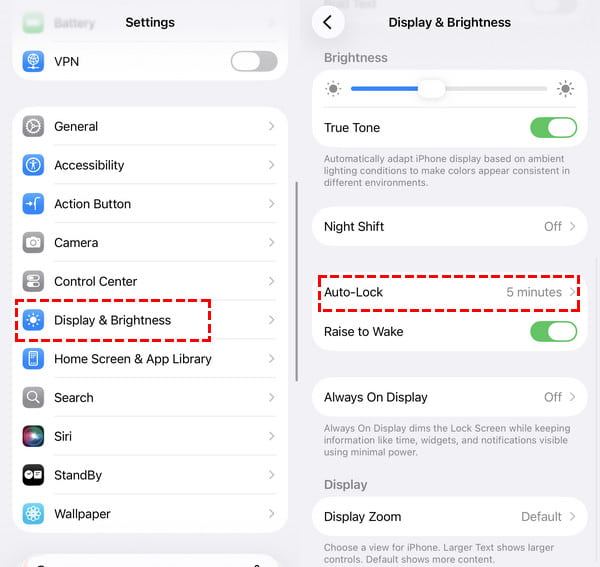
Abrir Definições on your iPhone
Scroll down the settings menu and tap the Exibição e brilho opção.
Escolher Bloqueio automático in the middle of the page. By default, it is set to 30 seconds, 1 minute, or 2 minutes, depending on your previous settings.
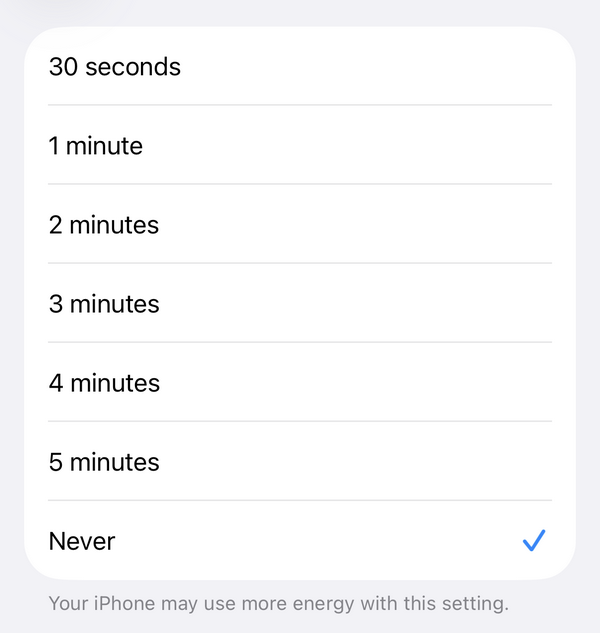
If you want to disable the Auto-Lock feature, just choose the Nunca option. Once selected, your iPhone will no longer lock the screen automatically, and you can only lock the screen manually by pressing the side button.
Part 3: What to Do If Auto-Lock Is Grayed Out
Why is Auto-Lock greyed out on iPhone? Some users may find that the "Auto-Lock" or "Never" option is greyed out when they try to disable the auto lock on an iPhone.
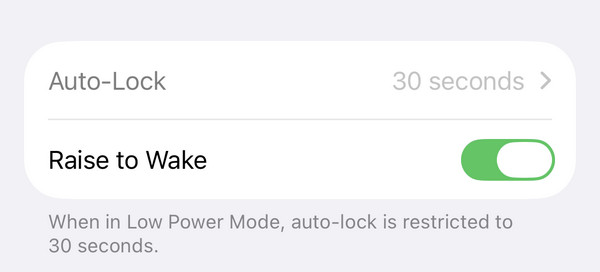
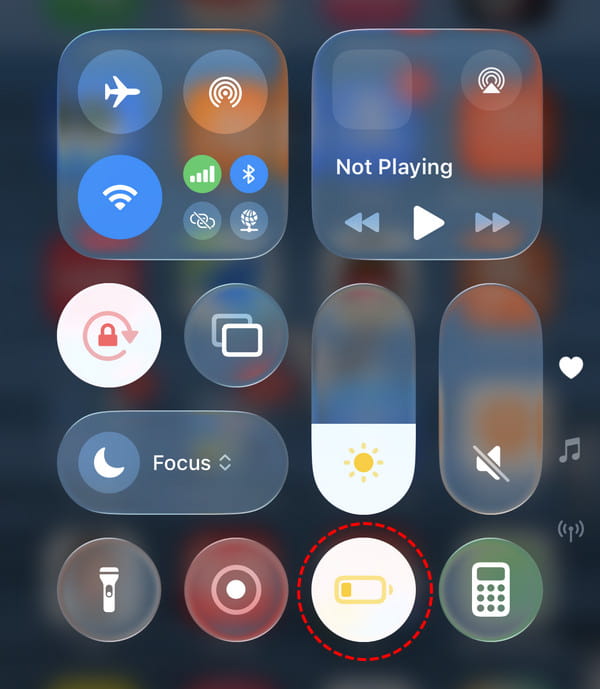
Don't worry! That's because your iPhone is running Low Power Mode. Make sure to turn off Low Power Mode first if you cannot find this option. To disable Low Power Mode, you can swipe down from the top-right corner of the home screen to open Control Center. Tap the battery icon to turn it off.
There is another possible reason why you can't turn Auto-Lock off. If your iPhone is managed by a company or school, it may be restricted from changing the Auto-Lock settings. In this case, you need to contact your administrator or remove the MDM restrições.
Part 4: What Happens After You Turn Off Auto-Lock on iPhone
After disabling iPhone auto lock, you will stay on until you manually press the power button to turn it off. This can be useful when you need to keep the screen visible for a long time, but it may increase battery consumption, especially when you forget to turn it off before sleeping. You can change Auto Lock on iPhone anytime.
Moreover, you should note that turning off Auto-Lock does not disable Face ID or passcode.

Mais de 4.000.000 de downloads
Unlock iPhone when you forget the passcode.
Remove 4-digit or 6-digit screen passcodes.
Unlock iPhone when Face ID or Touch ID fails.
Suporte a uma ampla variedade de modelos de iPhone e iPad.
Perguntas frequentes.
-
Why is Auto-Lock greyed out on iPhone?
That's because you have enabled Low Power mode on your iPhone. Turn it off first, and then try to switch off Auto-Lock.
-
Does turning off Auto-Lock drain the battery?
Yes. Because the screen will stay on until you manually turn it off, this may cause your iPhone to use more battery.
-
Why does my iPhone keep locking even after I turn off Auto-Lock?
If your iPhone keeps locking after you turn off Auto-Lock, you can check whether Low Power Mode is on. When Low Power Mode is enabled, Auto-Lock is automatically changed to 30 seconds.
Conclusão
Turning off Auto-Lock on iPhone is very simple. Keep in mind that the Auto-Lock option is unavailable in Low Power Mode. You can turn it off to fix the iPhone Auto-Lock no Never option issue. If you are locked out and cannot adjust settings, you can use professional tools to unlock your iPhone and regain full access.
Samuel specializes in password security and digital privacy. He used to work as a cybersecurity consultant for small businesses to protect digital assets. With certifications in Cybersecurity and Ethical Hacking, he turns complex security topics into easy-to-follow advice. He also enjoys sharing password tips to help users protect their accounts more confidently.
Soluções quentes
-
Desbloquear iOS
-
Dicas para iOS
-
Desbloquear Android
-
dicas de senha


