



 Solução
 Centro de Apoio
 Sobre nós
 Contato
Change Windows 10 Administrator to Delegate Administrative Tasks
 Penny Warren publicado em março 13, 2026Dicas do WindowsLeitura de 3 minutos
The administrator account, also known as the admin account, has full access to the overall Windows 10 system. You can use it to manage other accounts, change settings, install programs, and more. The Windows 10 computers can contain multiple administrator accounts. However, there are Windows 10 computer users who do not know how to change the administrator account. So, they accidentally use a different account from the mentioned device.
How to change administrators on Windows 10? Eyes here! This article will show you the four easy methods for the procedure. Please continue scrolling in this informative post to see the full details about the interesting topic.

Neste artigo:
Part 1. How to Change the Administrator Account
There are two easy and built-in ways to change the administrator account on a Windows 10 computer. These procedures can be performed easily. Technical skills are not required. However, you should know the password of your Windows 10 before you can proceed. Please proceed below.
Method 1: Using Windows Settings
The Windows 10 computers have their built-in settings. They are very helpful since they do not require additional tools for changing the administrator account on your Windows 10 computers. Ensure that you are logged in as an administrator. The standard account cannot make the changes. Please follow the detailed steps below to know how to change administrator accounts with Windows settings.
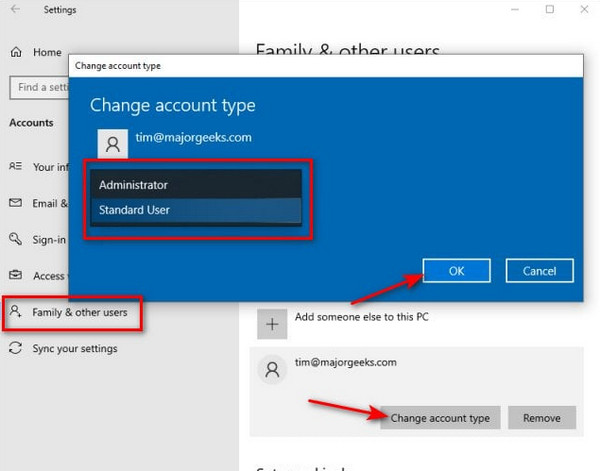
Por favor vá para o Começar section at the bottom left. After that, please click the Definições button from the list. Please click the Contas button from the main interface. Later, select the Family & Other Users button from the main screen.
Vou ao Other Users button on the screen. Then, click the account you want to change on your Windows 10. Later, click the Alterar tipo de conta button on the screen. Click the drop-down menu afterward.
Selecione os Administrador button. Finally, please click the OK button in the small window. This way, you can confirm the changes from Windows 10.
Method 2: Using Control Panel
The Windows 10 Control Center is a legacy administrative tool that can view and modify multiple settings. Also, it allows you to make hardware configurations. It can also be used to change your Windows 10 administrator account. The steps on how to do that are posted below.
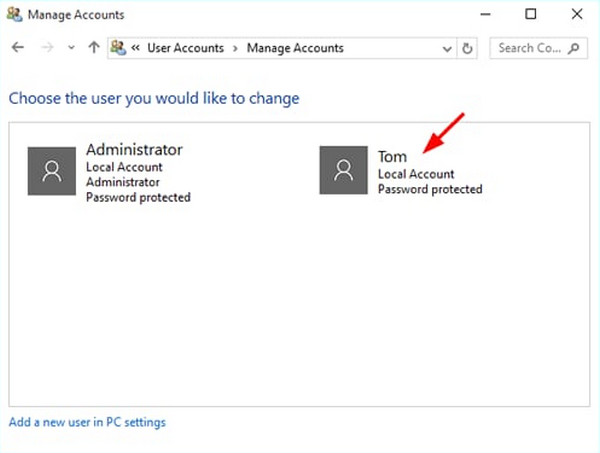
Please open the Windows 10 computer. After that, select the Começar button at the bottom left. Then, type Painel de controle and click the tool to open it. Please select the Gerenciar outra conta botão.
Select the account you prefer to change. After that, choose the Change the Account Type botão na tela. Selecione o Administrador button from the interface. Finally, click the Alterar tipo de conta botão.
Part 2. How to Change Administrator on Windows 10 Without Password
However, not all Windows 10 users know the password for the administrator account. In this case, they cannot use the previous methods. Are you one of them? You can change the Windows 10 administrator account without a password using the two methods below.
1. Using Command Prompt (From Another Admin Account)
Command Prompt is an advanced tool that uses codes to operate Windows 10 computers. You need to get administrator privileges on Windows 10 to use it. You can use it with a different admin account on the mentioned device. Professional help or skills are needed. Please use the steps below to change the admin account on your Windows 10 without a password using Command Prompt.
On the login screen, please click the Poder button. After that, hold the Mudança key and select the Reiniciar botão. Por favor, clique no Solucionar problemas e Opções avançadas button. Finally, select Command Prompt to use it.
Enter the net user code. After that, the accounts will be shown. Please type the net user Administrator /active:yes code. Later, enter the shutdown /r /t 0 code to restart your computer. Click the Administrador button afterward to access it.
2. Using imyPass Windows Password Reset
Redefinição de senha do Windows imyPass can also help you reset the password of your admin account with the CD/DVD and the USB flash drive. It creates a password reset disk to access the admin account again. This tool can be used when the password is forgotten, you bought the Windows 10 computer second-hand, and more.
Additionally, this tool can be used if you want to create a new admin account. Do you want to know how to use the tool? Refer to the steps below.
Download, set up, and install Redefinição de senha do Windows imyPass. It will be opened afterward. Click Gravar USB ou Gravar CD/DVD.
Reinicie o computador e pressione F12. The tool will be launched. Save and exit the Bota menu. Later, select a Windows at the top to proceed.
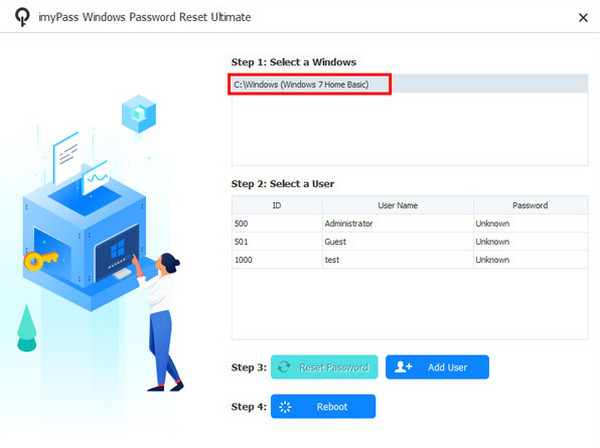
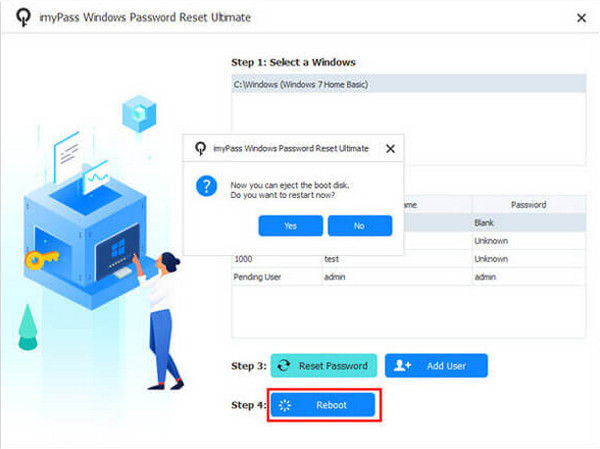
Please select a username. Later, click Redefinir senha. Por fim, clique Reinício para aplicar as alterações.
Part 3. How to Delete an Administrator Account in Windows 10
Besides changing the admin account, some of you might want to delete the administrator account on Windows 10. Is it possible? Definitely, yes. However, all the data and settings from the account will be deleted. How to delete an administrator account in Windows 10? Use the steps below.
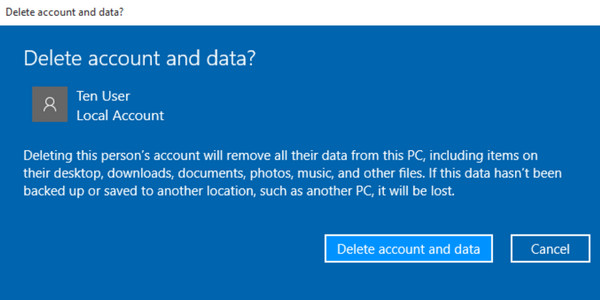
Abrir Definições e selecione Contas. Escolher Family & Other Users and select the admin account you want to delete. Click Remover depois.
Clique Delete Account and Data. The process will be completed afterward.
Part 4. How to Change the Administrator Account Name
You can also change the admin account name on your Windows 10. The process is easy and does not require professional skills. How to change the administrator name on Windows 10? The steps will guide you below.
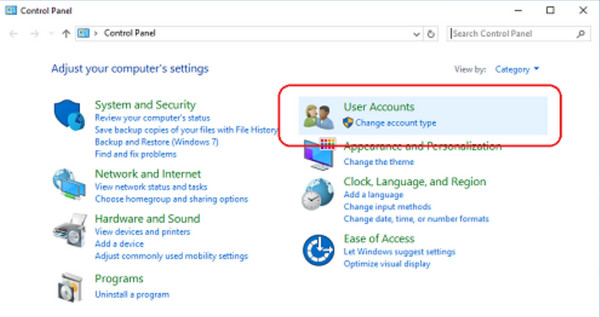
Open Control Center. Then, click Conta de usuário two times. Then, click Change Your Account Name.
Enter your new name. Click Mude o nome afterward to apply the changes.
Part 5. How to Change Administrator Email on Windows 10
The admin account on Windows 10 can contain an email. Though some do not prefer using one. If you use an email, you can change the Microsoft account using the built-in settings. The steps on how to do that are available below.
Clique Começar e selecione Definições on the screen. After that, choose the Contas botão. Clique no Your Info botão e clique no Manage My Microsoft Account botão. Clique no Your Info button on the Microsoft website.
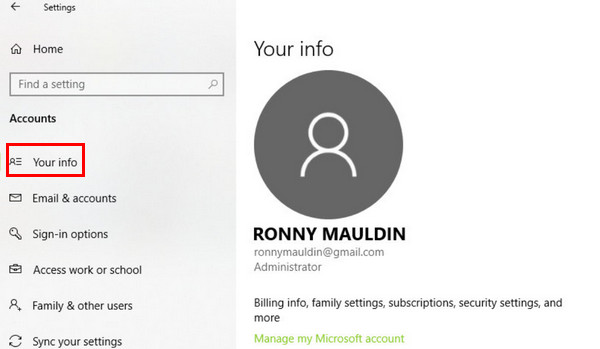
Clique no Edit Account Info button and select Add Email Address. Enter a new email and click Add Alias. Finally, make a new email and restart your Windows 10 computer.
Conclusão
Em suma, você pode change the Windows 10 administrator in four quick ways. Two methods require your Windows 10 passwords, and the other two methods do not. Redefinição de senha do Windows imyPass is included to change the said account if you do not know the password. You can download the tool if you want to know more about its functions.
Penny focuses on GPS troubleshooting and Windows optimization. She formerly worked as a technical support engineer, helping clients solve location-based and system issues efficiently. Backed by IT support experience, she provides practical solutions that really work. In her free time, she likes hiking and geocaching, testing GPS tech in the real world.
Soluções quentes
-
Dicas do Windows
-
Senha do Windows
-
Corrigir janelas
-
dicas de senha

Redefinição de senha do Windows
Redefinir conta de administrador/usuário do Windows
Download grátis Download grátis
