Soluţie
 Centru de asistență
 Despre noi
 a lua legatura
How to Factory Reset Your Windows 11/10/8/7/XP/Vista
 Penny Warren publicat pe septembrie 09, 2026Sfaturi pentru WindowsLectură de 3 minute
Factory resetting Windows 11/10 or earlier is a powerful functionality that enables you to restore your PC to its original state. It can be useful when you are experiencing performance issues, software glitches, preparing to sell your computer, or simply want a fresh start. This comprehensive guide will walk you through how to complete the process with the proven methods and detailed steps for every scenario.

În acest articol:
Part 1: Before Factory Resetting Windows
Resetting a Windows computer will erase all data on your PC, including the software you installed. Plus, the process requires enough battery power. Before proceeding, complete these essential preparations.
- 1.Back up all important files to an external hard drive, like documents, photos, videos, bookmarks and logins, game saves, and more.
- 2.Save the applications installed on your PC and their settings, like your username and password.
- 3.Ensure sufficient battery life or connect to power.
- 4.Remove and disconnect all peripherals and accessories.
- 5.Free up storage space of at least 10GB.
- 6.Disable or uninstall third-party antivirus software.
Part 2: How to Factory Reset Windows 11/10 from Settings
You can reset the computer to factory settings on Windows 11/10 by going to Settings and opening the Recovery menu. The prerequisite is that your PC is still accessible and you remember your user password.
On Windows 10
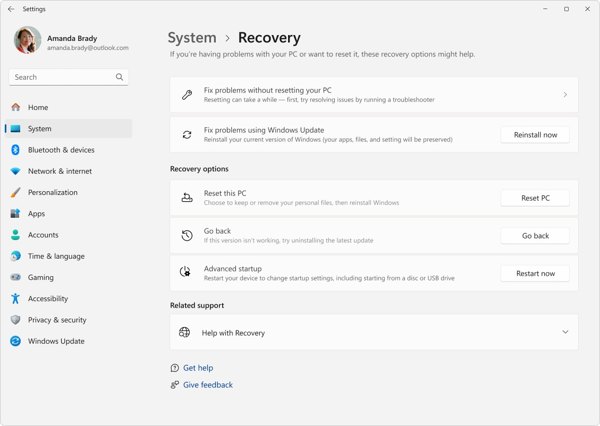
Faceți clic dreapta pe start menu at the bottom left corner and choose Setări.
Alege Actualizare și securitate option from the menu.
Apasă pe Recuperare option on the left sidebar.
Apasă pe Incepe butonul de sub Resetați acest computer secțiune.
Alege Kee my files sau Scoateți totul, depending on your situation. The former will remove all programs and restore settings to their default. The latter will erase everything on your PC.
On Windows 11
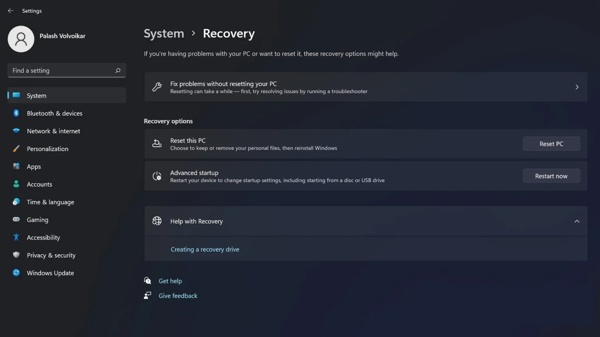
Deschide Setări aplicația din start meniul.
Mergi la Sistem și Recuperare.
Apasă pe Resetare PC butonul de pe Resetați acest computer rubrica.
Alege Pastreaza-mi fisierele sau Scoateți totul.
Când vi se solicită, alegeți Descărcare în cloud sau Local reinstall to reinstall Windows.
Read the message and click Următorul.
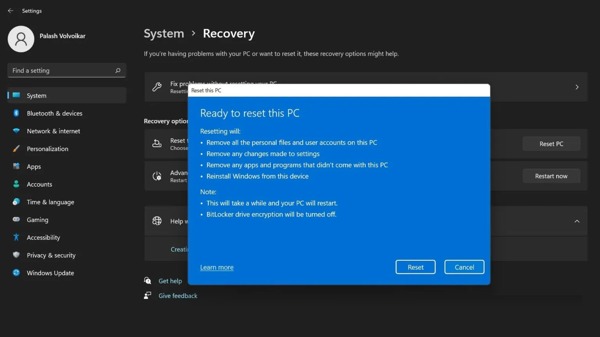
În cele din urmă, faceți clic pe Resetați butonul pentru a iniția procesul.
Part 3: How to Master Reset PC from Windows RE
If your PC is inaccessible, you can factory reset Windows 11 without Settings. You need to boot your PC into Windows Recovery Environment without entering the standard operating system.
Power on your PC.
On the login screen, hold the Schimb tasta de pe tastatură în timp ce faceți clic pe Putere buton.
Alege Repornire to boot in Windows Recovery Environment.
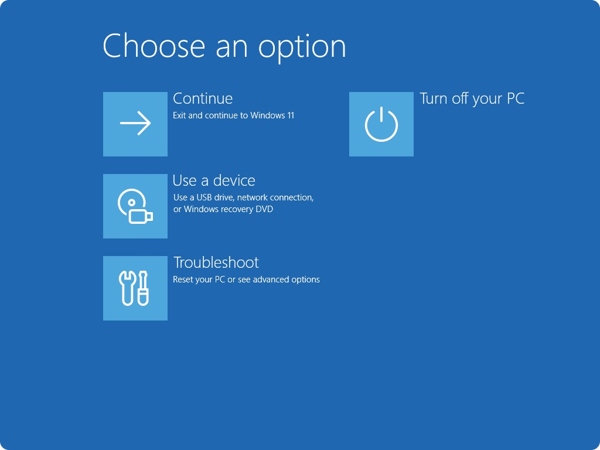
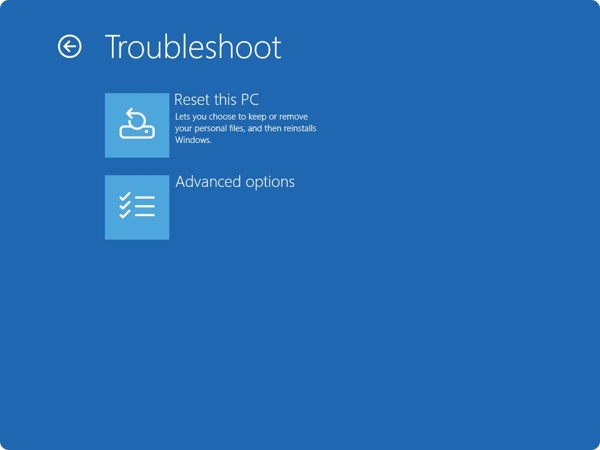
Navigheaza catre Depanați și Resetați acest computer.
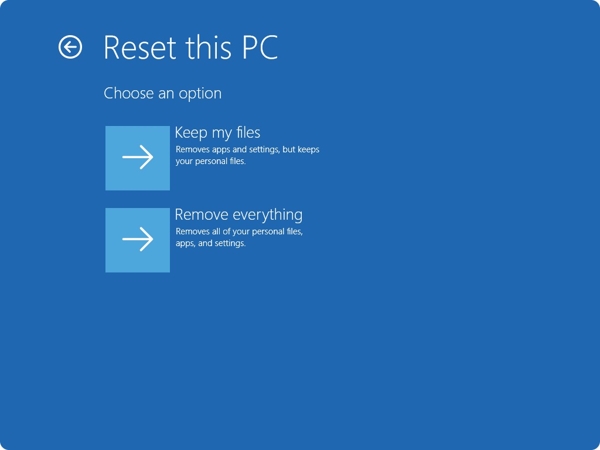
Alege Pastreaza-mi fisierele sau Scoateți totul.
Follow the onscreen instructions to initiate the process.
When the process finishes, your PC will restart.
Part 4: How to Factory Reset Windows with Installation CD
If you forgot your login credentials, you have to factory reset Windows 11 without the password using the installation CD. First of all, you need to create an installation CD on an accessible PC. We share the steps below:
Create an installation disk or USB on an accessible PC.
Insert the disk into your computer.
Restart or power on your PC.
apasă pe F11 sau F12 key on your keyboard during the boot-up process.
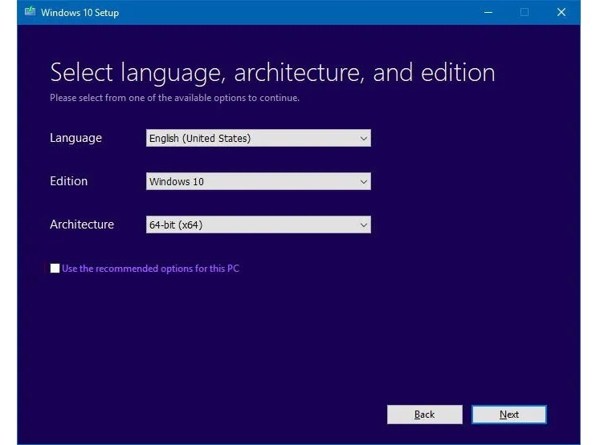
Fill out the form on the Configurare Windows fereastra și faceți clic Următorul.
Faceți clic pe Instalează acum butonul pentru a merge mai departe.
Enter the product key or ignore it, and click Următorul.
Select the right edition of Windows, and click Următorul.
Bifați caseta de lângă I accept the license terms to agree and hit Următorul.
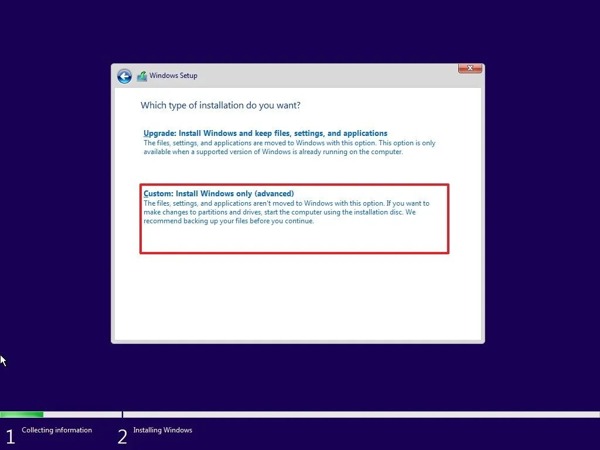
Alege Custom: Install Windows only(advanced) opțiune.
Select the partition you want to install Windows on and hit Următorul to begin factory resetting Windows 7 and later.
S-ar putea să îți placă și:
Part 5: Bonus Tip: How to Reset Windows Password
If you just forgot your login password, you don't need to factory reset Windows. Alternatively, Resetare parolă Windows iyPass allows you to reset your password without losing data. Moreover, the intuitive interface makes it easy to navigate.
Peste 4.000.000 de descărcări
Reset Windows login password quickly.
Create a password reset disk with one click.
Work for administrator and user accounts.
Protejați-vă datele în timpul procesului.
Cum să resetezi parola de Windows fără resetare la setările din fabrică
Creați un mediu de resetare a parolei
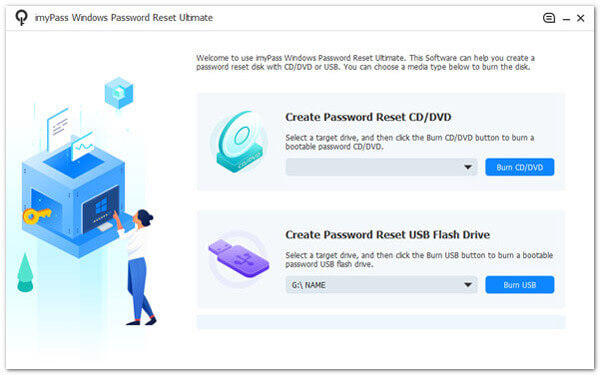
Instalează software-ul Windows Password Reset pe un PC accesibil și lansează-l. Introdu un disc gol sau un flash drive în PC. Alege suportul la rubrica Creați CD/DVD pentru resetarea parolei sau Creați o unitate flash USB pentru resetarea parolei corespunzătoare. Dă clic pe butonul Inscripționați CD/DVD sau Ardeți USB pentru a crea un mediu bootabil.
Selectează-ți contul
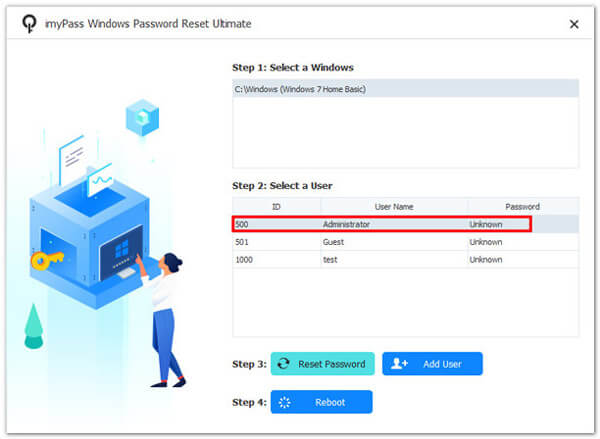
Introdu discul sau unitatea bootabilă în PC. Pornește computerul și inițiază bootarea de pe mediul de resetare a parolei. Apoi, alege versiunea ta de Windows și selectează-ți contul.
reseteaza parola
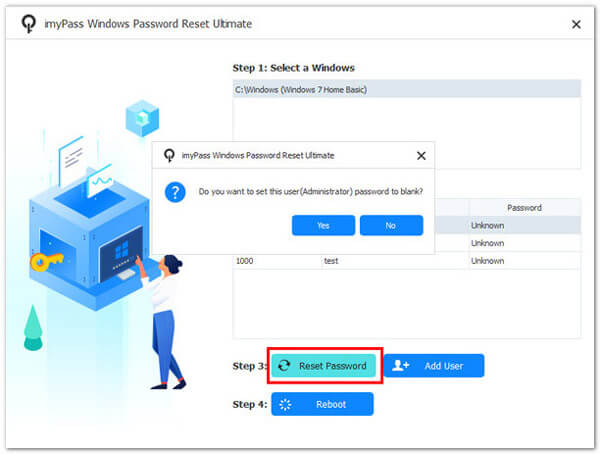
Apasă pe Reseteaza parola pentru a continua. Când ți se cere dacă vrei să setezi parola utilizatorului ca fiind goală, dă clic pe da sau O.K pentru a confirma. Sau poți crea un cont nou apăsând butonul Adăugați utilizator Când ai terminat, dă clic pe butonul Reporniți pentru a reporni PC-ul. Apoi poți intra direct în sistem.
Concluzie
Acest ghid a prezentat mai multe modalități de a resetarea Windows 11/10/8/7 la setările din fabrică și versiunile anterioare. Pentru Windows 11/10, opțiunea de resetare a PC-ului din aplicația Setări este disponibilă pentru a readuce computerul la starea din fabrică. Windows RE este o altă modalitate de a reseta PC-ul. Discul de instalare poate fi folosit pentru a reseta aproape toate versiunile de Windows. Resetare parolă Windows iyPass este o modalitate ușoară de a recăpăta accesul la PC dacă ai uitat parola de Windows.
Penny se concentrează pe depanarea GPS și optimizarea Windows. Anterior a lucrat ca inginer de asistență tehnică, ajutând clienții să rezolve eficient probleme legate de localizare și de sistem. Sprijinită de experiența în suport IT, oferă soluții practice care chiar funcționează. În timpul liber îi place să facă drumeții și geocaching, testând tehnologia GPS în lumea reală.
Soluții fierbinți
-
Sfaturi pentru Windows
- Cum să resetezi un laptop ASUS
- Resetați Microsoft Surface la setările din fabrică
- Cum să resetezi un laptop Lenovo la setările din fabrică
- Cum să ștergi contul de administrator în Windows 10
- Cum să resetezi un laptop HP la setările din fabrică
- Cum să configurezi conectarea automată în Windows
- Cum să schimbi numele de utilizator în Windows
- Cum să resetezi un laptop Dell
-
Parola Windows
-
Remediați Windows
-
Sfaturi privind parola