



 Решение
 Центр поддержки
 О нас
О нас Контакт
How to Fix Your iPhone Location Sharing Not Working
 Пенни Уоррен Опубликован в 19 марта 2026 г.GPS-местоположение3-минутное чтение
“I can send my girlfriend my location indefinitely, and we always have shared it with each other, but now her phone won’t come through to me anymore. How to fix location sharing not working on my iPhone?” Location Sharing is an essential feature on iOS devices. It enables users to track friends and family’s location as well as share their own location. If this feature suddenly doesn’t work, you can fix it on your own by following our solutions.

В этой статье:
Part 1: Why iPhone Location Sharing Is Not Working
On an iPhone, you can share your location in the Find My app, an instant messaging app, or a map app once you set up Location Services properly. Before walking through the solutions, let’s discuss the causes first. Understanding the causes and identifying your situation can help you fix the iPhone that is not sharing location quickly. The main causes include:
• Location Services are disabled.
• Connectivity issues or unstable internet connection.
• Low battery.
• Software glitches.
• Privacy restrictions.
Part 2: How to Fix Location Sharing Not Working on iPhone
Excluding hardware malfunction, you can fix the share my location issue on iPhone on your own. You can perform the solutions below one by one to make location sharing normal. Let’s start the journey.
Решение 1: включите службы определения местоположения
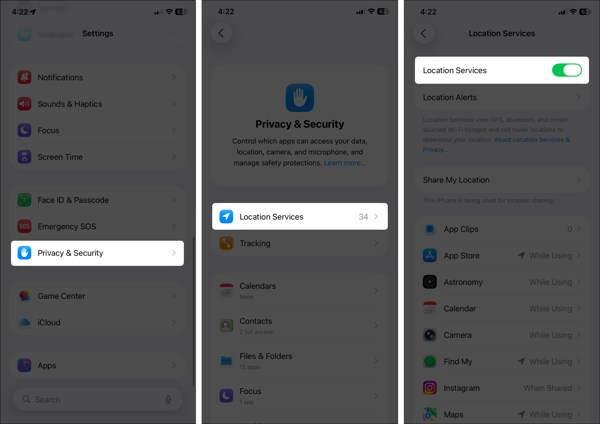
Открой Настройки приложение на вашем iPhone.
Перейти к Конфиденциальность и безопасность вкладку и выберите Сервисы определения местоположения.
Make sure to toggle on Location Services.
If Location Services is enabled, turn it off and toggle it back on.
Нажмите Найди мой on the list, and choose Всегда или же Во время использования.
Solution 2: Configure Find My
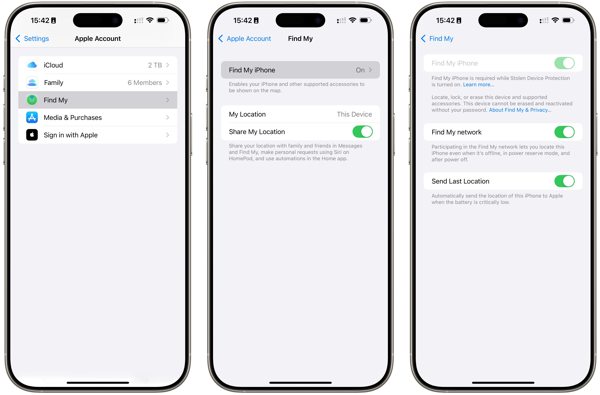
Перейти к вашей Настройки приложение.
Нажмите на свой профиль и выберите Найди мой.
Нажмите Найди мой айфон и включите Найди мой айфон.
Back to the Find My screen and toggle on Поделиться моим местоположением.
При появлении запроса нажмите Позволять to confirm turning on GPS tracking.
Next, check if the iPhone location sharing not updating issue disappeared.
Solution 3: Check Your Connection
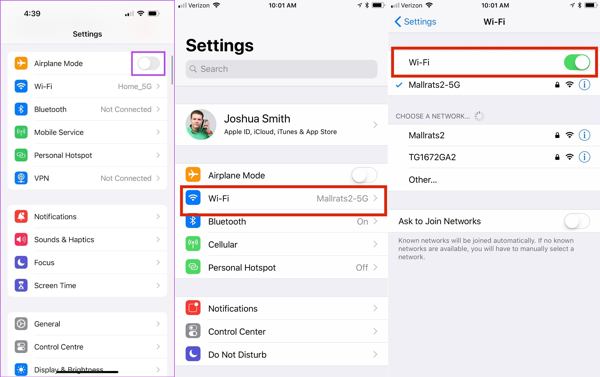
Запустите Настройки приложение на вашем iPhone.
Включить Авиа режим.
Затем выключите Авиа режим.
If you still find iPhone not sharing location, check your internet signal.
Нажмите Wi-Fi в Настройки and switch to a stable network.
Примечание:
If you don’t have a Wi-Fi network, connect to a cellular data network instead.
Solution 4: Disable Location Restrictions
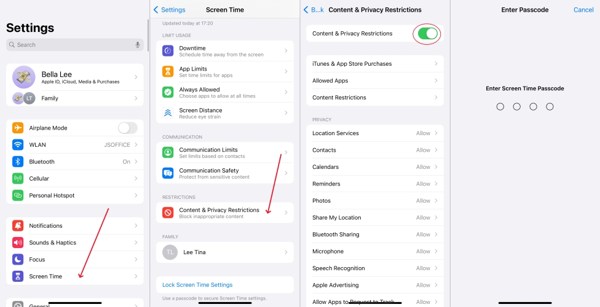
When iPhone location sharing is not updating due to restrictions, go to Экранное время в вашей Настройки приложение.
При появлении запроса введите код доступа к функции «Экранное время».
Выбирать Ограничения контента и конфиденциальности.
Выключить Ограничения контента и конфиденциальности to completely disable restrictions.
Примечание:
If you want to keep restrictions, turn on Ограничения контента и конфиденциальности, выбирать Поделиться моим местоположением под Конфиденциальностьи выберите Позволять.
Решение 5: Обновление программного обеспечения
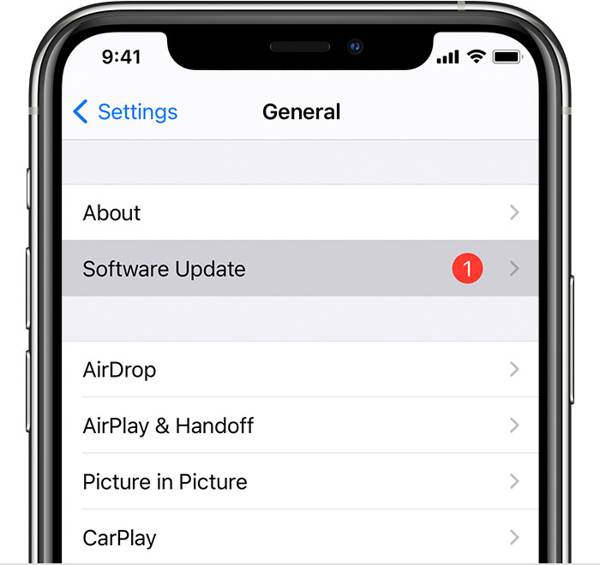
If you are still running an old version of iOS and no location is found when your iPhone shares location, go to the Настройки приложение.
Перейти к Общий и выбрать Обновление программного обеспечения для поиска обновлений.
Если доступно обновление, нажмите Загрузить и установить кнопка.
Follow the onscreen instructions to install the update.
Примечание:
You’d better not install a beta version of iOS. If iPhone location stops sharing after you update to a beta, go back to a standard version of iOS.
Solution 6: Reset Location & Privacy
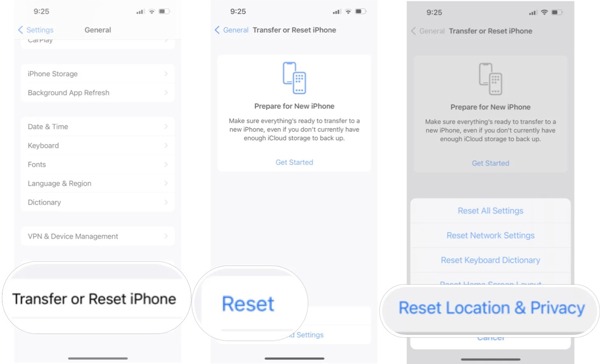
Перейти к Общий tab in your Settings app when your iPhone is not sharing location.
Прокрутите вниз и нажмите Перенос или сброс iPhone.
Нажмите Перезагрузить and pick Reset Location & Privacy.
При появлении запроса введите код доступа iPhone или пароль Apple ID.
When your iPhone restarts, set up Find My and share your location.
Расширенное чтение:
Part 3: Bonus Tip: How to Fake iPhone Location
Location Sharing on iPhone is a useful feature, but it is not perfect. It may expose your geolocation and privacy to someone else. Moreover, many apps capture your location information for marketing and advertising. If you turn on Location Services, these services will get your last location available. Can you stop sharing your location without others knowing? iLocaGo can help you resolve this problem.

4 000 000+ загрузок
Fake iPhone location without disabling Location Sharing.
Change to any address and location around the world.
Create virtual routes for AR games and more.
Предлагают несколько режимов для разных целей.
Work on the latest versions of iOS and iPadOS.
How to Fake iPhone Location Without Notifying Others
Шаг 1 Подключитесь к своему устройству
Run the iPhone location spoofing software once you install it on your PC. There is another version for Mac. Plug your iPhone into your PC with a Lightning cable. Then, the software will detect your device automatically.

Шаг 2 Выберите режим
On the mode window, you will see four options. If you just need to change your iPhone location, choose Изменить местоположениеОстальные три режима, Режим одной остановки, режим нескольких остановок, а также Режим джойстика, are used to make virtual locations.

Шаг 3 Изменить местоположение iPhone
Введите точный адрес в поле на Изменить местоположение dialog. If you don’t have an address, click a proper position on the map, and you will see the address. Finally, click on the Изменить button to confirm changing your location. Now, turn to your iPhone and share your location.

Вывод
Теперь вы должны понимать, что можно сделать, если обмен геопозицией недоступен на iPhone. Сначала вы можете выяснить, почему возникает эта проблема. Что еще важнее, вы можете воспользоваться проверенными решениями, чтобы быстро избавиться от нее. Если вы хотите защитить информацию о своем местоположении и конфиденциальность, мы рекомендуем iLocaGo. Эта программа позволяет менять местоположение iPhone, не делая ни шага. Интуитивно понятный интерфейс делает её простой в использовании, особенно для новичков и обычных пользователей.
Пенни — старший редактор imyPass. Она занимается поиском идеальных решений для определения местоположения GPS в любых ситуациях, а также имеет опыт в ремонте компьютеров.
Горячие решения
-
GPS-местоположение
- Лучшие локации Pokemon Go с координатами
- Отключите свое местоположение в Life360
- Как изменить местоположение на iPhone
- Обзор iSpoofer Pokemon Go
- Установите виртуальные местоположения на iPhone и Android
- TikTok Отслеживайте свое местоположение
- Monster Hunter Now Джойстик
- Обзор IP Location Finder
- Изменить местоположение Mobile Legends
- Изменить местоположение в TikTok
-
Разблокировать iOS
-
Советы по iOS
-
Разблокировать Андроид


