



 สารละลาย
 ศูนย์สนับสนุน
 เกี่ยวกับเรา
 ติดต่อ
What Location Expired Mean on iPhone and How to Fix It
 เพนนี วอร์เรน เผยแพร่เมื่อ มีนาคม 23, 2026ตำแหน่ง GPSการอ่าน 4 นาที
"When my friends and I are trying to share our location, my iPhone says Expired Location before the location can even load in. Why does it say Location Expired?" According to our research, this common error occurs when your iPhone cannot update or share its current location information. Some iPhone users face this frustrating issue. This article shares the effective solutions to fix this error without losing data.

ในบทความนี้:
Part 1. What Does Location Expired Mean and Why Does It Occur
What does Location Expired mean? The error message is alarming on iOS devices. It interrupts the ability to track or share your whereabouts. Typically, this error occurs when sharing location on the Messages or other apps. It means that the location information is no longer available or up-to-date. When the error appears, you cannot see the shared location or share your location on your iPhone.
Before walking through the solutions, let’s explore the underlying causes why it keeps saying Location Expired on your iPhone.
- 1.Location Services is disabled accidentally.
- 2.Find My is restricted or stuck.
- 3.There is a problem with your iPhone’s network connection.
- 4.The location was shared a long time ago and has naturally expired.
- 5.Outdated iOS.
- 6.ปัญหาบั๊กของซอฟต์แวร์.
Part 2. How to Fix Location Expired on iPhone
While seeing an iPhone error message saying Location Expired can be frustrating, you can try the solutions below one by one to fix this error on your iPhone. Then, you can share your location normally.
Solution 1: Double Check Location Services
เปิด การตั้งค่า บน iPhone ของคุณ
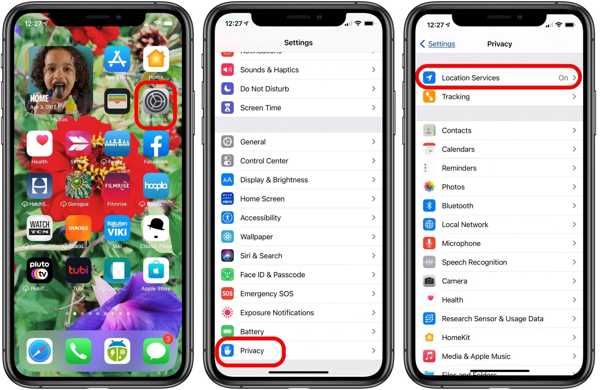
ไปที่ ความเป็นส่วนตัว แท็บ
แตะ บริการระบุตำแหน่ง ปุ่ม.
สลับไปที่ บริการระบุตำแหน่ง ตัวเลือก.
จากนั้นแตะที่ แบ่งปันตำแหน่งของฉัน ปุ่ม.
สลับไปที่ แบ่งปันตำแหน่งของฉัน ตัวเลือก.
Make sure to allow the desired contact to fix the Location Expired on iPhone.
วิธีแก้ปัญหาที่ 2: รีสตาร์ท iPhone ของคุณ
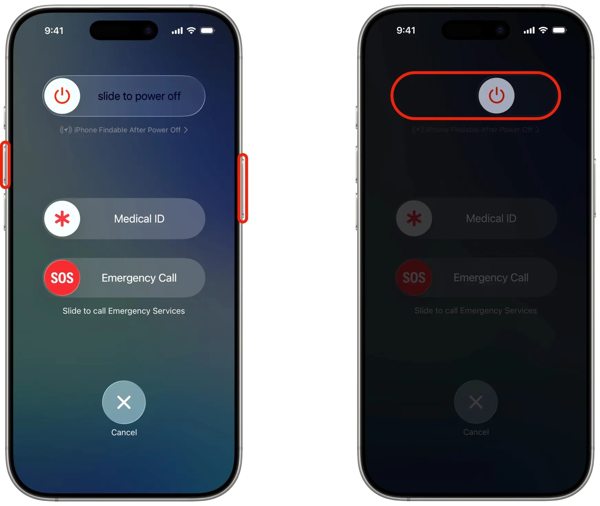
สำหรับ iPhone ที่มี Face ID ให้กดปุ่ม ปริมาณ ปุ่ม + ด้านข้าง button together. For an iPhone without Face ID, press and hold the ด้านข้าง หรือ พลัง ปุ่ม.
When the power-off screen pops up, release the buttons or button.
เลื่อนแถบเลื่อนไปทางขวาเพื่อปิดอุปกรณ์ของคุณ
After your touchscreen turns black, wait for a few minutes.
Then, hold down the Side หรือ พลัง จนกว่าคุณจะเห็นโลโก้ Apple
Now, try to share your location again to check if Location Expired is fixed.
โซลูชันที่ 3: วันที่และเวลาที่ถูกต้อง
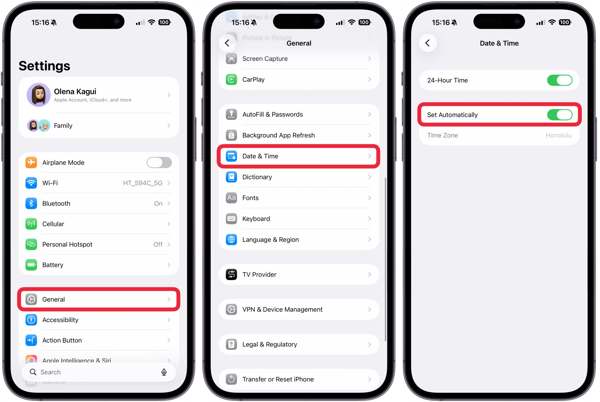
ไปที่ของคุณ การตั้งค่า แอปจากหน้าจอหลักของคุณ
นำทางไปยัง ทั่วไป และ วันเวลา.
เปิดใช้งาน ตั้งค่าอัตโนมัติ.
Connect to a stable network and fix Location Expired on iPhone.
Solution 4: Check Your Network
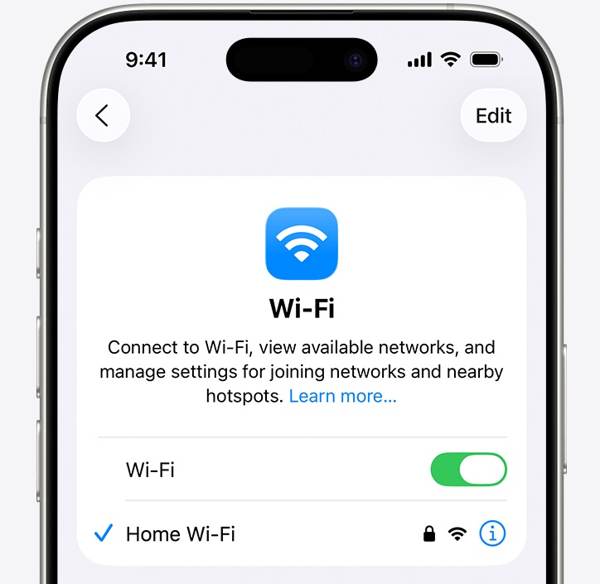
Sharing location on iPhone works through an internet connection. If you are using Wi-Fi and Location Expired occurs on your iPhone, connect to a cellular data network or vice versa. Then, share your location again.
Solution 5: Re-enable Find My
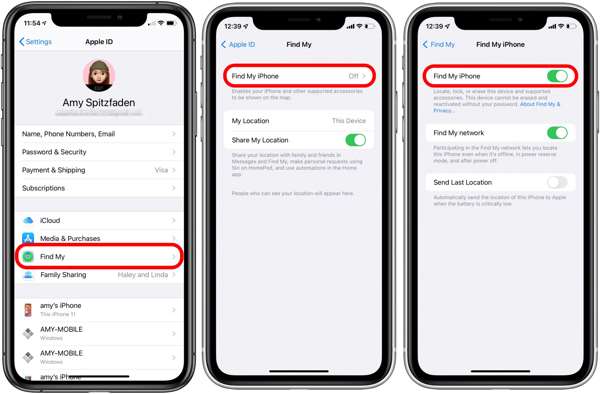
เริ่ม การตั้งค่า แอปจากหน้าจอหลักของคุณ
แตะที่โปรไฟล์ของคุณ
เลือก ค้นหาของฉัน ตัวเลือกและแตะ ค้นหา iPhone ของฉัน.
เปิดใช้งาน ค้นหา iPhone ของฉัน และ Find My network to fix Location Expired on iPhone.
If Find My iPhone is enabled, toggle it off and turn it back on.
วิธีแก้ปัญหาที่ 6: อัปเดต iOS
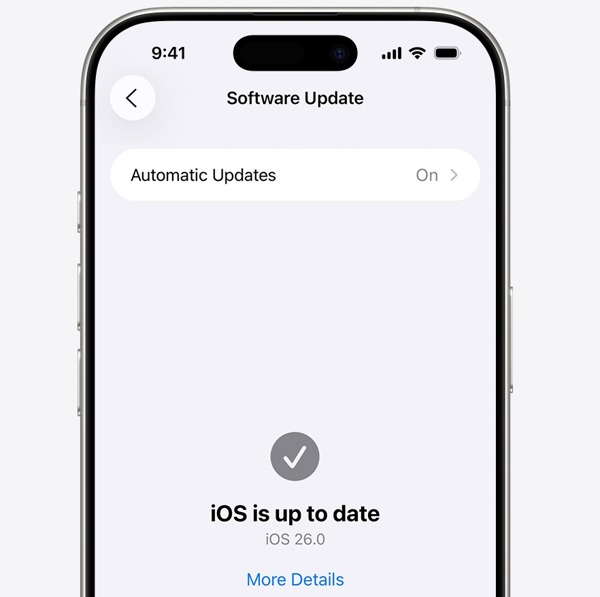
เรียกใช้ของคุณ การตั้งค่า แอป.
นำทางไปยัง ทั่วไป และ อัพเดตซอฟต์แวร์.
หากมีการอัปเดตให้แตะ ดาวน์โหลดและติดตั้ง ปุ่ม.
Follow the onscreen instructions to update the iOS.
เมื่อเสร็จสิ้น iPhone ของคุณจะรีสตาร์ท
Try to share your location to see if the Location Expired error disappears.
โซลูชันที่ 7: รีเซ็ตตำแหน่งและความเป็นส่วนตัว
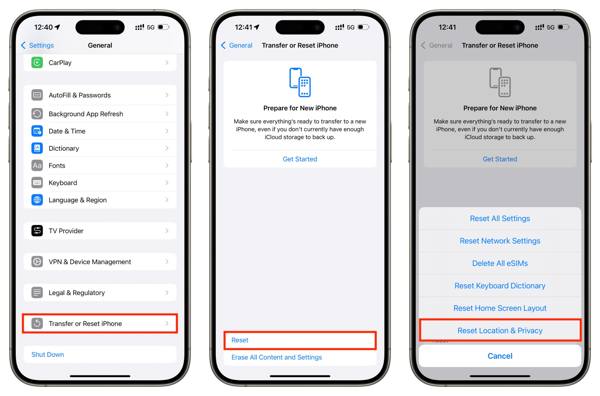
เปิด การตั้งค่า แอพบนอุปกรณ์ของคุณ
ไปที่ ทั่วไป และ ถ่ายโอนหรือรีเซ็ต iPhone.
แตะ รีเซ็ต ปุ่ม.
เลือก รีเซ็ตตำแหน่งและความเป็นส่วนตัว ตัวเลือก.
Next, turn on Location Services and Find My iPhone to fix ที่ตั้งหมดอายุแล้ว.
การอ่านที่เกี่ยวข้อง:
Part 3. One-stop Solution to Fix iPhone Location Expired
If you have performed the common solutions but the iPhone Location Expired error persists, you can try ไอมายพาส ไอโลคาโก. It allows you to share any location without turning off Location Services on iOS devices. Plus, the user-friendly design makes it easy to use.

ดาวน์โหลดมากกว่า 4,000,000+ ครั้ง
ปลอมตำแหน่ง iPhone ด้วยคลิกเดียว
จำลองการเคลื่อนไหวด้วยโหมดหลายรูปแบบ.
Work with accurate addresses and any locations.
เสนอตัวเลือกที่กำหนดเอง เช่น ความเร็ว
รองรับ iPhone และอุปกรณ์ Android หลากหลายรุ่น.
How to Fix Location Expired on Your iPhone
ตรวจจับ iPhone ของคุณ
Launch the iPhone location spoofing software once you install it on your PC. There is another version for Mac. Next, connect your iPhone to your PC with a Lightning cable. Then, the software will detect your device immediately.

เลือกโหมด
เลือก ปรับเปลี่ยนสถานที่ mode if you want to change the static location. The other three modes, โหมดแบบครบวงจร, โหมดมัลติสต็อป, และ โหมดจอยสติ๊ก, ใช้ในการสร้างเส้นทางเสมือนจริง

ปลอมแปลงตำแหน่งของคุณ
Next, type in an accurate address into the field. If you don’t have an address, click the right position on the interactive map. Finally, click on the แก้ไข button to confirm it. Now, turn on your iPhone and check if the Location Expired error is resolved.y.

บทสรุป
This article explained why it says Location Expired on your iPhone. More importantly, we shared the effective solutions to help you fix this error and enable you to share your location as usual. The good news is that software glitches or conflict settings cause this error. If the common solutions are unavailable, try imyPass iLocaGo. It allows you to share any address around the world on your iPhone without disabling Location Services.
เพนนีเชี่ยวชาญด้านการแก้ปัญหา GPS และการปรับแต่งระบบปฏิบัติการ Windows ให้ทำงานได้อย่างมีประสิทธิภาพ เดิมทีเธอเคยทำงานเป็นวิศวกรซัพพอร์ตด้านเทคนิค คอยช่วยลูกค้าแก้ไขปัญหาที่เกี่ยวกับตำแหน่งที่ตั้งและระบบต่าง ๆ อย่างรวดเร็วและมีประสิทธิผล ด้วยประสบการณ์ด้านงานซัพพอร์ตไอที เธอจึงสามารถนำเสนอวิธีแก้ปัญหาที่ใช้งานได้จริงและเห็นผล ในเวลาว่างเธอชื่นชอบการเดินป่าและเล่นจีโอแคชลิง เพื่อนำเทคโนโลยี GPS ไปทดลองใช้ในสถานการณ์จริง.
โซลูชั่นสุดฮอต
-
ตำแหน่ง GPS
-
ปลดล็อก iOS
-
เคล็ดลับ iOS
-
ปลดล็อค Android


