



 解决方案
解决方案 支持中心
支持中心 关于我们
关于我们 联系
联系将 Windows 10 管理员改为委派管理任务账户
 潘妮沃伦 发表于 2026 年 3 月 13 日Windows技巧3 分钟阅读
管理员帐户(也称为 admin 帐户)对整个 Windows 10 系统拥有完全访问权限。你可以使用它管理其他帐户、更改设置、安装程序等。Windows 10 电脑可以包含多个管理员帐户。不过,也有一些 Windows 10 用户不知道如何更改管理员帐户,因此会不小心在该设备上使用了其他帐户。
如何在 Windows 10 上更改管理员注意看!本文将向你展示完成该操作的四种简单方法。请继续往下阅读这篇信息量丰富的文章,了解这一有趣话题的全部细节。

在本文中:
第 1 部分:如何更改管理员帐户
在 Windows 10 电脑上有两种简单且内置的方法可以更改管理员帐户。这些操作步骤很容易执行,不需要专业技术。不过,在继续之前,你需要知道自己 Windows 10 的密码。请向下查看。
方法一:使用 Windows 设置
Windows 10 电脑自带“设置”功能。它们非常实用,因为在更改 Windows 10 电脑上的管理员帐户时,无需额外工具。请确保你是以管理员身份登录,标准帐户无法进行此类更改。请按照下方的详细步骤,了解如何通过 Windows 设置更改管理员帐户。
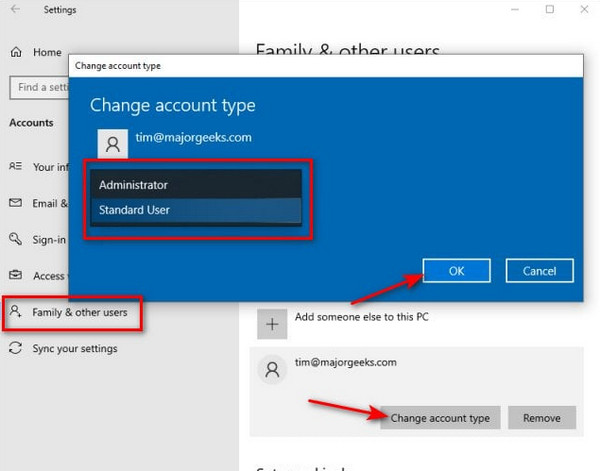
请前往 开始 在左下角的“设置”部分。之后,请在列表中单击“账户”按钮。然后在主界面中单击“你的信息”按钮。接着,在主界面上选择“家庭和其他用户”按钮。 设置 在屏幕上的“其他用户”按钮。然后,单击你想要在 Windows 10 上更改的帐户。随后,单击屏幕上的“更改帐户类型”按钮。之后点击下拉菜单。 账户 “确定”按钮。最后,请在小窗口中单击“确定”按钮。这样,你就可以在 Windows 10 中确认更改。 方法二:使用控制面板 Windows 10 控制面板是一个传统的管理工具,可用于查看和修改多个设置,还可以进行硬件配置。同样,它也可以用来更改你的 Windows 10 管理员帐户。具体操作步骤如下。
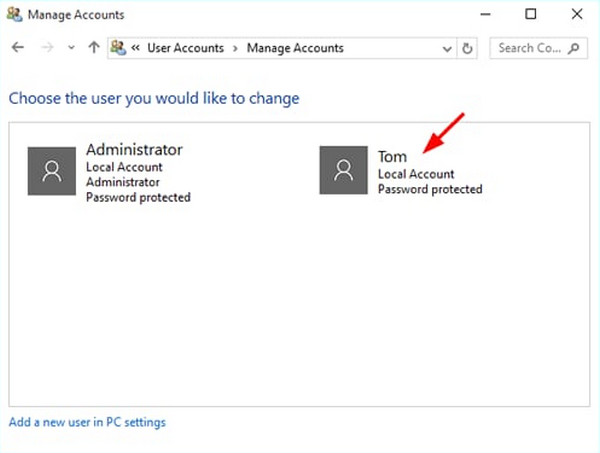
前往 请打开 Windows 10 电脑。之后,在左下角选择“开始”按钮。然后输入“控制面板”,并单击该工具将其打开。请选择“用户帐户”。 选择你想要更改的帐户。之后,在界面中选择“更改帐户类型”按钮。最后,单击“管理员”选项并保存。 更改帐户类型 然而,并不是所有的 Windows 10 用户都知道管理员帐户的密码。在这种情况下,他们无法使用前面的方法。你也是这样吗?你可以通过下面两种方法在没有密码的情况下更改 Windows 10 管理员帐户。
选择 行政人员 1. 使用命令提示符(从另一个管理员帐户) 好的 命令提示符是一个高级工具,通过代码来操作 Windows 10 电脑。你需要拥有 Windows 10 的管理员权限才能使用它,可以在该设备上的另一个管理员帐户下使用。通常需要一定的专业帮助或技能。请参考以下步骤,在不知道密码的情况下,使用命令提示符更改 Windows 10 上的管理员帐户。
在登录界面,请单击“电源”按钮。然后按住“Shift”键并选择“重启”按钮。最后,选择“疑难解答”>“高级选项”>“命令提示符”来使用它。
输入 net user 命令。之后,会显示出所有帐户。请键入 net user "Administrator" /active:yes 命令。然后输入 shutdown /r /t 0 命令以重启电脑。重启后单击“Administrator”按钮进入该帐户。
2. 使用 imyPass Windows Password Reset 开始 imyPass Windows Password Reset 还可以通过 CD/DVD 和 U 盘帮助你重置管理员帐户密码。它会创建一个密码重置盘,让你再次进入管理员帐户。当你忘记密码、购买了二手 Windows 10 电脑等情况时,都可以使用该工具。 控制面板 此外,如果你想创建一个新的管理员帐户,也可以使用这个工具。想知道如何使用它吗?请参照以下步骤。 管理另一个账户 按钮。
将其刻录到 CD/DVD 或 U 盘。随后它会被打开。单击“开始重置”。该工具将启动。保存并退出 BIOS 菜单。然后在顶部选择一个 Windows 系统继续操作。 Change the Account Type 屏幕上的按钮。选择 行政人员 button from the interface. Finally, click the 更改帐户类型 按钮。
第 2 部分:如何在没有密码的情况下更改 Windows 10 管理员
However, not all Windows 10 users know the password for the administrator account. In this case, they cannot use the previous methods. Are you one of them? You can change the Windows 10 administrator account without a password using the two methods below.
1. Using Command Prompt (From Another Admin Account)
Command Prompt is an advanced tool that uses codes to operate Windows 10 computers. You need to get administrator privileges on Windows 10 to use it. You can use it with a different admin account on the mentioned device. Professional help or skills are needed. Please use the steps below to change the admin account on your Windows 10 without a password using Command Prompt.
On the login screen, please click the 力量 button. After that, hold the 转移 key and select the 重新开始 按钮。请点击。 疑难解答 和 高级选项 button. Finally, select Command Prompt to use it.
Enter the net user code. After that, the accounts will be shown. Please type the net user Administrator /active:yes code. Later, enter the shutdown /r /t 0 code to restart your computer. Click the 行政人员 button afterward to access it.
2. Using imyPass Windows Password Reset
imyPass Windows 密码重置 can also help you reset the password of your admin account with the CD/DVD and the USB flash drive. It creates a password reset disk to access the admin account again. This tool can be used when the password is forgotten, you bought the Windows 10 computer second-hand, and more.
Additionally, this tool can be used if you want to create a new admin account. Do you want to know how to use the tool? Refer to the steps below.
下载、设置并安装 imyPass Windows 密码重置. It will be opened afterward. Click 刻录 USB 或者 刻录 CD/DVD.
重新启动计算机并按 F12. The tool will be launched. Save and exit the 引导 menu. Later, select a Windows at the top to proceed.
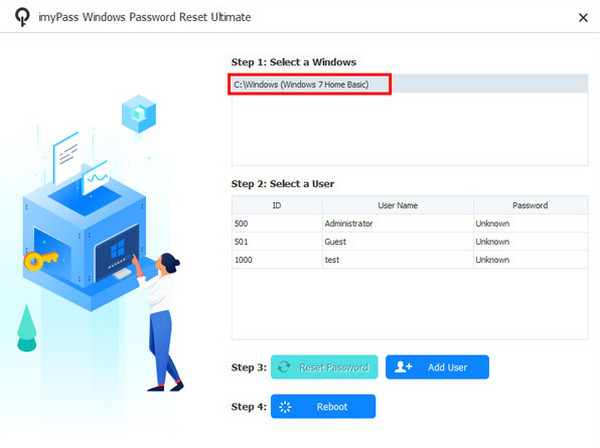
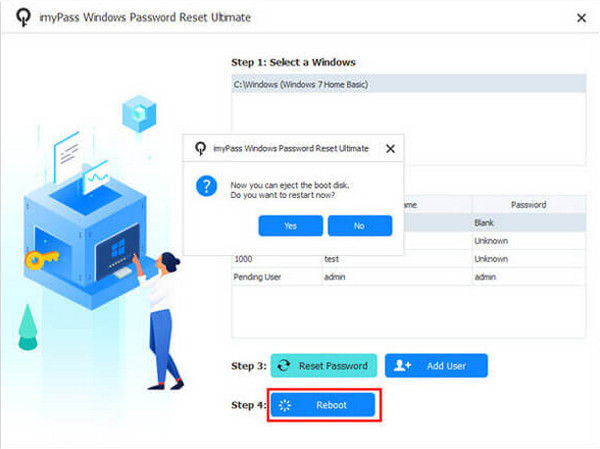
请选择一个用户名。然后,点击 重设密码。最后,点击 重启 应用更改。
第 3 部分:如何在 Windows 10 中删除管理员帐户
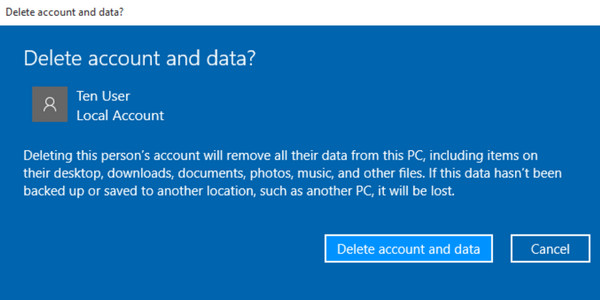
除了更改管理员账户之外,你们当中有些人可能还想要 删除 Windows 10 上的管理员账户. 。这有可能吗?当然可以。不过,该账户中的所有数据和设置都会被删除。如何在 Windows 10 中删除管理员账户?请按照下面的步骤操作。
打开 设置 并选择 账户.选择 方法二:使用控制面板 并选择你想要删除的管理员账户。点击 消除 之后。
点击 “删除账户和数据”. 。之后该过程就会完成。
第 4 部分:如何更改管理员帐户名称
你也可以在 Windows 10 上更改管理员账户名称。这个过程很简单,不需要专业技能。如何在 Windows 10 上更改管理员名称?下面的步骤会指导你完成。
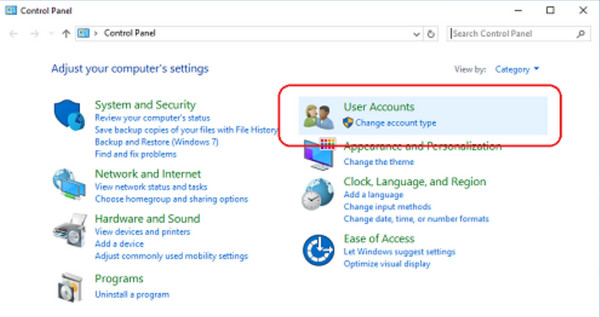
打开控制面板。然后点击 用户帐号 两次。然后点击 “更改你的账户名称”.
输入你的新名称。然后点击 更换名字 以应用更改。
第 5 部分:如何在 Windows 10 上更改管理员邮箱
Windows 10 上的管理员账户可以绑定一个电子邮箱,尽管有些人不喜欢使用邮箱。如果你使用了邮箱,你可以通过内置设置更改 Microsoft 帐户。具体步骤如下所示。
点击 开始 并选择 设置 在屏幕上。之后,选择 账户 按钮。点击 “你的信息” 按钮,然后点击 “管理我的 Microsoft 帐户” 按钮。点击 “你的信息” 按钮,进入 Microsoft 网站。
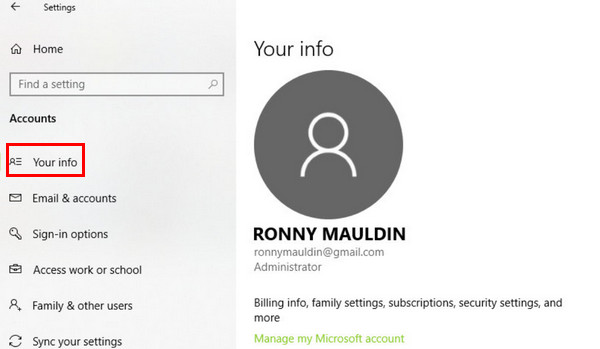
点击 “编辑账户” 信息按钮,然后选择 “添加电子邮件地址”. 。输入一个新邮箱,然后点击“添加别名”。最后,创建一个新邮箱并重启你的 Windows 10 电脑。
结论
总而言之,你可以 通过四种快捷方式更改 Windows 10 管理员 。两种方法需要你的 Windows 10 密码,另外两种方法则不需要。 imyPass Windows 密码重置 被提供用于在你不知道密码的情况下更改上述账户。如果你想进一步了解其功能,可以下载该工具。
Penny 是 imyPass 的资深编辑。她致力于探索适用于各种场景的完美 GPS 定位解决方案,并拥有丰富的电脑维修经验。
热门解决方案
-
Windows技巧
-
密码
-
修复窗口
-
密码技巧


