



 解決方案
解決方案 支持中心
支持中心 關於我們
關於我們 聯絡
聯絡無需 Apple ID 密碼即可繞過 App Store 驗證
 塞繆爾·斯賓塞 發表於 2025 年 6 月 12 日解鎖iOS3 分鐘閱讀
你看到了 需要驗證應用程式商店 每次嘗試下載或更新應用程式時都會出現這樣的提示?你並不孤單。許多 iPhone 用戶在帳單、付款或 Apple ID 出現問題時都會遇到這種令人沮喪的提示。無論你是錯過付款還是使用二手設備,本指南都會教你如何快速解決問題。

第 1 部分。為什麼說 App Store 需要驗證
App Store 要求驗證表示 Apple 需要驗證您的付款資訊或帳戶,才能允許下載或購買任何內容。此聲明是一項安全措施,旨在避免計費錯誤並消除現有問題。
以下是您可能會看到此提示的主要原因:
原因一:未付帳單
此提示最常見的原因是關聯帳戶未付款,例如未付的債務。根據 Apple 的政策,用戶必須先清償所有現有債務,才能繼續下載或購買應用程式。
| 常見計費問題 | 描述 |
| 未付費的訂閱。 | 失敗或過期的訂閱的付款。 |
| 拒絕付款嘗試。 | 信用卡被銀行拒絕或已過期。 |
| 帳戶有未結餘額。 | 有待付款的費用。 |
原因3:Apple ID 帳號未經驗證
由於安全原因或您的帳戶變更,Apple 可能會要求您驗證您的身份,以確保您的身份屬實。如果帳戶未經驗證,系統會顯示驗證框,這也可能限制您下載應用程式或 恢復 Apple ID 使用權。
原因四:年齡限制和螢幕時間限制
應用程式都有年齡分級,Apple 會嚴格執行這些限制。如果您嘗試下載有年齡限制的應用程序,或者啟用了「螢幕使用時間」設定來限制購買,App Store 會在繼續操作之前要求您進行驗證。
| 螢幕使用時間限制 | 它有什麼作用 |
| 購買時需要密碼 | 阻止未經授權的購買或下載。 |
| 年齡限制內容 | 防止下載不適合使用者年齡的應用程式。 |
| 家庭共享控制 | 需要家庭組織者的批准才能購買。 |
原因5:Apple ID國家或地區變更
如果您已移至新的國家或地區,Apple 會要求您更新 Apple ID 的國家設定。由於付款方式和帳單資訊因地區而異,因此未能更新會導致驗證請求。
第 2 部分。如何修復 App Store 上所需的驗證
「需要驗證」表示您的付款資訊、未付餘額或 Apple ID 相關問題有問題。以下是五種快速解決此類問題的有效方法。
方法 1:更改或刪除付款方式
這是類似問題最常見的原因。在問題解決之前,您將持續看到相同的通知,並且由於您的卡已過期、無效或不被接受,您將無法使用 Apple 付款。
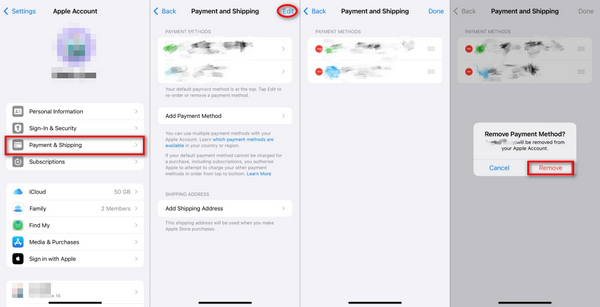
步驟:
啟動設定並點擊 Apple ID 部分 在頂部。
點擊 付款及運輸 並根據要求登入。
點擊 付款方式 並刪除當前的卡片詳細資訊。
若要刪除舊卡,請點選 編輯,然後點擊舊卡片旁邊的紅色十字圖示。
點擊 完畢 確認所做的更改。
方法二:結清所有未償餘額
如果訂閱或應用程式購買等交易失敗,餘額將被凍結,直到其中一項被清空。 Apple 僅在確認餘額已清空後才允許下載。
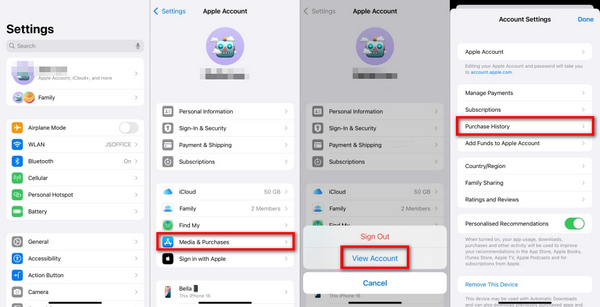
步驟:
若要查看未付款的購買,請點選 設置, 蘋果ID, 和 媒體和購買.
在那之後, 查看帳戶 應該點擊,然後 購買歷史.
尋找標記為紅色的待處理交易。
若要完成付款,請選擇商品並點擊提供的提示。
方法 3:將免費下載應用程式的付款方式設為“無”
如果您只想下載免費應用程序,則選擇“無”時無需添加付款方式。

步驟:
去 設置, 然後 蘋果ID,然後付款和運輸。
點擊 目前付款方式 並選擇 管理付款.
點擊 編輯 並將付款方式設定為 沒有任何.
點擊 完畢 更改設定後。
方法4:Apple ID,登出並重新登入
重置 Apple ID 會話可以解決導致驗證問題的臨時問題,其中一個有效的方法是 退出 Apple ID 並重新登入。
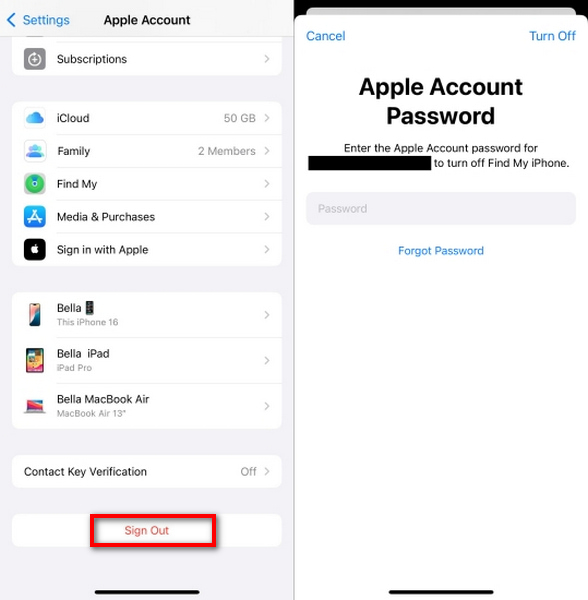
步驟:
打開 設置,點擊您的 ID。
輕敲 登出.
輸入 Apple ID 密碼並點擊 關 確認。
登出後,使用您的 Apple ID 登入。
方法5:使用Apple禮品卡儲值
使用優惠券來增加信用額度就不再需要藉記卡或信用卡,這對於不想關聯信用卡的人來說非常有用。
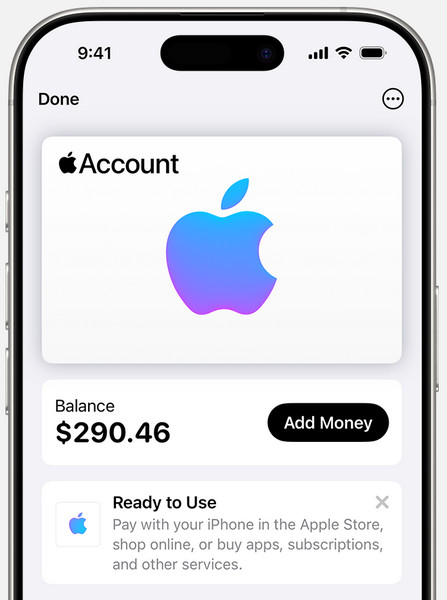
步驟:
購買 Apple 或 iTunes 禮品卡。
開啟 App Store,點擊您的個人資料圖標,然後點擊 兌換禮品卡或代碼.
使用相機掃描卡或手動輸入代碼。
兌換後,餘額將添加到您的 Apple ID 中以供購買。
第 3 部分。如何在沒有密碼的情況下繞過 App Store 所需的驗證
每當你嘗試下載或更新應用程式時,惱人的「需要驗證」彈出視窗是否仍然縈繞在你的 iPhone 上?當 Apple ID 出現帳單或驗證問題時,通常會出現此通知。如果你不熟悉密碼,手動解決它似乎是不可能的。好消息是 imyPass iPassGo 可以透過刪除沒有密碼的 Apple ID 來繞過此步驟。

4,000,000+ 次下載
下載並安裝工具
造訪 imyPass 官方網站,下載 iPassGo 到您的電腦。繼續安裝並運行該程式。
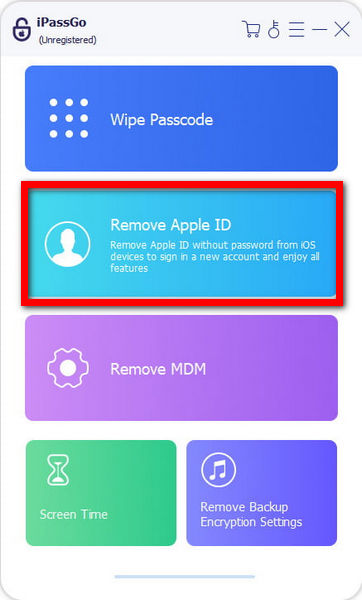
點選“Apple ID 刪除功能”
在主視窗上,點擊 移除 Apple ID。此功能在消除用戶沒有密碼的 Apple ID 帳戶方面特別有效。
將iPhone連接到電腦
使用 USB 連接線將 iPhone 或 iPad 連接到電腦。確保設備在整個過程中保持連線狀態。
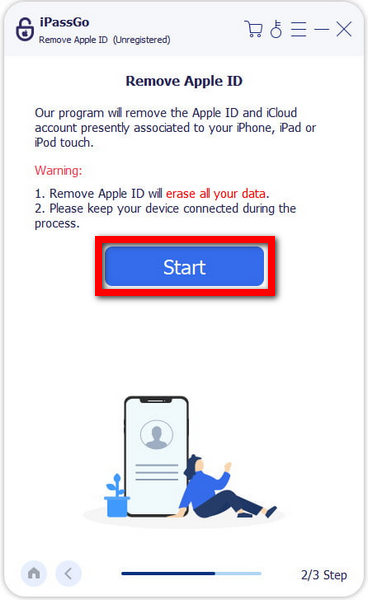
開始移除程式
若要啟動,請按一下 開始。 如果 查找我的iPhone 已啟用,請確保裝置運行 iOS 11.4 或更早版本,或為較新的 iOS 版本啟用雙重認證。
完成並重新啟動
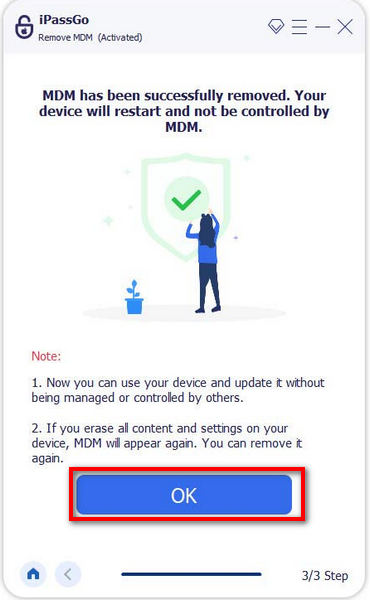
等待 iPassGo 移除 Apple ID。完成後,點擊 好的 按鈕,Apple ID 將被刪除,App Store 將不再顯示 需要驗證 消息。您現在可以免費下載應用程式。
結論
如何繞過 App Store 驗證要求 問題不必太複雜。無論是解決帳單問題,還是使用類似 imyPass iPassGo,現在您有多種解決方案。按照上述方法即可停止提示,享受流暢的應用程式下載,無需中斷或不斷進行 Apple ID 驗證。
Samuel 是 imyPass 的資深編輯。他是密碼解鎖專家,擁有超過五年的手機解鎖教學編寫經驗。
熱門解決方案
-
解鎖iOS
-
iOS 提示
-
解鎖安卓
-
密碼


