



 解決方案
解決方案 支持中心
支持中心 關於我們
關於我們 聯絡
聯絡如何在誤刪後從 iCloud 還原已刪除照片
 克拉拉·普雷斯科特 發表於 2026 年 3 月 13 日恢復數據3 分鐘閱讀
iCloud 是用來管理 iPhone 檔案的 Apple 帳戶服務。使用 iCloud 可以幫助你儲存、分享、備份與還原資料,包括照片。成千上萬張照片都可以備份或儲存在你的 iCloud 帳戶中。然而,意外刪除幾乎難以避免,有些使用者幾乎每天都會遇到這個情況。
如何從 iCloud 還原照片?其實,有好幾種方式可以從 iCloud 找回你的 iPhone 照片。下面會介紹 4 個快速方法,請繼續閱讀本文開始恢復流程。

第 1 部分:從 iCloud「照片」(最近刪除相簿)恢復
在 iPhone 上不小心刪除照片,其實不需要太擔心。iCloud、iPhone 和 iPad 都有「最近刪除」資料夾,可以讓你找回已刪除的照片。這個程序有兩種方式可以操作,請參考下列清單。
1. 在 iPhone/iPad 上恢復
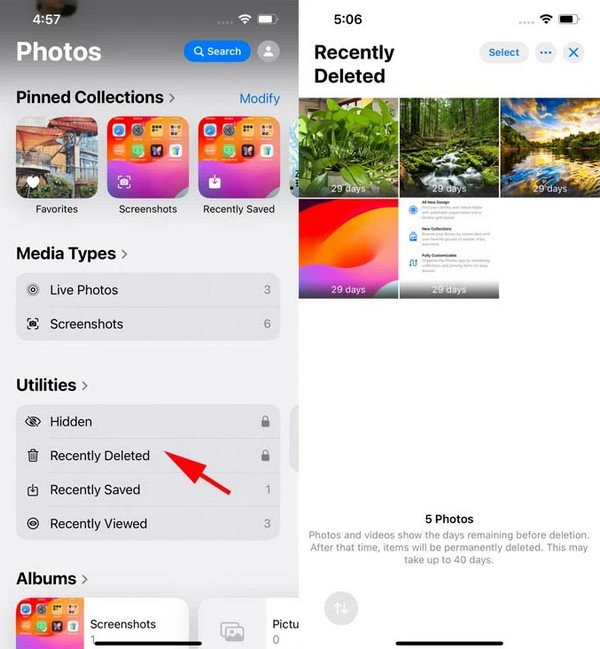
iPhone 或 iPad 上的「照片」App 用來管理你儲存的影像。此 App 內建「最近刪除」資料夾,會暫存你剛從 iPhone 或 iPad 刪除的照片。在它們從上述 Apple 裝置中被永久刪除之前,你有 30 天的時間可以將其還原。 恢復已刪除的照片 不過,這個方法只適用於你的 iPhone 或 iPad 已與 iCloud 照片同步的情況。如何從 iCloud 找回刪除的照片?請在 iPhone 或 iPad 上使用「最近刪除」資料夾。
在 iPhone 或 iPad 上開啟「照片」App。接著,從清單中點選「最近刪除」資料夾。驗證相簿後,選取你想要還原的照片,點選「還原」按鈕並依照螢幕指示操作。
打開 照片 2. 在 iCloud.com 上恢復 專輯 按鈕並轉至 公用事業 部分。
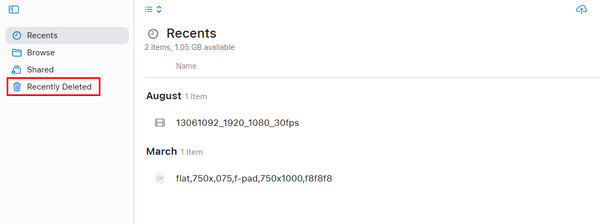
點擊 最近刪除 此外,你也可以在任何具備網頁瀏覽器的裝置上,透過 iCloud 網站來登入帳戶。它同樣有「最近刪除」資料夾,可以讓你還原照片。請依照下列步驟作為參考指南。 恢復 前往 iCloud 官方網站。之後,請在中央選擇「登入」按鈕,在空格中輸入你的 Apple ID,然後完成登入驗證流程。你也可以使用 iPhone 進行登入驗證。
在下一個畫面中點選「照片」按鈕。接著,在左上方點擊「最近刪除」,選擇你要取回的照片,然後點選「還原」。
如前所述,iCloud 是一項免費服務,可用來備份你的資料,包括照片。刪除照片之前,你是否有做過備份?如果有,你可以還原該備份,把照片找回來!
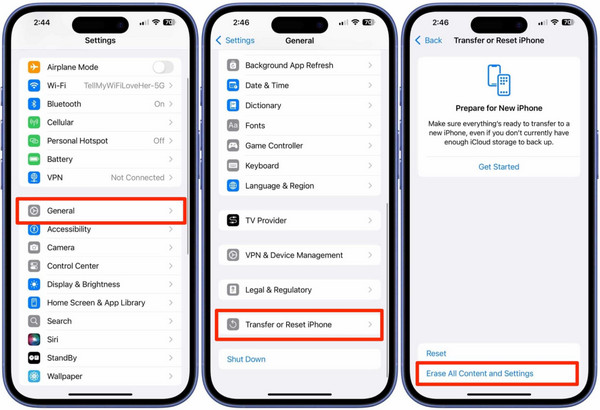
搜尋 iCloud 不過,這是一個「全有或全無」的還原過程,必須還原備份中的所有內容與設定。也就是說,你無法只單獨還原照片,並不支援從備份中選擇性還原特定資料。另外,若 iPhone 不是新機,就必須先恢復原廠設定。如何從 iCloud 備份取回照片?請參考以下步驟。 登入 首先,抹掉你的 iPhone 或 iPad。請開啟「設定」App,然後在第一個列表中選擇「一般」,接著點選「傳送或重置 iPhone/iPad」,再選擇「清除所有內容與設定」。輸入密碼並確認。

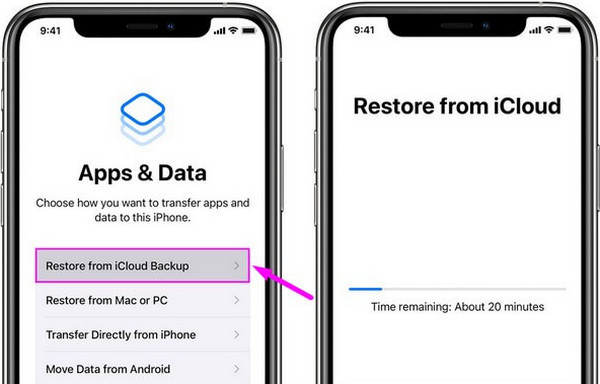
點擊 駕駛 確定 iPhone 或 iPad 重新啟動,然後進行裝置設定,直到你看到「轉移你的 App 與資料」畫面。選擇「從 iCloud 備份回復」,並登入與備份相關聯的 Apple ID 帳戶。 最近刪除 選擇最相關、包含已刪除照片的備份。之後會出現「正在從 iCloud 回復」畫面,請等待程序完成。 恢復 底部選項。
第 2 部分:從 iCloud 備份還原照片
那如果照片已從 iPhone 和 iPad 的「最近刪除」資料夾中永久刪除,該怎麼辦?imyPass iPhone Data Recovery 是一款可幫上忙的第三方工具!這個工具可以直接從 iPhone 和 iPad 中救回照片,無論你是否有 iCloud 備份。除了照片之外,還能恢復通話記錄、App 資料、WhatsApp 訊息或附件、備忘錄等。如何從 iCloud 恢復永久刪除的照片?請依照下列步驟操作此工具的流程。
先在電腦上下載 imyPass iPhone Data Recovery。之後安裝並開啟工具,再用 USB 傳輸線將 iPhone 或 iPad 連接到電腦。
在主介面中選擇「從 iCloud 備份檔案回復」按鈕,然後登入與備份相關聯的 iCloud 帳戶,接著點擊「登入」。 設置 你也可以點選「從 iOS 裝置回復」按鈕。藉由這種方式,如果 iCloud 照片與裝置同步連結,便能直接將它們救回。這個功能不需要 iCloud 備份,因為它會直接從 iPhone 和 iPad 中還原照片。 轉移 或者 連線成功後,按下「開始掃描」按鈕。接著選擇「照片」按鈕,並勾選你要恢復的照片類別,最後點擊「恢復」按鈕,將它們還原到 iPhone 或 iPad。請等待整個還原流程完成。。輕敲 刪除所有內容和設置. 是否已經厭倦因系統問題或誤刪而經常遺失資料?那麼,是時候了解一些預防措施,好避免上述狀況再度發生。以下是幾項最佳做法,供你參考。
1. 開啟 iCloud 備份 在 iPhone 和 iPad 上啟用 iCloud 備份,可以確保你的照片更安全。系統會自動備份它們,你也能隨時還原這些備份。除了照片之外,它還可以備份影片、文件等其他資料。 畫面。之後,選擇 從 iCloud 備份中恢復 請務必記得 iCloud 帳戶的電子郵件與密碼,以便日後存取備份。若已遺忘,你必須先進行「iCloud 備份重設」,之後才能繼續還原。
定期檢查「最近刪除」資料夾也很重要。這樣一來,你可以在照片從 iPhone 或 iPad 被永久刪除之前,先確認是否有誤刪的照片並加以還原。 從 iCloud 還原 3. 使用次要備份.
第 3 部分:如何恢復永久刪除的照片
如果你覺得只有 iCloud 備份還不夠,可以搭配其他備份工具一起使用,例如 Google 雲端硬碟、iTunes 和 Finder。擁有第二份備份,對於想要讓 iPhone 和 iPad 照片更安全的人來說,是相當理想的做法。
下載 imyPass iPhone 資料恢復. After that, install and open the tool on your computer. Please plug your iPhone or iPad into the computer with a USB cable afterward.
點擊 從 iCloud 恢復 button and enter your iCloud account associated with your backup. Click the iCloud 備份 下一個畫面上的按鈕。
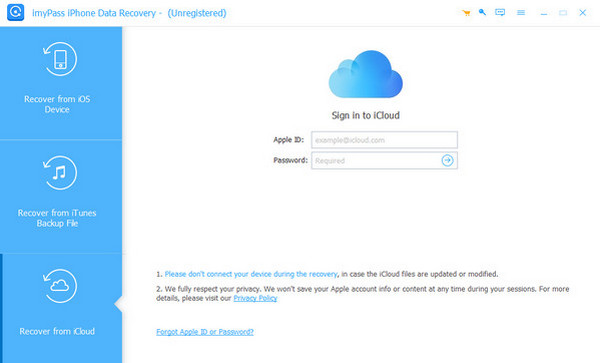
筆記:
You can also click the 從 iOS 裝置恢復 button. This way, you can recover your iCloud Photos if they are linked to the device. This feature does not require an iCloud backup because it restores the photos directly from your iPhone and iPad.
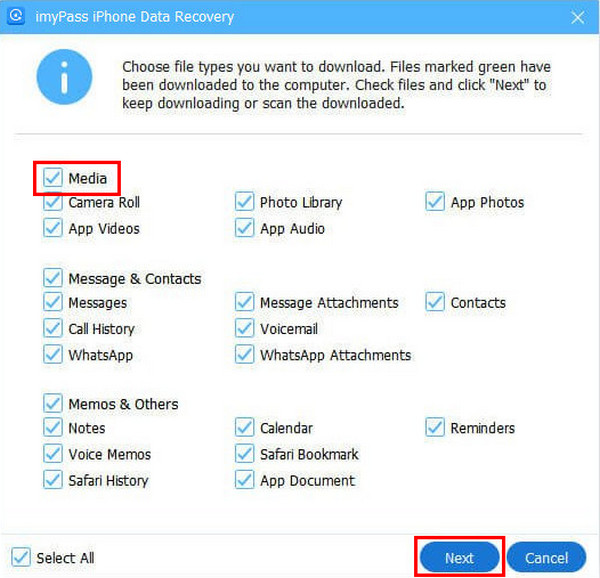
點擊 下載 button. Then, choose the 媒體 button and select the category for the photos you want to retrieve. Click the 下一個 button to restore them to your iPhone or iPad. Wait for the restore process to be completed.
第 4 部分:預防措施與最佳做法
Are you tired of losing your data due to system issues or accidental deletion? Well, it is time to know the preventive measures to avoid the mentioned problem. The best practices are listed below as your reference.
1. Enable iCloud Backup
Enabling the iCloud backup on your iPhone and iPad ensures that your photos are safe. It can automatically back them up, and you can restore the backup anytime. Besides your photos, it can also back up other data, including videos, documents, and more.
請確認您知道該 iCloud 帳號的電子郵件與密碼,以便存取備份。若不清楚,則必須先重設 iCloud 備份,之後才能繼續進行還原。
2. 定期檢查「最近刪除」資料夾
Checking the Recently Deleted folder is also ideal. This way, you can check if there are accidentally deleted photos from an iPhone or iPad before they are permanently deleted.
3. Use a Secondary Backup
If you think that an iCloud backup is not enough, you can use alternative backup tools. It includes Google Drive, iTunes, and Finder. Having another backup is ideal if you want a safer backup for your iPhone and iPad photos.
結論
總結來說, iCloud 已刪除照片恢復 可能在幾分鐘或幾小時內完成,這取決於你 iPhone 上的 iCloud 照片經歷了哪種處理流程。文中提供了四種簡單方法,包括 imyPass iPhone 資料恢復. 此工具可以從 iCloud 備份、iTunes 備份檔案,以及直接從 iPhone 中恢復。如果你想使用這些功能,請下載此工具!
Clara 擁有超過 8 年協助使用者找回遺失檔案與進行資料傳輸的經驗。她曾在大型 IT 服務公司擔任資料救援技術人員。持有資料救援與數位鑑識相關證照的她,撰寫的文章專注於提供簡單易行的方案,讓一般使用者也能輕鬆完成複雜的資料復原任務。
熱門解決方案
-
恢復數據
-
解鎖iOS
-
傳輸資料
-
iOS 提示

