



 Řešení
 Centrum podpory
 O nás
O nás Kontakt
How to Fix an Unresponsive iPhone Screen: 6 Proven Fixes
 Samuel Spenser Zveřejněno dne 27. října 2026Odemkněte iOS3minutové čtení
Why won't my iPhone screen respond to touch? Many users run into this problem when their iPhone suddenly freezes. While the issue can feel serious, it is often caused by common problems that can be fixed. In this guide, we'll explain possible causes and show you how to fix an unresponsive iPhone screen krok za krokem.

V tomto článku:
Part 1: Why is My iPhone Screen Not Responding to Touch
Tapped your iPhone screen, but nothing happens? You are not able to answer a call, open an app, or unlock your iPhone. Here are some common reasons why your iPhone screen unresponsive to touch.
- iOS freezes, system errors, or app crashes may make the screen stop responding.
- Dirt, fingerprints, or moisture on the screen interferes with touch recognition.
- A thick, damaged, or poorly fitted screen protector may make touches less accurate.
- Water exposure damages the internal touch components and causes screen failures.
- A drop causing hidden damage to the display or touch layer, even without visible cracks.
- A replaced screen causes touch problems due to low-quality parts or an improper repair.
Part 2: How to Fix Unresponsive iPhone Screen
In many cases, the unresponsive iPhone screen isn't caused by hardware damage. Start with the simplest fixes first and learn how to fix unresponsive touch screen iPhone easily.
Force Restart Your iPhone
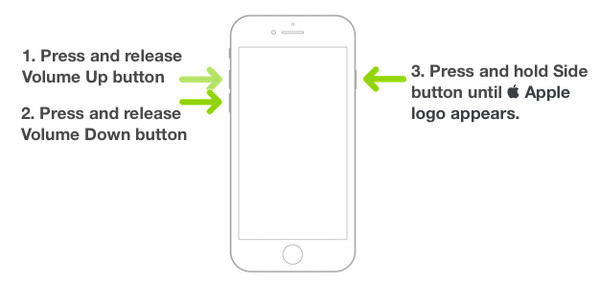
A force restart is the quickest way to fix an iPhone screen that suddenly becomes frozen. It can clear temporary system glitches that affect the screen.
iPhone 8 a novější: Rychle stiskněte a uvolněte Zvýšit hlasitost tlačítko, poté Snížit hlasitost tlačítko. Poté stiskněte a podržte Boční dokud se nezobrazí logo Apple.
iPhone 7/7 Plus: Stiskněte a podržte Snížit hlasitost tlačítko a Boční button together. Release them when the Apple logo appears.
iPhone 6s a starší: Stiskněte a podržte Domov tlačítko a Side (or Top) button together. Release them when the Apple logo appears.
Clean Your Screen and Fringer
Most people ignore daily screen dirt, but it's a top cause of unresponsive iPhone screen. Turn off your iPhone first, then use a clean, soft microfiber cloth to gently wipe the screen, screen edges, speaker, and charging port. Also, make sure your fingers are clean and dry before testing the touchscreen again.
Remove Screen Protector and Accessories
Peel off the screen protector gently, remove your phone case and test the touch screen directly. You can also disconnect accessories such as charging cables, adapters, or other connected devices.
Update your iOS System
If only the bottom of iPhone screen is unresponsive, check whether your device is running the latest iOS version. Go to Nastavení > Všeobecné > Aktualizace softwaru, then download and install the latest iOS version. If your screen is completely unresponsive, you need to connect your iPhone to a computer, and open Finder or iTunes to help.
Restore your iPhone using recovery mode
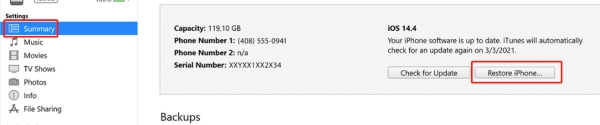
If a system error is causing your iPhone screen to freeze, restoring your iPhone through recovery mode may help fix the problem. But this method will erase all data on your iPhone, so make sure you have an iTunes or zálohu na iCloudu, ze které můžete později obnovit.
Připojte svůj iPhone k počítači pomocí kabelu USB.
Open Finder on Mac or iTunes on Windows.
Put your iPhone into recovery mode (follow the force restart steps, but keep holding the button until the recovery mode screen appears).
Vybrat Obnovit na výzvu.
Contact Apple Store to Repair
If all the methods don't work, your iPhone definitely has hardware damage. The touch screen module may be broken; the internal display cable or screen components may be damaged. In such cases, book an official Apple Store to search for professional technical support. Avoid unofficial repair shops to prevent secondary damage to your iPhone.
Part 3: How to Unlock iPhone with an Unresponsive Screen
Now your iPhone screen stops responding to touch, and you can't type your passcode, use Face ID, or even swipe to unlock. If you're stuck outside your own phone, is there a userfriendly solution to get past the lock screen?
imyPass iPassGo can unlock an iPhone when its screen is frozen, broken, or locked. Moreover, it can also remove Screen Time passcodes and MDM restrictions effortlessly.

Více než 4 000 000 stažení
Unlock iPhone with an unresponsive screen easily.
Get into a locked, disabled, or broken iPhone without passcode.
Odebrat MDM and Screen Time restrictions.
Compatible with the latest iOS versions and devices.
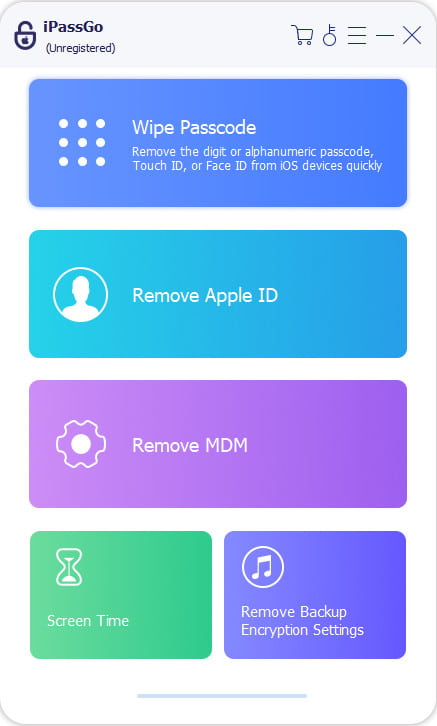
Spusťte imyPass iPassGo na vašem počítači a poté vyberte Odemkněte obrazovku iOS režim z rozhraní. Připojte zařízení k počítači pomocí kabelu USB.
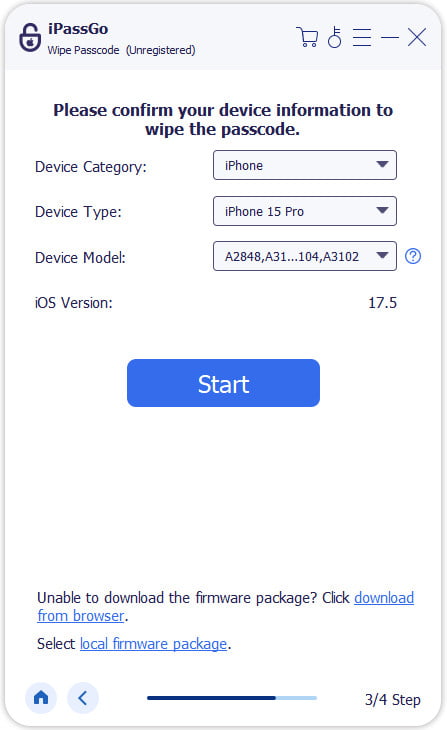
Potvrďte informace o svém zařízení a klikněte Začněte hned pro zahájení stahování balíčku firmwaru.
Klikněte na Začněte odstraňovat button to start the unlocking process. When it is done, your iPhone will reboot.

Part 4: How to Prevent iPhone Screen Not Working Again
After fixing your iPhone unresponsive touch screen, a few simple habits can help reduce the chance of running into the same problem.
- 1.Handle your iPhone carefully: Avoid dropping your device or exposing it to water.
- 2.Avoid overloading your phone: Don't run multiple large apps or games for a long time. Overheating and high operating load will cause system lag and screen freeze.
- 3.Use official or high-quality accessories: Poor accessories can damage screen sensitivity.
- 4.Keep iOS updated: Install the newer iOS to fix bugs and improve overall system stability.
Závěr
Hopefully, these tips save you from the headache of an unresponsive iPhone screen. If your screen is totally frozen and you can't even unlock your phone, imyPass iPassGo can help you regain access to your device without using the touchscreen. Just keep in mind that it will also erase your data. The data loss cannot be avoided when the touch function is no longer working.
Samuel se specializuje na zabezpečení hesel a digitální soukromí. Dříve pracoval jako konzultant v oblasti kybernetické bezpečnosti pro malé podniky, kterým pomáhal chránit jejich digitální aktiva. Díky certifikacím v kybernetické bezpečnosti a etickém hackingu dokáže převádět složitá bezpečnostní témata do snadno pochopitelných rad. Také rád sdílí tipy týkající se hesel, aby uživatelům pomohl chránit jejich účty s větší jistotou.
Horká řešení
-
Odemkněte iOS
-
Tipy pro iOS
-
Odemkněte Android
-
Tipy pro hesla


