



 Lösung
 Support-Center
 Über uns
 Kontakt
How to Effectively Fix No Login Screen on Windows 10
 Penny Warren Veröffentlicht auf 06. März 2026Windows reparieren3-minütige Lektüre
"Mein alter Laptop hat das neueste Update von Windows 10 installiert. Danach wurde das Anmeldefenster nicht mehr angezeigt und es erschien nur noch ein schwarzer Bildschirm. Wie kann ich dieses Problem beheben?" Normalerweise drückt man die Einschalttaste, und der PC startet. Dann erscheint der Anmeldebildschirm, über den man – mit oder ohne Passwort – zum Desktop gelangt. Wenn Sie auf dasselbe Problem stoßen, folgen Sie unseren Lösungen, um den fehlenden Windows-10-Anmeldebildschirm.

In diesem Artikel:
Part 1: Why No Login Screen on Windows 10
Before we walk through the solutions, let's discuss why the Windows 10 login screen is missing first. Understanding the reasons can help you troubleshoot more effectively. The main causes include:
- 1.Beschädigte Systemdateien können verhindern, dass der Anmeldebildschirm korrekt geladen wird, zum Beispiel wenn der Windows-10-Anmeldebildschirm unscharf ist und kein Passwortfeld angezeigt wird.
- 2.Inkompatible Software, etwa eine kürzlich installierte App oder ein Update, das mit Ihrem Betriebssystem in Konflikt steht.
- 3.Probleme mit Ihrem Benutzerprofil können ebenfalls dazu führen, dass der Anmeldebildschirm fehlt.
- 4.Malware oder Viren können den normalen Startvorgang beeinträchtigen.
- 5.Vorübergehende Softwarefehler.
Part 2: How to Fix No Login Screen on Windows 10
Solution 1: Press Ctrl + Alt + Delete
If your Windows 10 has no switch user option on the login screen, you can press Ctrl + Alt + Delete keys together to force activate the option. The key combination can even restart Windows directly.
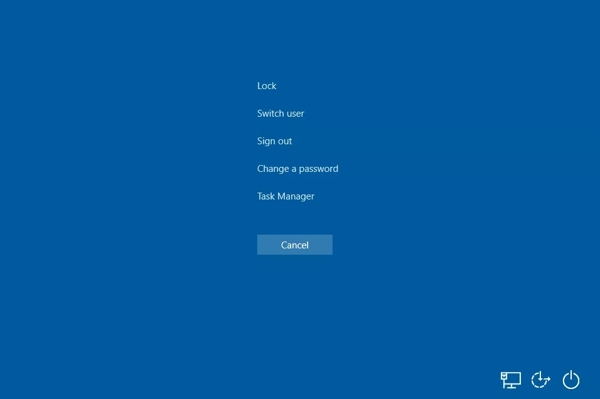
If your PC is in UEFI/BIOS and doesn't boot into Windows, press Strg + Alt + Löschen keys on your keyboard will instantly reboot your PC.
If you have booted into Windows 10 but the login screen is missing, pressing Strg + Alt + Löschen keys will interrupt the OS and load a few options. Then, choose Benutzer wechseln and enter your login credentials.
Solution 2: Boot into Safe Mode
Safe Mode is a vital tool to troubleshoot your Windows 10. It boots a minimal environment that can help you isolate problems, like app conflicts. It can fix the Windows 10 blurry login screen with no password box.
Halten Sie die Wechsel key, click the Leistung Schaltfläche auf dem Startbildschirm drücken und auswählen Neu starten.
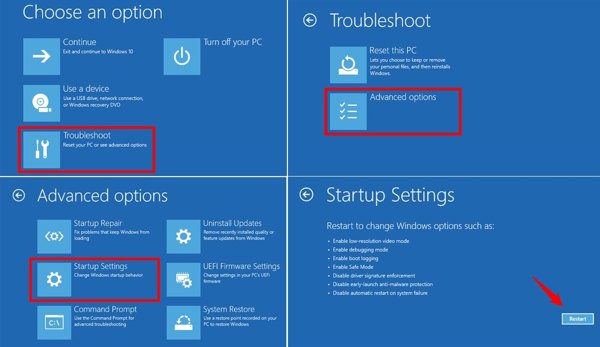
Now, your PC will boot into the Wähle eine Option Bildschirm.
Wählen Fehlerbehebung, Erweiterte Optionen, und Starteinstellungen.
Drücke den Neu starten Taste.
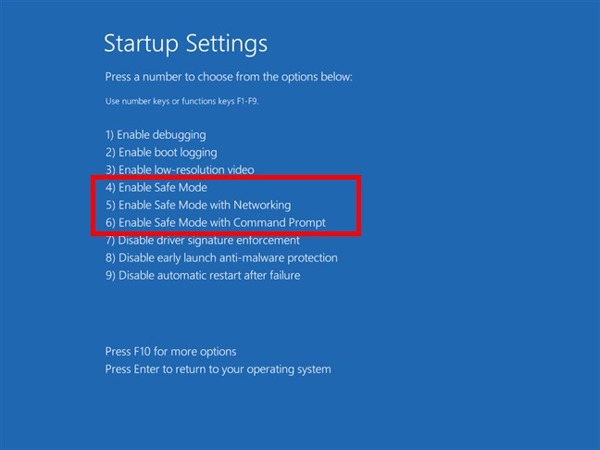
Drücken Sie anschließend die Taste 4 key on your keyboard to boot in Safe Mode.
Uninstall conflicting apps and update, and reboot your PC.
Solution 3: Perform a System Restore
If your Windows 10 doesn't show the login screen after an update, you can perform a system restore to uninstall the update. Windows 10 automatically creates a restore point when updating.
Drücken Sie lange auf die Taste Leistung button to force shut down your PC.
Drücken Sie anschließend die Taste Leistung Taste.
Once your PC restarts, quickly press the F11 Taste zur Eingabe der Wiederherstellungsmenü Bildschirm.
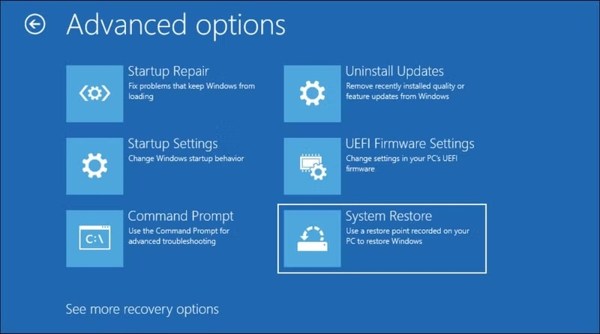
Klicken Fehlerbehebung, wählen Erweiterte Optionen, und schlagen Systemwiederherstellung.
Select the most recent restore point, and click Nächste to begin restoring your system.
Solution 4: Run Startup Repair
When your Windows 10 displays a black screen with no cursor before login, you can also run Startup Repair. It is a built-in recovery tool on Windows for repairing system and software issues automatically.
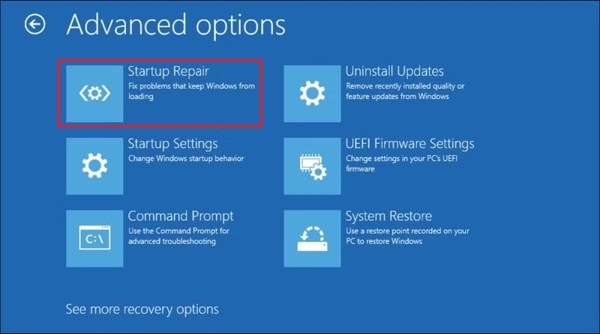
Boot into the Wiederherstellungsmenü Bildschirm.
Klicken Fehlerbehebung, wählen Erweiterte Optionenund wählen Sie Starthilfe.
Your PC will start to diagnose.
Next, choose a user account and enter the password.
Klicken Fortsetzen to begin startup repair.
Das könnte Ihnen auch gefallen:
Part 3: Ultimate Solution to Fix No Login Screen on Windows 10
If the solutions above are unavailable, imyPass Windows-Passwort zurücksetzen can help you fix the no login screen on Windows 10, even if your PC is locked out. The software enables you to reset the forgotten password quickly.
Über 4.000.000 Downloads
Remove the Microsoft login screen without data loss.
Create new admin accounts without logging in PC.
Make disk or USB boot drives easily.
Work for Windows 11/10/8/7/XP/Vista.
How to Fix No Login Screen on Windows 10
Install Windows Password Reset
Launch Windows Password Reset after installing it on an accessible PC. You can borrow a PC from your friend or family member. Insert a blank DVD or USB drive into the PC.
Create a boot DVD or USB
Drücke den CD/DVD brennen oder USB brennen Taste drücken, je nach Ihrem Startmedium. Wenn das Startmedium bereit ist, werfen Sie es aus.
Windows-Passwort zurücksetzen
Starten Sie Ihren PC neu und drücken Sie schnell die F12 oder ESC Taste auf Ihrer Tastatur, um die einzugeben Stiefel Taste für das Startmenü. Bei ASUS und BenQ drücken Sie F8. Legen Sie die bootfähige Disk oder den bootfähigen USB-Stick in Ihren PC ein und wählen Sie ihn im Startmenü aus. Wählen Sie anschließend Ihr Windows 10, markieren Sie Ihr Konto und klicken Sie auf Passwort zurücksetzen. Geben Sie ein neues Passwort ein und bestätigen Sie es. Klicken Sie abschließend auf die Neustart Schaltfläche, um Ihren PC zum Anmeldebildschirm neu zu starten.
Fazit
Diese Anleitung hilft Ihnen dabei, das Problem „Kein Anmeldebildschirm in Windows 10“ zu beheben. Sie können den gängigen Lösungen folgen, um Softwareprobleme zu beheben und Ihren PC wieder bis zum Anmeldebildschirm zu starten. Noch wichtiger ist, dass wir empfohlen haben, imyPass Windows-Passwort zurücksetzen zu verwenden, um Ihren PC zu entsperren, selbst wenn Sie das Passwort vergessen haben.
Penny konzentriert sich auf die Fehlerbehebung bei GPS sowie auf die Optimierung von Windows. Zuvor arbeitete sie als Technical Support Engineer und half Kunden dabei, standortbezogene und Systemprobleme effizient zu lösen. Gestützt auf ihre Erfahrung im IT-Support bietet sie praxisnahe Lösungen, die wirklich funktionieren. In ihrer Freizeit wandert sie gern und geht Geocaching nach, um GPS‑Technik in der realen Welt zu testen.
Heiße Lösungen
-
Windows reparieren
- So umgehen Sie das Passwort des Standardkontos „defaultuser0“
- So beheben Sie, dass Windows beim Ladebildschirm hängen bleibt
- So beheben Sie, dass Windows 10 beim Willkommensbildschirm hängen bleibt
- 7 Methoden, um den Windows-Fehlercode 0xc000021a zu beheben
- So beheben Sie, dass die Windows-10-PIN nicht funktioniert
- So entsperren Sie den Computer ohne Passwort
- Beheben Sie den Windows 10-Kein Anmeldebildschirm
- So beheben Sie das Problem, wenn „Windows wird vorbereitet“ hängen bleibt
-
Windows-Tipps
-
Windows-Passwort
-
Passwort-Tipps

Windows Password Reset
Setzen Sie das Windows-Administrator-/Benutzerkonto zurück
Herunterladen Herunterladen
