



 Λύση
Λύση Κέντρο υποστήριξης
 Σχετικά με εμάς
 Επικοινωνία
Why iPhone Says SIM Failure and How to Fix This Problem
 Σάμουελ Σπένσερ Δημοσιεύθηκε στις Οκτώβριος 09, 2026Ξεκλειδώστε το iOS3 λεπτά ανάγνωση
“I got a new iPhone this year. All of a sudden, today I began getting a message that says SIM card failure. I haven't dropped or damaged my phone at all. Any ideas?”
While the iPhone comes with a wide variety of features, most of them require a SIM card and wireless signals. If it cannot detect the SIM card, these features are unavailable, such as phone calls, SMS, and more. This guide walks you through solutions to fix SIM failure on an iPhone.

Σε αυτό το άρθρο:
Part 1: What Does SIM Failure Mean on iPhone
What does SIM Failure mean on an iPhone? It means that your iPhone can see that a SIM card is inserted, but something blocks it from being recognized by your mobile network. In addition to SIM Failure, you may also see the error message, such as Invalid SIM, SIM Not Supported, or SIM Not Valid.
Why does my iPhone keep saying SIM Failure? First of all, you need to rule out any hardware damage, like water damage. If the error occurs suddenly, the common causes may include:
- 1.Something is wrong with the SIM card.
- 2.Network issues.
- 3.Your iPhone doesn't load the SIM card properly.
- 4.Outdated software or carrier settings.
- 5.Σφάλματα λογισμικού.
- 6.Your iPhone is locked to a specific carrier.
Part 2: How to Fix iPhone Says No SIM
Solution 1: Disable Airplane Mode
Network issues may be responsible for your iPhone not recognizing the SIM card. If you accidentally turn on Airplane Mode on your device, you will encounter network errors. The solution is simple: turning off Airplane Mode on your iPhone.
Επιλογή 1:
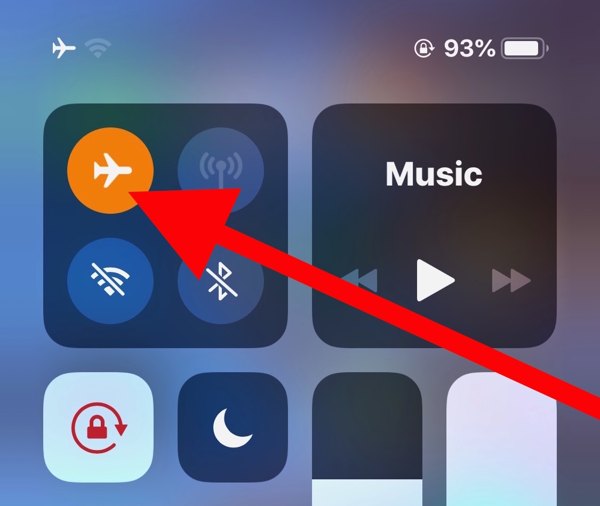
Εισαγάγετε το Κέντρο ελέγχου στο iPhone σας.
Πατήστε το Λειτουργία πτήσης button to turn it off. If it is disabled, turn it on and then disable it.
Επιλογή 2:
Εκτελέστε το Ρυθμίσεις app from the home screen.
Βρες το Λειτουργία πτήσης option, and toggle it off.
Λύση 2: Ξανατοποθετήστε την κάρτα SIM
When an iPhone keeps saying No SIM, it means that your device cannot see the SIM card. That may be due to a loose card, improper placement, or a damaged SIM card. To fix this problem, you need to take out the card from your device.
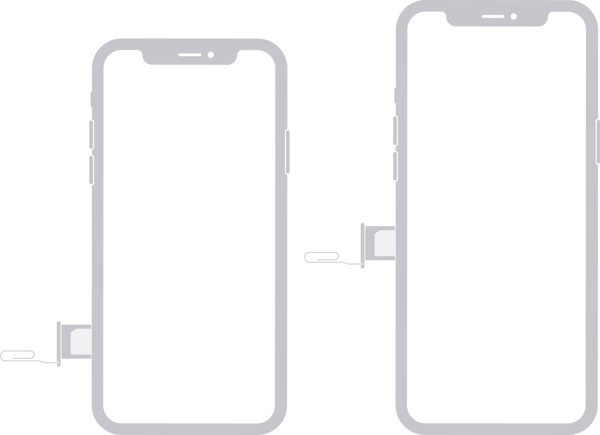
Find the SIM tray on the right side.
Insert a paper clip or SIM-eject tool into the hole beside the tray.
Pull in gently to eject the tray.
Remove the SIM card.
Next, place the SIM card back in the tray.
Insert the SIM tray into your iPhone to see if the error disappears.
If not, take out the card and use another one to check whether your SIM is broken.
Λύση 3: Επανεκκινήστε το iPhone σας
Another simple solution to fix iPhone not detecting the SIM card is to restart your device. That can refresh the operating system and let it detect the SIM card again. For an iPhone, you can complete the process with physical buttons.
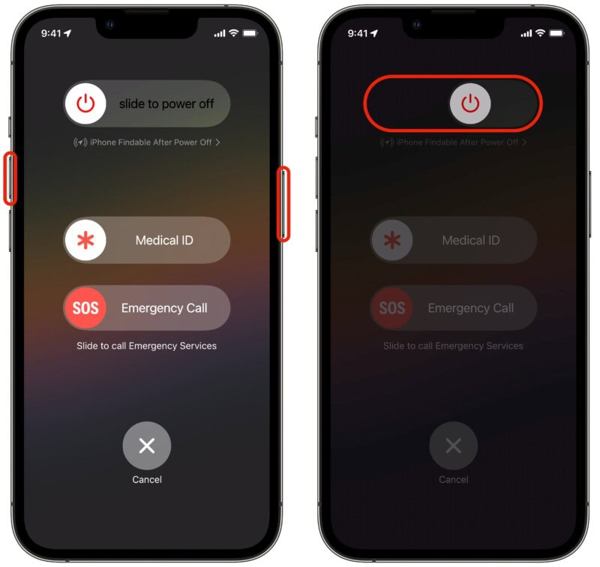
For an iPhone with Face ID, press and hold the Ενταση πάνω + Πλευρά κουμπιά μαζί.
For older models, hold down the Πλευρά κουμπί.
As long as the boot menu screen appears, release the buttons or button.
Move the power-off slider to shut down your iPhone.
Λίγα λεπτά αργότερα, πατήστε παρατεταμένα το Πλευρά button until the Apple logo pops up.
Solution 4: Update Carrier Settings
Your iPhone does not read the SIM card partly because the carrier settings are outdated. By default, iOS is able to detect and install the update automatically. If not, you will need to update the carrier settings manually.
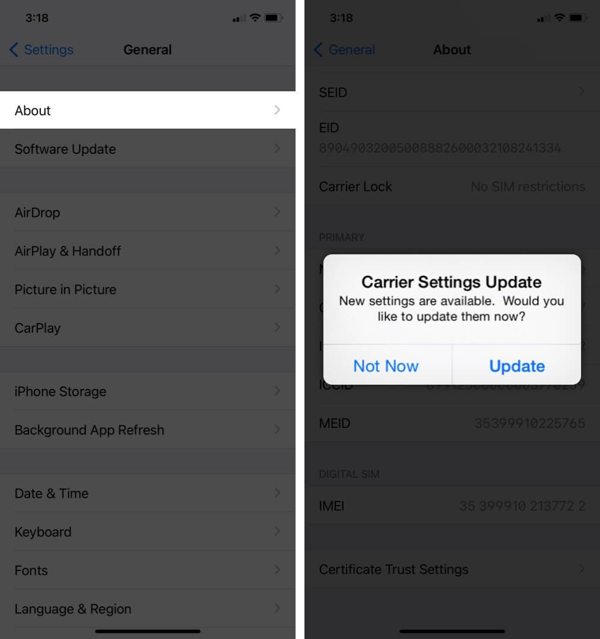
Εκτελέστε το Ρυθμίσεις εφαρμογή.
Παω σε Γενικός και Σχετικά με.
If a carrier settings update is available, tap the Εκσυγχρονίζω button on the prompt.
When the update finishes, check your SIM card again.
Solution 5: Update iPhone Software
Outdated software is another cause that your iPhone keeps saying SIM Failure. In fact, outdated software can lead to a lot of issues. Therefore, Apple suggests users keep software up to date on their iPhones.
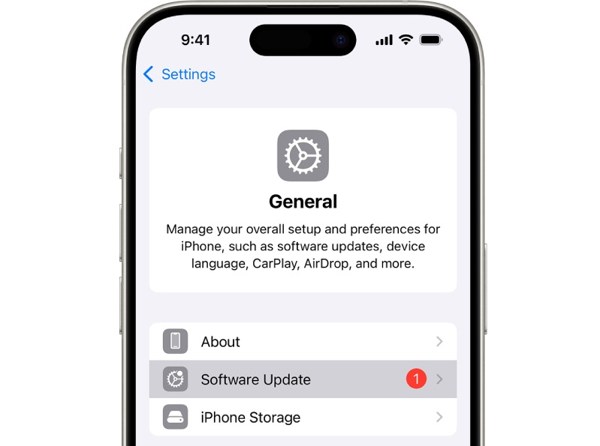
Ξεκινήστε το δικό σας Ρυθμίσεις εφαρμογή.
Πλοηγηθείτε στο Γενικός και Αναβάθμιση λογισμικού.
If an update is ready, tap the Λήψη και εγκατάσταση button to get it.
Λύση 6: Επαναφορά ρυθμίσεων δικτύου
Conflict settings can lead to the SIM Failure error on iPhone, too. It is difficult to identify which changes cause the problem, but you can reset all network settings with a single option on your iPhone.
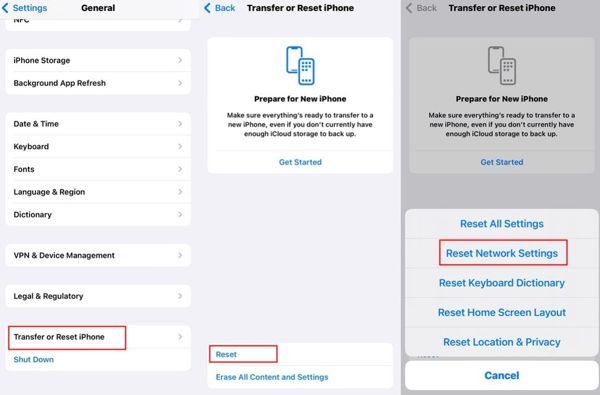
Τρέξτε το δικό σας Ρυθμίσεις εφαρμογή.
Κατευθύνομαι προς Γενικός, Μεταφορά ή επαναφορά iPhone, και Επαναφορά.
Επιλέξτε το Επαναφορά ρυθμίσεων δικτύου επιλογή.
Authenticate with your iPhone passcode.
Παρακέντηση Επαναφορά ρυθμίσεων δικτύου και πάλι για να το επιβεβαιώσετε.
Solution 7: Check if Your iPhone Is Locked to a Carrier
One main reason why my iPhone says SIM Failure is that your device is carrier-locked. Once you insert a SIM card from another carrier, your iPhone cannot read the signal. Check if your iPhone is locked to a carrier following the steps below:
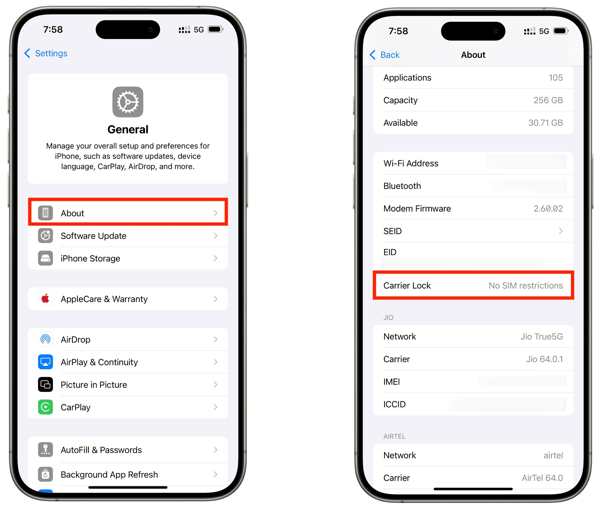
Παω σε Γενικός στο δικό σου Ρυθμίσεις εφαρμογή.
Επιλέξτε το Σχετικά με επιλογή.
Εντοπίστε το Κλειδαριά μεταφοράς είσοδος.
If you see No SIM restrictions, it means your iPhone isn't locked to a carrier. If not, you have to unlock the SIM on your device.
Ίσως σας ενδιαφέρει επίσης:
Part 3: How to Unlock SIM Lock on an iPhone
If your iPhone doesn't recognize SIM card because your device is locked to the previous carrier, imyPass iPassGo can help you fix this problem quickly. It can remove the SIM lock from your iPhone without any restrictions. Furthermore, the clear design helps you simplify the workflow.

4.000.000+ λήψεις
Ξεκλειδώστε το κλείδωμα κάρτας SIM σε iPhone μόνο σε τρία βήματα.
Μην ζητάτε κωδικό πρόσβασης ή περιορισμούς κατά τη διάρκεια της διαδικασίας.
Κρατήστε τα δεδομένα σας ασφαλή κατά το ξεκλείδωμα της SIM.
Λειτουργεί σχεδόν σε όλα τα μοντέλα iPhone.
Συμπεριλάβετε επιπλέον λειτουργίες, όπως παράκαμψη MDM.
Πώς να ξεκλειδώσετε την κάρτα SIM στο iPhone σας
Εγκατάσταση εργαλείου ξεκλειδώματος SIM
Εκκινήστε το λογισμικό ξεκλειδώματος SIM μόλις το εγκαταστήσετε στον υπολογιστή σας. Είναι διαθέσιμο για Windows 11 έως 7 και Mac OS X 10.12 ή νεότερο. Επιλέξτε το Ξεκλείδωμα κάρτας SIM λειτουργία για να προχωρήσετε.
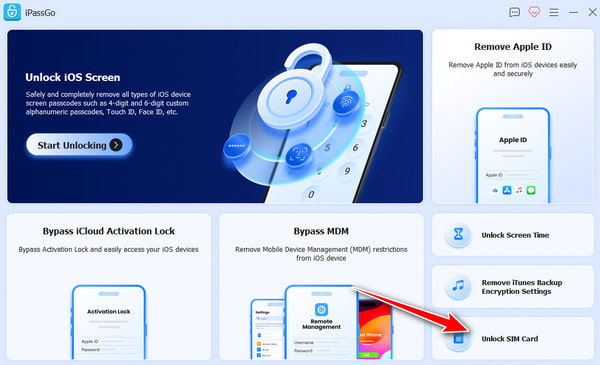
Αναγνωρίστε το iPhone σας
Συνδέστε το iPhone σας με τον υπολογιστή σας χρησιμοποιώντας καλώδιο Lightning και βεβαιωθείτε ότι εμπιστεύεστε αυτόν τον υπολογιστή. Μόλις το λογισμικό εντοπίσει το iPhone σας, κάντε κλικ στο Ξεκίνα τώρα κουμπί για να συνεχίσετε.
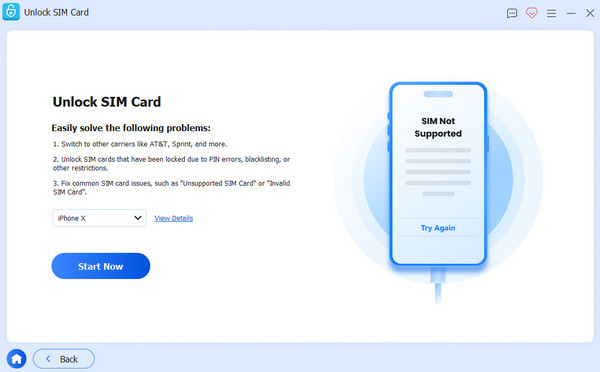
Ξεκλειδώστε τη SIM σε ένα iPhone
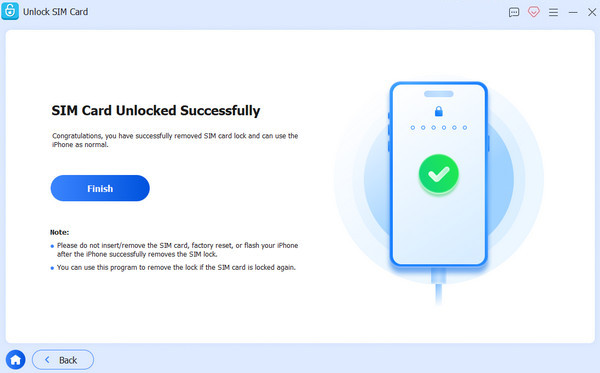
Ελέγξτε και επιβεβαιώστε τις πληροφορίες της συσκευής σας. Στη συνέχεια, κάντε κλικ στο κουμπί Ξεκινήστε την παράκαμψη . Αφού κάνετε jailbreak τη συσκευή σας, ακολουθήστε τις οδηγίες στην οθόνη για να ρυθμίσετε τη συσκευή σας. Όταν τελειώσετε, κάντε κλικ στο Εντάξει για να ξεκινήσετε το ξεκλείδωμα της SIM στο iPhone σας.
Bonus: SIM Failure vs. No SIM vs. Invalid SIM vs. No Service
Υπάρχουν και μερικά άλλα προβλήματα με τη SIM ή την eSIM σε ένα τηλέφωνο· μπορείτε να δείτε τον παρακάτω πίνακα για να τα κατανοήσετε όλα.
| Σφάλματα | Έννοια |
| Αποτυχία SIM | Το iPhone εντοπίζει πρόβλημα με την κάρτα SIM ή τη σύνδεση κινητού δικτύου. |
| Χωρίς SIM / Χωρίς κάρτα SIM | Το iPhone δεν μπορεί να ανιχνεύσει κάρτα SIM. |
| Μη έγκυρη κάρτα SIM | Η κάρτα SIM δεν υποστηρίζεται ή δεν μπορεί να χρησιμοποιηθεί με το iPhone. |
| Χωρίς σήμα | Το iPhone δεν μπορεί να συνδεθεί στο κινητό δίκτυο του παρόχου. |
| SOS / Μόνο SOS | Το iPhone δεν μπορεί να συνδεθεί στο κανονικό κινητό δίκτυο αλλά ενδέχεται να υποστηρίζει ακόμα κλήσεις έκτακτης ανάγκης. |
συμπέρασμα
Τώρα, θα πρέπει να καταλάβετε γιατί Η αποτυχία SIM εμφανίζεται σε iPhone 13 και άλλα μοντέλα. Ακόμη πιο σημαντικό, μπορείτε να μάθετε τις δοκιμασμένες λύσεις για να απαλλαγείτε από το σφάλμα και να χρησιμοποιείτε κανονικά το iPhone σας. Αν συναντήσετε αυτό το σφάλμα επειδή η συσκευή σας είναι κλειδωμένη στον προηγούμενο πάροχο, δοκιμάστε imyPass iPassGo για να αφαιρέσετε γρήγορα το κλείδωμα SIM από το iPhone σας χωρίς κανέναν περιορισμό.
Ο Σάμουελ ειδικεύεται στην ασφάλεια κωδικών πρόσβασης και την ψηφιακή ιδιωτικότητα. Δούλευε ως σύμβουλος κυβερνοασφάλειας για μικρές επιχειρήσεις με στόχο την προστασία των ψηφιακών τους περιουσιακών στοιχείων. Με πιστοποιήσεις στην Κυβερνοασφάλεια και στο Ηθικό Hacking, μετατρέπει σύνθετα θέματα ασφάλειας σε εύκολες, κατανοητές συμβουλές. Απολαμβάνει επίσης να μοιράζεται συμβουλές για κωδικούς πρόσβασης, ώστε να βοηθά τους χρήστες να προστατεύουν τους λογαριασμούς τους με μεγαλύτερη σιγουριά.
Hot Solutions
-
Ξεκλειδώστε το iOS
- iRemove Tools Review
- Πλήρης αξιολόγηση του iHello HFZ
- Αξιολόγηση του DarkRa1n iCloud Bypass
- Όλα όσα πρέπει να ξέρετε για το iFreeiCloud
- 7 δωρεάν υπηρεσίες ξεκλειδώματος iCloud
- Λεπτομερής ανασκόπηση του εργαλείου Ramdisk 007
- Παράκαμψη κλειδώματος iCloud με το F3arra1n
- Πλήρης αξιολόγηση του UnlockHere
-
Συμβουλές για iOS
-
Ξεκλείδωμα Android
-
Συμβουλές κωδικού πρόσβασης


