Solución
 Centro de Apoyo
 Sobre nosotros
 Contacto
How to Factory Reset Your Windows 11/10/8/7/XP/Vista
 penique warren Publicado en 9 de septiembre de 2026Consejos de Windowslectura de 3 minutos
Factory resetting Windows 11/10 or earlier is a powerful functionality that enables you to restore your PC to its original state. It can be useful when you are experiencing performance issues, software glitches, preparing to sell your computer, or simply want a fresh start. This comprehensive guide will walk you through how to complete the process with the proven methods and detailed steps for every scenario.

En este articulo:
Part 1: Before Factory Resetting Windows
Resetting a Windows computer will erase all data on your PC, including the software you installed. Plus, the process requires enough battery power. Before proceeding, complete these essential preparations.
- 1.Back up all important files to an external hard drive, like documents, photos, videos, bookmarks and logins, game saves, and more.
- 2.Save the applications installed on your PC and their settings, like your username and password.
- 3.Ensure sufficient battery life or connect to power.
- 4.Remove and disconnect all peripherals and accessories.
- 5.Free up storage space of at least 10GB.
- 6.Disable or uninstall third-party antivirus software.
Part 2: How to Factory Reset Windows 11/10 from Settings
You can reset the computer to factory settings on Windows 11/10 by going to Settings and opening the Recovery menu. The prerequisite is that your PC is still accessible and you remember your user password.
On Windows 10
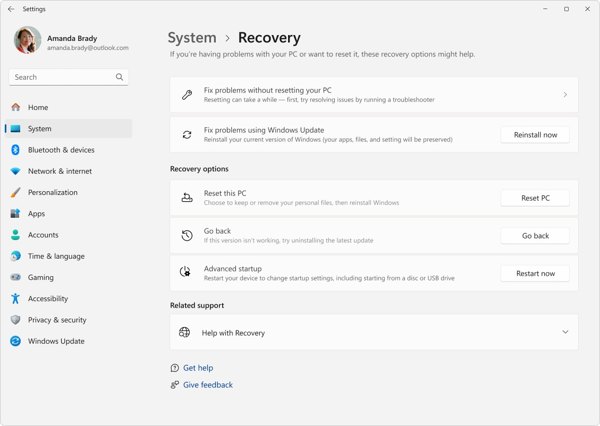
Haga clic derecho en el comienzo menu at the bottom left corner and choose Ajustes.
Elegir la Actualización y seguridad option from the menu.
Haga clic en el Recuperación option on the left sidebar.
Haga clic en el Empezar botón debajo del Restablecer esta PC sección.
Elegir Kee my files o Quitar todo, depending on your situation. The former will remove all programs and restore settings to their default. The latter will erase everything on your PC.
On Windows 11
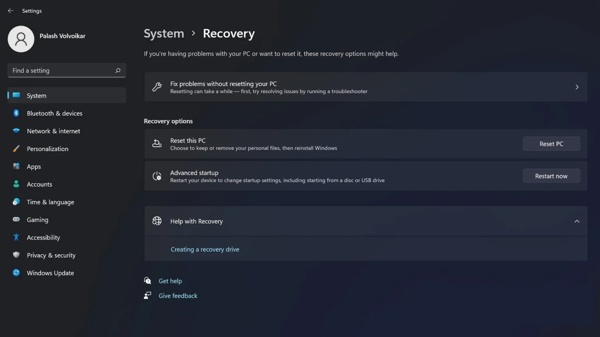
Abre el Ajustes aplicación de la comienzo menú.
Ir Sistema y Recuperación.
Haga clic en el Reiniciar PC botón en el Restablecer esta PC título.
Elegir guardar mis archivos o Quitar todo.
Cuando se le solicite, seleccione Descarga en la nube o Local reinstall to reinstall Windows.
Read the message and click próximo.
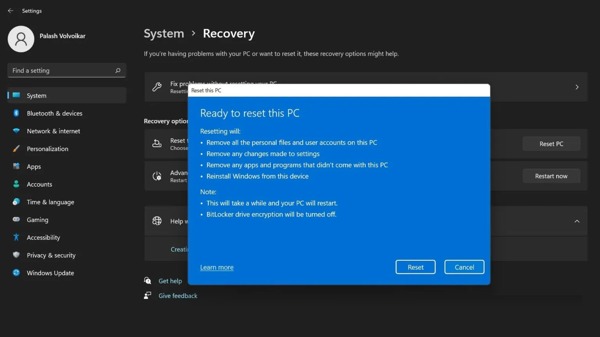
Finalmente, haga clic en el Reiniciar botón para iniciar el proceso.
Part 3: How to Master Reset PC from Windows RE
If your PC is inaccessible, you can factory reset Windows 11 without Settings. You need to boot your PC into Windows Recovery Environment without entering the standard operating system.
Power on your PC.
On the login screen, hold the Cambio tecla en su teclado mientras hace clic en el Energía botón.
Elegir Reiniciar to boot in Windows Recovery Environment.
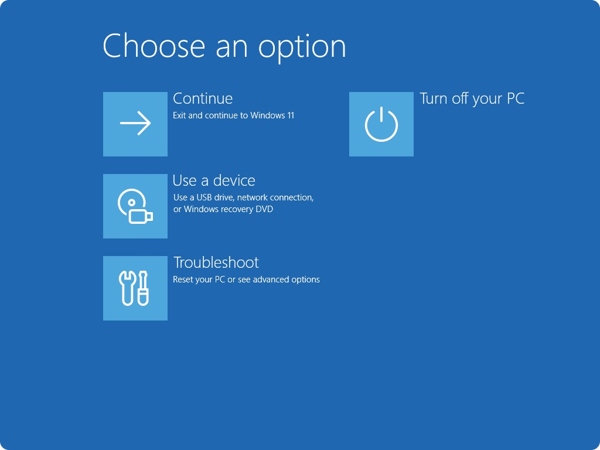
Navegar a Solucionar problemas y Restablecer esta PC.
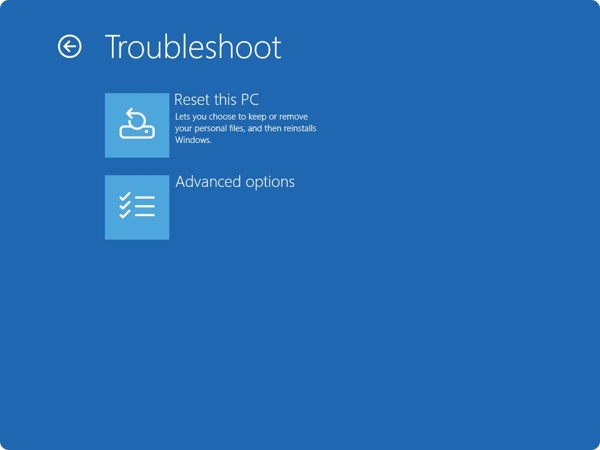
Elegir guardar mis archivos o Quitar todo.
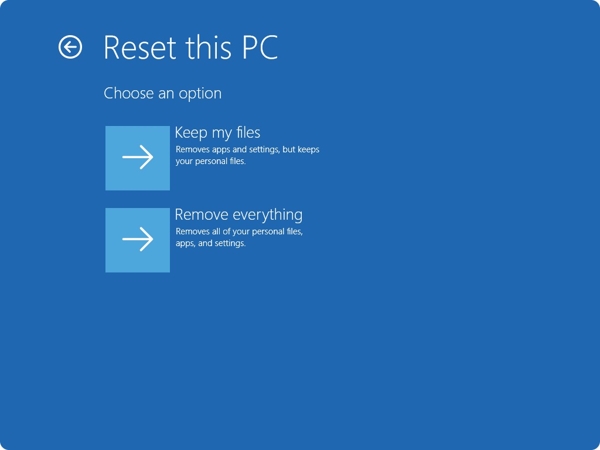
Follow the onscreen instructions to initiate the process.
When the process finishes, your PC will restart.
Part 4: How to Factory Reset Windows with Installation CD
If you forgot your login credentials, you have to factory reset Windows 11 without the password using the installation CD. First of all, you need to create an installation CD on an accessible PC. We share the steps below:
Create an installation disk or USB on an accessible PC.
Insert the disk into your computer.
Restart or power on your PC.
presione el F11 o F12 key on your keyboard during the boot-up process.
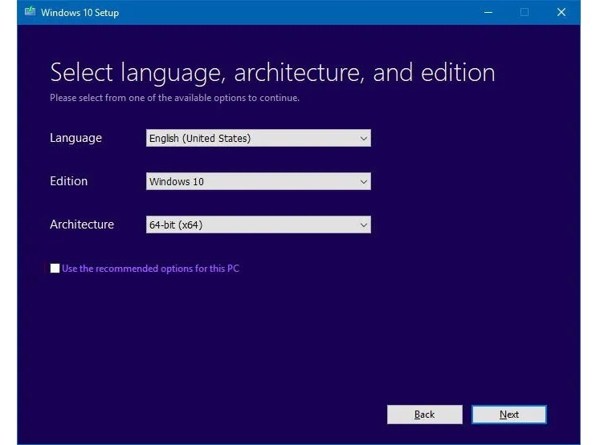
Fill out the form on the Configuración de Windows ventana y haga clic próximo.
Haga clic en el Instalar ahora botón para seguir adelante.
Enter the product key or ignore it, and click próximo.
Select the right edition of Windows, and click próximo.
Marque la casilla junto a I accept the license terms to agree and hit próximo.
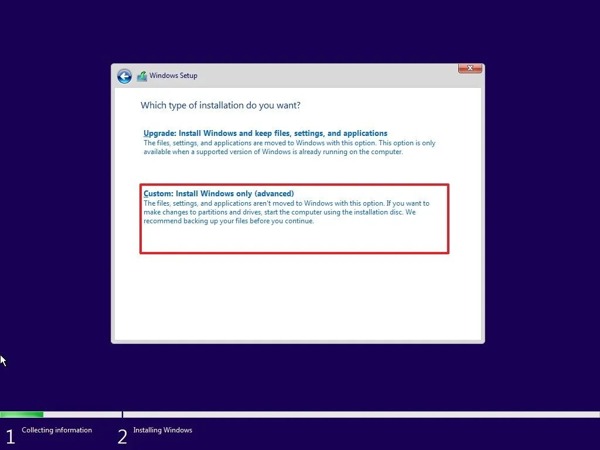
Elegir la Custom: Install Windows only(advanced) opción.
Select the partition you want to install Windows on and hit próximo to begin factory resetting Windows 7 and later.
También te puede interesar:
Part 5: Bonus Tip: How to Reset Windows Password
If you just forgot your login password, you don't need to factory reset Windows. Alternatively, Restablecimiento de contraseña de Windows imyPass allows you to reset your password without losing data. Moreover, the intuitive interface makes it easy to navigate.
4,000,000+ Descargas
Reset Windows login password quickly.
Create a password reset disk with one click.
Work for administrator and user accounts.
Proteja sus datos durante el proceso.
Cómo restablecer la contraseña de Windows sin restaurar de fábrica
Crear un medio para restablecer la contraseña
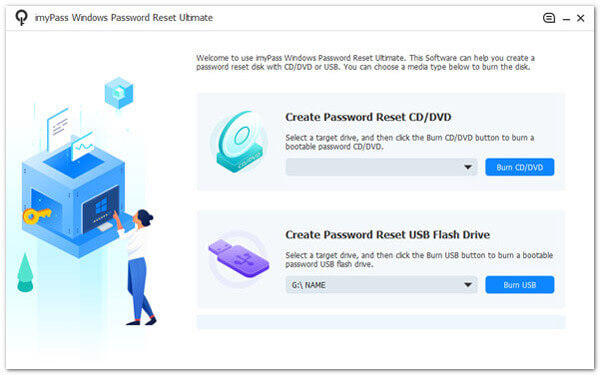
Instala el software de restablecimiento de contraseña de Windows en un PC accesible y ejecútalo. Inserta un disco en blanco o una unidad flash en el PC. Elige el soporte en Crear CD/DVD de restablecimiento de contraseña o Crear unidad flash USB para restablecer contraseña correspondiente. Haz clic en el botón Grabar CD/DVD o Grabar USB para crear un medio de arranque.
Selecciona tu cuenta
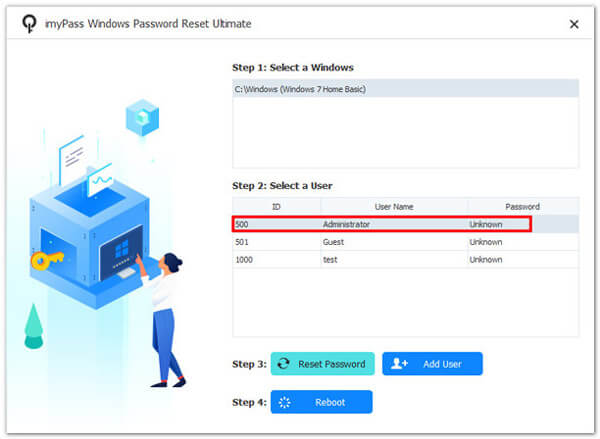
Inserta el disco o la unidad de arranque en tu PC. Enciende el ordenador e inicia desde el medio de restablecimiento de contraseña. A continuación, elige tu Windows y selecciona tu cuenta.
Restablecer su contraseña
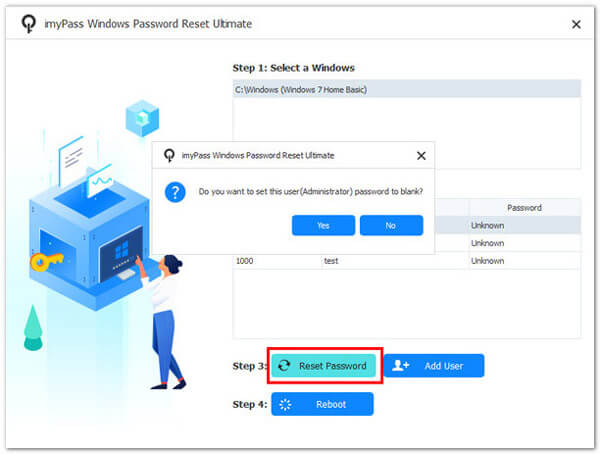
Haga clic en el Restablecer la contraseña botón para continuar. Cuando se te pregunte si deseas dejar la contraseña del usuario en blanco, haz clic en Sí o OK para confirmarlo. O bien, puedes crear una cuenta nueva pulsando el botón Agregar usuario . Cuando termines, haz clic en el botón Reiniciar para reiniciar tu PC. Después, podrás entrar directamente en tu equipo.
Conclusión
Esta guía compartió múltiples formas de restablecer de fábrica Windows 11/10/8/7 y anteriores. En Windows 11/10, la opción de restablecer el PC en la app Configuración está disponible para devolver el ordenador al estado de fábrica. El Entorno de recuperación de Windows (Windows RE) es otra forma de restablecer tu PC. El disco de instalación está disponible para restablecer casi todas las versiones de Windows. Restablecimiento de contraseña de Windows imyPass es una forma sencilla de recuperar el acceso a tu PC si has olvidado la contraseña de Windows.
Penny se centra en la resolución de problemas de GPS y la optimización de Windows. Anteriormente trabajó como ingeniera de soporte técnico, ayudando a los clientes a resolver de forma eficiente problemas relacionados con la localización y el sistema. Gracias a su experiencia en soporte informático, ofrece soluciones prácticas que realmente funcionan. En su tiempo libre le gusta hacer senderismo y practicar geocaching, poniendo a prueba la tecnología GPS en el mundo real.
Soluciones calientes
-
Consejos de Windows
- Cómo restablecer un portátil ASUS
- Restablecer Microsoft Surface a los valores de fábrica
- Cómo restablecer a valores de fábrica un portátil Lenovo
- Cómo eliminar una cuenta de administrador en Windows 10
- Cómo restablecer a valores de fábrica un portátil HP
- Cómo configurar el inicio de sesión automático en Windows
- Cómo cambiar el nombre de usuario de Windows
- Cómo restablecer un portátil Dell
-
Contraseña de Windows
-
arreglar ventanas
-
Consejos de contraseña

Restablecimiento de contraseña de Windows
Restablecer cuenta de usuario/administrador de Windows
Descarga gratis Descarga gratis