



 פִּתָרוֹן
 מרכז תמיכה
 עלינו
עלינו איש קשר
Guide on How to Fix an IT Administrator Having Limited Access on Windows
 פני וורן פורסם ב 15 באפריל 2026סיסמת Windowsקריאה של 3 דקות
Seeing the message that your IT Administrator has limited access can feel confusing, especially on a personal computer. This warning often links to system policies, user account settings, or security restrictions applied by Windows. As someone who has handled many access control issues, I know the cause is usually simple once identified. In this guide, you will learn what this notification means and how to fix it.

במאמר זה:
Part 1. Understanding the Message (Is Your PC Really Managed?)
No, your PC is not necessarily managed by someone else just because you see Windows security IT Administrator limited access. This often happens because of the security measures included in the Windows system, group policy, or user account permission settings. It does not necessarily mean that the system is being managed by someone outside. Instead, it reflects a built-in limitation within the system. This understanding helps you grasp the fixes you will implement, so you know if you're addressing true system management issues or just the system's natural limitations.
Part 2. Quick & Easy Fixes (Try These First)
If you encounter the message that your IT Administrator has limited access, most issues can be resolved quickly without complicated tools. On Windows Defender Windows 11, these blocks often come from security settings or policies that restrict changes. Below are two reliable fixes to try first.
Fix 1: The Registry "PUA" Tweak (Most Common Fix)
One of the most frequent causes of your IT Administrator having limited access is Windows Defender Windows 11’s Potentially Unwanted Application (PUA) protection. This feature blocks certain apps, but it can also prevent legitimate actions.
לָהִיט Win + R, הקלד regedit to open the Registry Editor.
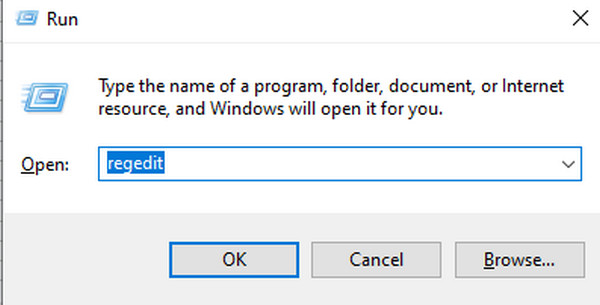
Navigate to: HKEY_LOCAL_MACHINESOFTWAREPoliciesMicrosoftWindows DefenderWindows Defender Exploit GuardPUA.
Look for a value named PUAProtection. If it exists, double-click it and change the value from 1 to enabled to 0 to disabled.
Exit the Registry Editor and restart.
This tweak often clears it has limited access message by allowing Windows Defender to operate without unnecessary restrictions. Always back up the registry before making changes.
Fix 2: Reset Windows Security via Local Group Policy
If the registry tweak does not work, some restrictions may come from Group Policy settings in Windows Defender on Windows 11. With access to it, you can disable Windows ask password after sleep, making it an important feature to know on Windows. Resetting these policies restores default permissions and removes blocks.
ללחוץ Win + R, הקלד gpedit.msc to open the Local Group Policy Editor.
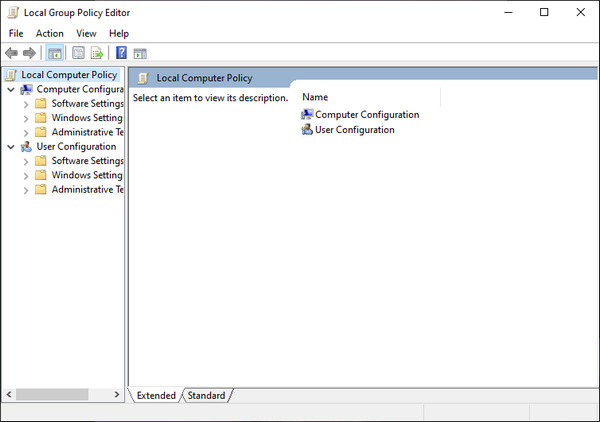
לחץ על תצורת מחשב > תבניות מנהליות > Windows Components > Microsoft Defender Antivirus.
Identify any policies that are enabled and relate to PUA protection, scanning, or security restrictions. Right-click each and select Not Configured.
Repeat the same process under Windows Components > אבטחת Windows. Close the Group Policy Editor and restart your PC.
Resetting these policies ensures Windows Defender on Windows 11 returns to default behavior and removes the limited access notification safely, without affecting system security.
Part 3. Advanced Fixes for Persistent Issues
If the previous quick fixes did not clear the problem, deeper system issues may be causing your IT Administrator to have limited access to messages. Advanced tools like the Command Prompt and system file repair utilities can help resolve underlying permissions or corruption that prevent Windows Security from functioning correctly on Windows Defender Windows 11.
Fix 3: Use Command Prompt as Administrator
Running these commands as an Administrator restores permissions and resets critical configurations that may be blocking access. This method is especially useful for stubborn restrictions and provides a practical approach to how to fix IT Administrator has limited access.
ללחוץ Win + S וסוג שורת פקודה.
Right-click שורת פקודה ובחר הפעל כמנהל.
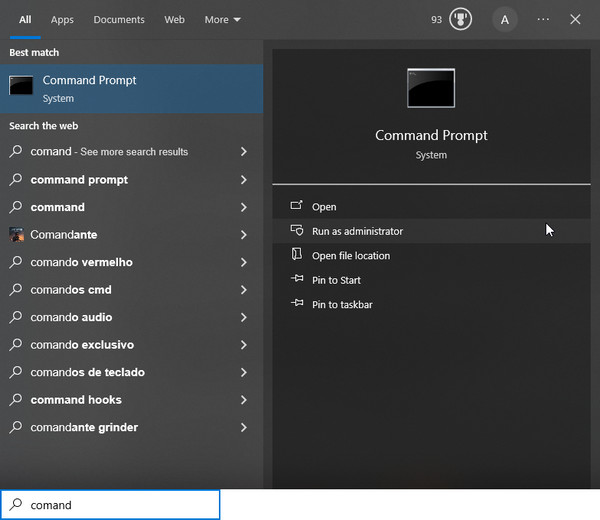
Enter the following commands to reset Windows permissions and policies:
• משתמש רשת מנהל / פעיל: כן to activate the built-in Administrator account.
• icacls C:WindowsSystem32 /reset /t /c /q to reset permissions on core system folders.
• powershell -Command "Get-AppxPackage -AllUsers| Foreach {Add-AppxPackage -DisableDevelopmentMode -Register '$($_.InstallLocation)AppXManifest.xml'}" to re-registers all Windows apps.
Exit the Command Prompt and restart.
Fix 4: Check for Corrupted System Files
Corrupted or missing system files can trigger Windows security restrictions and cause your IT Administrator to have limited access notification. Using DISM and SFC ensures that all critical files are restored, stabilizing Windows Defender and resolving access issues safely.
ללחוץ Win + S and type Command Prompt.
Right-click שורת פקודה ו הפעל כמנהל.
Type the following commands and press Enter after each:
• DISM /Online /Cleanup-Image/RestoreHealth לתקן את דמות מערכת ההפעלה Windows.
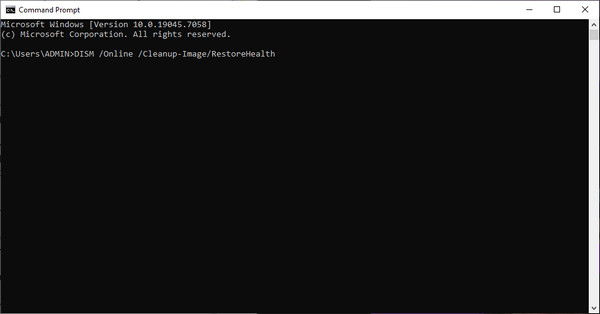
• sfc /scannow לסרוק ולאתר קבצי מערכת פגומים ולתקן אותם.
Exit the Command Prompt and restart.
Bonus: Best Solution to Handle Windows Password & Account Issues
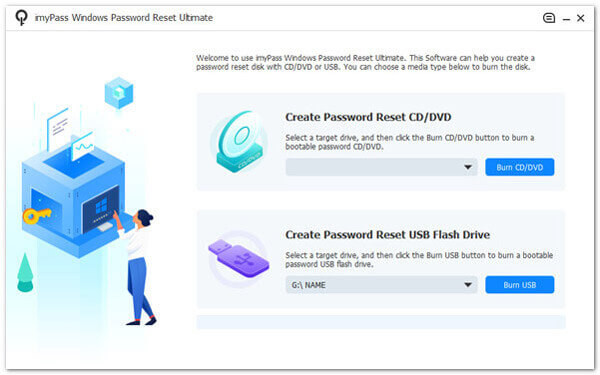
במצבים כאלה, כלי כמו איפוס סיסמת imyPass של Windows יכול לעזור לאפס סיסמה שנשכחה, לבטל נעילה של חשבון משתמש נעול או מושבת, ולהחזיר גישת מנהל מערכת (Administrator) בלי צורך להתקין מחדש את מערכת ההפעלה. הוא גם מאפשר ליצור כונן USB או דיסק CD אתחולי, המעניק גישה למערכת גם כשאין לך פרטי התחברות.
בנוסף, הכלי יכול לסייע בניהול מגבלות חשבון על‑ידי שליטה בפרטי ההתחברות. הוא יכול לעקוף הגבלות מנהל מערכת (Administrative Restrictions). זה שימושי במיוחד כאשר אפשרויות אחרות אינן פועלות או כשהגישה מוגבלת בגלל הגדרות שגויות. הכלי גם שומר על הנתונים והגדרות המערכת. הוא מציע דרך בטוחה להשיב גישה למערכת Windows מבלי לאבד נתונים.
סיכום
התמודדות עם הגדרות מוגבלות יכולה להיות מתסכלת, אך לעיתים קרובות הבעיה קלה יותר לפתרון ממה שנדמה. ברוב המקרים מדובר במדיניות מערכת, התנגשויות בהרשאות או שיבוש קל בקבצים – ולא בשליטה מנהלית מלאה באמת. על‑ידי יישום התיקונים שנסקרו במדריך זה, אתה כעת מבין כיצד לתקן את הבעיה „IT Administrators have limited access” באמצעות שיטות בטוחות ויעילות. בגישה של צעד‑אחר‑צעד תוכל לשחזר גישה מלאה, לשמור על יציבות המערכת ולהימנע מבעיות דומות בהמשך.
פאני מתמקדת בפתרון תקלות GPS ובאופטימיזציה של Windows. בעבר עבדה כמהנדסת תמיכה טכנית, וסייעה ללקוחות לפתור בעיות מבוססות מיקום ובעיות מערכת באופן יעיל. הודות לניסיונה בתמיכת IT, היא מספקת פתרונות מעשיים שבאמת עובדים. בזמנה הפנוי היא אוהבת לטייל ברגל ולעסוק ב־geocaching, ובכך לבחון טכנולוגיות GPS בעולם האמיתי.
פתרונות חמים
-
סיסמת Windows
-
טיפים של Windows
-
תקן את Windows
-
טיפים לסיסמאות


