פִּתָרוֹן
 מרכז תמיכה
 עלינו
עלינו איש קשר
What Is Windows Boot Disk and How to Boot Your Windows
 פני וורן פורסם ב ספטמבר 09, 2026טיפים של Windowsקריאה של 3 דקות
Similar to other digital devices, a PC can be vulnerable, and users may encounter various problems. Booting from a bootable disk or USB can be useful for various tasks, from reinstalling Windows to troubleshooting and recovering data. However, the Windows 10 boot disk sounds complicated. This article will explain the concept and share other knowledge you should know, such as how to make a boot disk or USB flash drive quickly.

במאמר זה:
Part 1: What Is a Windows Boot Disk
A Windows 10 boot disk or USB is a portable device that contains an operating system or recovery tool. It lets you start up a PC using the files stored on the disk or USB rather than the PC’s built-in operating system. The boot disk is typically used for:
- 1.Install or reinstall Windows.
- 2.Run the system recovery tool when your Windows fails to load.
- 3.Troubleshoot for viruses, software glitches, and more.
- 4.Recover data.
- 5.Reset and erase your PC.
- 6.Update BIOS or firmware.
Part 2: Create a Windows Boot Disk
To make a Windows boot disc or USB, you must have a blank disk or USB flash drive with enough space. If you use a USB, it should have at least 16GB of storage and must be USB 3.0 or higher.
Way 1: How to Create a Windows Boot Disk with Media Creation Tool
Insert the blank disk or compatible USB into a PC.
Visit https://www.microsoft.com/en-us/software-download/ in a browser and select the desired version of Windows.
הורד Create Windows Installation Media.
Run the file labeled MediaCreationToolxxx.
Accept Microsoft’s terms and conditions.
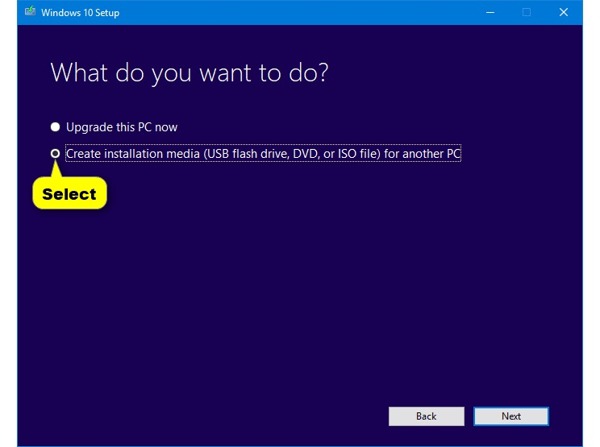
בחר Create installation media for another PC ולחץ הַבָּא.
Set language, edition, and architecture, and hit הַבָּא.
If you cannot set the form, uncheck Use the recommended options for this PC.
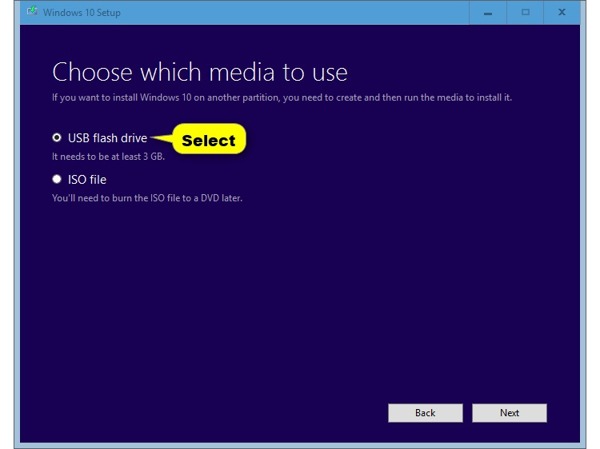
בחר דיסק און קי ולחץ הַבָּא. If you want to make a Windows boot disk, select קובץ ISO ופגע הַבָּא.
לחץ על הַבָּא כפתור כדי להמשיך.
Select the USB drive or disk again and click הַבָּא כדי להתחיל את התהליך.
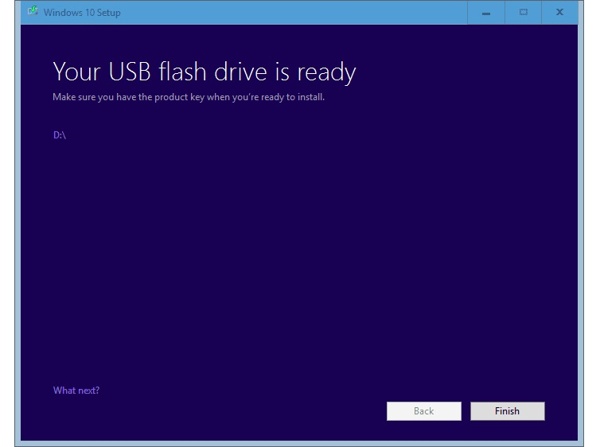
When the boot flash disk for Windows 7 is done, click סיים and remove it from the PC.
Way 2: How to Create a Windows Boot Disk Using Rufus
Insert your disk or USB into your PC.
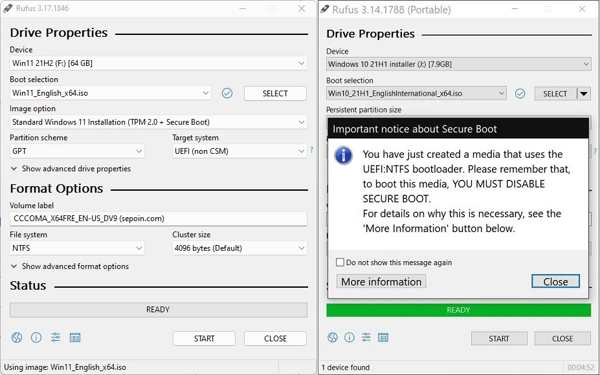
Download Rufus from the official website and run the Rufus.exe file.
Select the USB drive or disk under the התקן אוֹפְּצִיָה.
Choose the proper version of ISO from the Boot selection.
לעבור ל הורד מ בחר.
Set the partition type, firmware type, file system, and disk cluster size.
לבסוף, לחץ על הַתחָלָה button to begin making a Windows XP boot disk or USB.
Part 3: Boot Windows from Boot Disk
If you need to reinstall Windows, troubleshoot, recover data, and more, use your Windows boot disk. You need to boot your PC to the bootable media using the BIOS hotkey, which is different depending on your manufacturer.
Insert your Windows boot disk or USB into your PC.
Restart your PC.
Once the screen lights up, press the BIOS hotkey repeatedly:
- Dell: F2 OR F12
- HP: F10 or Esc
- Lenovo: F1 or Fn + F1
- ASUS: F2
- Acer: F2 or Del
נווט אל מַגָף אוֹ סדר אתחול.
בחר את אפשרות האתחול הראשונה כדיסק האתחול או כ־USB ולחץ Enter.
שמור את השינויים וצא מ־BIOS.
לאחר מכן, אתחל את המחשב והכנס את הדיסק.
אולי יעניין אותך גם:
Part 4: Bonus Tip: How to Reset Windows Password
כאשר שכחת את סיסמת ההתחברות שלך, איפוס סיסמת imyPass של Windows הוא יוצר דיסק אתחול USB של Windows בצורה פשוטה. הוא יכול ליצור דיסק אתחול או כונן USB במחשב אחר ולאפשר לך לבדוק ולאפס את סיסמת החשבון שלך במהירות.
4,000,000+ הורדות
צור דיסק או כונן USB לאיפוס סיסמת Windows במהירות.
אפס סיסמת Windows גם למנהל מערכת וגם למשתמשים רגילים.
הוסף משתמשים חדשים ללא גישה ל־Windows.
מתאים ל־Windows 11/10/8/7 וגרסאות קודמות.
כיצד לאפס סיסמת Windows באמצעות דיסק אתחול
צור דיסק אתחול
הפעל את יוצר דיסק האתחול של Windows לאחר התקנתו במחשב נגיש. הכנס דיסק ריק למחשב. בחר את הדיסק מהרשימה הנפתחת תחת צור CD/DVD לאיפוס סיסמה ולחץ צריבת CD/DVD.
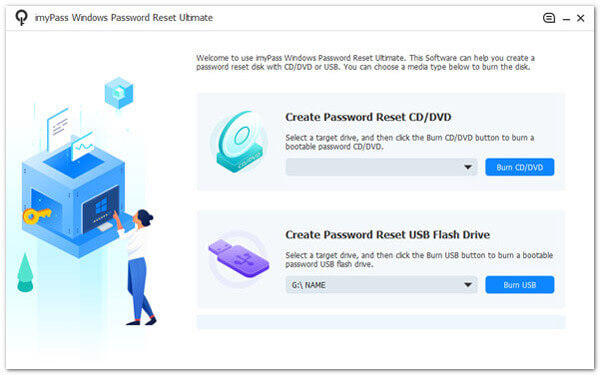
ניתן ליצור כונן USB ניתן לאתחול אם אין ברשותך דיסק.
בחר את החשבון שלך
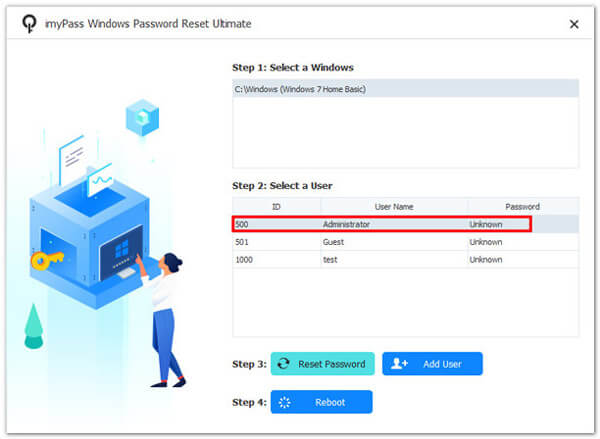
הכנס את דיסק האתחול למחשב שלך. אתחל מחדש את המחשב ואתחל מהדיסק. בחר את מערכת ה־Windows שלך ובחר את החשבון שברצונך לשנות.
אפס את סיסמת Windows
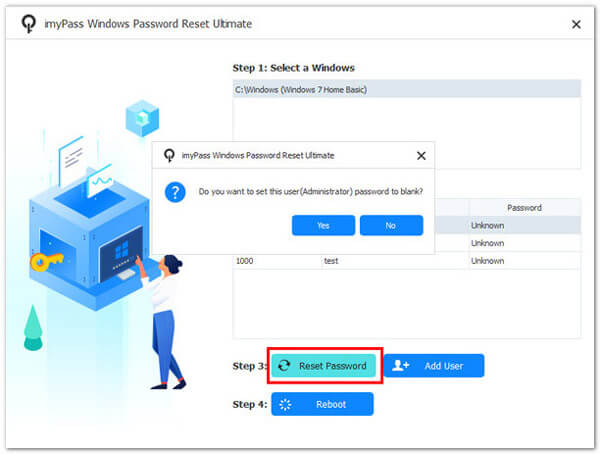
לחץ על לאפס את הסיסמה כפתור כדי להגדיר אותו כריק. כאשר תתבקש, לחץ על בסדר כדי לאשר זאת. לאחר מכן לחץ על לְאַתחֵל כדי להפעיל מחדש את המחשב שלך ישירות.
סיכום
מאמר זה הסביר מהו דיסק אתחול או כונן USB של Windows 10 יתרה מכך, תוכלו ללמוד שתי דרכים ליצור את דיסק או כונן ה‑USB לאתחול במחשב במהירות. אם אתם צריכים להתקין את Windows או לפתור תקלות, עקבו אחר השלבים כדי להשלים את התהליך. איפוס סיסמת imyPass של Windows היא דרך אינטואיטיבית לאפס את סיסמת Windows שלכם.
פאני מתמקדת בפתרון תקלות GPS ובאופטימיזציה של Windows. בעבר עבדה כמהנדסת תמיכה טכנית, וסייעה ללקוחות לפתור בעיות מבוססות מיקום ובעיות מערכת באופן יעיל. הודות לניסיונה בתמיכת IT, היא מספקת פתרונות מעשיים שבאמת עובדים. בזמנה הפנוי היא אוהבת לטייל ברגל ולעסוק ב־geocaching, ובכך לבחון טכנולוגיות GPS בעולם האמיתי.
פתרונות חמים
-
טיפים של Windows
- כיצד לאפס מחשב נייד של ASUS
- איפוס Microsoft Surface להגדרות היצרן
- כיצד לבצע איפוס להגדרות היצרן במחשב נייד של Lenovo
- כיצד למחוק חשבון מנהל במערכת Windows 10
- כיצד לבצע איפוס להגדרות היצרן במחשב נייד של HP
- כיצד להגדיר כניסה אוטומטית ל-Windows
- כיצד לשנות את שם המשתמש ב-Windows
- כיצד לאפס מחשב נייד של Dell
-
סיסמת Windows
-
תקן את Windows
-
טיפים לסיסמאות