



 Megoldás
 Támogatóközpont
 Rólunk
 Kapcsolatba lépni
How to Fix Life360 Not Working on iPhone and Android
 Penny Warren Közzétéve: 2026. március 27.GPS hely3 perces olvasás
"My wife and I use Life360 to update our location. Recently, my wife's location hasn't updated. She left the house 15 minutes ago, but Life360 still shows her as home. Why is Life360 not working?" As a popular location-sharing app, Life360 enables users to track and be tracked with family and friends. However, some users encounter issues with the app. This article shares eight solutions to fix this problem quickly.

Ebben a cikkben:
Part 1: Why Life360 Is Not Working
Life360 uses GPS technology to track location. Once you have the app installed on your mobile device, it continually updates your whereabouts and shares the information with your circles. It also taps into Wi-Fi and Bluetooth signals. The main causes why Life360 is not working include:
1. Poor GPS and internet connection.
2. Life360 is restricted or blocked.
3. Your device is in low power mode.
4. Life360 is outdated or stuck.
5. Szoftverhibák.
Part 2: How to Fix Life360 Not Working
Solution 1: Check App Permissions
Why am I not getting Life360 notifications? In most cases, the problem is due to the notification permission being blocked. The solution is simple: check your app permissions and enable notifications.
iPhone-on
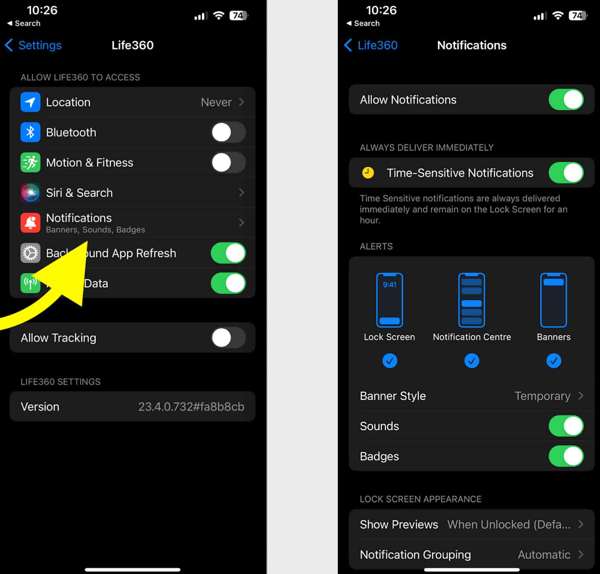
Nyissa meg a Beállítások kb.
Választ Élet360 és érintse meg Értesítések.
Kapcsolja be Allow Notifications és Time-Sensitive Notifications.
Androidon
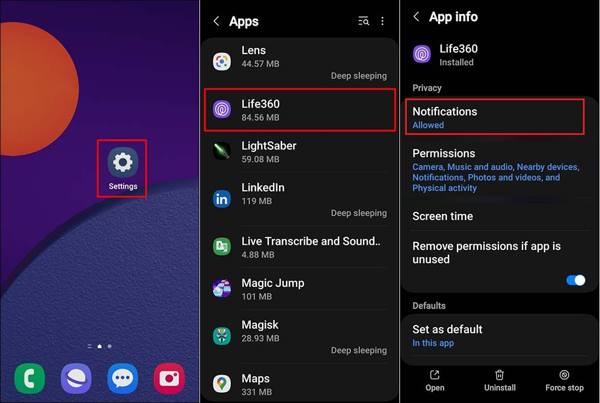
Fuss Beállítások.
Menj Alkalmazások elemre és válassz Élet360.
Tap Notifications, and choose Lehetővé teszi.
Solution 2: Update Life360
If you could not be located on Life360, you'd better update your app. The outdated app may lead to a variety of issues. In fact, the developer fixes bugs and adds new features in each update of the app.
iPhone-on
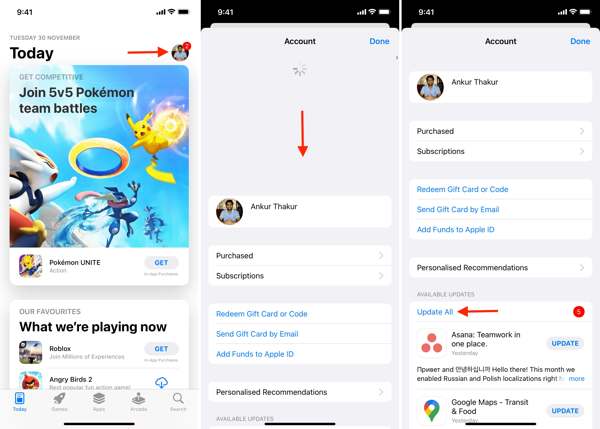
Nyissa meg a sajátját Alkalmazásbolt.
Koppints a profilodra.
Pöccintsd lefelé az ujjad a képernyő tetejétől.
Koppintson a FRISSÍTÉS for Life360.
Androidon
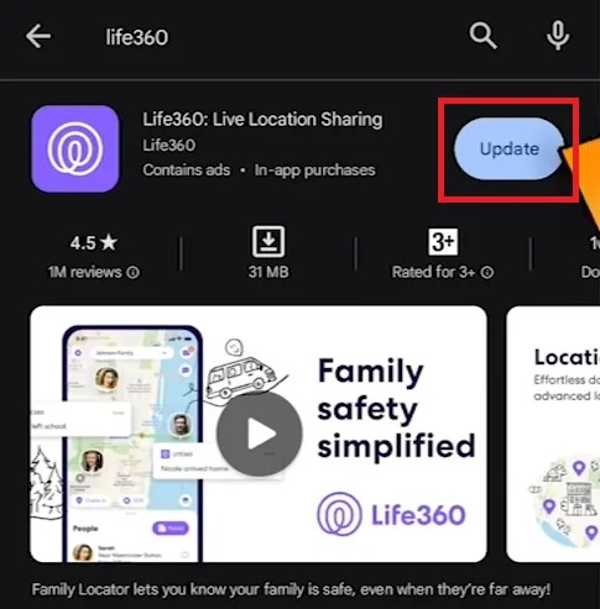
Nyissa meg a Play Store and find Élet360.
Check if an update is available.
Érintse meg a Frissítés gomb.
Solution 3: Restart the App
Why does Life360 say I'm driving when I'm not? This problem is partly because your app or device gets stuck. You can force stop the app and restart Life360 to share your location as usual.
iPhone-on
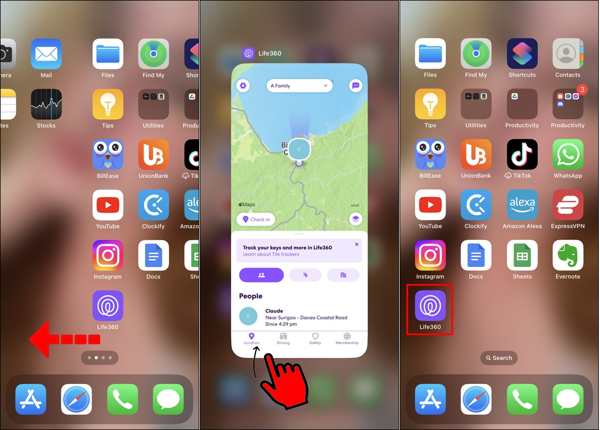
Hozzáférés a Alkalmazásváltó a készülékén.
Swipe left and right to find the Life360 app.
Tap the app and swipe upward to close it.
Then, open Life360 again.
Androidon
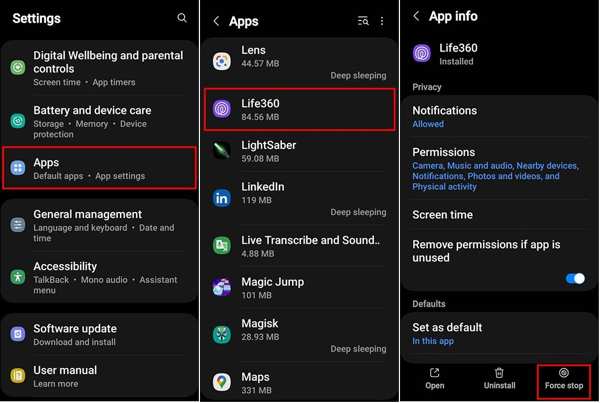
Menj Alkalmazások elemre ban ben Beállítások.
Választ Élet360 és érintse meg Kényszerített leállítás.
Then, reopen the app.
Solution 4: Check Your Account
After changing your account credentials for Life360, you must update them on all your devices. Plus, you have to update it if the associated email or phone number stops being used. Otherwise, Life360 won't work today.
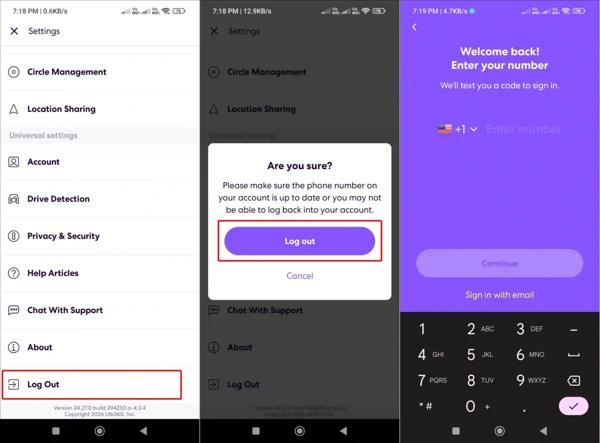
Fuss Élet360 a telefonodon.
Érintse meg a Beállítások gomb fogaskerék ikonnal.
Görgessen le, és érintse meg Kijelentkezés.
Restart your iPhone or Android phone.
Next, sign in with your account and password.
Solution 5: Enable Location Sharing
Life360 works through the GPS on your mobile phone. If you accidentally disable Location Sharing, the Life360 app won't work. Therefore, you'd better check Location Sharing for Life360 and keep it on.
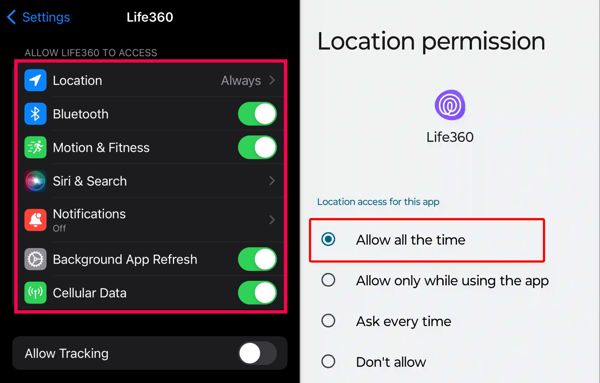
iPhone-on
Választ Élet360 a tiédben Beállítások kb.
Koppintson a Elhelyezkedés és válassz Mindig.
Ezután kapcsolja be a Pontos Helyszín.
Androidon
Futtassa a Beállítások kb.
Menj Alkalmazások elemre és válassz Élet360.
Koppintson a Engedélyek és válassza ki Elhelyezkedés.
Enabling Location Sharing in Always mode ensures Life360 can update your location continuously, even when the app is in the background.
Kapcsolja be Használjon pontos helyet.
Bővített olvasás:
Solution 6: Allow Background App Refresh
If your Life360 is not showing speed, you need to allow Background App Refresh. Once you disable this option, Life360 cannot update your location and speed when it is running in the background.
iPhone-on
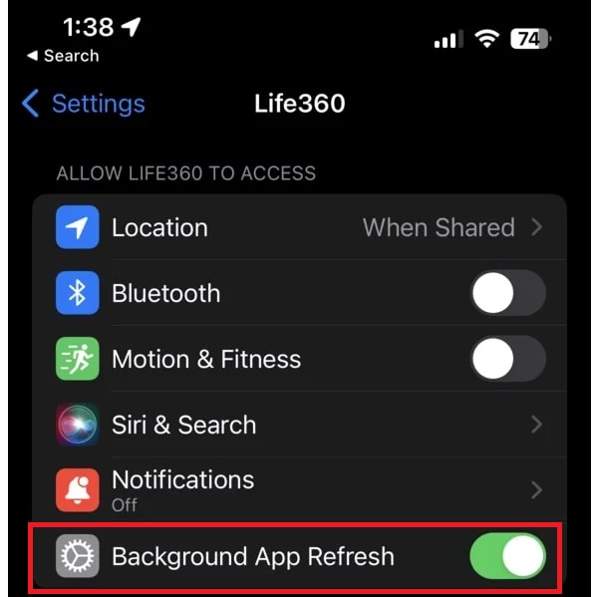
Választ Élet360 ban ben Beállítások.
Keresse meg a Allow Life360 to Access szakasz.
Kapcsolja be Háttér alkalmazás frissítése.
Androidon
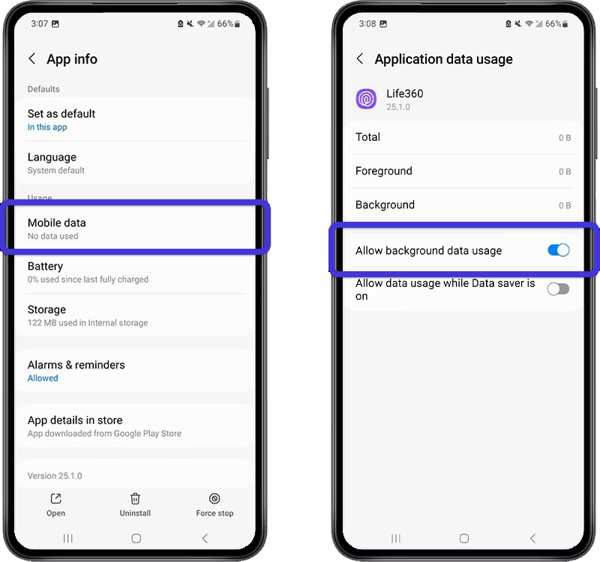
Menj Alkalmazások elemre ban ben Beállítások.
Választ Élet360 és érintse meg Mobile Data & Wi-Fi.
Kapcsolja be Háttérbeli adatforgalom engedélyezése.
Part 3: Bonus Tip: How to Change Life360 Location Without Notifying Others
iLocaGo is an effective method to change your Life360 location to anywhere on your iPhone or Android phone. More importantly, the user-friendly design makes it easy to use, especially for beginners.

Több mint 4 000 000 letöltés
Change Life360 location with one click.
Use an accurate address or any position.
Több módot kínál különböző célokra.
Support a wide range of iPhones and Android devices.
How to Change Life360 Location Without Notifying Others
Install the Life360 location spoofing tool
Launch the Life360 location spoofing tool after installing it on your computer. Connect your iPhone or Android phone to your computer with a compatible USB cable.

Válasszon módot
Választ Hely módosítása if you need to change the static location. The other three modes, Egyablakos mód, Többablakos mód, és Joystick mód, virtuális útvonalak létrehozására szolgálnak.

Módosítsa a Life360 helyét
Input an address into the field or click a position on the map. Finally, click the Módosít button. Now, you can open the Life360 app on your mobile device, and the app should update your location automatically.

Következtetés
This article explained what you should do if A Life360 nem működik. Megismerheti ennek a problémának a fő okait. Ezenkívül lépésről lépésre követheti a megoldásainkat, hogy megjavítsa a helymeghatározó alkalmazást, és megoszthassa tartózkodási helyét családjával és barátaival. Ha el szeretné rejteni a valódi tartózkodási helyét a Life360 használata közben, iLocaGo hasznos segítséget nyújt. Lehetővé teszi, hogy hamis földrajzi helyzetet állítson be iPhone-on vagy Android telefonon.
Penny az imyPass vezető szerkesztője. Szakterülete a tökéletes GPS-helymeghatározási megoldások felkutatása minden forgatókönyvben, és tapasztalattal rendelkezik számítógépek javításában is.
Forró megoldások
-
GPS hely
- A legjobb Pokemon Go helyek koordinátákkal
- Kapcsolja ki a tartózkodási helyet a Life360-on
- Hogyan változtassunk helyet az iPhone-on
- Az iSpoofer Pokemon Go áttekintése
- Virtuális helyek beállítása iPhone és Android készüléken
- A TikTok Kövesse nyomon a tartózkodási helyét
- Monster Hunter Now Joystick
- Az IP Location Finder áttekintése
- Módosítsa a Mobile Legends helyét
- Hely módosítása a Tiktokon
-
Az iOS feloldása
-
iOS tippek
-
Oldja fel az Androidot


