



 Megoldás
 Támogatóközpont
 Rólunk
 Kapcsolatba lépni
How to Pin Location on iPhone, Android, Windows, and Mac
 Penny Warren Közzétéve: 2026. március 27.GPS hely3 perces olvasás
Pinning locations is a useful feature. It helps users to remember where they parked their cars in a huge parking lot, save the new restaurant they discovered, and some important locations. This simple feature can save users' time and share specific spots with someone else. In this guide, you will learn everything about dropping pins on your maps on iPhone, Android, Windows, and macOS, so you won't lose track of important positions again.

Ebben a cikkben:
Part 1: What Pin Location Means
When you pin a location on Google Maps or other map services, you are basically putting a virtual marker on the map. It works as a pushpin on a paper map, so that you won't miss the location.
With a pin, you can mark places without addresses, your parking spots, meeting locations, hidden gems you wish to remember, and locations your map doesn't recognize. In addition to marking locations, you can also share pins with friends and family.
Benefits of Dropped Pins on Maps
1. Save important locations, like parking spots.
2. Mark meeting points.
3. Plan trips and map out attractions or restaurants.
4. Measure distances between pins.
5. Share pins with someone else.
Part 2: How to Pin Location on iPhone
Now, you should understand what pin location means. Apple Maps is built on most iOS devices. Dropping a pin on Apple Maps is a convenient way to save and manage important locations.
How to Pin a Location on iPhone
Nyissa meg a Apple Maps alkalmazást iPhone-ján.
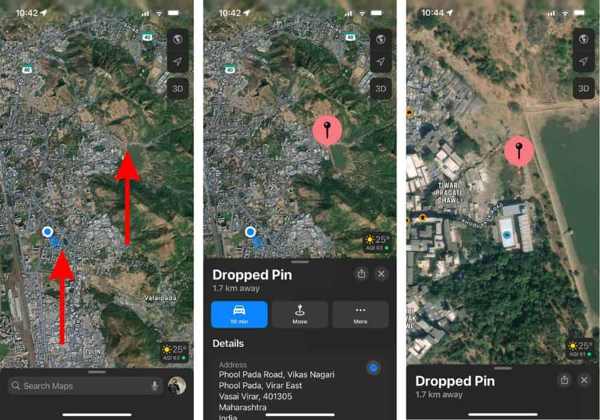
Move the map until you see the desired location.
If the location is not accurate, zoom in on the map.
Long-press the location where you want to drop a pin.
Then, swipe upward the Ledobott tű bar to expand it.
Koppintson a Mozog and adjust the location until you are satisfied.
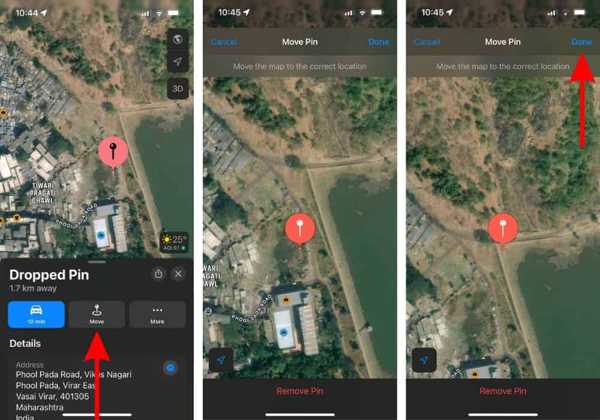
Végül érintse meg a Kész button to pin a location on your iPhone.
How to Pin Multiple Locations on iPhone
You can only pin one location at a time on an iPhone. To pin multiple locations, you need to save the pinned locations to the Favorites folder for easy access at any time. Here are the steps:
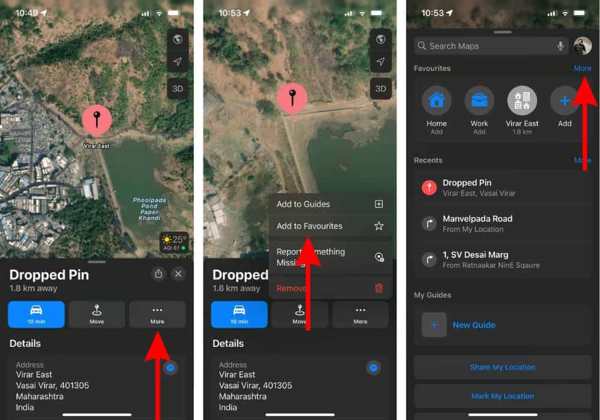
Fuss Apple Maps a kezdőképernyőről.
Press and hold a desired location.
Swipe upward the Ledobott tű bar to expand it.
Érintse meg a Több gombot, és válassza ki Hozzáadás a kedvencekhez.
Next, tap X to close the Ledobott tű bar.
Swipe upward from the bottom to enter the Apple Maps menü.
Koppintson a Több above the Kedvencek menü.
megnyomni a Info button on the pinned location.
Állítsa be a Label and select a proper option under the típus terület.
Végül érintse meg Kész.
Now, you can pin another location on Apple Maps.
If you want to view pinned locations, swipe up the search bar, tap Több mellett Kedvencek.
3. rész: A hely rögzítése a Google Térképen
If you prefer Google Maps, it delivers more options when pinning locations. It allows you to pin locations in Google Maps on both mobile devices and desktops. We demonstrate the workflows respectively.
How to Drop a Pin in the Google Maps App
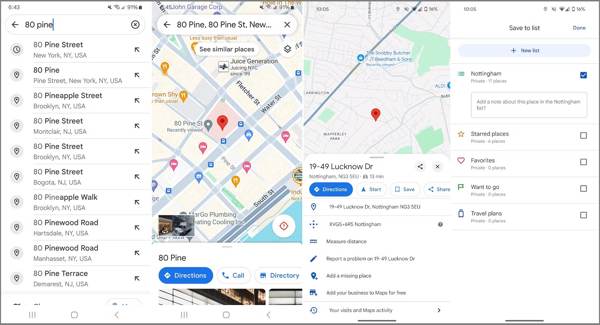
Futtassa a Google térkép kb.
Search for the location you want to pin.
Tap and hold the desired spot to pin the location.
Then, you will see a toolbar at the bottom.
If you want to save the location, tap the Megment gomb. Azt is megteheti set your Home in Google Maps.
Check the box next to the pinned location and tap Kész.
You cannot pin multiple locations on Google Maps at the same time. Alternatively, you can save pinned locations.
How to Pin a Location in Google Maps on Desktop
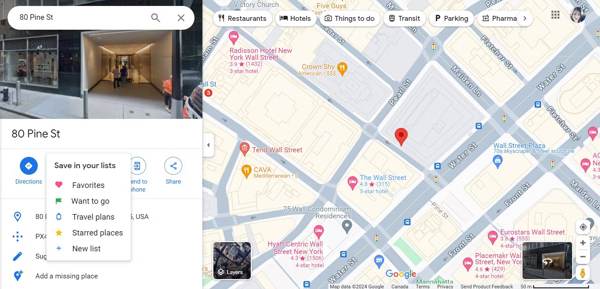
Go to the Google Maps website in a browser.
Click on the location you wish to pin on the map.
Once you see the grey pin, it means you successfully pinned a location on Google Maps.
Kattints a Információ panel to turn the pin into a red one.
Ezután kattintson Megment és válaszd ki, hová szeretnéd menteni a helyet.
Bővített olvasás:
Part 4: Bonus Tip: How to Fake Your Location
Szinte az összes térképszolgáltatás követi a GPS‑helyzetedet a mobileszközödön. Ráadásul előfordulhat, hogy a tartózkodási helyed adatait harmadik feleknek is továbbítják. iLocaGo, ezzel szemben lehetővé teszi, hogy egyszerűen meghamisítsd a telefonod helyzetét.

Több mint 4 000 000 letöltés
Változtasd meg a földrajzi helyzeted egyetlen kattintással.
Use an accurate address or any position.
Több módot kínál különböző célokra.
Support a wide range of iPhones and Android devices.
Hogyan hamisíthatod a tartózkodási helyed egy mobiltelefonon
Csatlakozzon a készülékhez
A telepítés után indítsd el a megfelelő helymeghamisító eszközt a számítógépeden. Van egy másik verzió Macre is. Csatlakoztasd az iPhone‑odat vagy Android‑készülékedet a számítógéphez egy kompatibilis kábellel.

Válasszon módot
Miután az eszközt felismerte a program, megjelenik az üzemmód‑ablak. Itt válasszuk a Hely módosítása. lehetőséget. Ha virtuális útvonalat szeretnél létrehozni, válaszd a Egyablakos mód, Többablakos mód, vagy Joystick mód, igényeidnek megfelelően.

Hely módosítása
Ezután írd be pontosan a címet a mezőbe, vagy kattints egy kívánt pontra a térképen. Végül kattints a Módosít gombra a megerősítéshez. Most már megnyithatod a térképalkalmazást és egyebeket a mobileszközödön.

Következtetés
Ez az útmutató bemutatta, hogyan rögzítheted a tartózkodási helyed iPhone‑on, Androidon, Windowson vagy macOS‑en. Elmagyaráztuk, hogyan mentheted el a fontos helyeket az Apple Térképekben iOS‑eszközeiden. Ha a Google Térképeket használod mobileszközön vagy számítógépen, az útmutatónkból azt is megtanulhatod, hogyan kezeld. Emellett ajánlottunk egy ideális eszközt is a tartózkodási helyed védelmére, a, iLocaGo. Használata nagyon egyszerű.
Penny az imyPass vezető szerkesztője. Szakterülete a tökéletes GPS-helymeghatározási megoldások felkutatása minden forgatókönyvben, és tapasztalattal rendelkezik számítógépek javításában is.
Forró megoldások
-
GPS hely
- A legjobb Pokemon Go helyek koordinátákkal
- Kapcsolja ki a tartózkodási helyet a Life360-on
- Hogyan változtassunk helyet az iPhone-on
- Az iSpoofer Pokemon Go áttekintése
- Virtuális helyek beállítása iPhone és Android készüléken
- A TikTok Kövesse nyomon a tartózkodási helyét
- Monster Hunter Now Joystick
- Az IP Location Finder áttekintése
- Módosítsa a Mobile Legends helyét
- Hely módosítása a Tiktokon
-
Az iOS feloldása
-
iOS tippek
-
Oldja fel az Androidot


