


 解決
 サポートセンター
 私たちに関しては
 コンタクト

Quickly Fix Restore from iCloud Time Remaining Estimating
 クララ・プレスコット に公開 2026年11月18日データの回復3 分で読める
"I bought a new iPhone. I went through the backup process on my old phone and then turned on my new phone to begin setup. I restored iCloud backup. After an hour, my screen says it will take 2 days. Is this normal?" iCloudバックアップからの復元 is a convenient way to set up a new iPhone and recover deleted files. However, some users reported that the process takes too long or gets stuck. This article helps you resolve this problem.

記事上で:
パート1:iCloudからの復元にはどれくらい時間がかかるか
How long does it take to restore an iPhone from iCloud? According to our research, it takes a few minutes to hours, depending on the backup size and your network conditions. A small iCloud backup, such as a few GB, takes minutes to about an hour. A medium to large backup, up to tens of GB, takes several hours to a full day. Some users get an estimate of 2 days, which is considered normal for a very large backup. According to our lab testing, it takes 1 to 4 hours to restore an iCloud backup. According to examples from the Apple community, a 30 to 40GB backup may take about 30 minutes on a fast network.
Part 2: How to Restore iPhone from iCloud Backup
The right steps to restore an iPhone from an iCloud backup can help you streamline the process and avoid different errors. Therefore, we share the basic workflow below to help you restore iCloud backup.
How to Restore an iPhone from iCloud
iPhone の電源を入れて、 設定 app. If you need to restore a backup to a new iPhone, skip to step 8.
に行く 全般的 と iPhoneを転送またはリセットする.
をタップします。 すべてのコンテンツと設定を消去 オプション。
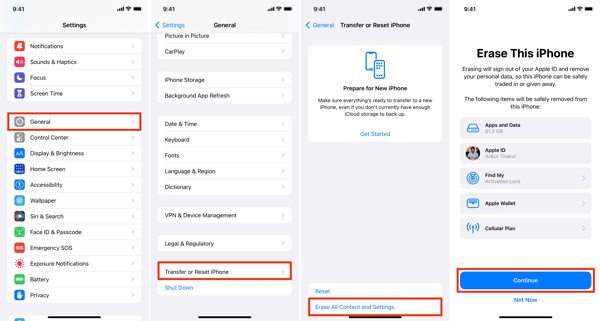
通知を読み、 継続する ボタン。
選ぶ eSIMを保持しデータを消去する また eSIMを削除してデータを消去する.
Enter your iPhone passcode and begin erasing your device.
If you have turned on Find My iPhone, enter your Apple Account password to disable it.
When the process finishes, your iPhone will restart.
Set up your iPhone as a new device and connect to a network during the process.
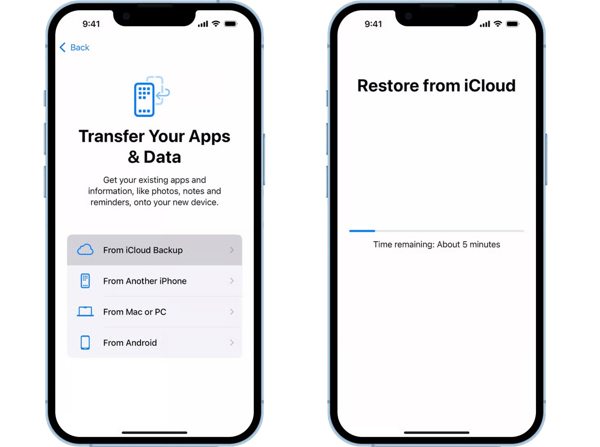
に アプリとデータ 画面で、 iCloudバックアップから オプション。
Log in with the Apple Account and password associated with iCloud.
Choose a backup and begin restoring the iPhone from iCloud backup.
How to Restore Contact, Calendars, Files, or Bookmarks from iCloud
ブラウザで www.icloud.com にアクセスし、Apple ID とパスワードでサインインします。
クリック データ復旧 オプション。
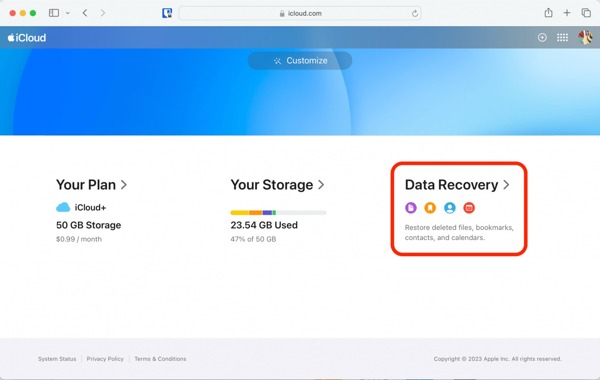
希望するデータタイプを選択します。 連絡先を復元.
Find the right backup and click the 戻す button next.
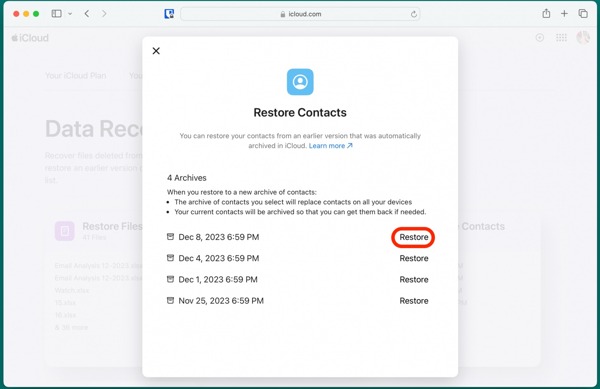
クリック 戻す button again to restore contacts from iCloud.
ノート:
This won't erase or overwrite your iPhone.
Part 3: Why Restoring from iCloud Stuck on Estimating Time
The factors that may affect the iCloud backup restore process include your internet speed, device performance, and the amount of data stored in the iCloud backup. If you see the message says restore from iCloud time remaining estimating, it means the process gets stuck. Key reasons include:
- 1.Your internet is poor and unstable.
- 2.Your iPhone doesn't have enough space.
- 3.The power source is insufficient.
- 4.Appleのサーバー側の障害。
- 5.ソフトウェアの不具合。
Part 4: How to Fix Restoring from iCloud Stuck on Estimating Time
解決策1:iPhoneを強制的に再起動する
If restoring from iCloud backup gets stuck, you can force restart your device and try the process again. This solution cannot fix software glitches, but it allows you to regain access to your device quickly.
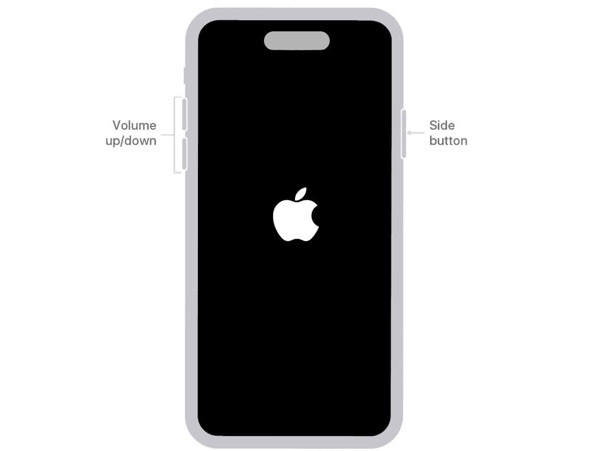
For iPhone 8 and above
素早く押して離すと ボリュームアップ ボタン。
同じことを ボリュームダウン ボタン。
ホールド 側 Apple ロゴが表示されるまでボタンを押します。
iPhone 7/7 Plusの場合
を長押しします ボリュームダウン + 側 ボタンを一緒に留めます。
When you see the Apple logo, release the buttons.
For iPhone 6s and older
を押し続けます 家 + スリープ/ウェイク ボタンを同時に押します。
Let the buttons go when the Apple logo pops up.
Solution 2: Try Another Network
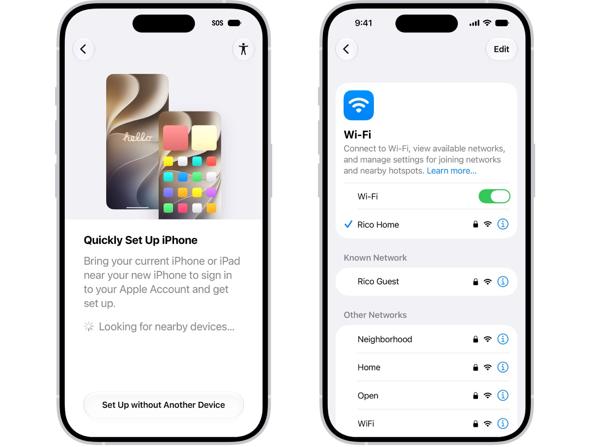
Restoring an iPhone with iCloud backup requires a stable and fast Wi-Fi network. If restoring from iCloud is stuck on time remaining estimating, you'd better use another network to complete the process.
When setting up your iPhone, choose another Wi-Fi. Make sure not to use cellular data to restore iCloud backup. Double-check the Wi-Fi signal to learn the condition.
Solution 3: Charge Your iPhone
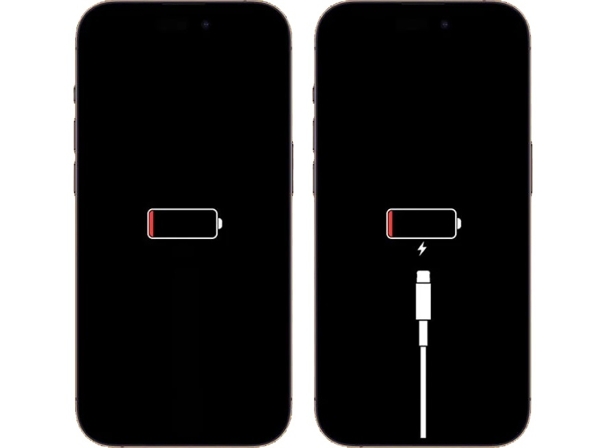
As mentioned previously, restoring iCloud backup takes minutes to an hour. The process requires an adequate power source. If your iPhone's power is insufficient, you'd better charge it before the process.
解決策4: Appleサーバーのステータスを確認する
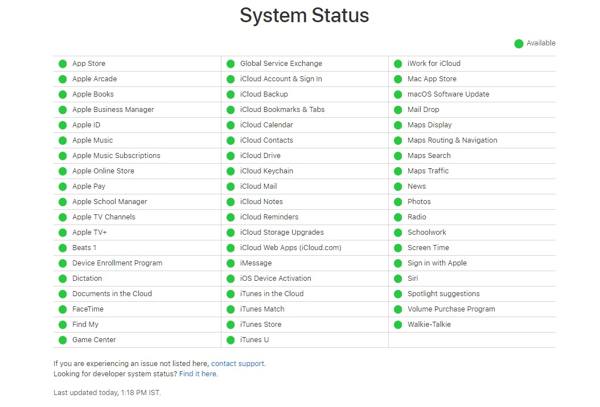
Visit https://www.apple.com/support/systemstatus/ in a web browser. Then, check the related servers, such as Apple ID, iCloud Backup, and more. If any item is down, you have to wait for it to work again.
Part 5: How to Quickly Restore iPhone from iCloud
If it takes too long to restore an iPhone from iCloud backup, try imyPass iPhoneデータ復旧. It allows you to extract data from iCloud backup without resetting your iOS device through a physical connection.
4,000,000以上のダウンロード
iCloudバックアップからiPhoneを復元する方法
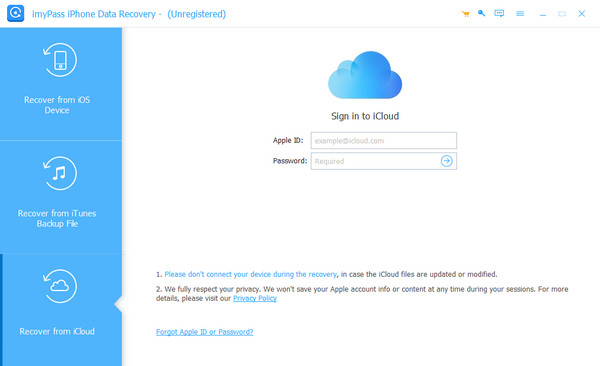
Sign in to your account
Run the iCloud backup restoring tool after installing it on your computer. It is available on Windows 11 or earlier and macOS 10.13 or later. Choose the iCloudから回復する tab and log in with your Apple Account and password.
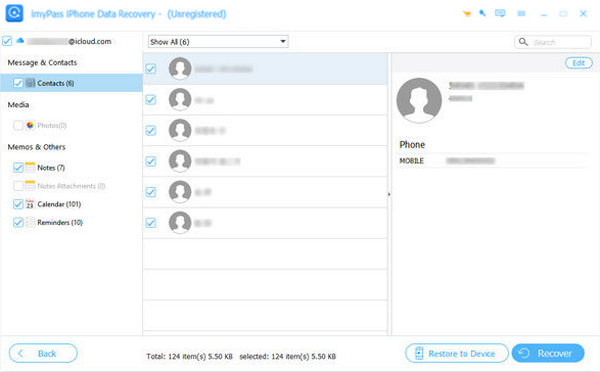
Preview iCloud backup
選ぶ iCloudバックアップ and download the right backup. Then, select the data types that you want to preview and click the 次 ボタンをクリックします。次に、バックアップファイル内のデータをプレビューできます。
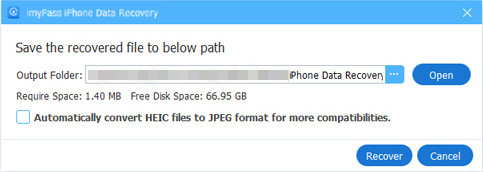
iCloudバックアップを復元する
復元したい項目やファイルを選択します。その後、 回復する 画面下部にあるボタンをクリックします。出力フォルダーを設定して、最後に 回復する.
よくある質問。
-
新しいiPhoneでiCloudからの復元に時間がかかるのはなぜですか
主な原因には、インターネット接続の不安定さと、非常に大きい iCloud バックアップが含まれます。
-
WhatsAppでiCloudから復元するにはどのくらい時間がかかりますか?
Wi‑Fiネットワーク経由でのiCloudからの復元には時間がかかる場合があります。私たちの調査によると、WhatsAppの復元には通常、数分から1時間ほどかかります。
-
進行中のリストアにはどのくらい時間がかかりますか?
復元プロセスには通常、数分から数時間かかります。
結論
このガイドでは、 iCloudバックアップからiPhoneを復元する方法, 中古のiPhoneや新しいデバイスを含め、あらゆるiPhoneに適用できます。手順に沿ってバックアップを復元してください。さらに、復元プロセスが途中で止まってしまった場合の対処法も説明しています。imyPass iPhone Data Recoveryは、iPhone上のデータを上書きせずにバックアップを復元できる究極のソリューションです。
Clara は、紛失したファイルの復元やデータ移行をユーザーが行うのを支援してきた経験が 8 年以上あります。以前は大手 IT サービス企業でデータ復旧技術者として勤務していました。データ復旧およびデジタル・フォレンジックスの認定資格を持ち、日常のユーザーでも複雑な復旧作業を簡単にこなせるようにする、シンプルな解決策に焦点を当てた記事を執筆しています。
ホットなソリューション
-
データの回復
-
iOSのロックを解除する
-
データの転送
-
iOSのヒント


