



 Rozwiązanie
 Centrum Wsparcia
 O nas
O nas Kontakt
What Location Expired Mean on iPhone and How to Fix It
 Penny Warren Opublikowano dnia 23 czerwca 2026Lokalizacja GPS4-minutowe czytanie
"When my friends and I are trying to share our location, my iPhone says Expired Location before the location can even load in. Why does it say Location Expired?" According to our research, this common error occurs when your iPhone cannot update or share its current location information. Some iPhone users face this frustrating issue. This article shares the effective solutions to fix this error without losing data.

W tym artykule:
Part 1. What Does Location Expired Mean and Why Does It Occur
What does Location Expired mean? The error message is alarming on iOS devices. It interrupts the ability to track or share your whereabouts. Typically, this error occurs when sharing location on the Messages or other apps. It means that the location information is no longer available or up-to-date. When the error appears, you cannot see the shared location or share your location on your iPhone.
Before walking through the solutions, let’s explore the underlying causes why it keeps saying Location Expired on your iPhone.
- 1.Location Services is disabled accidentally.
- 2.Find My is restricted or stuck.
- 3.There is a problem with your iPhone’s network connection.
- 4.The location was shared a long time ago and has naturally expired.
- 5.Outdated iOS.
- 6.Błędy oprogramowania.
Part 2. How to Fix Location Expired on iPhone
While seeing an iPhone error message saying Location Expired can be frustrating, you can try the solutions below one by one to fix this error on your iPhone. Then, you can share your location normally.
Solution 1: Double Check Location Services
Otworzyć Ustawienia na swoim iPhonie.
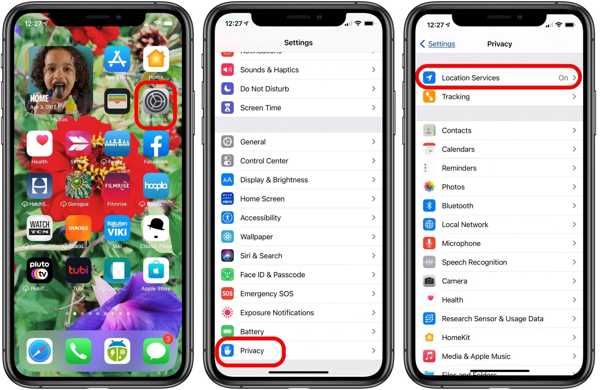
Przejdź do Prywatność patka.
Stuknij w Usługi lokalizacyjne przycisk.
Włącz opcję Usługi lokalizacyjne opcja.
Następnie dotknij Udostępnij moją lokalizację przycisk.
Włącz opcję Udostępnij moją lokalizację opcja.
Make sure to allow the desired contact to fix the Location Expired on iPhone.
Rozwiązanie 2: Uruchom ponownie iPhone’a
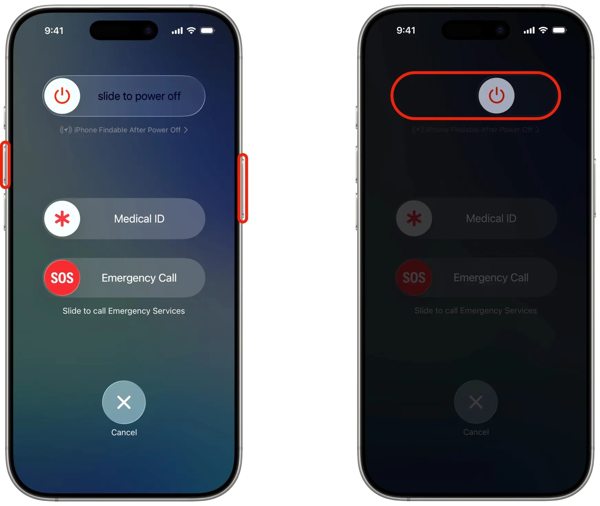
W przypadku iPhone’a z Face ID przytrzymaj jeden z przycisków głośności oraz Tom przycisk + Strona button together. For an iPhone without Face ID, press and hold the Strona lub Moc przycisk.
When the power-off screen pops up, release the buttons or button.
Aby wyłączyć urządzenie, przesuń suwak w prawą stronę.
After your touchscreen turns black, wait for a few minutes.
Then, hold down the Side lub Moc przycisk, aż zobaczysz logo Apple.
Now, try to share your location again to check if Location Expired is fixed.
Rozwiązanie 3: Poprawna data i godzina
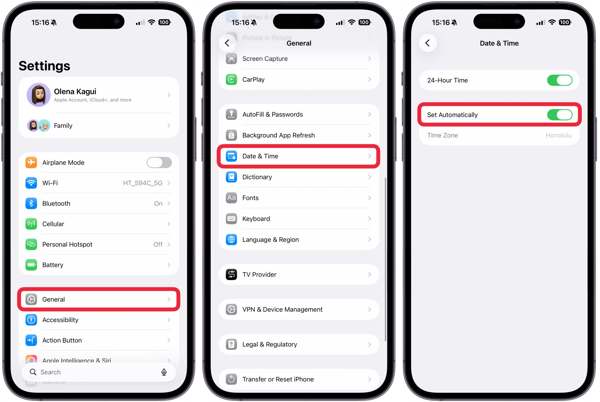
Idź do swojego Ustawienia aplikację z ekranu głównego.
Nawigować do Ogólny oraz Data i godzina.
Włącz Ustaw automatycznie.
Connect to a stable network and fix Location Expired on iPhone.
Solution 4: Check Your Network
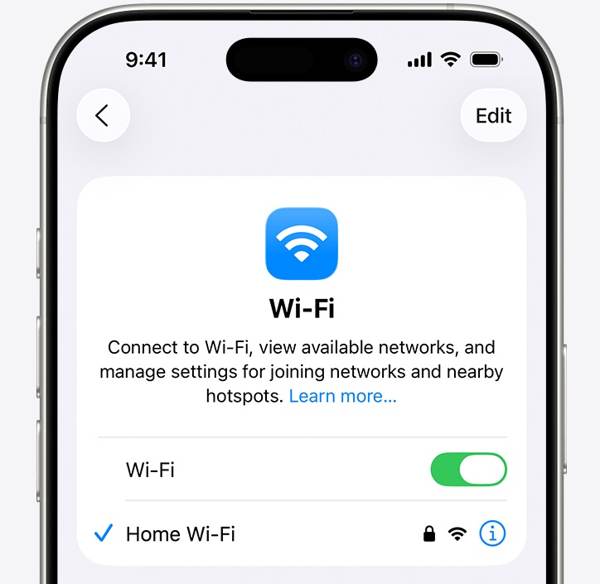
Sharing location on iPhone works through an internet connection. If you are using Wi-Fi and Location Expired occurs on your iPhone, connect to a cellular data network or vice versa. Then, share your location again.
Solution 5: Re-enable Find My
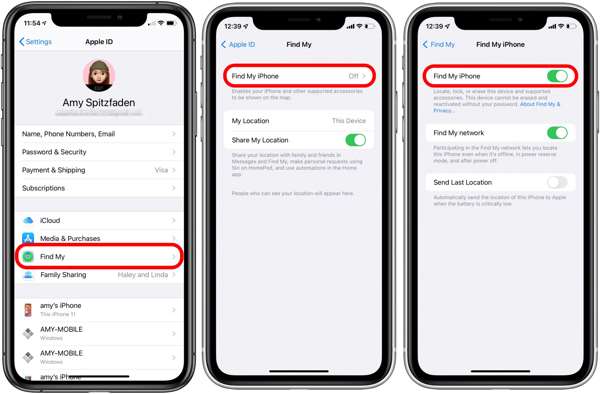
Zacząć Ustawienia aplikację z ekranu głównego.
Kliknij swój profil.
Wybierz Znajdź mój opcja i dotknij Znajdź mojego IPhone'a.
Włącz Znajdź mojego IPhone'a oraz Find My network to fix Location Expired on iPhone.
If Find My iPhone is enabled, toggle it off and turn it back on.
Rozwiązanie 6: Zaktualizuj system iOS
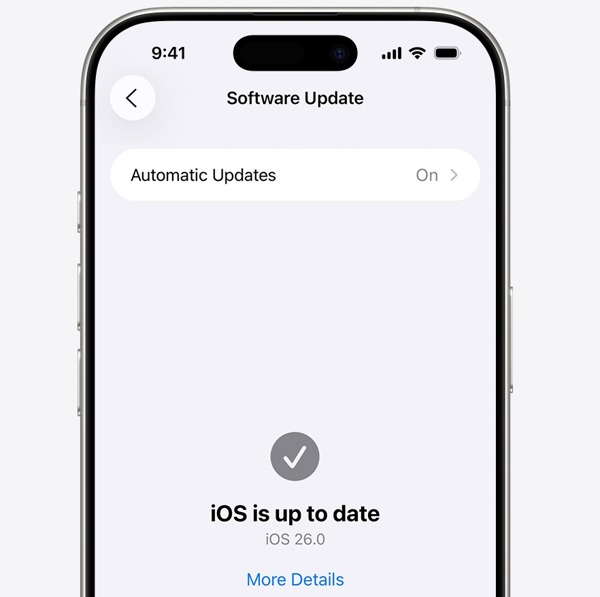
Uruchom swój Ustawienia aplikacja.
Nawigować do Ogólny oraz Aktualizacja oprogramowania.
Jeśli aktualizacja jest dostępna, dotknij Ściągnij i zainstaluj przycisk.
Follow the onscreen instructions to update the iOS.
Po zakończeniu operacji Twój iPhone uruchomi się ponownie.
Try to share your location to see if the Location Expired error disappears.
Rozwiązanie 7: Zresetuj lokalizację i prywatność
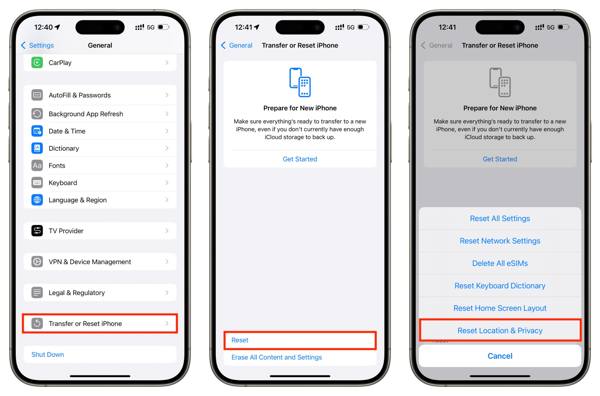
Otworzyć Ustawienia aplikację na swoim urządzeniu.
Iść do Ogólny oraz Przenieś lub zresetuj iPhone'a.
Stuknij w Resetowanie przycisk.
Wybierz Zresetuj lokalizację i prywatność opcja.
Next, turn on Location Services and Find My iPhone to fix Lokalizacja wygasła.
Powiązane lektury:
Part 3. One-stop Solution to Fix iPhone Location Expired
If you have performed the common solutions but the iPhone Location Expired error persists, you can try imyPass iLocaGo. It allows you to share any location without turning off Location Services on iOS devices. Plus, the user-friendly design makes it easy to use.

Ponad 4 000 000 pobrań
Sfałszuj lokalizację iPhone’a jednym kliknięciem.
Symuluj ruchy za pomocą wielu trybów.
Work with accurate addresses and any locations.
Zaoferuj opcje niestandardowe, np. prędkość.
Support a wide range of iPhones and Android devices.
How to Fix Location Expired on Your iPhone
Wykryj swojego iPhone'a
Launch the iPhone location spoofing software once you install it on your PC. There is another version for Mac. Next, connect your iPhone to your PC with a Lightning cable. Then, the software will detect your device immediately.

Wybierz tryb
Wybierz Zmień lokalizację mode if you want to change the static location. The other three modes, Tryb jednego zatrzymania, Tryb wielu przystanków, oraz Tryb joysticka, służą do tworzenia wirtualnych tras.

Sfałszuj swoją lokalizację
Next, type in an accurate address into the field. If you don’t have an address, click the right position on the interactive map. Finally, click on the Modyfikować button to confirm it. Now, turn on your iPhone and check if the Location Expired error is resolved.y.

Wniosek
This article explained why it says Location Expired on your iPhone. More importantly, we shared the effective solutions to help you fix this error and enable you to share your location as usual. The good news is that software glitches or conflict settings cause this error. If the common solutions are unavailable, try imyPass iLocaGo. It allows you to share any address around the world on your iPhone without disabling Location Services.
Penny specjalizuje się w rozwiązywaniu problemów z GPS oraz optymalizacji systemu Windows. Wcześniej pracowała jako inżynier wsparcia technicznego, pomagając klientom skutecznie rozwiązywać problemy związane z lokalizacją i działaniem systemu. Dzięki doświadczeniu w obszarze wsparcia IT oferuje praktyczne rozwiązania, które naprawdę działają. W wolnym czasie lubi wędrówki i geocaching, testując technologie GPS w rzeczywistych warunkach.
Gorące rozwiązania
-
Lokalizacja GPS
- Jak dowiedzieć się, czy ktoś wstrzymał swoją lokalizację w Life360
- Jak wykonać fałszywe połączenie za darmo
- Najlepsze lokalizacje w Pokémon GO z współrzędnymi
- 10 najlepszych trików do Pokémon GO
- 9 narzędzi do spoofowania w Pokémon GO
- Jak śledzić lokalizację iPhone’a
- Co to jest fikcyjna lokalizacja
- 5 joysticków GPS do Pokémon GO
-
Odblokuj iOS
-
Wskazówki dotyczące iOS
-
Odblokuj Androida


