



 Rozwiązanie
 Centrum Wsparcia
 O nas
O nas Kontakt
How to Recover Apple ID Password on iPhone or iPad: 5 Easy Ways
 Samuel Spenser Opublikowano dnia 09 września 2026Odblokuj iOS3-minutowe czytanie
Forgetting your Apple ID password is a common problem. Users may be locked out of their account and all Apple services, such as iCloud, Find My, and App Store. If you encounter this problem, password recovery is likely the first solution that comes to mind. In this guide, we'll show you how to odzyskaj hasło do swojego Apple ID if you forgot it and how to find a saved password.

W tym artykule:
Part 1: How to Find Your Saved Apple ID Password
If you previously saved your Apple ID password on your iPhone, iPad, Mac, or web browser, you may be able to view it without resetting your password. Apple provides built-in password management tools, including the Passwords app and iCloud Keychain, while browsers also store login credentials.
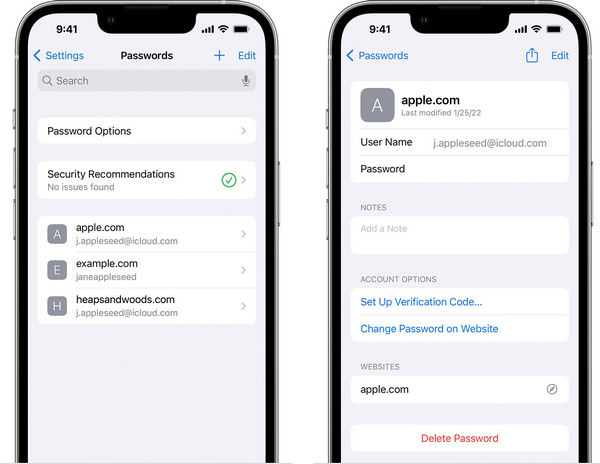
Na iPhonie lub iPadzie
If your device is running iOS 18 or iPadOS 18 or later, you can check your saved passwords in the Passwords app:
Otworzyć Hasła app on your iPhone or iPad. Unlock the app with Face ID, Touch ID, or your device passcode.
Uzyskiwać Wszystko and search for your Apple Account or a saved Apple website login.
Select the relevant account to view the saved password.
Notatka:
On earlier versions of iOS or iPadOS, go to Ustawienia > Hasła to view your saved passwords.
Na Macu
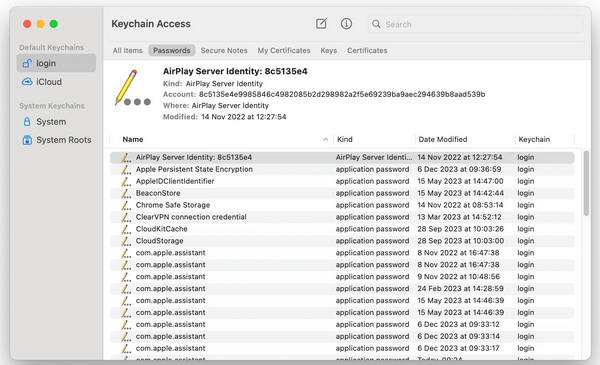
If you're using a Mac running macOS Sequoia or later, follow these steps:
Otworzyć Hasła aplikację na Twoim Macu.
Authenticate with Touch ID or your Mac login password.
Search for the saved Apple account or website login. Select the saved account to view the password.
Notatka:
On earlier versions of macOS, you can find saved passwords under Ustawienia systemowe > Hasła or in Dostęp do pęku kluczy.
On a Web Browser
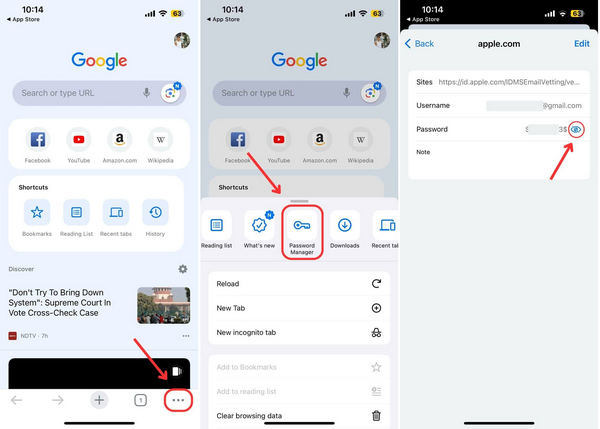
If you saved your Apple Account password in a browser, you can also check the password manager in Chrome, Firefox, Microsoft Edge, or more. Here we take Chrome as an example.
Open Chrome and tap the Menu (trzy kropki) button in the upper-right corner.
Wybierać Menedżer haseł in the toolbar.
Search for your Apple account or the relevant Apple website.
Stuknij w Oko przycisk, aby wyświetlić hasło.
Part 2: How to Recover Apple ID Password Using a Recovery Key
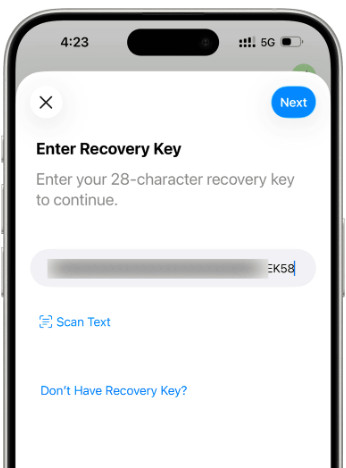
A recovery key is a unique 28-character code that works with your trusted phone number and Apple device to verify your identity. If you previously set up a recovery key, you can use it to recover your Apple ID password and regain access to your account.
otwarty Ustawienia i kliknij swoje imię.
Uzyskiwać Logowanie i bezpieczeństwo > Zmień hasło.
When prompted, use your recovery key and trusted phone number to verify your identity.
Enter your new Apple Account password.
Notatka:
Keep your recovery key in a safe place. If you lose both your trusted device and recovery key, you may be permanently locked out of your account.
Part 3: How to Recover Apple ID Password on a Trusted Device
If you're still signed in to your Apple Account on a trusted iPhone, iPad, or Mac, resetting your Apple ID password directly from the device is the easiest and safest way.
Na iPhonie lub iPadzie
Otworzyć Ustawienia app and tap your name at the top.
Uzyskiwać Logowanie i bezpieczeństwoi wybierz Zmień hasło.
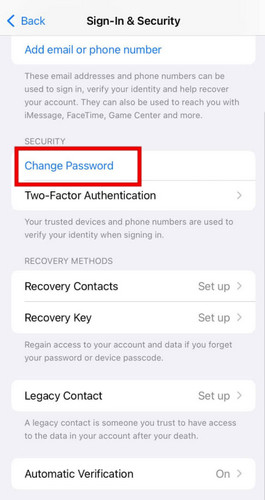
Gdy pojawi się komunikat, wprowadź kod blokady urządzenia.
Create and confirm your new Apple Account password.
Notatka:
If Stolen Device Protection is enabled, Apple may require a security delay before you can change your password or other critical security settings.
Na Macu
You can also reset your Apple Account password from a trusted Mac.
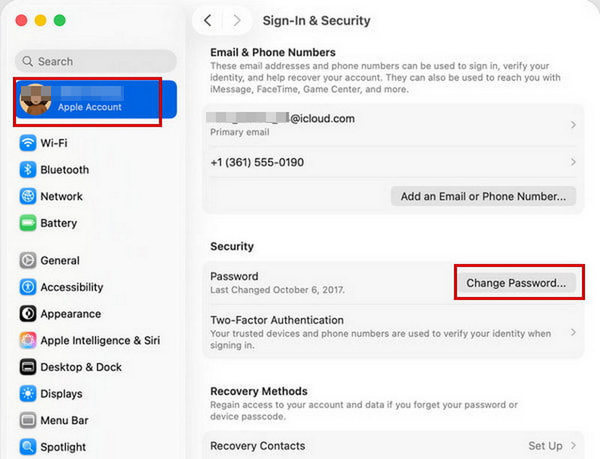
Kliknij Apple menu i wybierz Ustawienia systemowe.
Click your name, then select Logowanie i bezpieczeństwo.
Kliknij Zmień hasło. Enter the password you use to unlock your Mac.
Follow the on-screen instructions and set to a new password.
Part 4: How to Reset Apple ID Password via iForgot Website
If you cannot recover Apple ID password on a trusted device. Don't worry. You can try resetting your password through Apple's iForgot website.
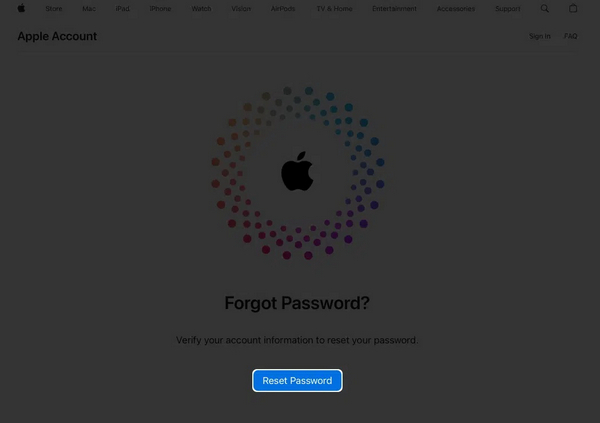
Wejdź na stronę iforgot.apple.com w przeglądarce.
Kliknij Zresetuj hasło przycisk.
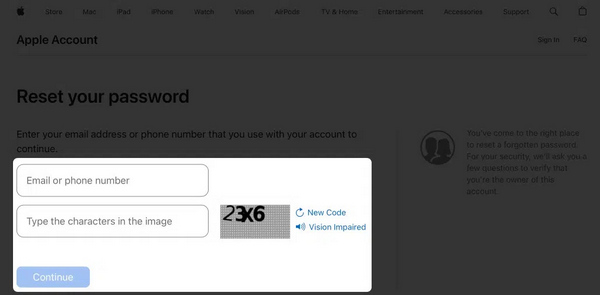
Wprowadź swój adres e-mail lub numer telefonu powiązany z Twoim Apple ID.
Wpisz znaki z obrazka i kliknij Kontynuować.
Następnie wprowadź swój numer telefonu i otrzymaj kod weryfikacyjny.
Następnie wpisz otrzymany kod i potwierdź swoją własność.
Sytuacja 1: Włączone jest uwierzytelnianie dwuskładnikowe
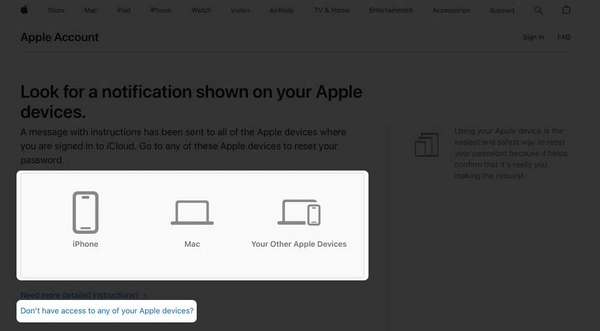
Wybierz zaufane urządzenie.
Przejdź do urządzenia i dotknij lub kliknij Umożliwić w powiadomieniu.
Podaj hasło logowania do urządzenia i ustaw nowe hasło.
Sytuacja 2: Uwierzytelnianie dwuskładnikowe jest wyłączone
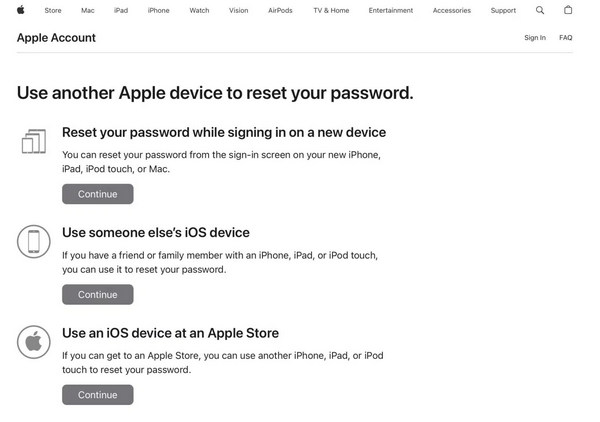
Kliknij Nie masz dostępu do żadnego ze swoich urządzeń Apple.
Następnie znajdź dostępną opcję i kliknij Kontynuować przycisk.
Postępuj zgodnie z instrukcjami wyświetlanymi na ekranie, aby odzyskać zapomniane hasło Apple ID.
Part 5: An Alternative When You Can't Recover Your Apple Account
Those official recovery methods don't work? You still have an alternative way to access your Apple Account! imyPass iPassGo can remove the current Apple Account from your iPhone or iPad without password. Even if you bought a second-hand iPhone locked to the owner, iPassGo can remove the Apple ID directly. Moreover, the user-friendly interface makes it easy to learn and use.

Ponad 4 000 000 pobrań
Remove forgotten Apple ID password on iPhone/iPad.
Delete old, locked or disabled Apple ID account easily.
Obsługa najnowszych wersji iOS i iPadOS.
Oferuj inne funkcje, takie jak Usuwanie MDM i ominięcie ekranu blokady.
Podłącz urządzenie z iOS do komputera
Uruchom oprogramowanie na komputerze, a następnie wybierz tryb Usuń Apple ID tryb z poziomu interfejsu. Użyj kabla USB, aby podłączyć urządzenie do komputera. Po podłączeniu kliknij Zacząć teraz przycisk.
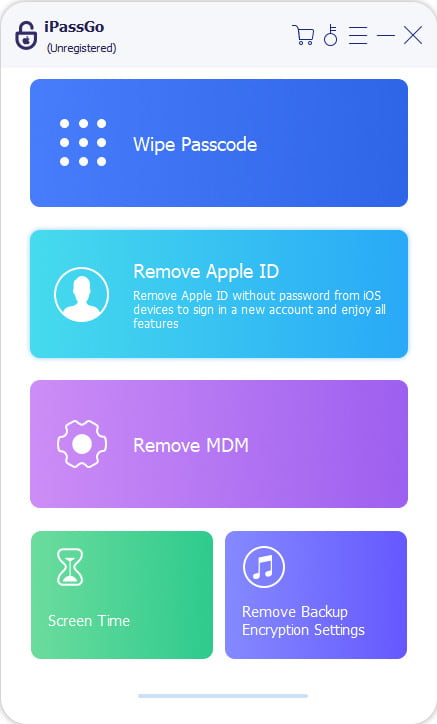
Usuń Apple ID z urządzenia
Jeśli funkcja Znajdź mój iPhone jest wyłączona:
imyPass iPassGo może natychmiast usunąć hasło do Apple ID.
Jeśli funkcja Znajdź mój iPhone jest włączona:
Musisz zresetować wszystkie ustawienia na urządzeniu. Przejdź do Ustawienia > Ogólny > Zresetuj wszystkie ustawienia. Następnie imyPass iPassGo natychmiast rozpocznie usuwanie Apple ID.
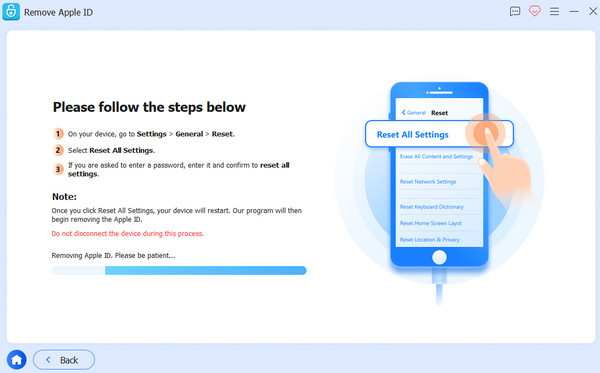
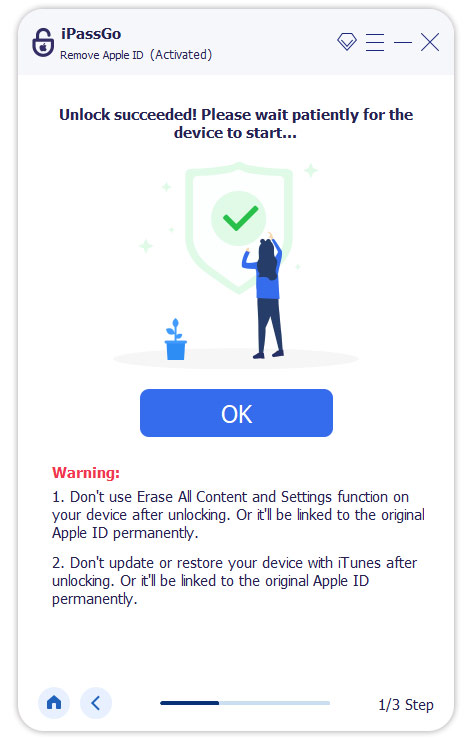
Potwierdź proces odblokowania
Gdy wszystko będzie gotowe, kliknij Potwierdź ponownie, a obecne Apple ID zostanie wkrótce usunięte.
Wniosek
W tym przewodniku wyjaśniono, jak odzyskaj hasło do swojego Apple ID na iPhonie, iPadzie i komputerze Mac. Możesz postępować zgodnie z naszymi instrukcjami, aby odnaleźć zapomniane hasło lub zresetować je, w zależności od sytuacji. imyPass iPassGo to alternatywne rozwiązanie umożliwiające usunięcie starego Apple ID i ustawienie nowego konta oraz hasła.
Samuel specjalizuje się w bezpieczeństwie haseł i prywatności cyfrowej. Kiedyś pracował jako konsultant ds. cyberbezpieczeństwa dla małych firm, pomagając im chronić zasoby cyfrowe. Dzięki certyfikatom z zakresu cyberbezpieczeństwa i etycznego hackingu potrafi przekładać złożone zagadnienia bezpieczeństwa na łatwe do zrozumienia porady. Lubi też dzielić się wskazówkami dotyczącymi haseł, aby pomagać użytkownikom pewniej chronić własne konta.
Gorące rozwiązania
-
Odblokuj iOS
-
Wskazówki dotyczące iOS
-
Odblokuj Androida
-
Wskazówki dotyczące hasła


