



 Solução
 Centro de Apoio
 Sobre nós
 Contato
How to Delete Your Apple ID With or Without Password
 Penny Warren publicado em março 06, 2026Desbloquear iOSLeitura de 3 minutos
While an Apple ID account is essential in the Apple ecosystem, there are scenarios when you have to exclua seu ID Apple. If you are ready to leave the Apple ecosystem, for example, the first step is getting rid of your account. If you stop using the email address, which is also your Apple ID, you have to delete the previous account and create a new one. Our tutorial shares the whole process.

Neste artigo:
Part 1: How to Erase Apple ID Without Password
If you forgot your Apple ID password, it is impossible to erase your account with the common methods. Thankfully, iPassGo enables you to remove Apple ID without a password. Another good news is that the software is straightforward and doesn't require technical skills.

Mais de 4.000.000 de downloads
Erase Apple ID from your iOS device quickly.
Don't require your Apple ID password or iPhone passcode.
Offer bonus features, like Screen Time password bypass.
Won't jailbreak your device.
Support the latest editions of iOS and iPadOS.
How to Erase Apple ID from Your iPhone Without a Password
Conecte-se ao seu iPhone
Launch the Apple ID removal software after you install it on your PC. There is another version for Mac. Plug your iPhone into your PC with a Lightning cable. If prompted, tap Confiar on your screen to trust this PC. Go to the Remover ID Apple modo e clique no botão Começar botão para prosseguir.
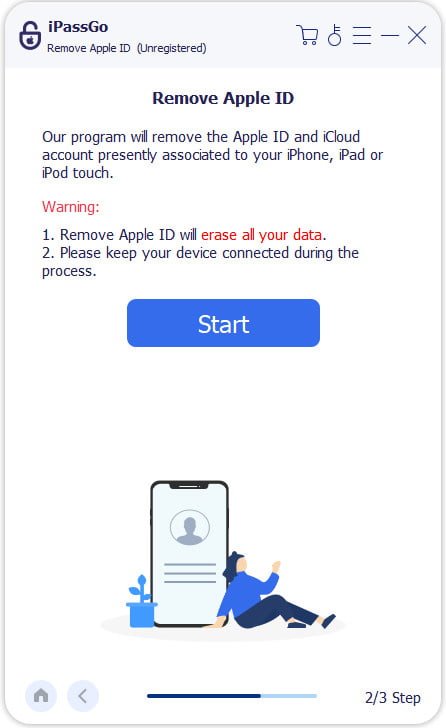
Remover ID Apple
Agora, você enfrentará três situações:
Situation 1: Find My iPhone is disabled
The software automatically erases your Apple ID.
Situation 2: Find My iPhone is enabled on iOS 11.3 or earlier
Vamos para Definições on your iPhone, choose Em geral, tocar Redefinire escolha Redefinir todas as configurações. Once your iPhone restarts, the software will do its job.
Situation 3: Find My iPhone is enabled on iOS 11.4 or later
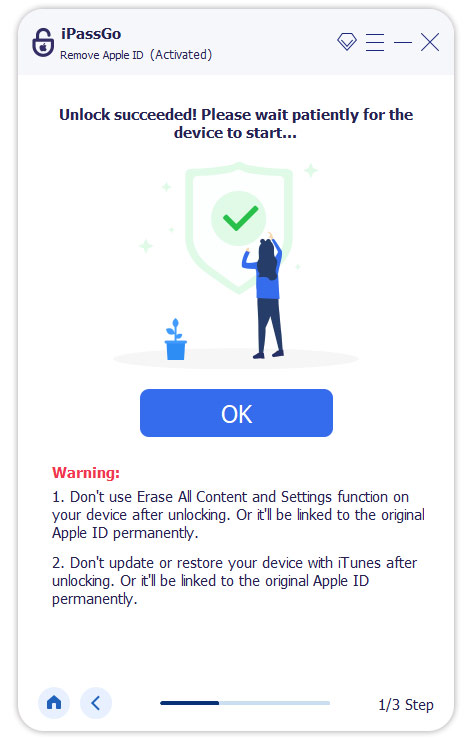
Make sure to turn on Two-factor authentication. Then, enter 0000 in the software and confirm removal. Check your device information, and click Começar para começar a remover seu ID Apple.
Part 2: How to Wipe Apple ID from iPhone/Apple Watch/Mac
If you still remember your Apple ID password, it becomes easy to wipe your Apple ID from your iPhone, Apple Watch, and Mac. The built-in Settings app is the easy option. This method doesn't require extra software or hardware.
How to Delete Apple ID on iPhone
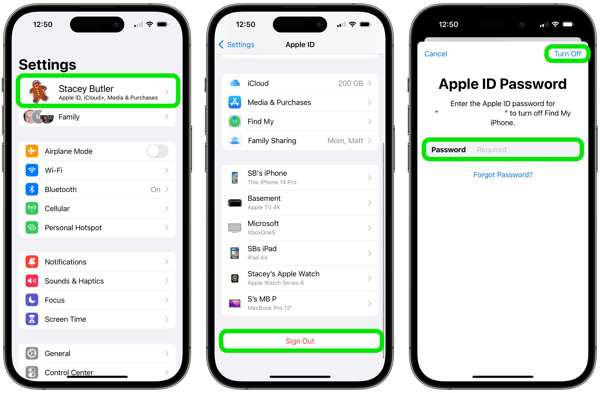
Abra o Definições aplicativo no seu iPhone.
Toque no seu perfil.
Role para baixo e toque no Sair botão na parte inferior.
Se solicitado, digite a senha do seu ID Apple e toque em Desligar.
Next, select the data types you want to keep and tap sair.
How to Delete Apple ID on Apple Watch
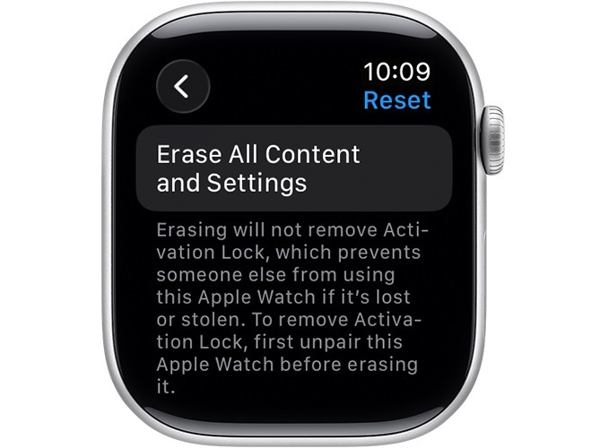
Execute o Definições app on your watch.
Escolher Em geral e toque Redefinir.
Toque Apague todo o conteúdo e configurações.
If prompted, type your password.
Finally, tap Erase All to confirm it.
How to Remove Apple ID on Mac
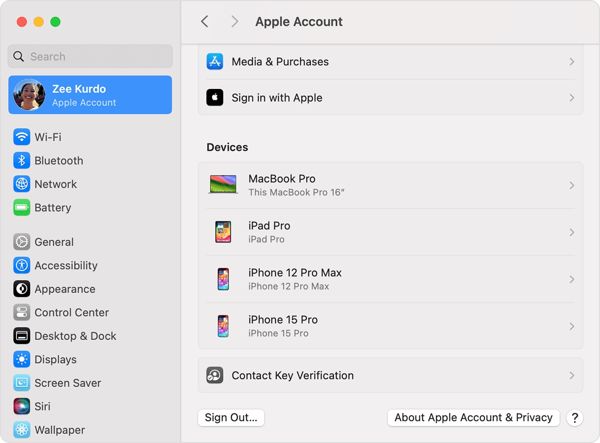
Clique no Maçã cardápio e escolha Configurações de sistema ou Preferências do Sistema.
Clique no Conta Apple opção.
Então, acerte o Sair botão na parte inferior.
If prompted, enter your Apple ID password or Mac login password.
Finally, confirm the removal of the Apple ID from the Mac.
Part 3: How to Remove Apple ID Remotely
Even if your iPhone or Mac is not in your hand, you can remove Apple ID from your device remotely. Moreover, you have multiple options. The prerequisite is that you have turned on Find My on your device or signed in to the account on multiple devices.
How to Erase Apple ID on iCloud
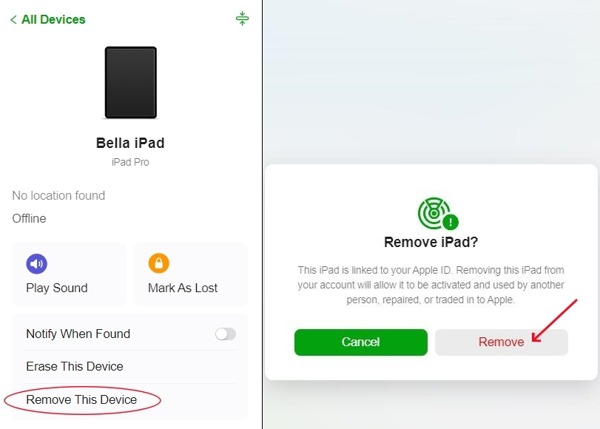
Go to www.icloud.com in a browser, and log in with your Apple ID and password.
Escolher Encontre o meu continuar.
Pick your device from the Todos os dispositivos opção.
Clique no Remover este dispositivo botão.
At last, hit Remover na caixa de diálogo de confirmação.
How to Delete Apple ID in Find My
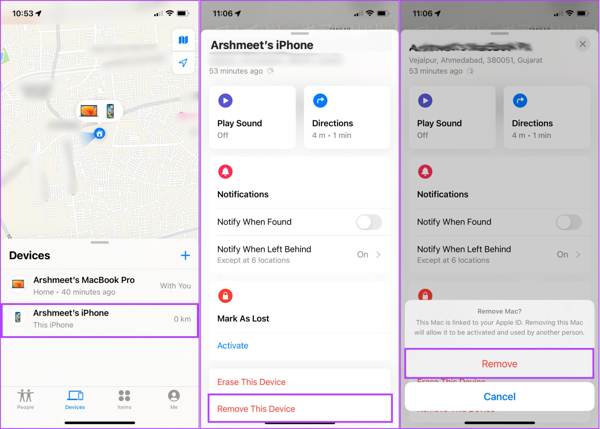
Execute o Encontre o meu app on another Apple device. You can install the app from the Apple App Store for free.
Vou ao Dispositivos tab, and choose your device from the list.
If you cannot find it on the list, click + ao lado de Dispositivos, escolher Adicionar AirTag, and enter your Apple ID credentials.
Tap and expand the bottom toolbar.
Toque Remover este dispositivo e bater Remover em alerta.
How to Delete a Child's Apple ID
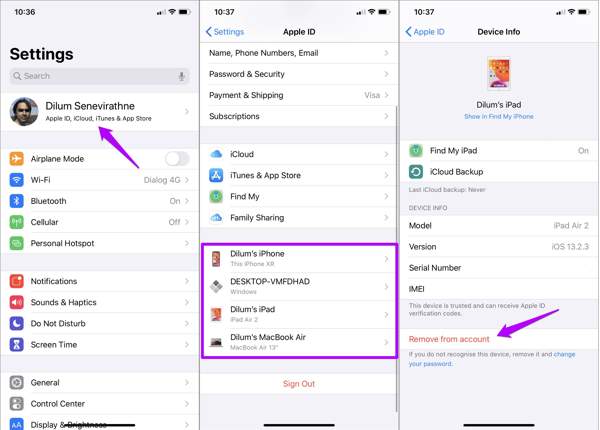
Abra o Definições app on your iPhone or System Settings on Mac.
Tap on your profile or click Conta Apple.
Choose your child's device.
Finally, hit the Remover da conta botão.
Quando solicitado, escolha Remover on the alert message to delete your child's Apple ID.
You May Also Like:
Part 4: How to Delete an Apple ID from Apple
After Apple ID deletion from your device, you also need to request to delete the account on Apple ID online. Once Apple receives your request, it will unlink your email address and phone number. Before continuing, you'd better learn what will happen after deleting your Apple ID.
What Happens When You Delete an Apple ID
- 1.1.Lose access to all Apple services and subscriptions, like App Store, Apple Music, and more.
- 2.2.The photos, videos, documents, and backups stored in iCloud will be permanently deleted.
- 3.3.You will no longer receive iMessages, FaceTime calls, and iCloud mail.
- 4.4.Lose access to iCloud, Apple Pay, Find My, and other services associated with your Apple ID.
- 5.5.You cannot use the email address associated with the previous Apple ID to create a new Apple ID.
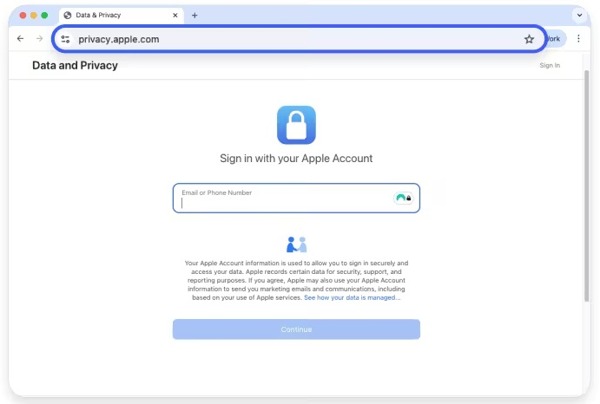
Go to Apple's data and privacy website and sign in with your Apple ID and password.
Role para baixo até Deletar sua conta section, and press the Solicitação para excluir sua conta link.
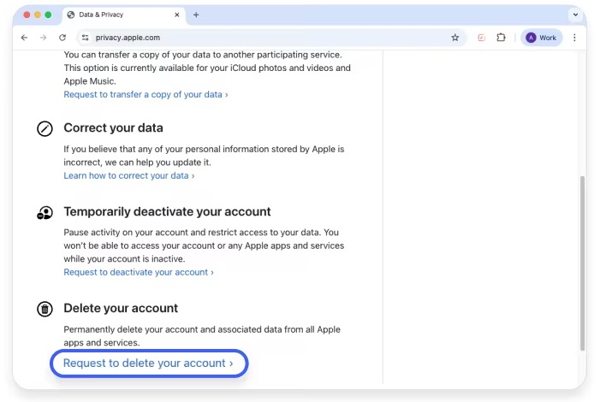
If you just want to temporarily stop using your account, press Request to deactivate your account debaixo Desative temporariamente sua conta.
Puxe para baixo o Select a reason option and select the reason you want to delete your account.
Clique no Continuar botão para seguir em frente.
Browse and read Apple's warning about what will happen once you delete your account.
If you are sure, click the Continuar botão.
Next, read through Apple's account deletion terms and conditions.
Check the box under the terms and conditions, and click Continuar para prosseguir.
Then, select a way how Apple can contact you, and hit Continuar.
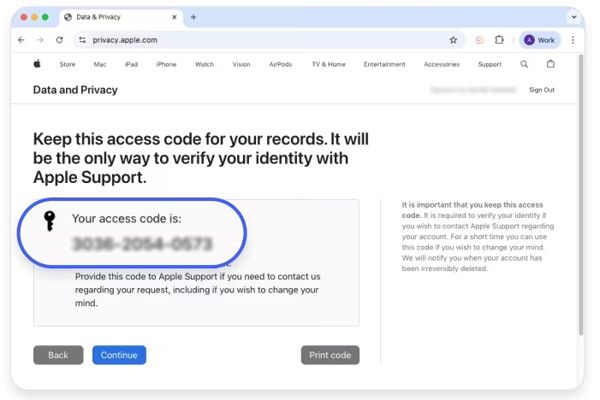
If prompted, save the access code and click Continuar.
Type in the access code and hit Continue.
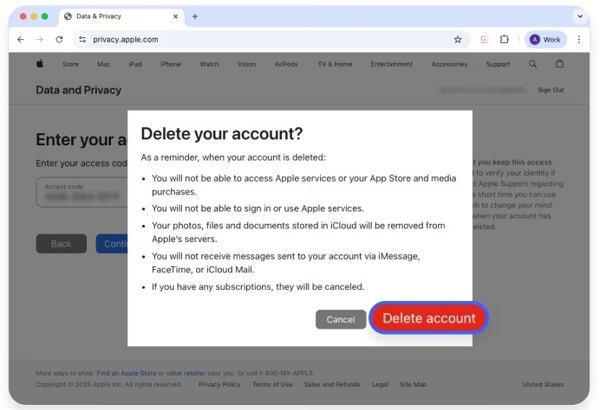
Now, pick Delete account on the confirmation dialog to permanently delete Apple ID.
Conclusão
Agora, você deve entender how to delete your Apple ID from your iPhone, iPad, Apple Watch, and Mac. So that you can permanently get rid of your Apple account and unlink your email address and phone numbers. You can follow our guide to complete the job smoothly. Even if you forgot your Apple ID password, iPassGo can help you remove your old account from your iOS device.
Penny é editora sênior da imyPass. Ela se dedica a descobrir soluções de localização GPS perfeitas para todos os cenários e também tem experiência em consertar computadores.
Soluções quentes
-
Desbloquear iOS
- Revisão dos serviços gratuitos de desbloqueio do iCloud
- Ignore a ativação do iCloud com IMEI
- Remover Mosyle MDM do iPhone e iPad
- Remover support.apple.com/iphone/passcode
- Revisão do Checkra1n iCloud Bypass
- Ignorar a senha da tela de bloqueio do iPhone
- Como fazer o Jailbreak do iPhone
- Desbloquear iPhone sem computador
- Ignorar iPhone bloqueado para proprietário
- Redefinição de fábrica do iPhone sem senha do ID Apple
-
Dicas para iOS
-
Desbloquear Android
- Como saber se o seu telefone está desbloqueado
- Desbloquear tela do telefone Samsung sem senha
- Desbloquear bloqueio de padrão no dispositivo Android
- Revisão de desbloqueios diretos
- Como desbloquear o telefone OnePlus
- Desbloquear OEM e corrigir desbloqueio de OEM esmaecido
- Como desbloquear um telefone Sprint
-
Senha do Windows


