



 Solução
 Centro de Apoio
 Sobre nós
 Contato
How to Unlock Disabled iPhone/iPad Without iTunes [Completed]
 Samuel Spenser publicado em fevereiro 27, 2026Desbloquear iOSLeitura de 3 minutos
When your iPhone or iPad is broken, it is easy to feel frustrated not to be able to use iTunes. This guide explains how to unlock a disabled iPad without iTunes using five safe and reliable methods. With trusted third-party utilities to the official Apple solutions, all methods are thoroughly described to get inaccessible data back within minutes and without significant doubts.

Neste artigo:
Quick Overview of All Methods
The table below summarizes all five methods to unlock a disabled iPhone or iPad. It compares purpose, ease of use, speed, data safety, and device requirements to help you choose the best approach quickly.
| Features/ Methods | imyPass iPassGo | Encontre o meu | Modo de recuperação | Apple Official “Erase Device” | Entre em contato com o suporte da Apple |
| Propósito | Unlock a disabled iPhone or iPad | Erase and unlock the device remotely | Restore device via iTunes | Official “Erase Device” Erase iPad remotely without iTunes | Apple Support Professional assistance |
| Fácil de usar | Mais fácil | Fácil | Fácil | Fácil | Depends on the complexity |
| Velocidade | O mais rápido | Rápido | Rápido | Rápido | Depends |
| Data Safely | High with minimal risk | High with all data erased | Data erased | High with all data erased | Highly guided by Apple |
| Device Requirement | Computer and USB cable | Apple ID enabled and internet access | A computer with iTunes installed and a USB cable | Apple ID enabled with internet access | Proof of ownership, internet, and phone access |
Both techniques have their advantages, which are distinct and applied to different circumstances, devices and choices. Make this comparison to select the method that will most effectively meet your requirements, and then take the specific steps listed below to unlock your iPhone or iPad easily and effectively.
Method 1: Use imyPass iPassGo
imyPass iPassGo is a reliable application that is meant to assist users in restoring access to unproductive devices without compromising on security. It is commonly believed to be fast, easy to use and compatible with other models of iPhone. People who might be interested in knowing how to unlock a disabled iPhone without iTunes, the software is a good choice to use before performing the step-by-step process, because it does not involve the loss of data.
Download imyPass iPassGo from the official website and install it on your computer. Make sure that your system has the minimum software requirements, and also make sure that you have a stable internet connection to download firmware.
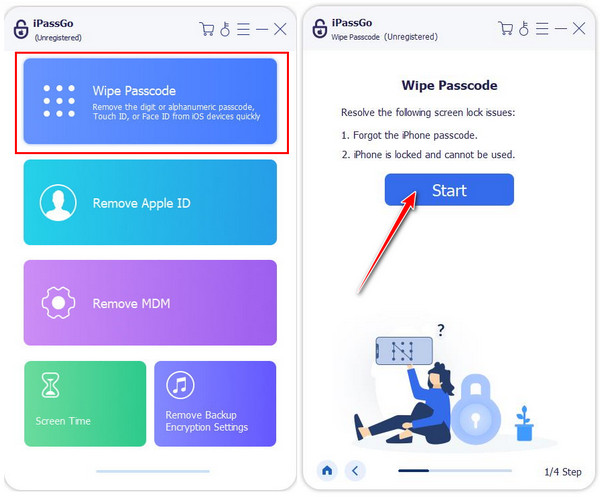
Launch the program and select Limpar senha mode. Connect your disabled iPhone to the computer using a USB cable. Tick the Começar button to initiate the unlocking process. The software will detect your device automatically.
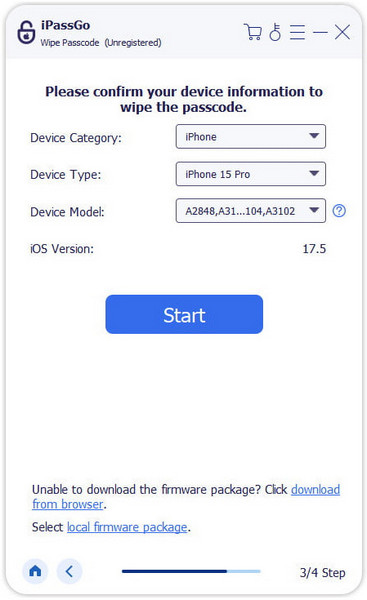
Verify the device info shown on the screen, including model, iOS version, and other details. Click Começar again to download the appropriate firmware package. The download may take a few minutes, depending on your internet speed.
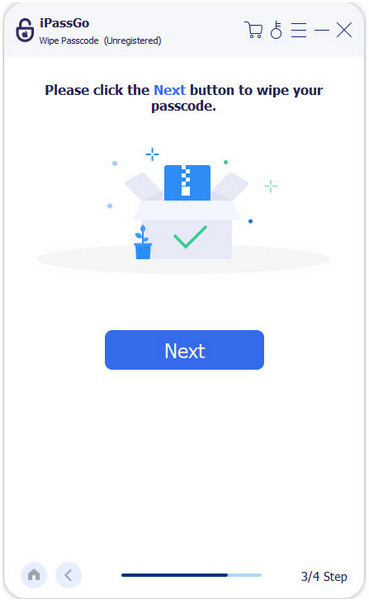
After the firmware package is downloaded, click Desbloquear to continue. When prompted, enter 0000 to confirm your action. This step ensures the program proceeds safely to remove the passcode.
Method 2: Use Find My
If you have enabled Find My iPhone, you can use it to unlock a disabled device remotely or erase data on a iPhone encontrado. While many users look for how to unlock a disabled iPhone with iTunes, Find My offers an alternative that does not require iTunes. It allows you to erase your device safely and restore access, making it a reliable solution for iPhones that are locked due to passcode errors.
Open a web browser on your computer or another device and go to iCloud.com. Sign in using the Apple ID linked to your disabled iPhone.
Clique em Encontrar iPhone e selecione Todos os dispositivos at the top of the screen. Choose the disabled iPhone from the list of devices.
Clique Apagar iPhone. This action will remove all data and settings, including the passcode, effectively unlocking your device.
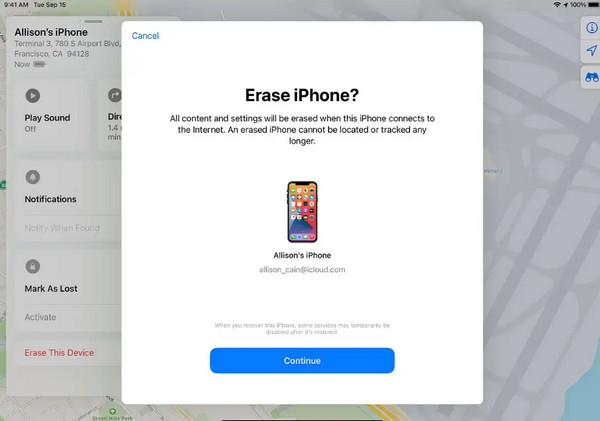
After the erase process is done, you can either set up your iPhone as new or restore it with a previous backup. The disabled screen is no longer necessary as you can now complete access to your iPhone.
Method 3: Use Recovery Mode
Modo de recuperação allows you to save your iPad when it is disabled, even when other ways do not achieve it. To the user who wants to know how to unlock a disabled iPad with iTunes, it is an effective way of doing so because it involves the direct use of iTunes to reboot the operating system and the passcode. It is a secure one, but it will destroy all information on the device.
Use a USB charging cable to attach your iPad to a computer. Ensure that iTunes is installed and is up to date.
Put your iPad into Recovery Mode:
- For iPads with a Home button, press and hold the Lar e Principal ou Lado buttons together until the Recovery Mode screen appears.
- For iPads without a Home button, quickly press the Aumentar o volume button, then the Volume baixo botão e, finalmente, pressione e segure o Principal até que a tela do Modo de Recuperação apareça.
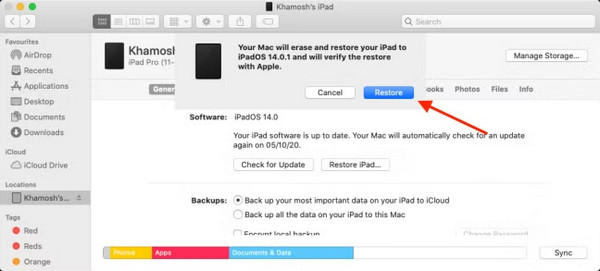
Allow the software to be downloaded by Finder and the restoration to take place. After completing this, configure your iPad either as a new one or you restoring an old backup to get back into it. Also, you can do the same steps on your iPhone after you put your iPhone em Modo de Recuperação.
Method 4: Use Apple's Official "Erase Device"
If you want to regain access to a disabled iPad without using iTunes, Apple’s official Erase Device feature is a secure option. On the one hand, you can easily delete your iPad remotely and remove the passcode with the help of iCloud. For users searching for how to unlock a disabled iPad without iTunes, this is a reliable and safe approach backed directly by Apple.
Use another device with a web browser and log in to iCloud.com using the Apple ID associated with the disabled iPad.
Clique Encontrar iPhone e selecione Todos os dispositivos from the top menu. Choose your disabled iPad from the list.
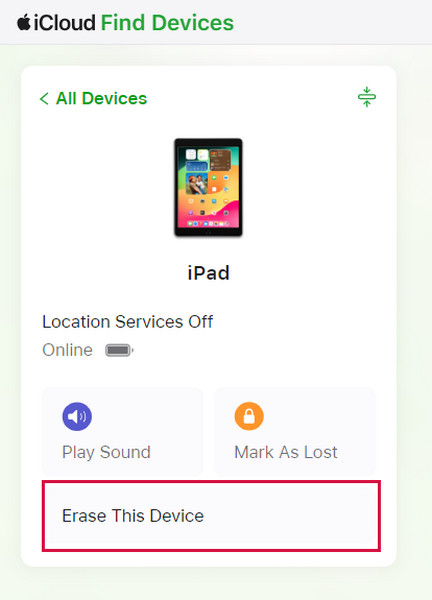
Clique Apagar iPad and confirm your action. This will remove all data and configurations, such as the passcode, and unlock your gadget in effect.
Method 5: Contact Apple Support
When all other means are exhausted, or you just want to call on a professional, another sure way of restoring access to a dead iPhone is to call Apple Support. To the users who want to know how to unlock a disabled iPhone without iTunes, Apple can offer directions, authenticate ownership and provide official solutions. This keeps your device unlocked without any threat of data loss or third-party utilization. Account recovery or device activation is another problem that can be assisted by Apple Support.
Conclusão
Understanding your options makes unlocking easier. If your goal is how to unlock a disabled iPhone with iTunes, using Recovery Mode will remove the passcode safely, while other tools and Apple features offer convenient alternatives.
Samuel é editor sênior da imyPass. Ele é especialista em desbloqueio de senhas e tem mais de cinco anos de experiência escrevendo tutoriais sobre desbloqueio de celulares.
Soluções quentes
-
Desbloquear iOS
- Revisão dos serviços gratuitos de desbloqueio do iCloud
- Ignore a ativação do iCloud com IMEI
- Remover Mosyle MDM do iPhone e iPad
- Remover support.apple.com/iphone/passcode
- Revisão do Checkra1n iCloud Bypass
- Ignorar a senha da tela de bloqueio do iPhone
- Como fazer o Jailbreak do iPhone
- Desbloquear iPhone sem computador
- Ignorar iPhone bloqueado para proprietário
- Redefinição de fábrica do iPhone sem senha do ID Apple
-
Dicas para iOS
-
Desbloquear Android
- Como saber se o seu telefone está desbloqueado
- Desbloquear tela do telefone Samsung sem senha
- Desbloquear bloqueio de padrão no dispositivo Android
- Revisão de desbloqueios diretos
- Como desbloquear o telefone OnePlus
- Desbloquear OEM e corrigir desbloqueio de OEM esmaecido
- Como desbloquear um telefone Sprint
-
Senha do Windows


