



 Solução
 Centro de Apoio
 Sobre nós
 Contato
Faking Find My iPhone Location: What Works & Risks Explained
 Penny Warren publicado em fevereiro 27, 2026Localização GPSLeitura de 3 minutos
Apple built Find My as a security tool, not a convenience feature. Location data comes from hardware sensors, encrypted verification, and a shared device network. This design makes casual manipulation unreliable and often impossible. Anyone researching faking Find My iPhone location needs to understand these constraints before testing tools or apps.

Neste artigo:
Part 1. Why Find My is Hard to Spoof
Find My uses multiple layers of technology to locate your device. GPS, Wi-Fi, cell towers, and hardware checks all work together, making it hard to trick. Understanding this is important before trying to fake a location on Find My iPhone. This section explains the main systems and why Apple built them to resist spoofing.
1. Hardware Integration:
Apple does not have one signal that puts a device on the map. GPS satellites, local cell towers, familiar Wi Fi networks, and hardware-level verifications within the Secure Enclave are combined to provide location information. This is the reason why there are so many guides on how to fake location on Find My iPhone, which disregard its hardware layer, which authenticates movement and position.
2. Find My Network:
Find My is also compatible with an offline device. It relies on encrypted Bluetooth signals picked up by the nearby Apple devices that, in turn, transmit the location information to Apple servers. The verification of each report is performed with the help of several sources, not just one phone. This decentralized paradigm is the reason why individuals inquire: Can you fake your location on Find My iPhone? But fail to accomplish it in a real-world situation where there are other devices that verify presence.
3. Purpose:
Find My is not created to share casual location information but to avoid losses and theft. Apple made it resistant to tampering using software only. Each of the updates strengthens this objective by increasing checks and restricted access to the systems. Because of this intent, attempts to spoof iPhone location Find My face structural limits that most apps and settings cannot bypass.
Part 2. Methods That Usually Do NOT Work (And Why)
Many popular tricks fail because Find My relies on real signals, not just apps or settings. This section explains why these methods fail and why they cannot reliably move your device on the map.
1. VPNs
A VPN only changes the apparent IP address of an internet connection, making it a believable option to GPS falso. Find My is not based on IP-based location to position a device on the map. It employs the physical indicators such as GPS, local networks and hardware information of devices. This separation results in faking Find My iPhone location using VPN being ineffective, as the system does not use network routing to determine the real-world location.
2. Location Spoofer Apps in App Store
Apps available in the App Store operate inside strict sandbox limits. They cannot access system-level location services or override hardware inputs. Most only affect the location inside specific apps that allow mock data. This is why advice on how to fake location on Find My iPhone using store apps leads to confusion, as Find My pulls verified data outside its control.
3. Changing Your Apple ID Region/Address
Apple ID region settings affect content availability, not device movement. Find My does not reference the account address or country preferences when reporting location. It only reflects where the device is physically detected. That is why people ask if you can fake your location on Find My iPhone through account changes, yet see no change on the map.
Part 3. Methods That May Work
Some tools and techniques can change the location in controlled ways. This section explains how these methods function and what to expect when attempting them.
1. imyPass iLocaGo
Some desktop-based tools work by injecting simulated GPS data directly into the device through a wired connection. imyPass iLocaGo does not depend on App Store permissions, and can interfere with system-level location services temporarily. Although this does not always work, depending on which version of iOS a person is using, it is possible to fake Find My iPhone location as long as the phone trusts the computer and is connected to it when using it.
Download and install the iLocaGo on your preferred operating system, follow the installation process of the package, and launch it afterwards.
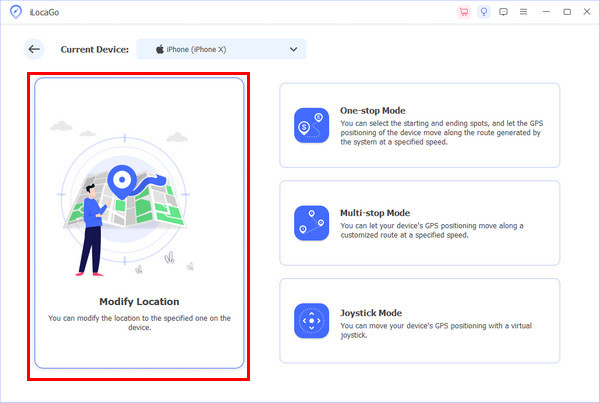
With the help of the charging cable, connect the other end to the iPhone, and the other one to the computer. After that, click the Modificar localização from the mode that appears.
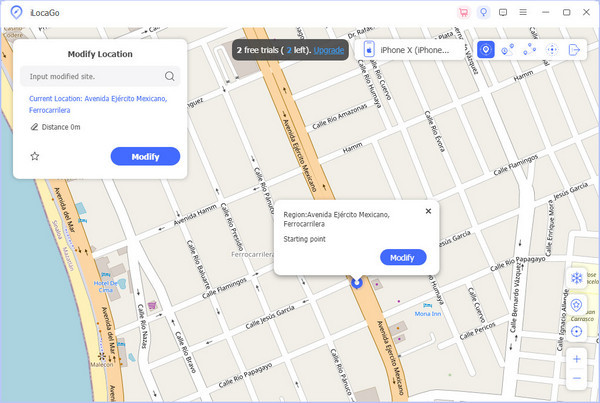
Wait for the loading to finish until the map appears, and find the location where you want to appear, then click Sincronizar com o dispositivo.
2. Using a Burner iPhone
A burner iPhone is a secondary device signed into the same Apple ID. Find My is used to locate the location of the individual devices, not the account. Users are able to manage which device appears on the map by leaving the primary phone and taking the secondary one. This solution provides responses to the question of how to fake location on Find My iPhone without making any changes to system software, though it involves the management of two devices.
3. Using Xcode (For Developers)
Xcódigo allows developers to simulate device location during testing. When an iPhone is connected to a Mac and set as a development device, Find My may reflect the simulated coordinates. This only works while the device remains tethered and trusted. For those asking, can you fake your location on Find My iPhone in a controlled environment? This method can work, but it is not practical for daily use.
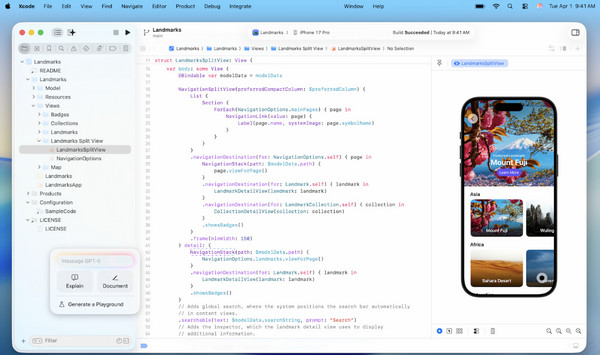
Instalar Xcódigo > Open Xcode and complete setup > Connect iPhone via USB > Unlock iPhone and tap Trust This Computer.
Xcode Settings > Contas > Sign in with Apple ID.
Create New Project > iOS App > Any name and settings > Create.
Select iPhone from device list > Run app once > Habilitar modo de desenvolvedor on iPhone if prompted > Depurar > Simular Localização > Choose preset location or Custom GPX > Check Find My on another device to see simulated location.
4. Jailbreaking (Not Recommended)
Desbloqueio do iPhone removes Apple restrictions and grants deep system access, including location services. With the right tweaks, it is possible to override GPS data at the framework level. This can spoof iPhone Location Find My more consistently than other methods. However, it breaks security protections, risks data loss, and can turn off Find My entirely through system instability.
Conclusão
Find My is designed to display the actual position of your iPhone, the GPS, Wi-Fi, and any other signals. The tricks, such as VPNs, apps, and switching your Apple ID, are not the most successful. Location may only be altered by some means, such as employing a secondary device, Xcode, or desktop tools. For anyone asking, can you fake your location on Find My iPhone? Only under controlled conditions can it be possible, but it is always subject to limits and risks.
Penny é editora sênior da imyPass. Ela se dedica a descobrir soluções de localização GPS perfeitas para todos os cenários e também tem experiência em consertar computadores.
Soluções quentes
-
Localização GPS
- Melhores locais de Pokémon Go com coordenadas
- Desligue sua localização no Life360
- Como alterar a localização no iPhone
- Análise do iSpoofer Pokémon Go
- Defina locais virtuais no iPhone e Android
- TikTok rastreie sua localização
- Monster Hunter Agora Joystick
- Revisão do localizador de localização de IP
- Alterar localização do Mobile Legends
- Alterar localização no Tiktok
-
Desbloquear iOS
-
Dicas para iOS
-
Desbloquear Android


