



 Solução
 Centro de Apoio
 Sobre nós
 Contato
How to Fix Location Not Updating on Your iPhone/iPad
 Penny Warren publicado em junho 02, 2026Localização GPSLeitura de 3 minutos
"When using the Find My feature to track my daughter on my iPhone, I only get an old location, and it doesn't update. Does anyone have an idea what is happening?"Sharing location is an essential feature on iOS devices. Since iOS 13 and iPadOS 13 or later, Apple has combined Find My iPhone/iPad and Find My Friends into a single feature, Find My, for tracking location. This article shares how to fix iPhone location not updating.

Neste artigo:
Part 1. Why Is iPhone Location Not Updating
When the location is not updating on the iPhone, all apps that need your precise location won't work. Before walking through the solutions, let's discuss the main causes why Find My is not updating location:
- 1.Your iPhone gets stuck.
- 2.You turned off Location Services accidentally.
- 3.Precise Location is disabled for some apps.
- 4.Your device enters the Low Power mode.
- 5.Location access is restricted.
- 6.Incorrect date and time settings.
- 7.Software glitches.
Part 2. How to Fix iPhone Location Not Updating
Solução 1: Reinicie o seu iPhone
Find My not updating location on your iPhone may be due to your device getting stuck. While restarting the iPhone is a simple solution, it can resolve a variety of basic glitches, including fixing a stuck device.
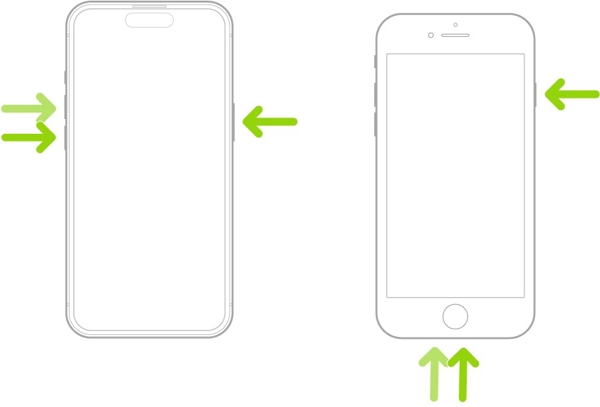
For an iPhone with Face ID, hold down either Volume botão + Lado button. For an iPhone without ID de rosto, hold down the Side/Power botão.
Release the buttons or button when the power-off aparece a tela.
Mova o controle deslizante para desligar o dispositivo.
A few minutes later, press and hold the Lado ou Poder botão até ver o logotipo da Apple.
Check if your location is updating.
Solution 2: Turn on Location Services
Location Services determines location sharing on an iPhone. If you accidentally turn it off, Location Services won't work. The solution is simple: turn on Location Services. If it has been enabled, you can re-enable it.
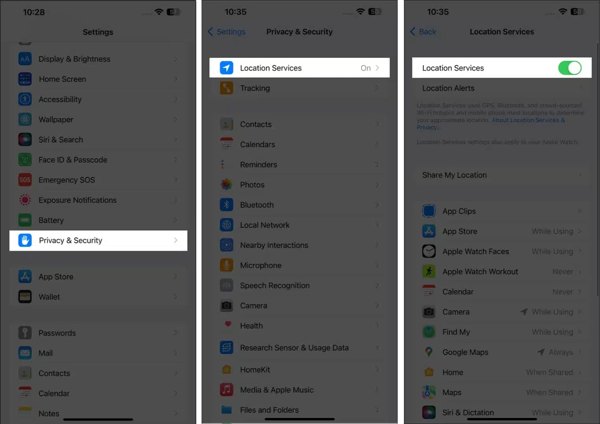
Execute o Definições aplicativo.
Vamos para privacidade e segurança e Serviços de localização.
Ativar/desativar Serviços de localização.
Run a location-based app to check if your location is updating.
Solution 3: Enable Precise Location
While Location Services enables you to share your location on iPhone, it cannot generate accurate locations. If your apps require precise location information, but precise location is disabled, Find My location will not work.
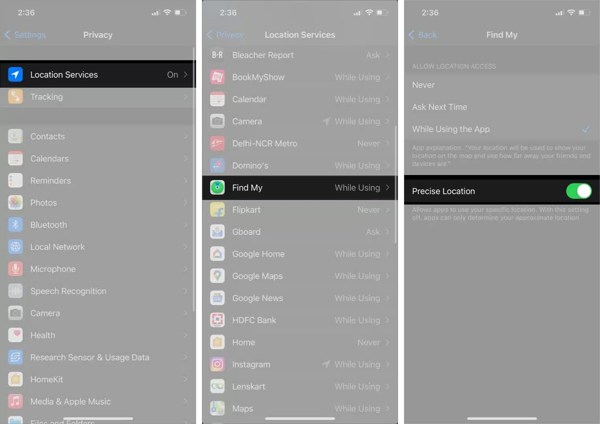
Vou ao Definições aplicativo no seu iPhone.
Escolher privacidade e segurança, e selecione Serviços de localização.
Select the desired app on the list.
Ative o Localização precisa opção.
Solução 4: Data e hora corretas
Incorrect date and time settings can interrupt GPS and location sharing on your iPhone. Fortunately, it is simple to correct the date and time to fix iPhone Location Services not working quickly.
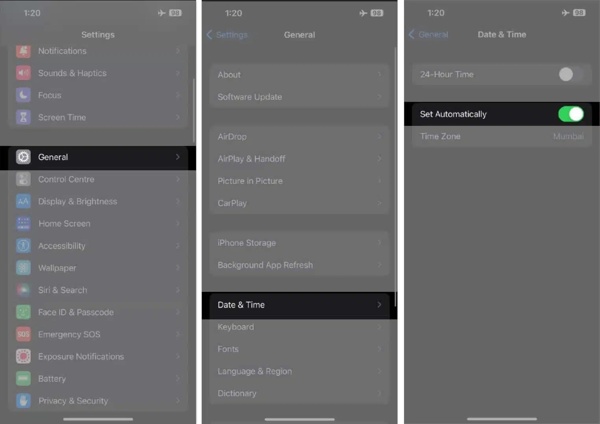
Execute seu Definições aplicativo.
Dirigir a Em geral e Data hora.
Ativar/desativar Definir automaticamente.
Certifique-se de conectar seu iPhone a uma conexão de internet estável.
Then, iOS will automatically correct the date and time settings.
Solution 5: Allow Location Sharing
If you set up Screen Time and your iPhone Location Services are not working, chances are that this feature is restricted. Therefore, you should allow Location Services to enable you to share your location on your iPhone.
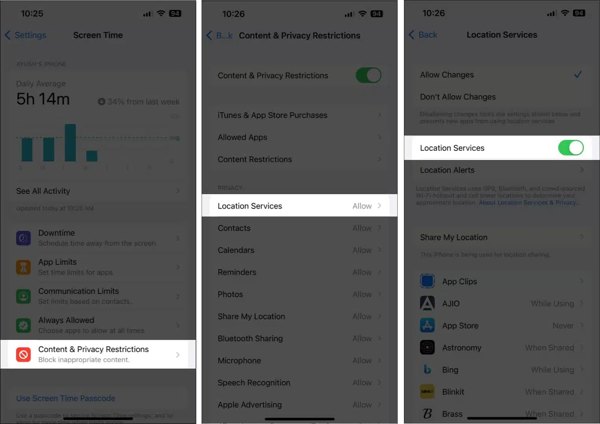
Execute seu Definições aplicativo.
Escolher Tempo de tela e toque Restrições de conteúdo e privacidade.
Enter your Screen Time passcode if prompted.
Escolher Serviços de localização e ligue Serviços de localização.
Solution 6: Disable Low Power and Low Data Modes
When you turn on Low Data mode, GPS will be interrupted in an environment covered by an unstable internet connection. The Low Power mode works similar when your iPhone battery is low.
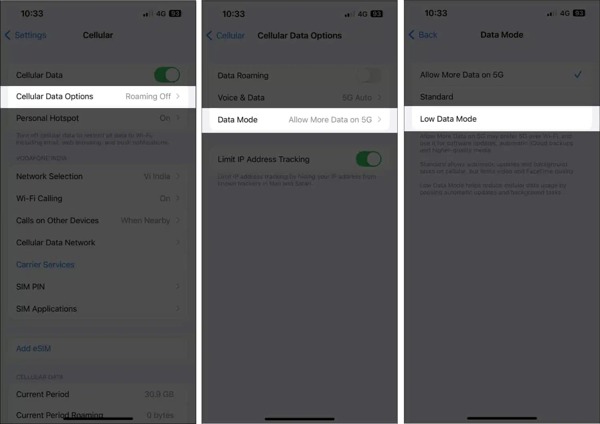
Escolher Celular no Definições aplicativo.
Toque Opções de dados celulares.
Toque Modo de dados and deselect Modo de dados baixos.
De volta ao Definições tela.
Escolher Bateria e desligue Modo de baixo consumo.
Part 3. Bonus Tip: How to Fake Your iPhone Location
If you want to stop sharing your location and protect your privacy, imyPass iLocaGo is a good solution. It is able to spoof your iPhone's geolocation to any region around the world. The user-friendly design makes it easy to use for beginners.

Mais de 4.000.000 de downloads
Fake GPS locations on your iPhone in 3 steps.
Create virtual tools for AR games and other apps.
Ofereça vários modos para diferentes propósitos.
Protect privacy when others try to track your iPhone location.
Work for a wide range of iPhone, iPad, and Android devices.
How to Fake GPS Location on Your iPhone
Conecte-se ao seu iPhone
Download and install the powerful location spoofing software on your PC. There is another version for Mac. Then, launch it from your desktop. Connect your iPhone to your PC with a Lightning cable. If prompted, tap Confiar na tela para confiar neste PC.

Escolha um modo
The software provides four modes:
Modificar localização is used to change the location of your iPhone.
Modo de parada única is used to make a virtual route with two stops.
Modo de parada múltipla is used to create a virtual route with multiple stops.
Modo joystick is used to generate a virtual route with your keyboard or mouse.
Here, we choose Modificar localização.

Share a fake location
Enter an accurate address into the field or click the right position on the map. Finally, click on the Modificar botão para confirmar.

Conclusão
This article explained how to fix the location not updating on your iPhone or iPad. You can learn the main causes leading to the error. More importantly, you can follow our solutions one by one to fix this problem quickly so that you can share your location and access location-based apps as usual. imyPass iLocaGo is a simple way to hide your GPS location on your iOS device without technical skills.
Penny focuses on GPS troubleshooting and Windows optimization. She formerly worked as a technical support engineer, helping clients solve location-based and system issues efficiently. Backed by IT support experience, she provides practical solutions that really work. In her free time, she likes hiking and geocaching, testing GPS tech in the real world.
Soluções quentes
-
Localização GPS
-
Desbloquear iOS
-
Dicas para iOS
-
Desbloquear Android


